Collecting payments and managing address details in EveryCatch forms and surveys is now smarter and smoother for you and your customers.
EveryCatch now supports automatic taxes in forms and surveys, along with improved shipping and billing address options so you can create a more complete, native-style order form experience.
From automatically calculating taxes based on customer addresses, to collecting separate billing details and streamlining checkout, you can now build stronger order forms with less manual work.
What changed
1. Automatic taxes to handle the calculations for you
Until now, you could not use automatic tax calculation directly inside EveryCatch forms and surveys.
That has now changed.
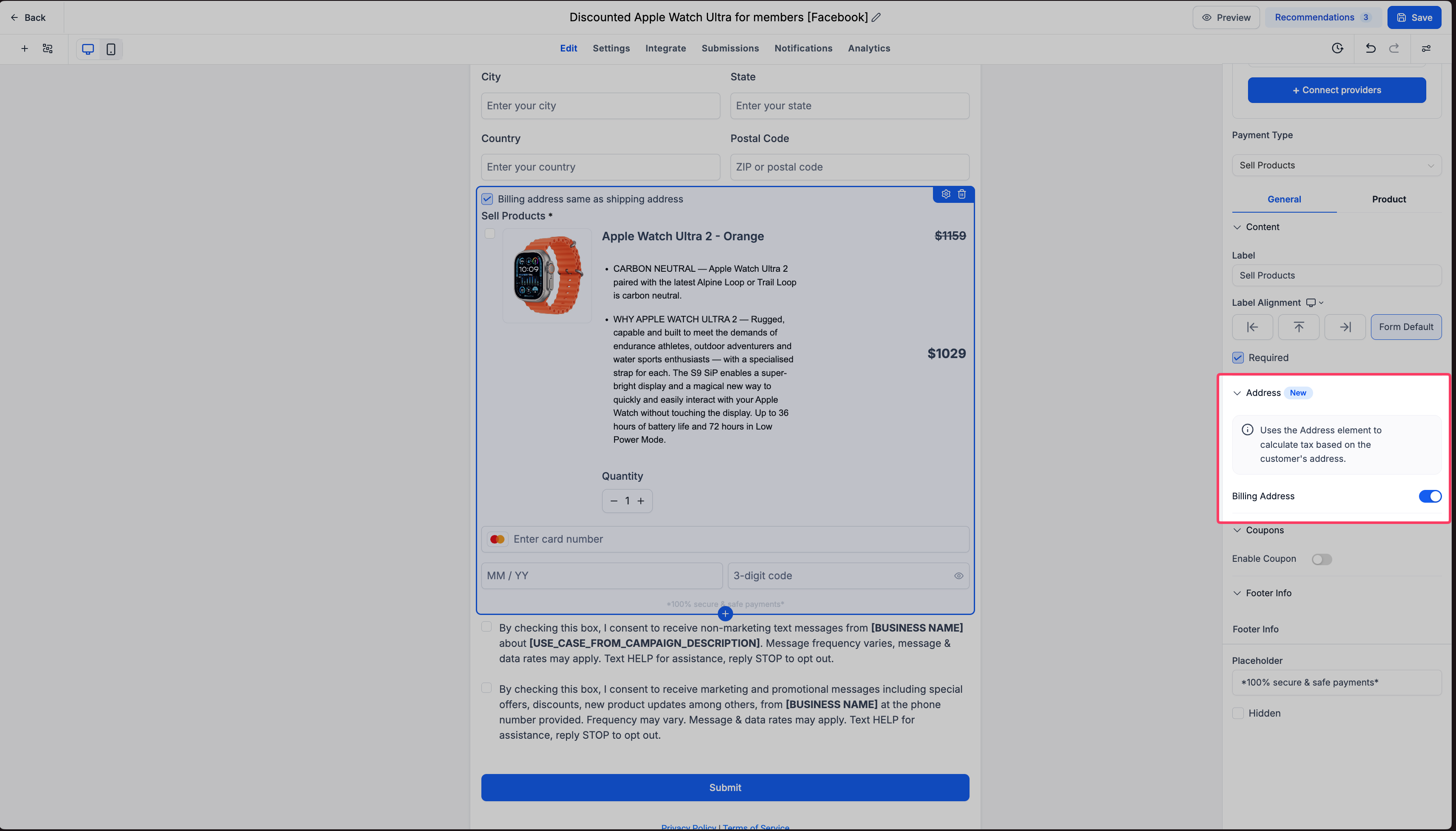
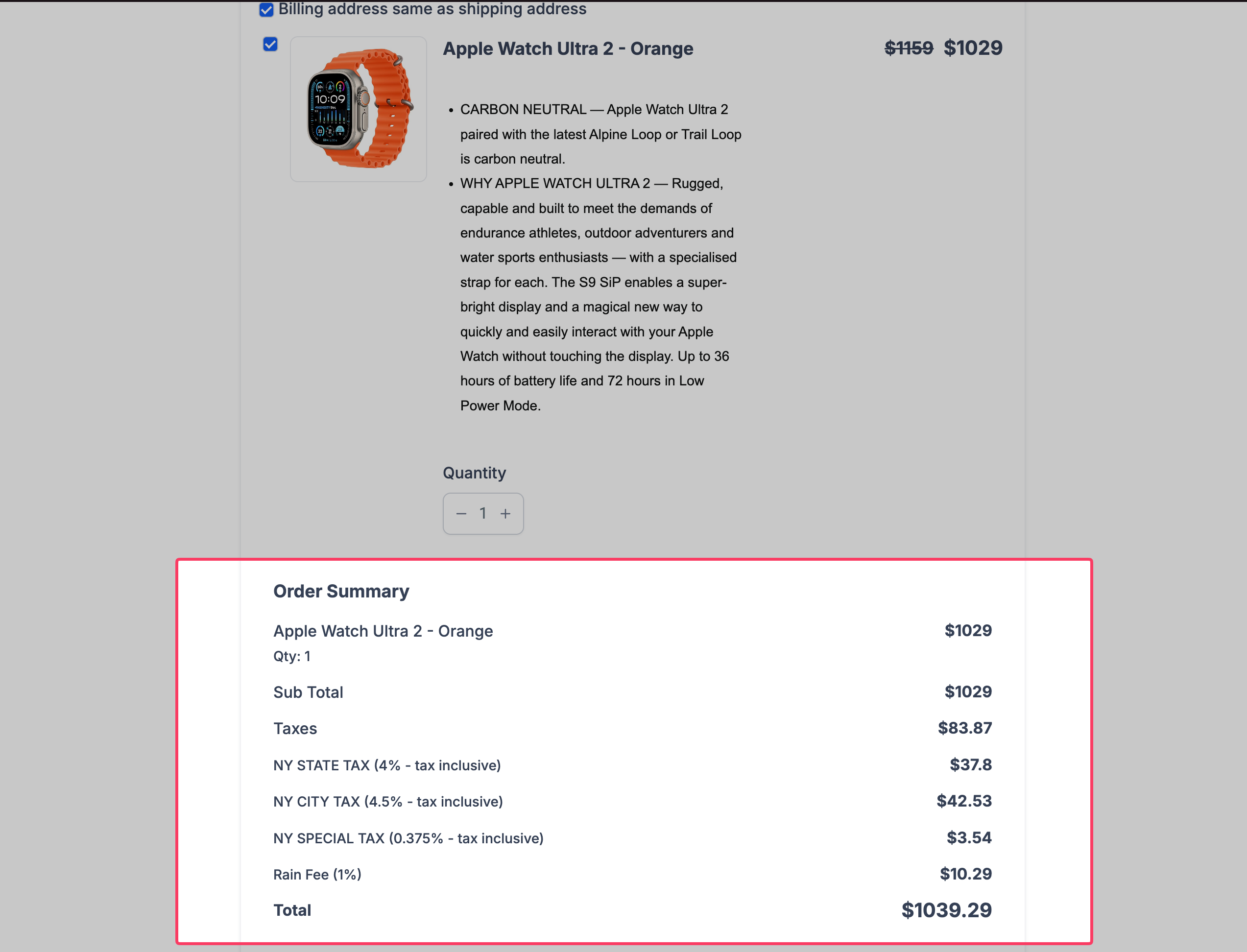
With automatic taxes enabled, you can use the Address element to calculate the right taxes automatically based on the address details your customers enter.
Here is what is new
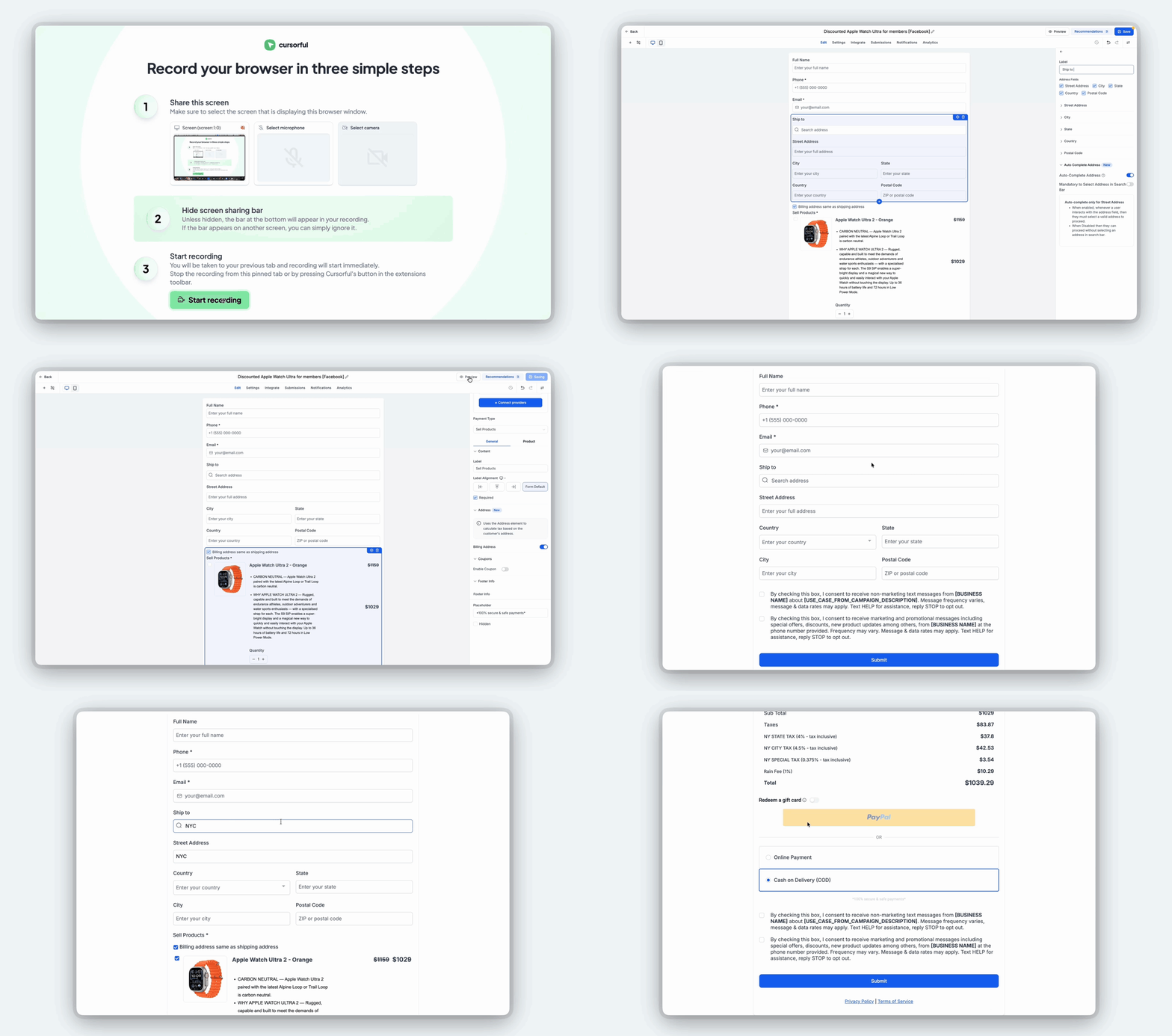
- Automatic tax calculation: Taxes can now be calculated automatically using the customer's address details.
- Address-based taxes: The Address element is the source of address information used for automatic tax calculations.
- Simplified order forms: Build payment collection flows with automatic tax calculation included, so you do not have to manage tax values manually.
You no longer have to rely only on manually configured tax amounts when you collect payments through EveryCatch forms and surveys.
2. Customizable address labels so you can name fields clearly
Because automatic taxes depend on the Address element, you may want to make the purpose of that field very clear for your customers.
For example, when you are collecting delivery details, calling the field "Shipping address" is clearer than a generic "Address" label.
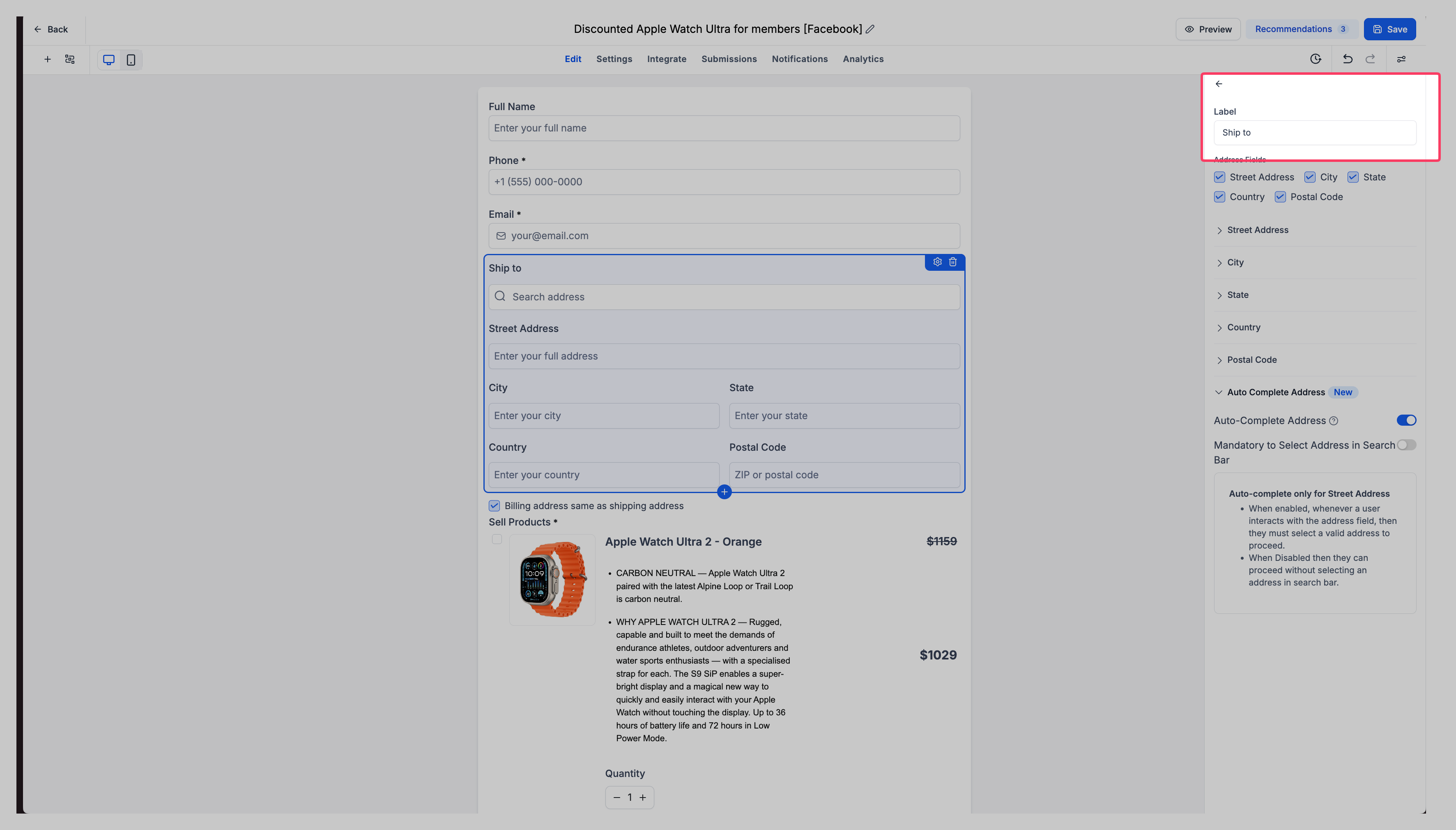
EveryCatch now lets you customize the label of the Address element to match your use case.
What changed
- Editable address labels: You can now rename the Address element to anything that better fits your flow.
- Shipping address support: Clearly label the Address element as "Shipping address" when you are collecting delivery information.
- Clearer form experiences: Give customers better context so they understand exactly which address they should enter.
This is a small update that significantly improves how intuitive your order forms feel for customers.
3. Billing address so you can collect shipping and billing separately
Customer billing details often differ from their shipping details. To support this, EveryCatch now includes a Billing address toggle inside the Sell products element.
Here is how it works
- Enable billing address: You can turn on billing address collection directly from the Sell products element.
- Shipping address dependency: The billing address option is only available when the shipping address is enabled.
- Consistent address fields: The billing address automatically uses the same address fields that you configured in the Address element.
For example
If your Address element is set up to collect Street address, City, State, Postal code, and Country, then the Billing address section will collect those same fields.
This gives you a consistent address collection experience without setting up the same configuration twice.
4. Same as shipping address for a smoother checkout
Re-entering the same address details twice is frustrating for customers and slows down checkout.
To help with this, EveryCatch now includes a "Same as shipping address" checkbox for customers filling out your forms and surveys.
Here is what this enables
- Same as shipping address: Customers can confirm that their billing address is the same as their shipping address with a single click.
- Less repetitive data entry: Customers avoid typing identical address details twice.
- Native order form experience: Provide a familiar e‑commerce style checkout flow directly inside EveryCatch forms and surveys.
This simple option makes payment collection faster, clearer, and easier for your customers.
How it works
- Open your builder: Go to the form or survey that includes the Sell products element.
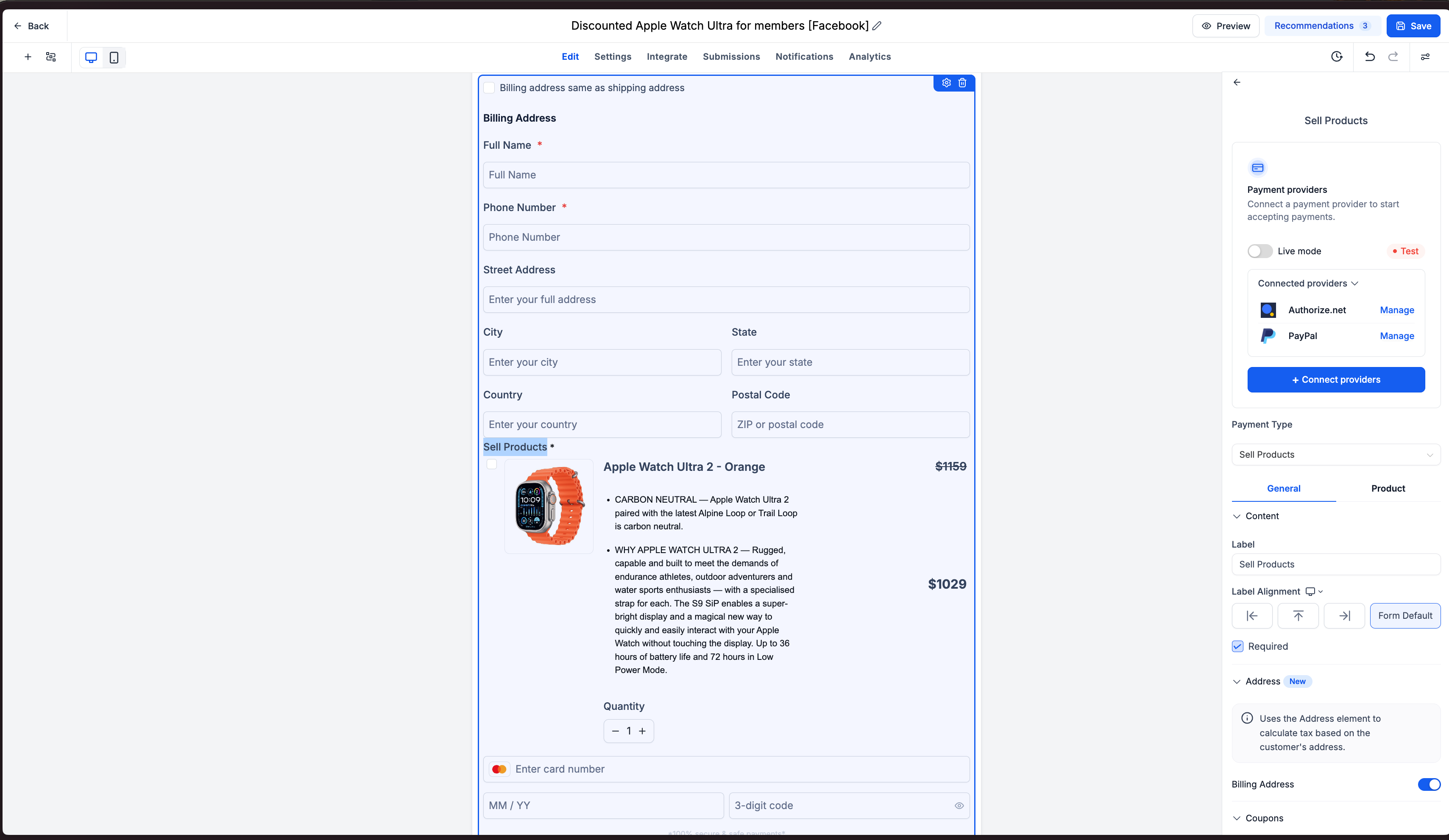
- Configure the Address element: Add or edit the Address element to collect the address details you need.
- Customize the label: Rename the Address element to something like "Shipping address" or any label that fits your flow.
- Enable automatic taxes: Turn on automatic taxes so EveryCatch can use the customer address to calculate tax amounts.
- Enable billing address: Use the new Billing address toggle inside the Sell products element. Make sure the shipping address option is enabled first.
- Collect address details: The billing address section will automatically use the same address field configuration as your Address element.
- Simplify checkout: Customers can choose "Same as shipping address" if their billing and shipping details are identical.
Key highlights
- Automatic tax calculations: Calculate applicable taxes using customer address details in EveryCatch forms and surveys.
- Address-based tax support: Use the Address element as the source for automatic tax calculations.
- Customizable address labels: Rename the Address element to clearly match its purpose, such as shipping or service location.
- Billing address collection: Collect separate billing details directly through the Sell products element.
- Consistent address configuration: Billing address fields always mirror the Address element's configuration.
- Same as shipping address: Let customers confirm matching addresses so they do not have to type information twice.
- Improved order form experience: Build complete and intuitive payment flows directly inside EveryCatch forms and surveys.
Notes
- Availability: Automatic taxes and the enhanced address collection experience are available in EveryCatch forms and surveys.
- Automatic taxes: Tax calculations use the address information collected through the Address element.
- Address labels: The Address element label can be customized to match your use case.
- Billing address: Can be enabled from within the Sell products element.
- Dependency: The billing address option only becomes available when the shipping address is enabled.
- Field configuration: The billing address uses the same set of address fields that you configured in the Address element.
- Same as shipping: Customers can use the new checkbox to indicate that their billing address matches their shipping address.
Why this matters
EveryCatch forms and surveys are increasingly used to collect payments, sell products, and support full ordering workflows.
Creating a smooth checkout flow requires accurate tax calculation, the right address fields, and as little friction as possible for your customers, alongside the payment collection itself.
This release brings those capabilities together in one place inside EveryCatch.
By introducing automatic taxes and richer address options, EveryCatch helps you build complete order forms without complex workarounds or extra configuration.



