You can now add native chat widgets to your AI Studio apps - built and styled by AI Studio to match your site, instead of a generic chat bubble. Just ask AI Studio to "add a live chat", and it builds a real EveryCatch chat widget into your app.
Chat widgets in AI Studio run on EveryCatch's chat widget, so the conversations, contacts and widget settings are the ones you already use in your EveryCatch account. There's nothing extra to set up.
What changed
AI studio adds the chat for you
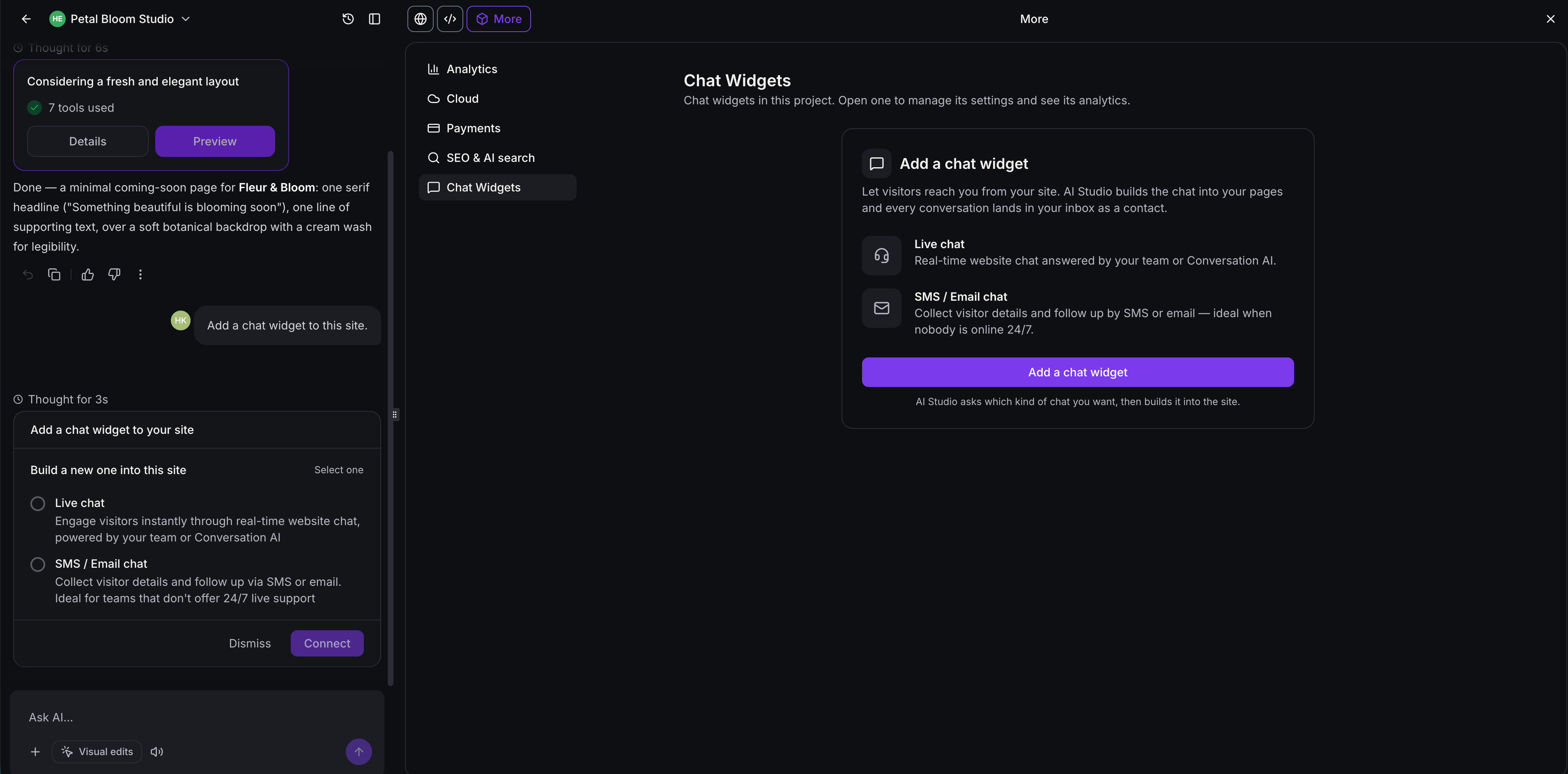
- Ask AI Studio for a chat and it shows a card to create the widget: Live Chat, or Email Chat for visitors who leave a message and get a reply by email.
- The widget is created in your account, named after your project, and wired into your app.
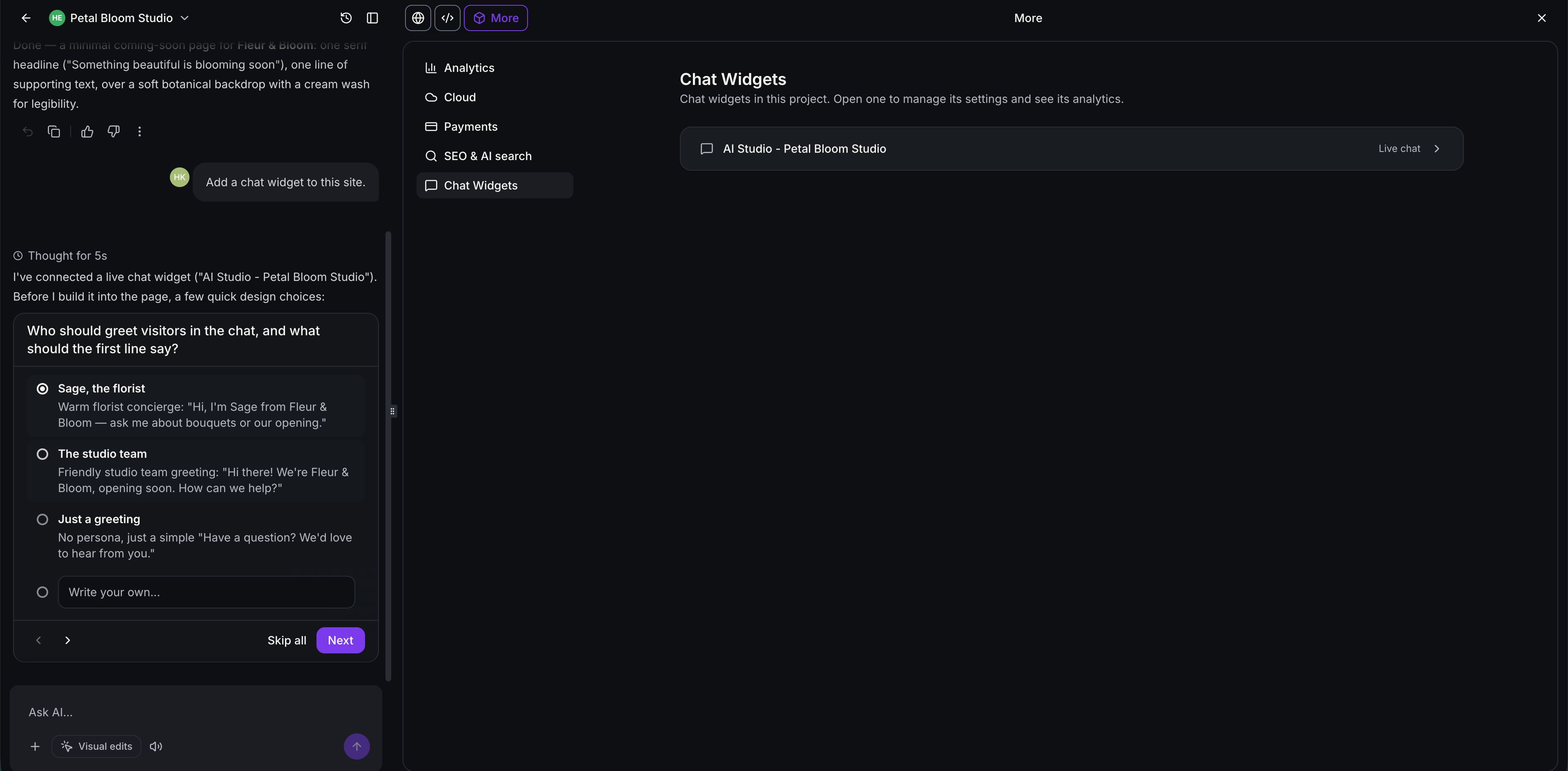
- For a new chat, AI Studio asks a few quick design questions (greeting, placement, tone), then builds it.
Designed to match your site
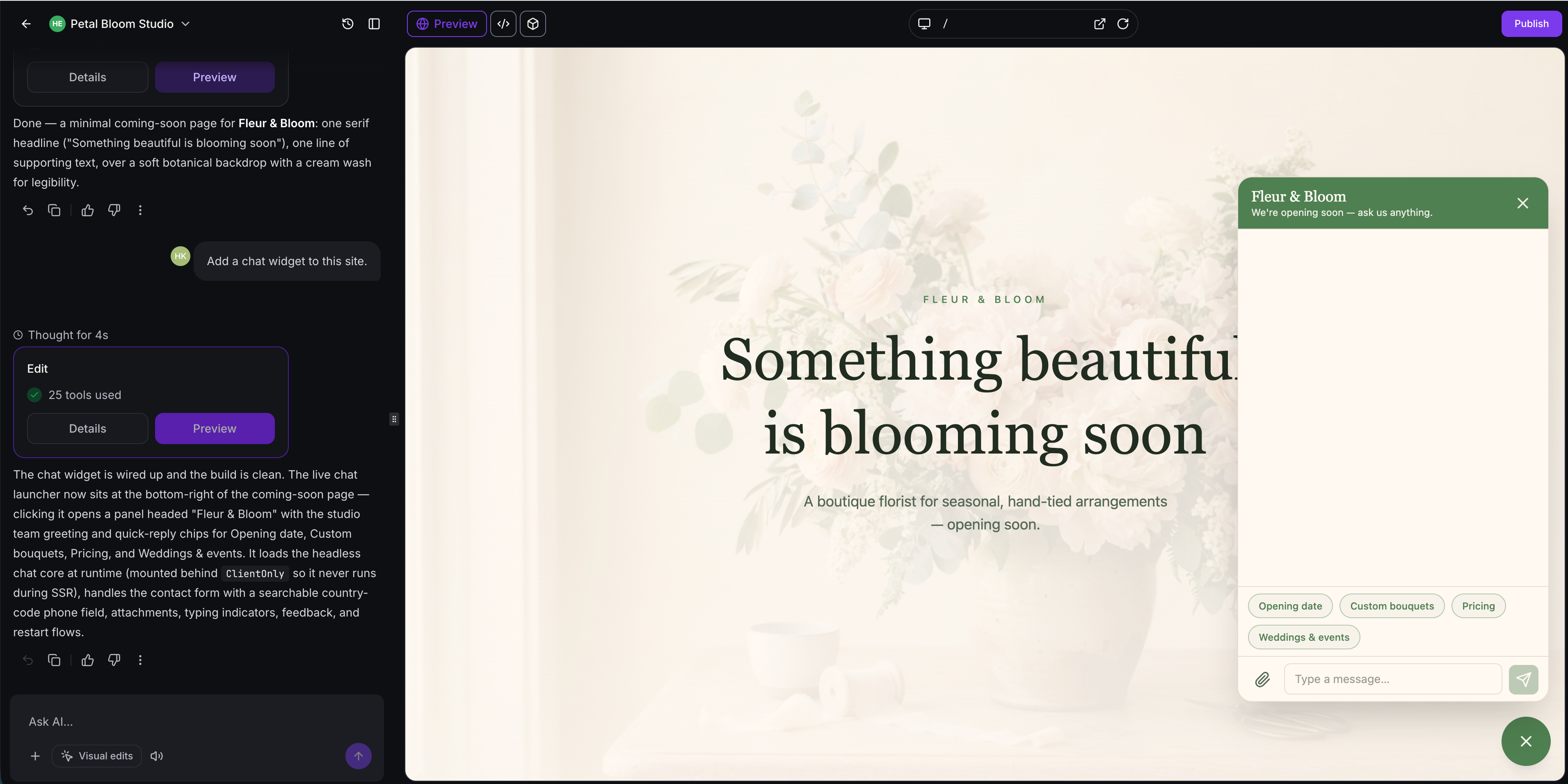
- The chat is built into your app's own code, so it uses your site's colors, fonts and layout.
- Change its look the way you change anything else: ask AI Studio, or edit it in code.
- A project can have more than one widget - for example, live chat on every page plus a separate after-hours chat.
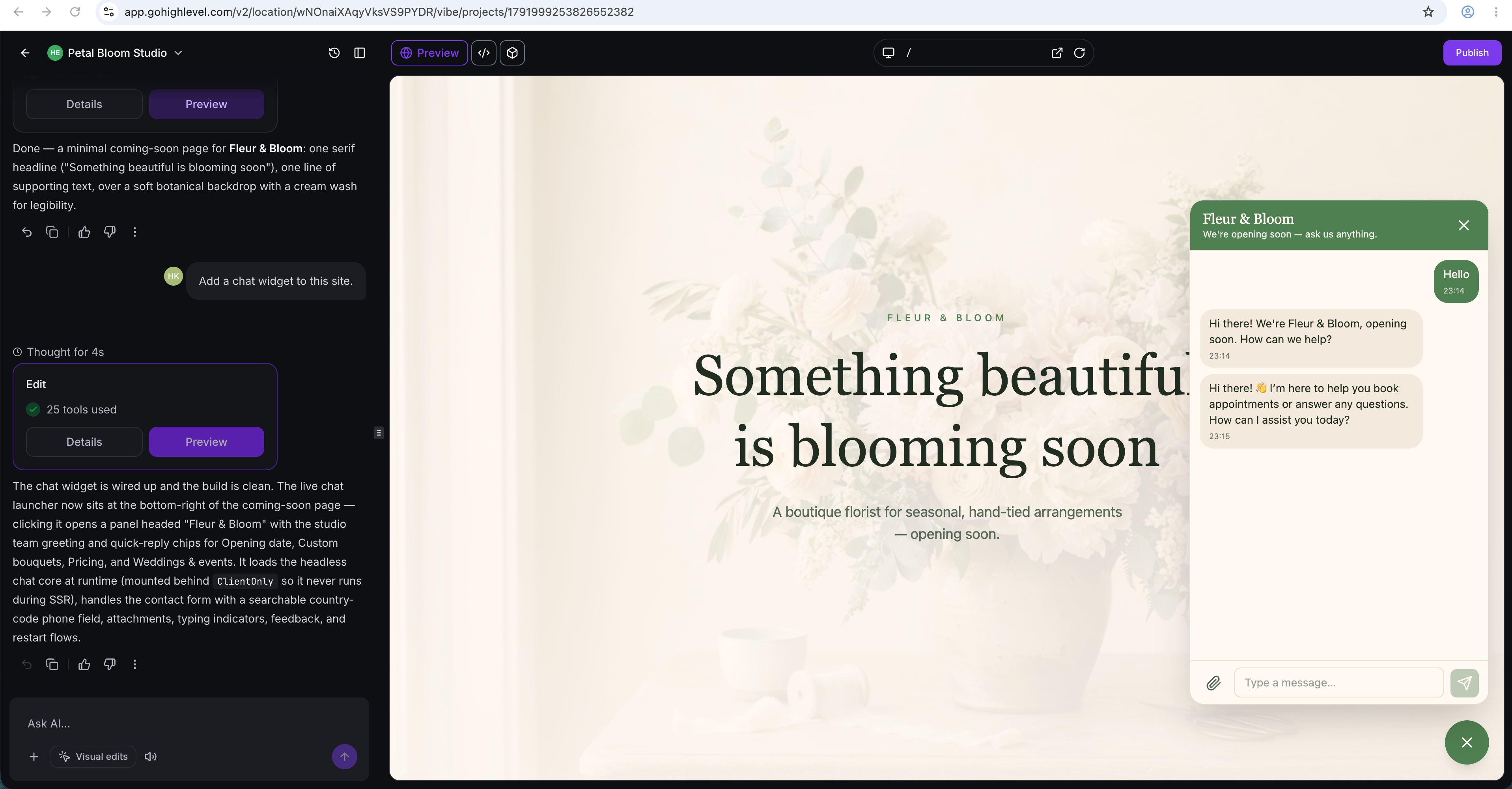
The real EveryCatch chat underneath
- Built-in security: Visitor sessions use secure tokens that never touch your app's code, and a captcha appears automatically when the chat suspects a bot.
- Spam & abuse protection: Rate limits and your widget's spam settings apply to every message.
- Attachments: Visitors can share files in live chat, within the widget's supported file types and size limits.
- Conversation history: Returning visitors pick up where they left off, and older messages load as they scroll.
- Delivery status: Messages show as sending, sent or failed, and failed messages can be retried.
- Business rules: Business hours, out-of-hours messages, inactivity timeouts, chat ratings and chat-ended messages follow your widget settings.
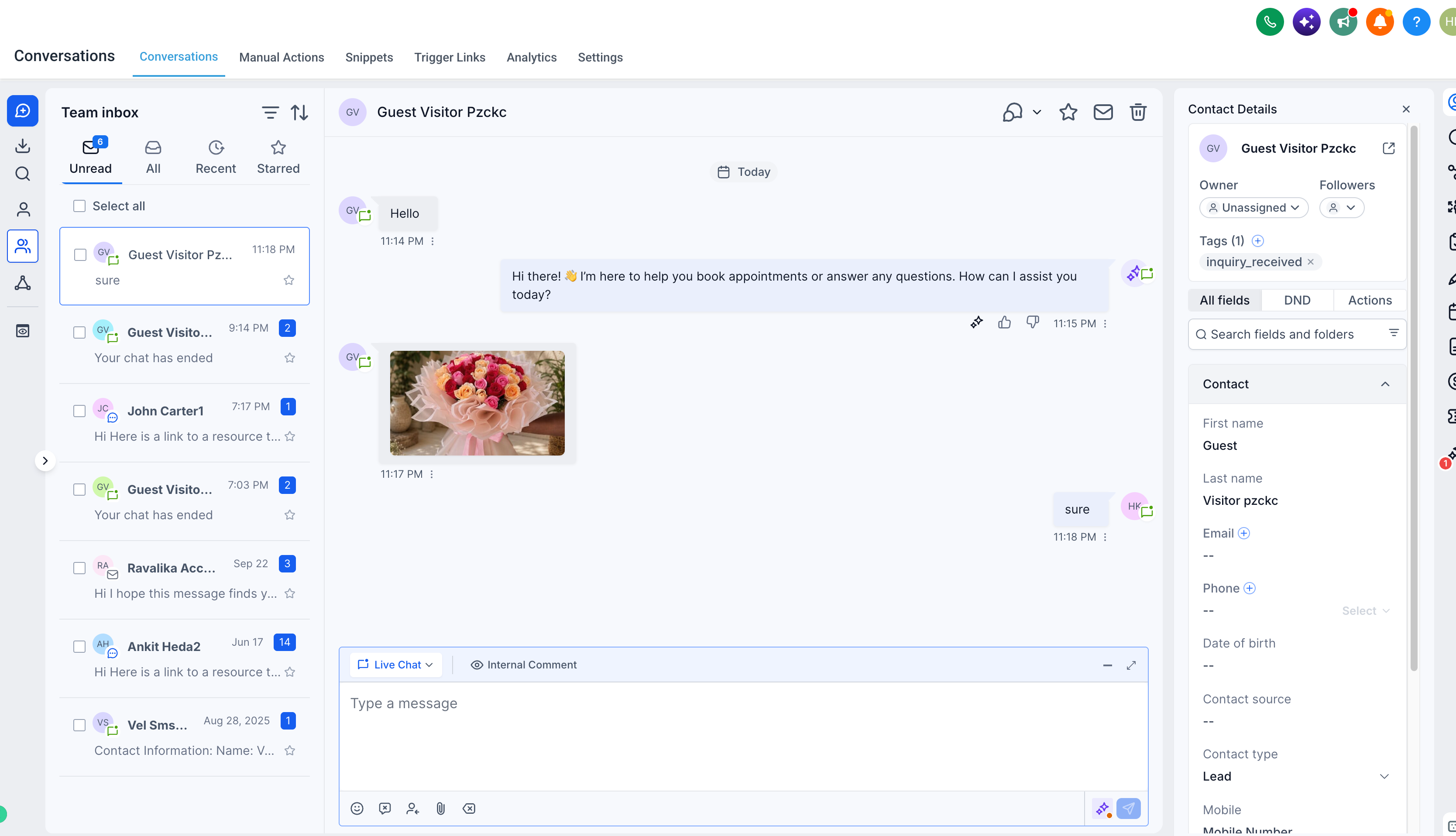
- Conversations: Every message lands in EveryCatch Conversations, just like the standard widget.
- Your wording: AI Studio can set the welcome message and feedback lines when you ask - e.g. "greet visitors with: Hello, how can we help?
Chat widget analytics
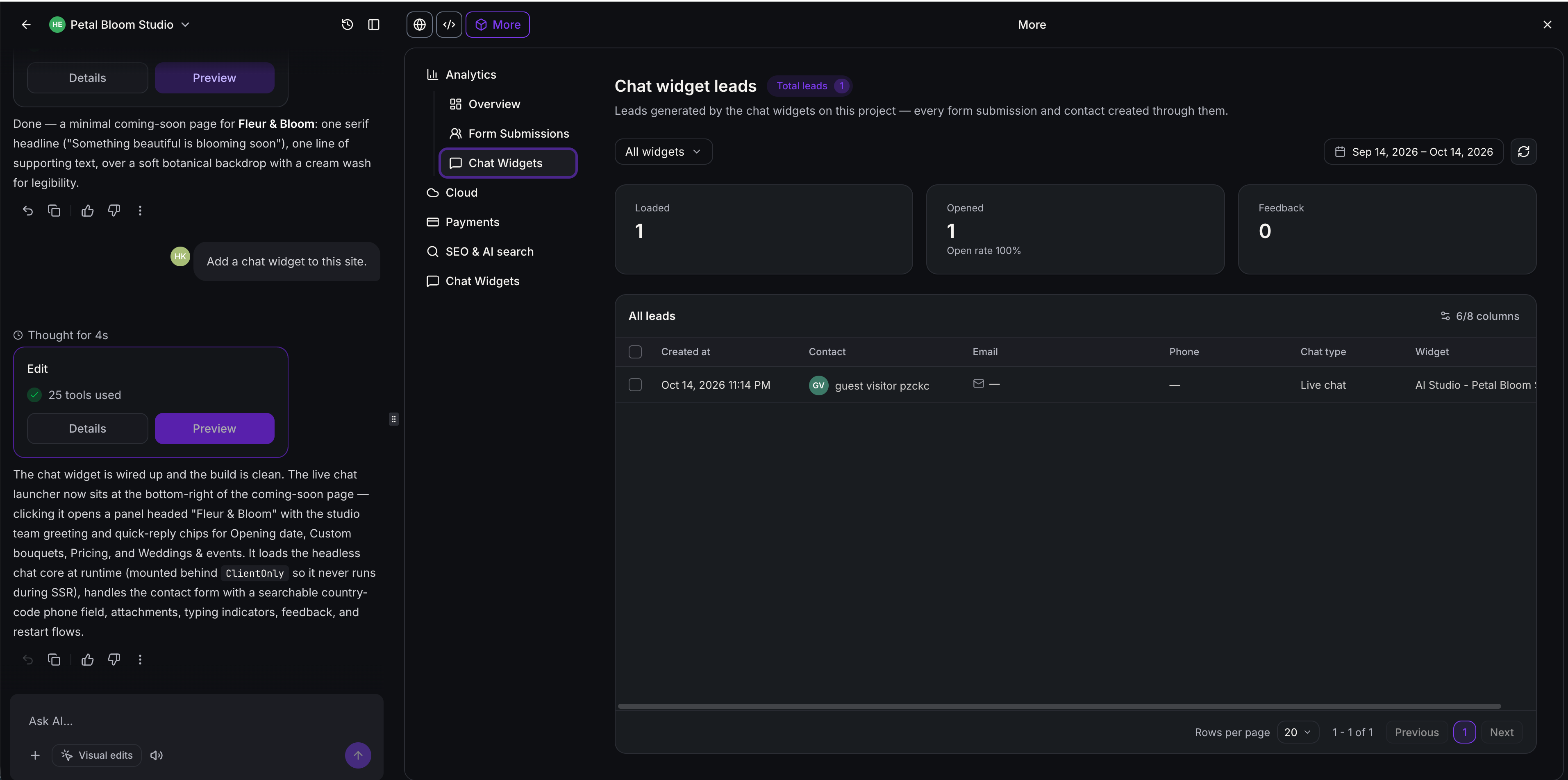
Go to More → Analytics → Chat Widgets to see the leads your project's chat widgets bring in.
- At a glance: Chat loads, opens, open rate, and visitor feedback and satisfaction from chat ratings.
- Every lead in one table: Contact, email, phone, chat type, the page the chat started on, and which widget it came from.
- Flexible views: Filter by widget and date range, choose which columns to show, and select leads to download.
Chat widget settings, inside AI studio
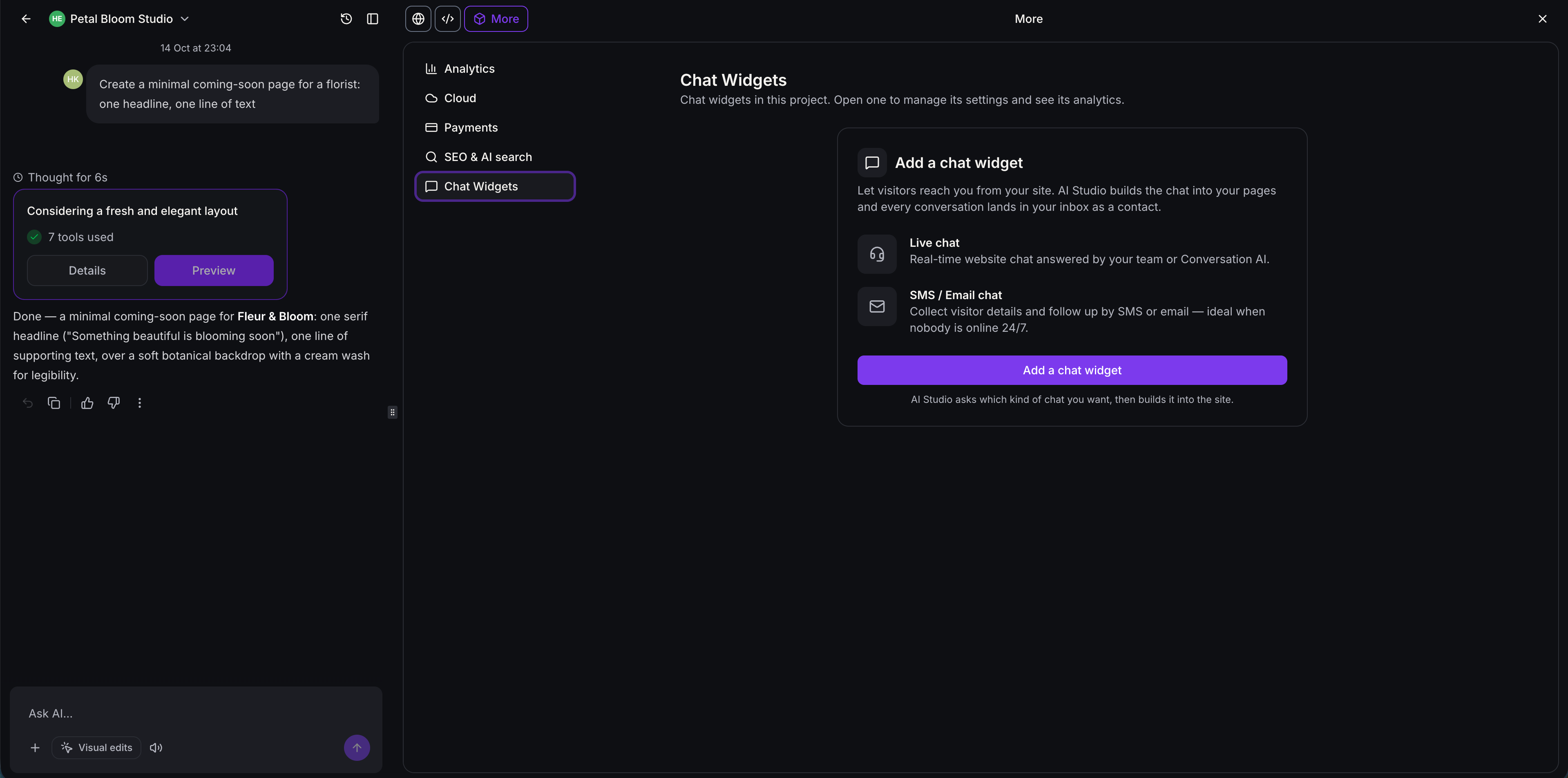
Go to More → Chat Widgets to see your project's widgets. Open one to manage it without leaving AI Studio
- Widget name: Rename it right there.
- Messaging: The welcome and acknowledgement lines visitors see in the conversation.
- Contact form: The details visitors give before their first message.
- Compliance notice & consent: Legal notices and opt-in consent for privacy, marketing, SMS and HIPAA needs.
- Spam protection: Suspicious leads are kept for review and tagged, with optional DND on SMS, email or both.
- Business hours (Live Chat): When live chat is open. Outside those hours, visitors see your offline message instead.
- No widget yet? The Add a chat widget button asks AI Studio to create one for you.
Availability
- Live Chat and Email Chat are supported in both TanStack Start and React projects.
- Voice chat, WhatsApp, Facebook Messenger and Instagram chat widgets aren't supported in AI Studio yet.



