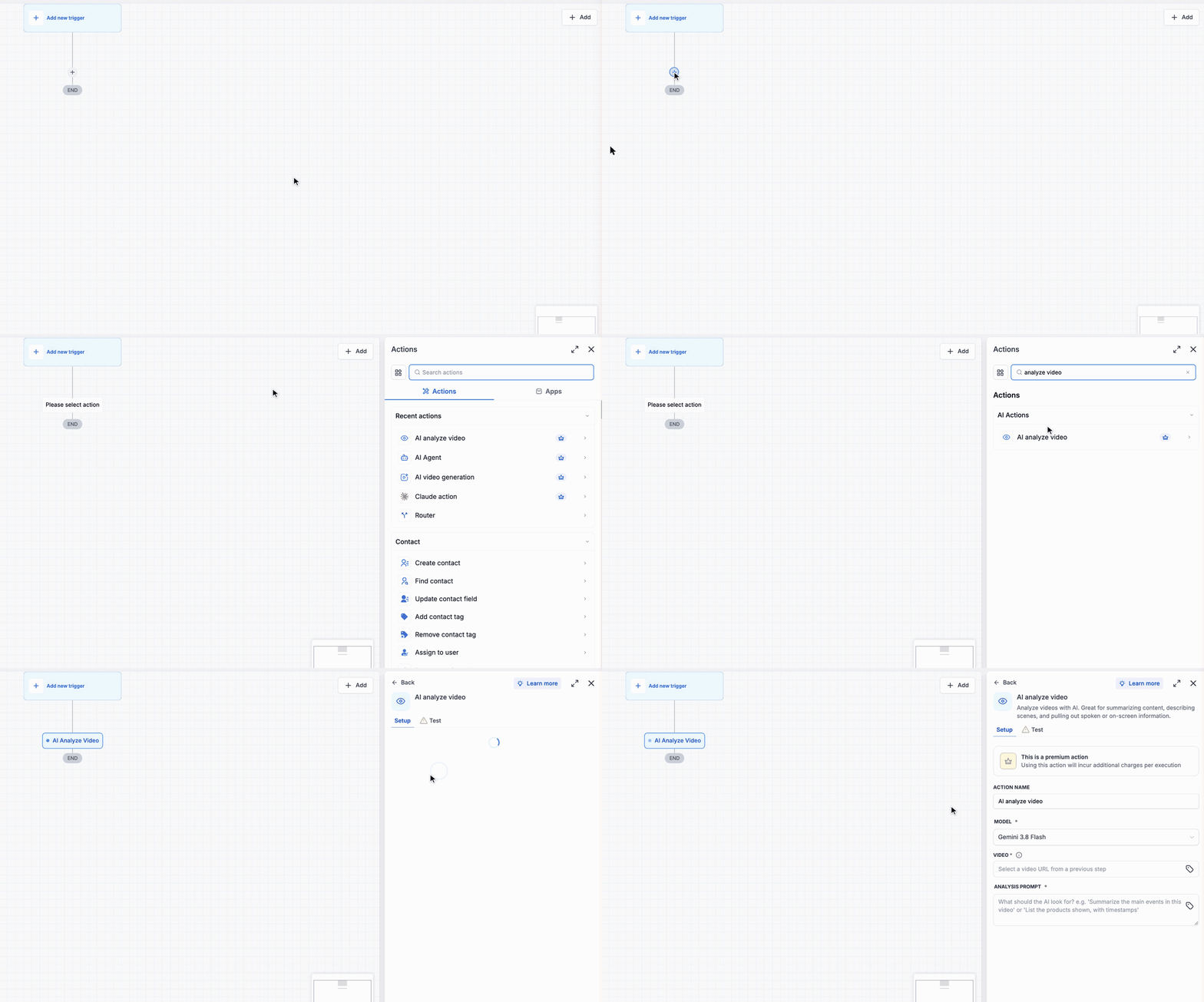
Your workflows in EveryCatch can now understand video. The new AI analyze video action under AI actions lets you provide a video URL and a prompt. Google Gemini then watches the video, listens to the audio, and returns a text response that you can use in the following workflow steps.
This is a premium workflow action, and each run of the action adds an extra charge to your AI usage.
What changed
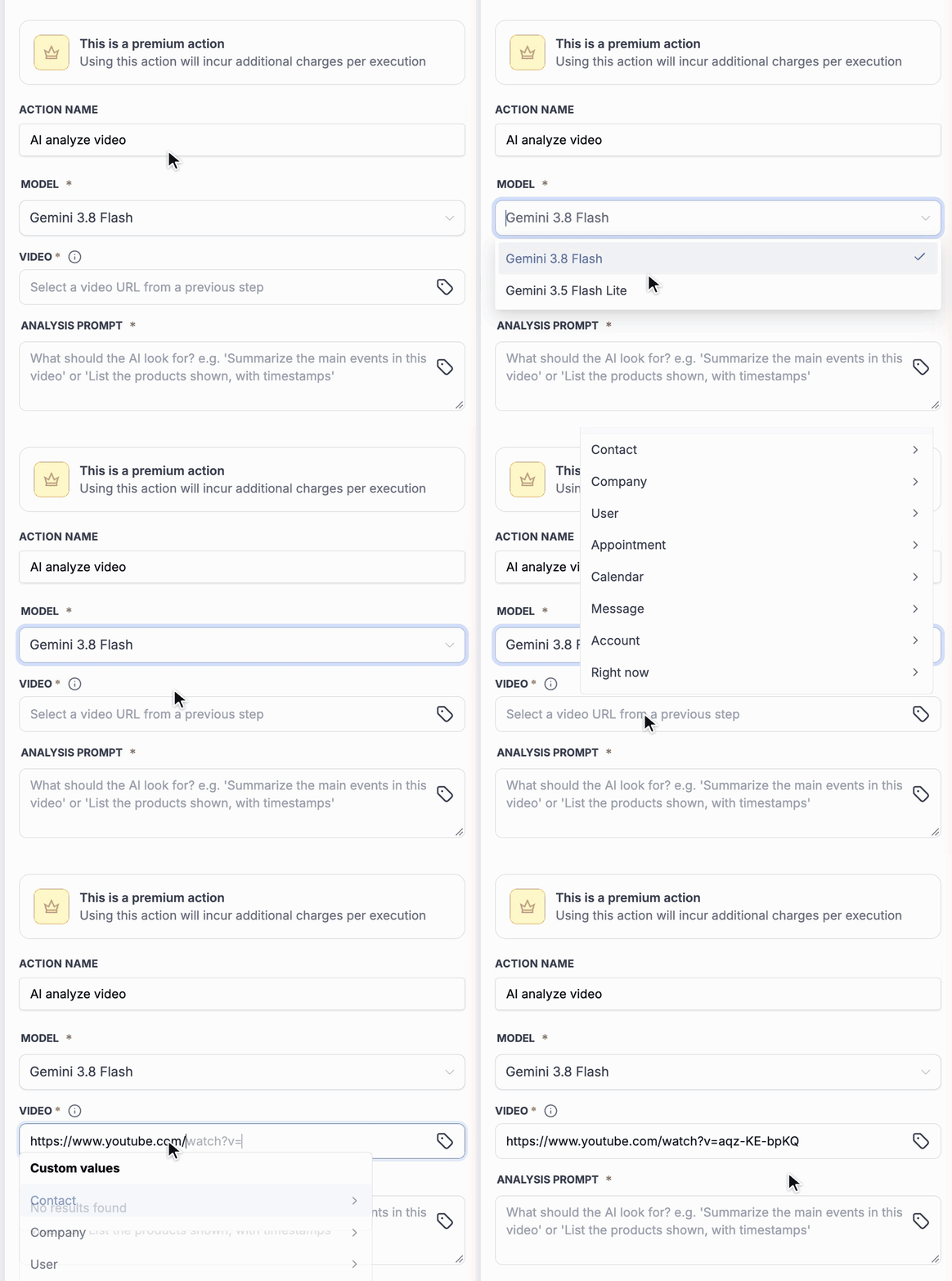
- Two Gemini models: Choose Gemini 3.8 Flash (default) or Gemini 3.5 Flash Lite, depending on your cost and speed needs.
- YouTube support: Paste a public YouTube link. Links from youtube.com/watch, youtu.be, and YouTube Shorts are all supported.
- Direct video files: Use any public link to an MP4, MOV, WebM, MPEG, FLV, WMV, or 3GP file hosted online.
- Dynamic video URLs: Pull the URL from an earlier workflow step or a custom value. The video can come from a form submission, a webhook, or the AI video generation action.
- Picture and sound: The model can use both the visuals and the spoken audio to understand what is happening in the video.
- Flexible prompts: Ask for a summary, a transcript, a bullet list with timestamps, or a yes / no decision. You can include custom values in the prompt to tailor the analysis to each contact or situation.
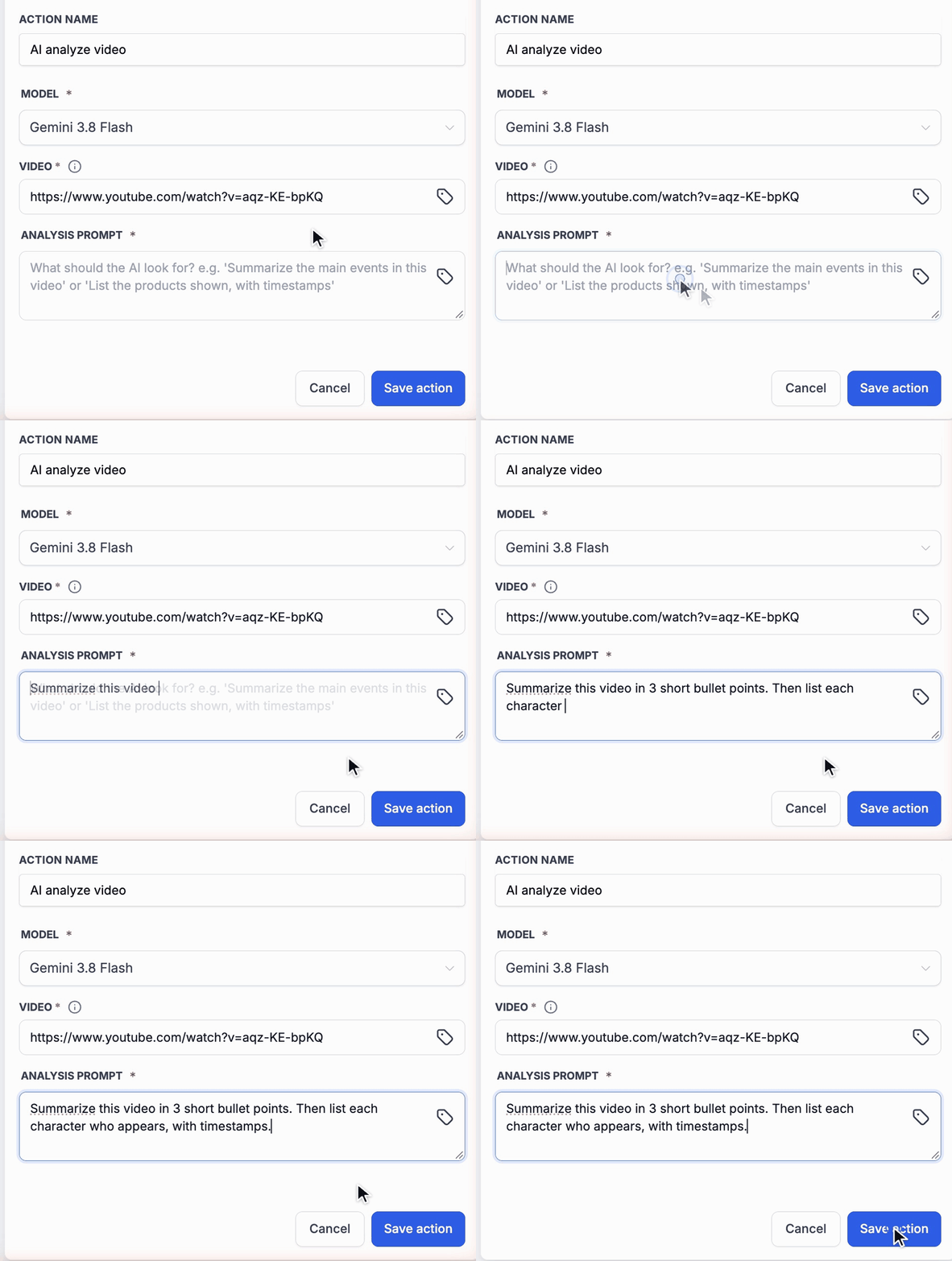
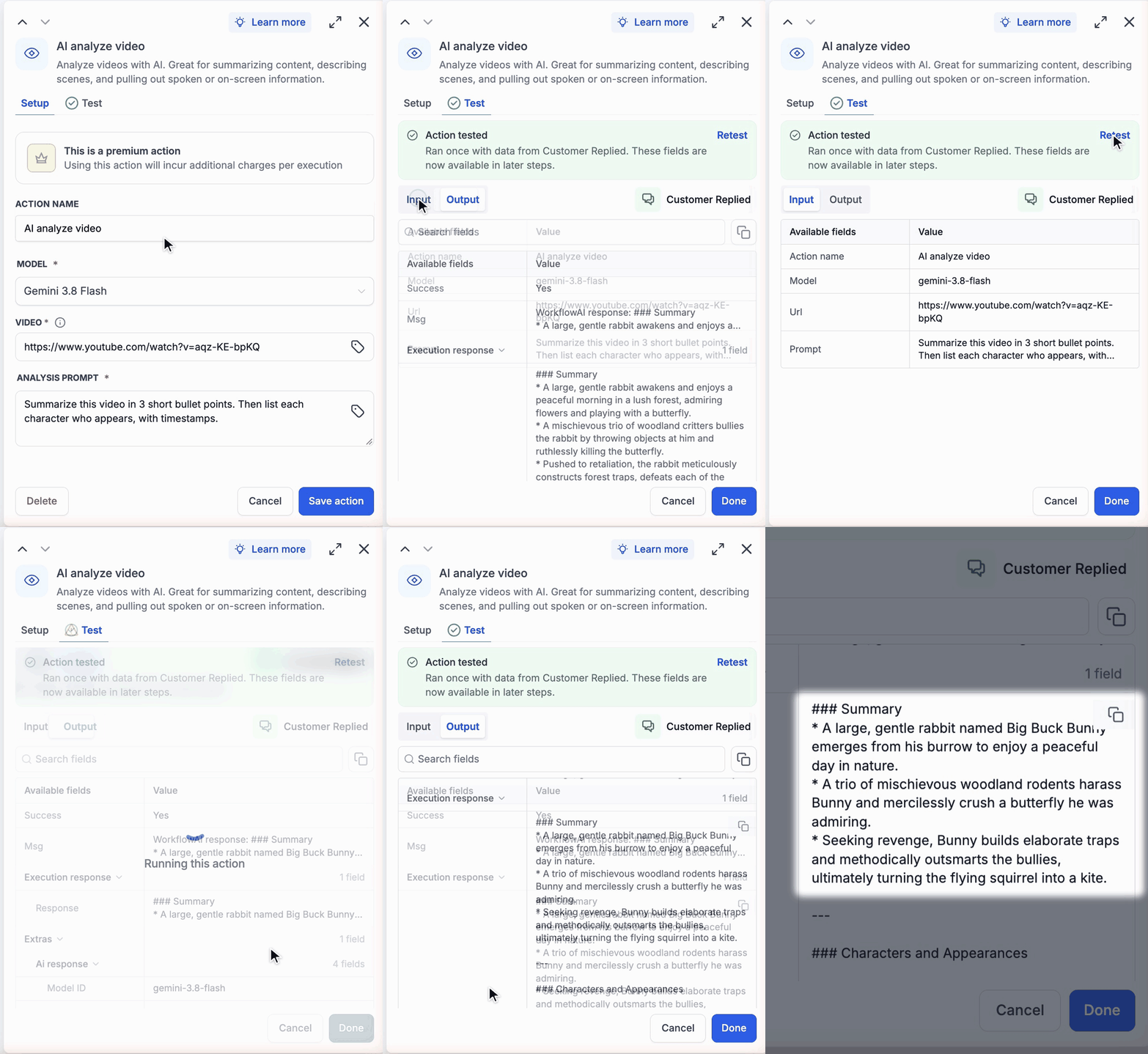
- Built-in testing: Test the action directly in the workflow builder using data from your trigger. You can then review the response before turning the workflow on. In the example shown, the action generates a summary of the short film Big Buck Bunny.

Pricing
Video analysis is billed per execution, based on the number of tokens used to process the video and generate the response.
Your actual cost per analysis depends on how you configure the action. The main factors are:
- Model: The Gemini model you select for the action.
- Video length: Longer videos consume more tokens than short clips.
- Response length: A long, detailed answer consumes more tokens than a concise response.
How to use
- Go to Automation > Workflows in EveryCatch.
- Open an existing workflow or create a new one, then add the AI analyze video action from the AI actions section.
- Select the model. By default, EveryCatch uses Gemini 3.8 Flash for a balance of speed and quality.
- Add the video URL. You can type or paste it directly, or insert a value from a previous step or a custom value field.
- Write the analysis prompt. Clearly describe what you want the AI to look for and how you want it to respond.
- Open the Test tab and click Test action to see the response with your current settings. This step is optional but recommended.
- Save the action. You can then use the response value as input for the actions that come next in the workflow.
Important: The video URL must be publicly accessible. Page links from sites like Vimeo or TikTok are blocked by those platforms when used this way, so use a YouTube link or a direct video file URL instead.
Why this matters
Previously, a video link inside a workflow was something you could send but could not automatically interpret. With AI analyze video, your workflow can watch the video, understand it, and continue with the next actions using that understanding, without manual review or note taking from your team.
You can store the summary in a custom field, include it in an email or SMS, send it to a webhook, or pass it into another AI action. Combined with AI video generation, you can also add a quality or compliance check step before a generated video goes out to your customers.
Good to know
- Each AI analyze video action run processes one video URL.
- The response can include Markdown formatting such as headings and bullet points. If you need plain text only, ask for that explicitly in your prompt.
- Longer videos take longer to process. For example, in our tests a 10-minute YouTube video took about 30 seconds to analyze.



