EveryCatch workflows now work with more custom field types. This makes it easier to use the details you store in your CRM to trigger, control and update your automations.
What changed
- URL fields: Use and update links such as client portals, proposals and onboarding guides. For example, you can use an Update contact field action to save a client resource link, or a Contact changed trigger to run automation when that link is added or updated.
- Date & time fields: Use dates and times such as a project start date, renewal date or preferred contact time. For example, when a workflow creates a project record, it can populate the scheduled start date at the same time.
- Users fields: Use fields that reference one or more team members tied to a record. For example, you can store the implementation specialist and account manager assigned to a client onboarding project, and then route tasks or notifications based on those owners.
- Rich text fields: Use long-form content such as project briefs, onboarding instructions and handoff notes. For example, you can automatically add a structured onboarding checklist to a project record.
- Radio options with images or icons: Use a single-choice field with a visual label. For example, you can store a customer’s preferred design from a set of image-based options and use it to guide follow-up steps.
- Checkbox options with images: Use multiple-choice selections with visual labels. For example, you can capture the products or service add-ons a customer picks and use those selections to tailor emails, tasks or internal workflows.
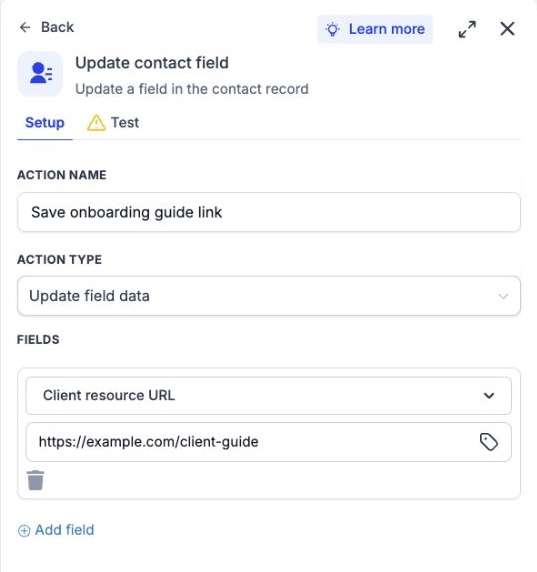
Example: you can set up a workflow that saves an onboarding guide link into a contact’s URL field, so the link is always stored in the same place and available for future automation.
How to get started
- Create the custom field for the relevant object in CRM > Custom fields.
- Open a workflow and choose the trigger, condition or update action you want to use.
- Select the custom field, configure the value or condition you need, then save your workflow when you are ready.
The fields and controls you see will vary based on the object and the workflow step you are configuring.