What changed
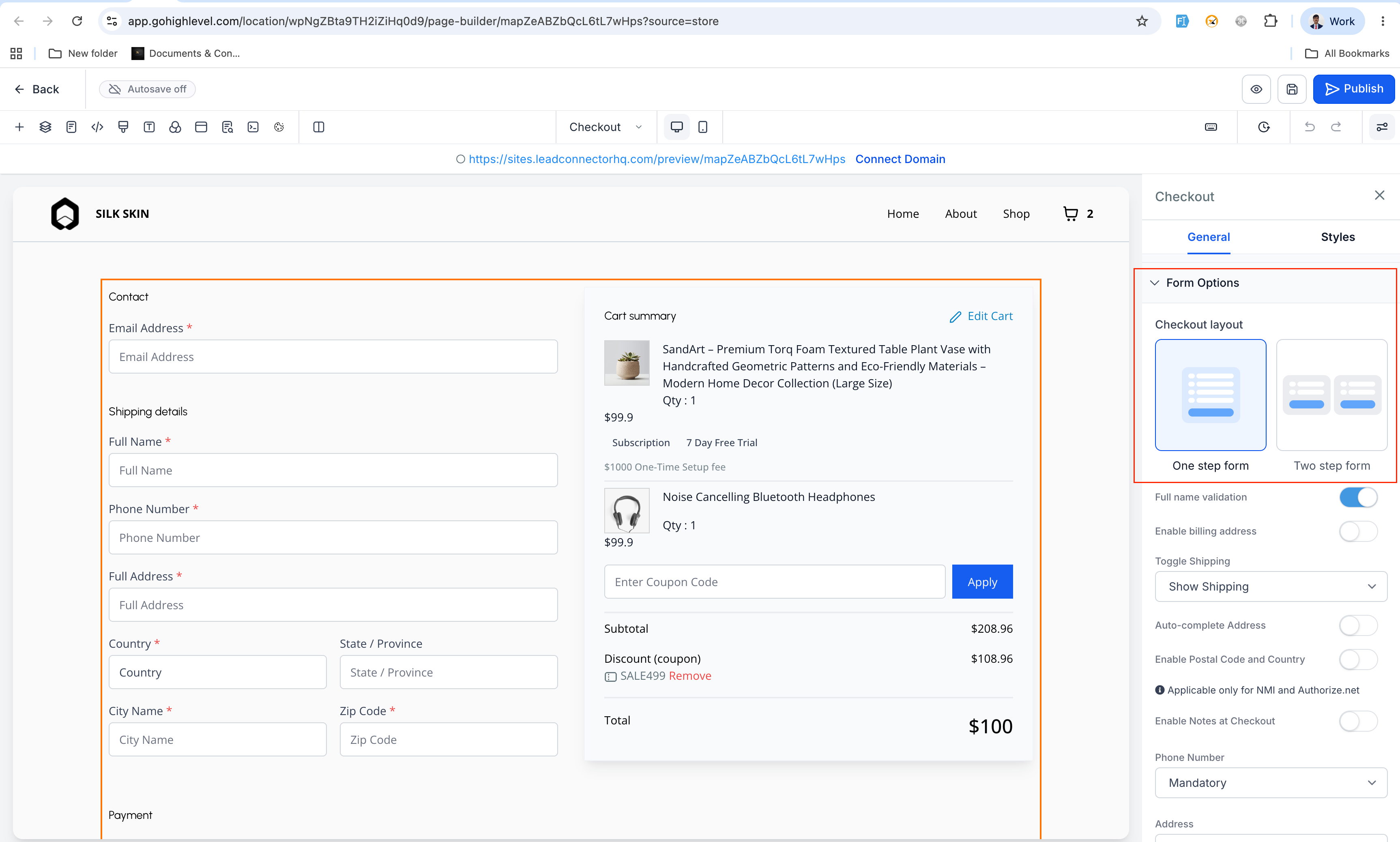
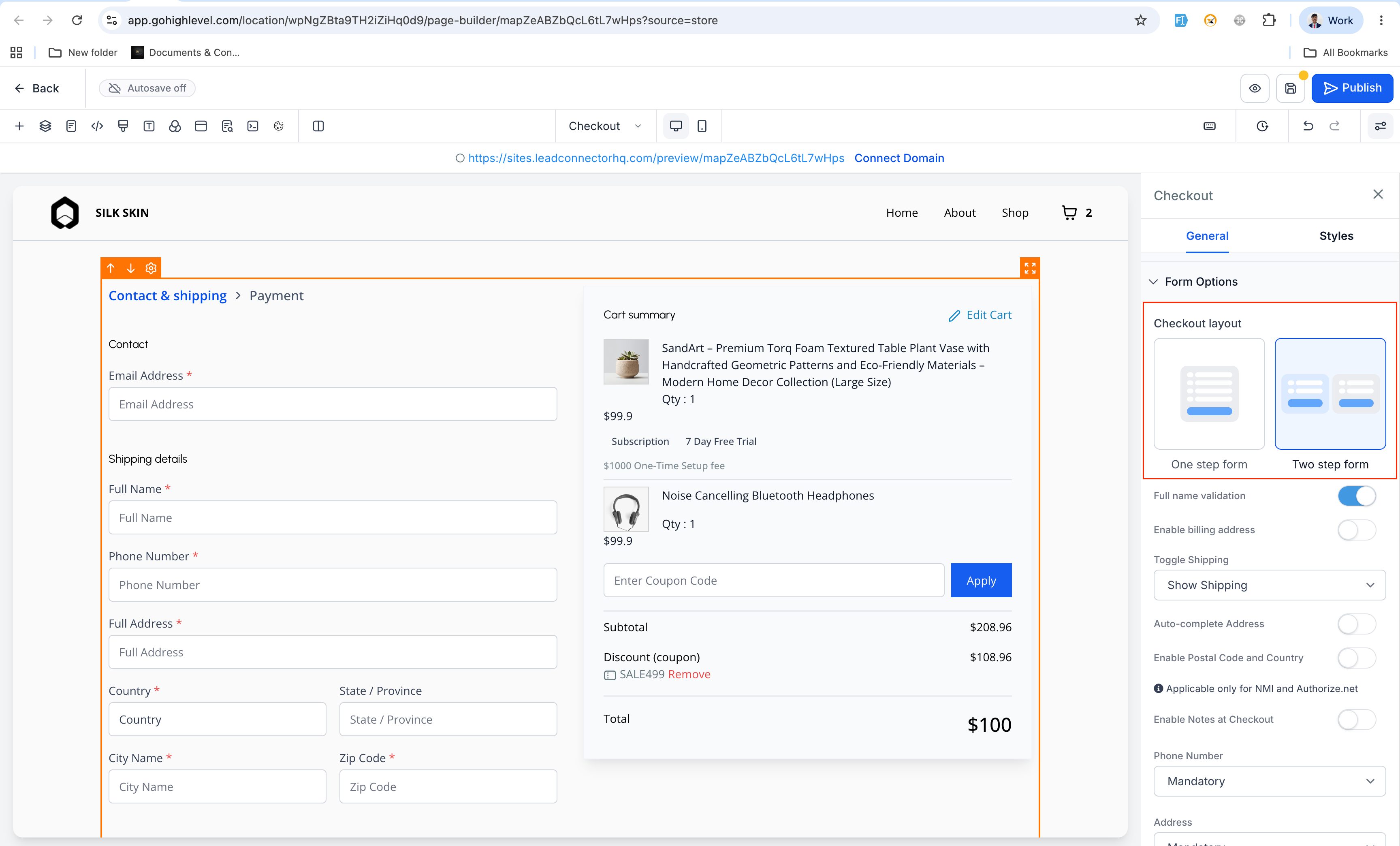
You can now choose whether your store uses a one-step checkout or a two-step checkout, directly from the Checkout element’s Form options in the EveryCatch Store Builder.
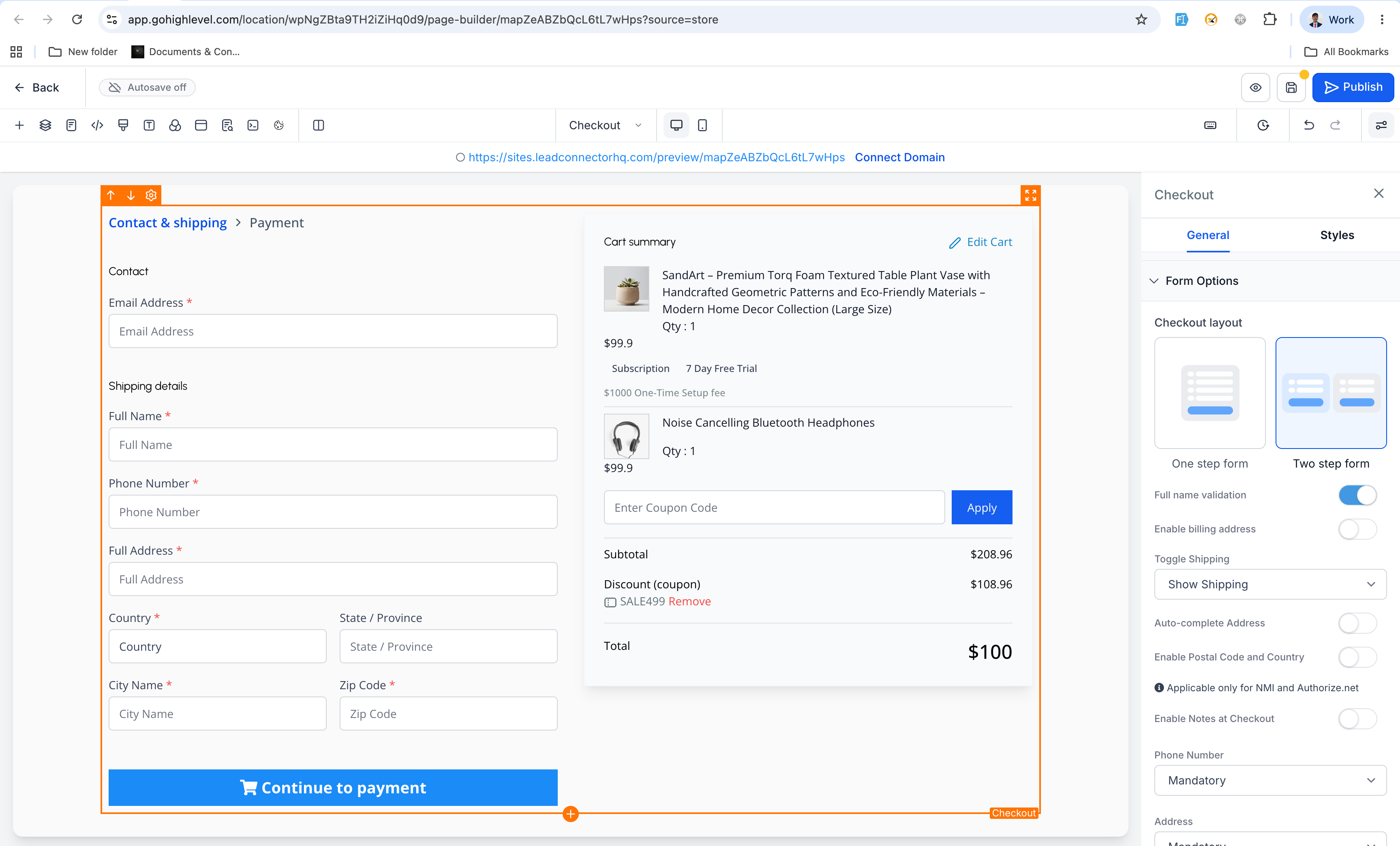
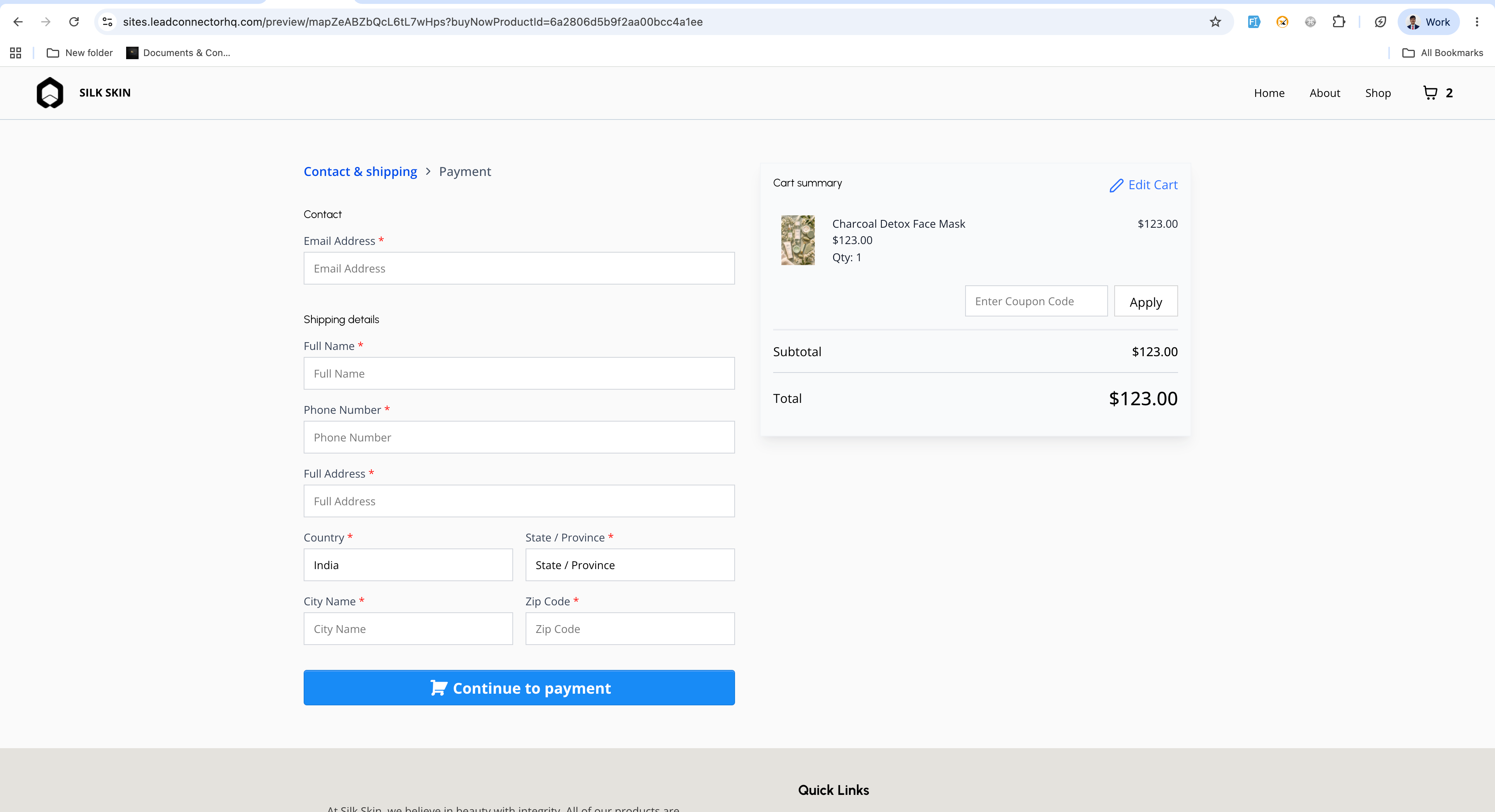
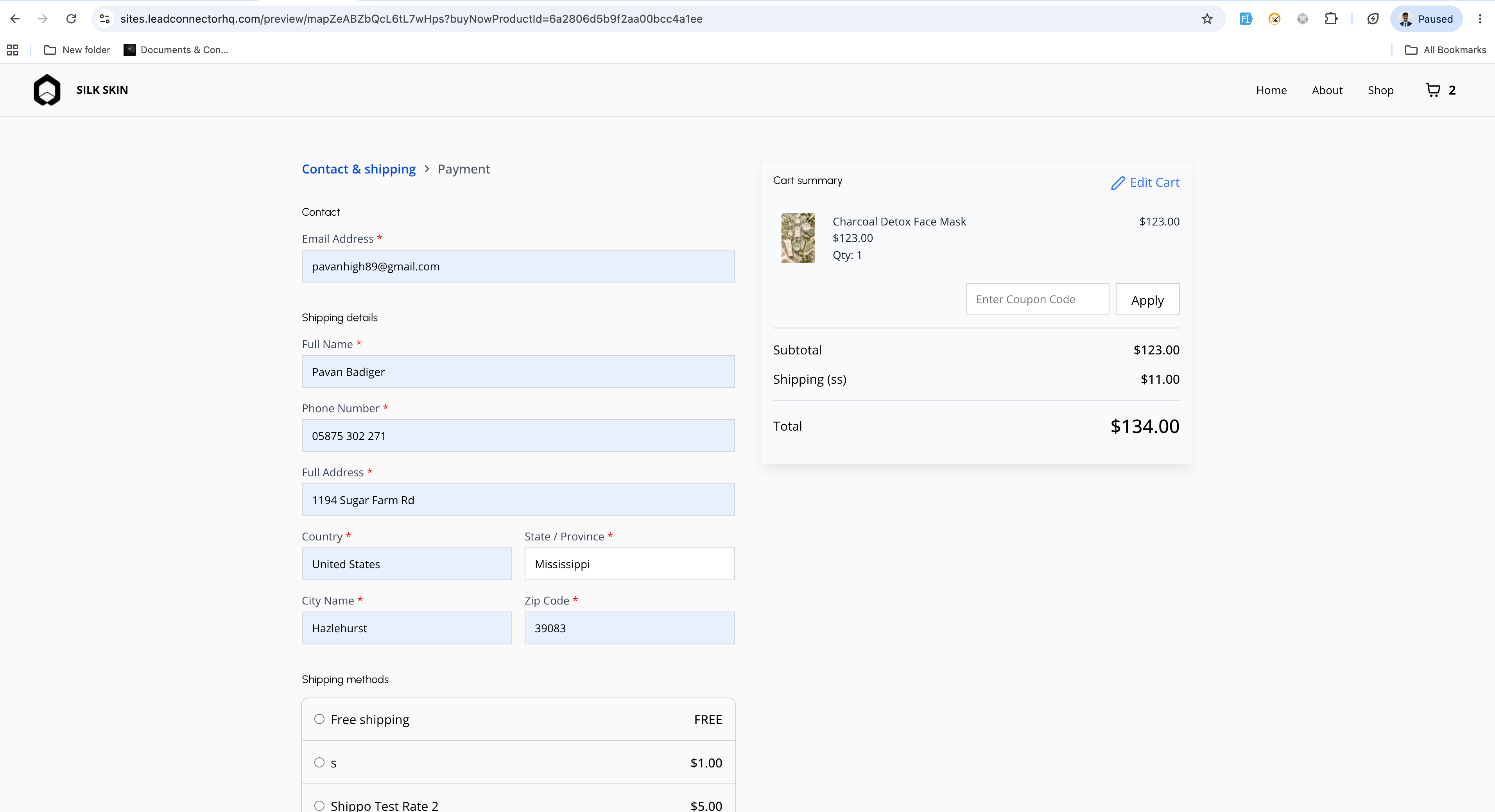
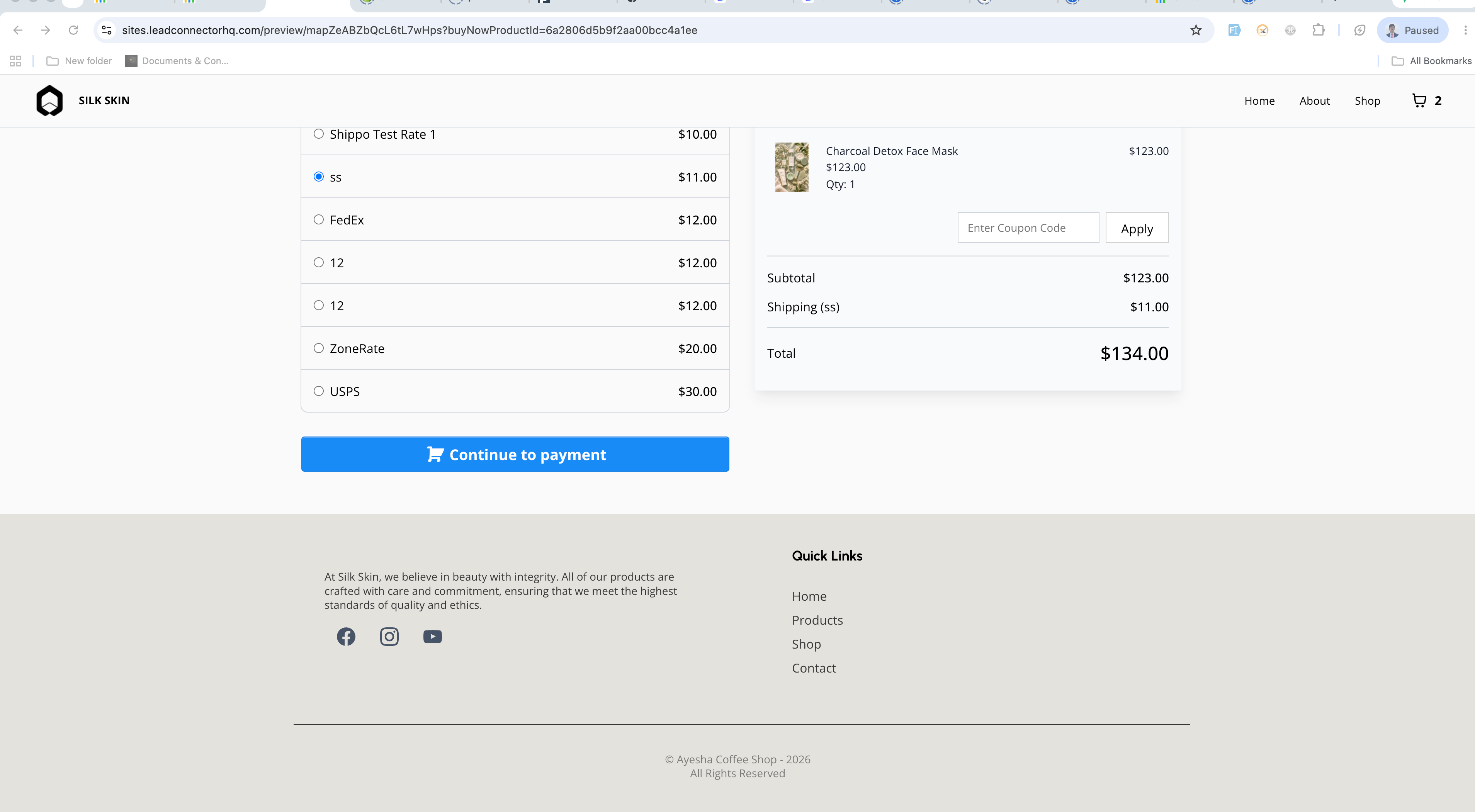
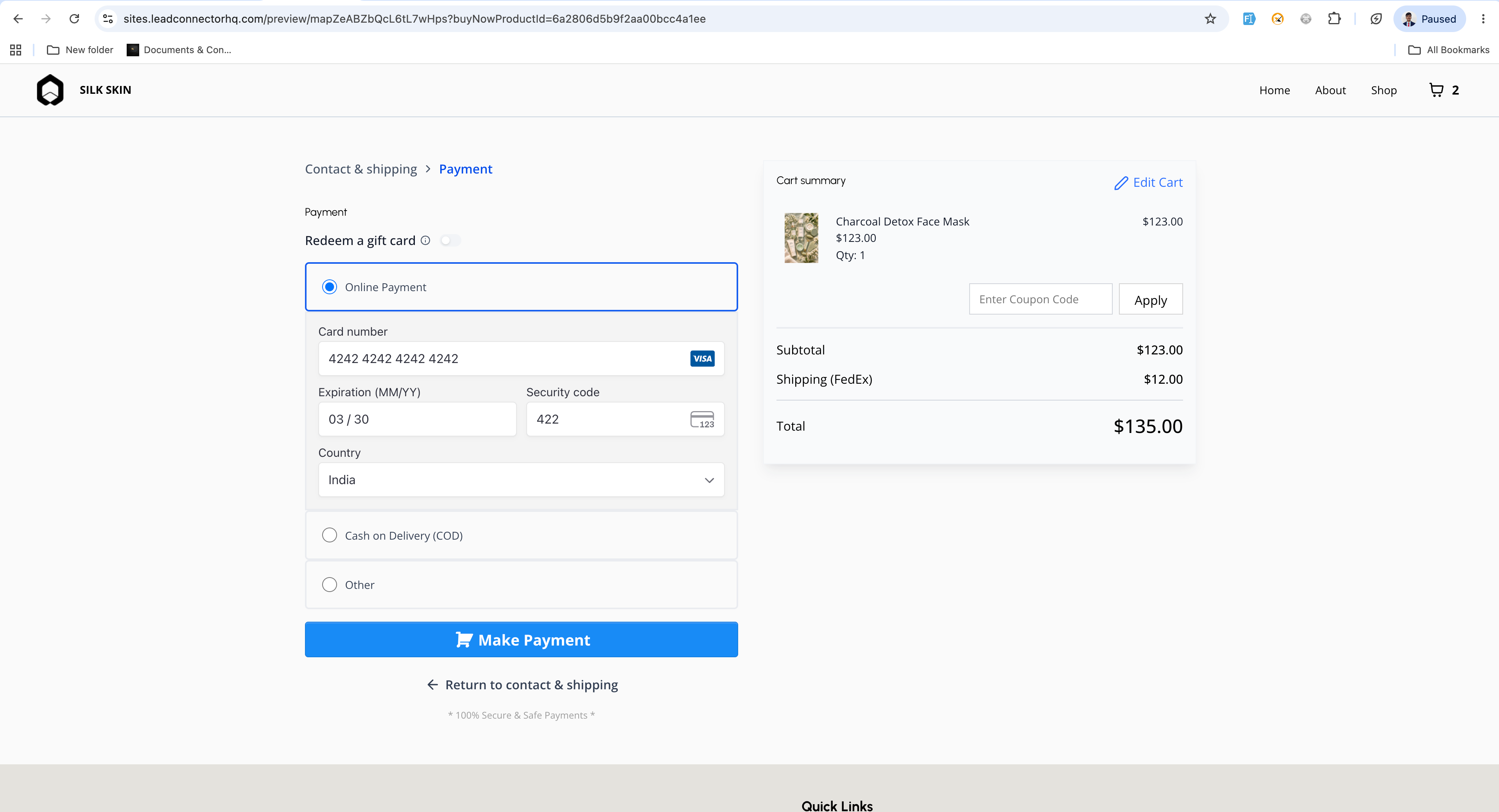
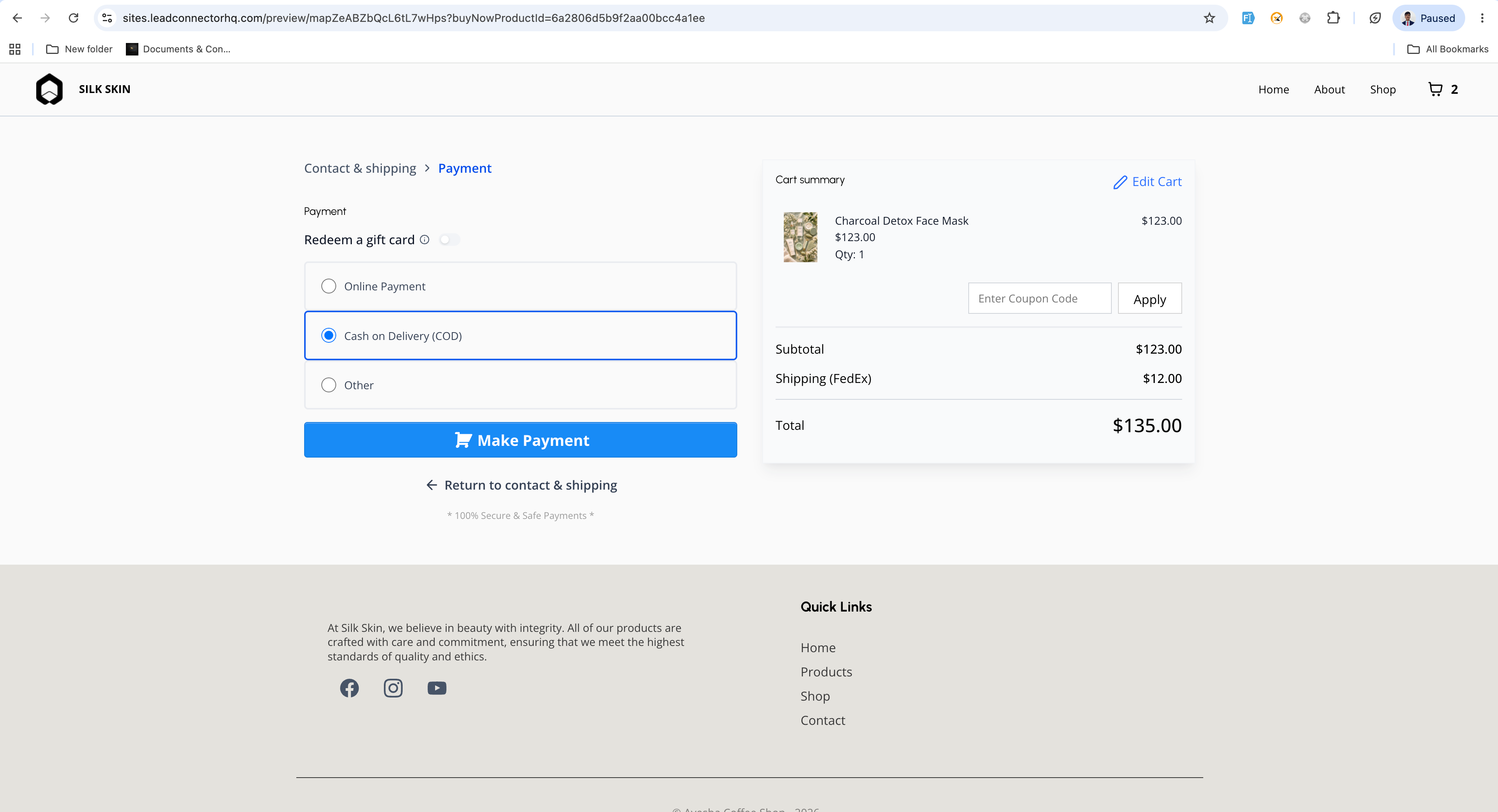
With two-step checkout, your customers first submit their contact and shipping details. In the second step they complete billing, payment, and a final order review before placing the order.
- Checkout type selection
- A new "Checkout type" setting is available for the Checkout element in the builder.
- You can choose between two options: One-step checkout or Two-step checkout.
- Two-step checkout flow
- Step 1: Collects first name, last name, email, phone number, and shipping details.
- Step 2: Collects billing and payment details, shows an order review, and then lets the customer place the order.
- Default behavior
- One-step checkout remains the default option for all checkout pages.
- All of your existing checkout pages keep working exactly as they do today until you switch them to two-step checkout.
How to use it
- Open the Store Builder in EveryCatch and edit your checkout page.
- Click to select the Checkout element on the page.
- In the settings panel, open the Form options section.
- Use the "Checkout type" dropdown to choose either One-step checkout or Two-step checkout.
- Save your changes and publish the page so customers see the new checkout experience.
A few details to know
- Two-step checkout lets you capture customer contact and shipping information earlier in the process, which can help with follow-up if they do not finish paying.
- Customers can move to step 2 only after they enter valid details in step 1, so you get cleaner contact and shipping data.
- The checkout type is set per Checkout element, so you can use different checkout flows on different pages in the same store.
Images