
What changed
You can now resize the panels in Conversations so the workspace matches how you like to review and reply to messages. Drag the divider between the conversation list, the message thread, and the contact details panel to make any of them wider or narrower.
How to use
- Go to Conversations in EveryCatch.
- Click and drag the resize icon left or right between panels to adjust their width. Release when the layout looks right for you.
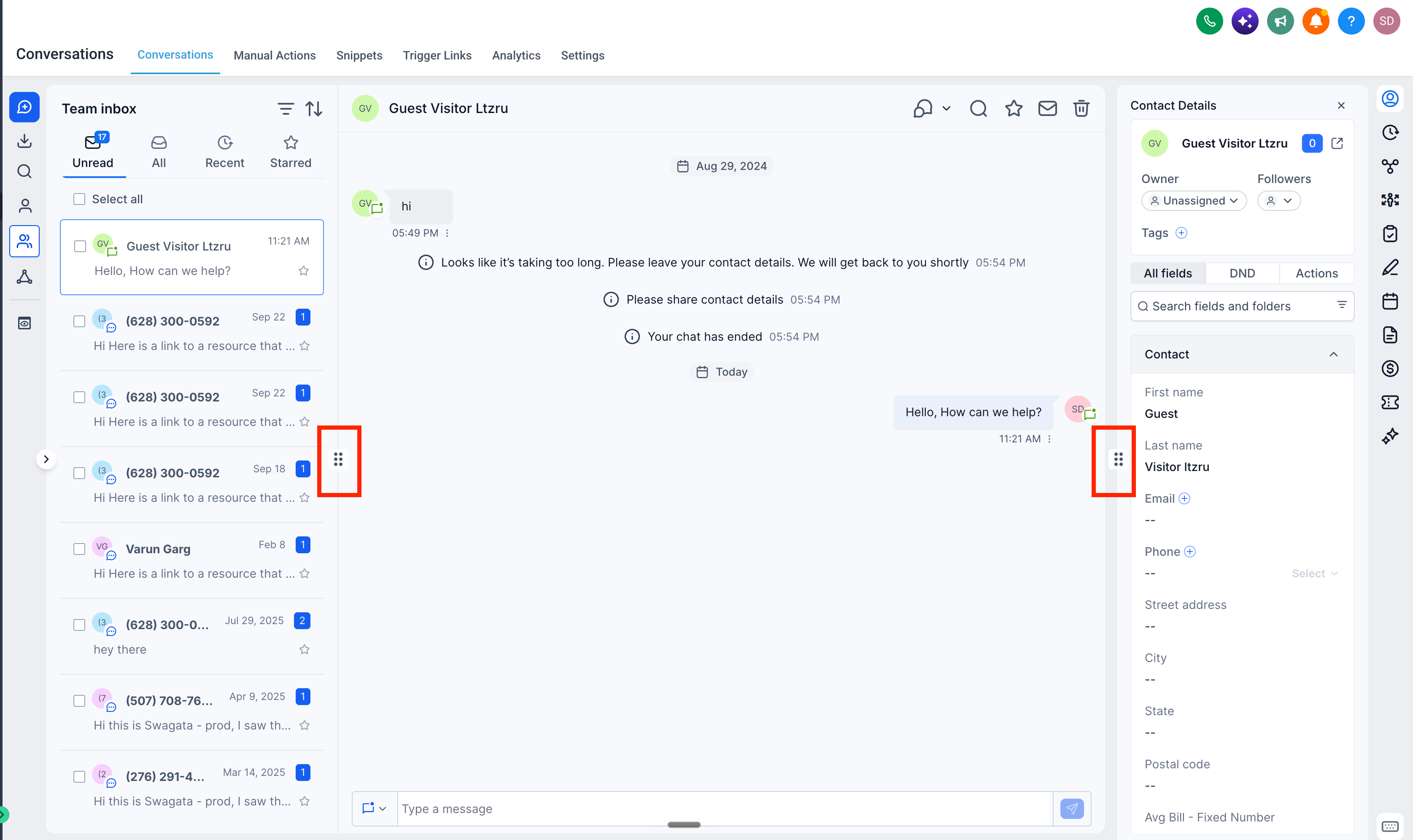
- EveryCatch remembers your panel sizes, so your layout is restored the next time you open Conversations on the same device and browser.
- Each panel has a minimum and maximum width so everything on the screen stays readable and usable.
Why it matters
Every team handles conversations in its own way. Some people prefer extra space to scan long message threads, while others want the contact panel wider so details stay visible while they reply. With resizable panels, you can set up a layout that feels natural for your workflow and switch less between views while you work in Conversations.



