Phone, counter and table orders can now go straight into EveryCatch, just like your online orders.
Restaurant Orders now has a New order button with Dine-in, Pickup and Delivery options, so your staff can place any order type from a single screen.
What changed
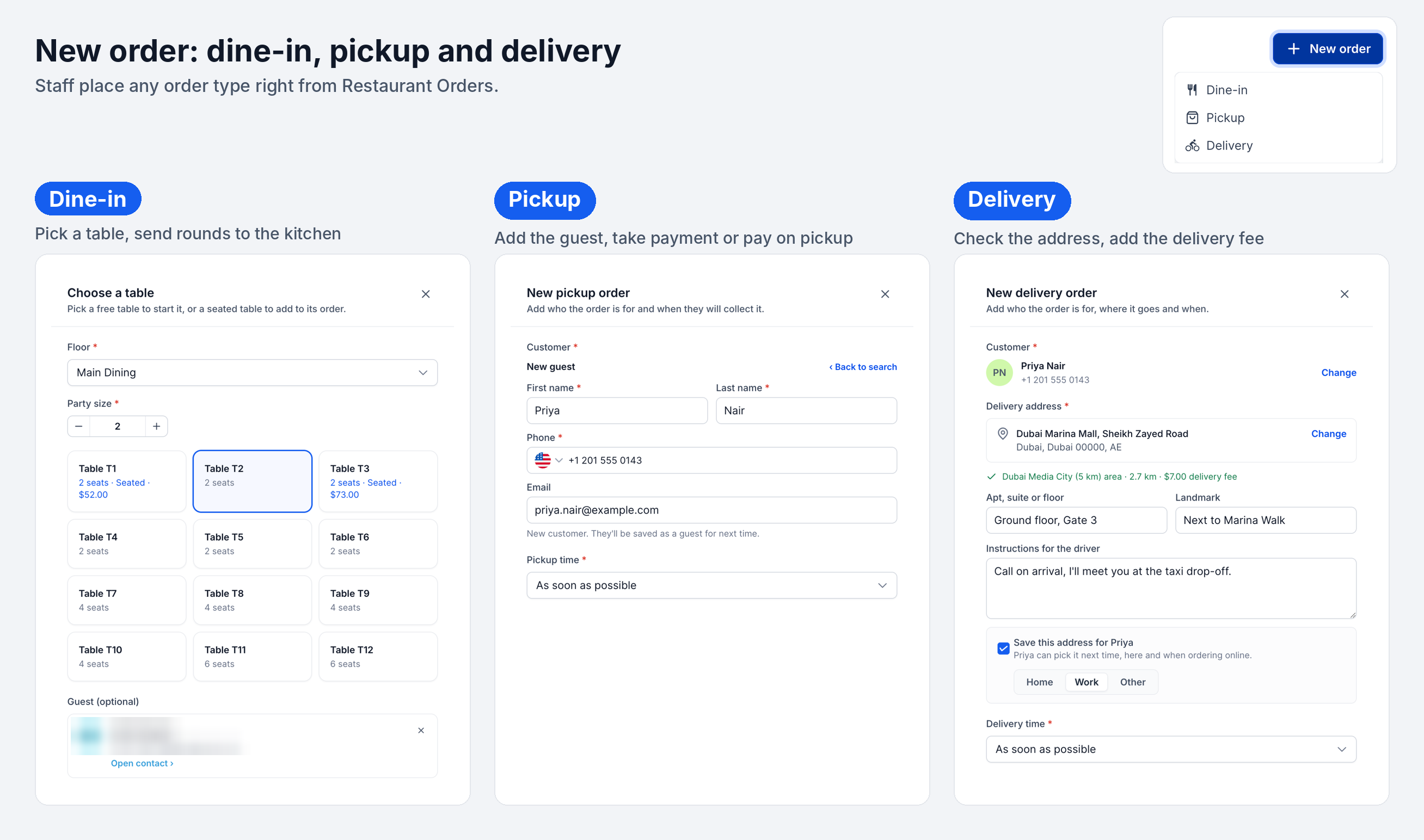
- Dine-in: Select a table, build the round with item options and a kitchen note, then send it to the kitchen. The bill stays open so you can add more rounds during the visit.
- Pickup: Find or create the guest, choose a pickup time, add items and place the order from the same screen.
- Delivery: Enter or confirm the address to check the delivery area, distance and fee, and add clear notes for the driver.
- Saved addresses: Store a guest's address as Home, Work or Other so your team can re-use it quickly on future orders.
- Pay now or later: Charge a card, record a payment, or choose Pay on pickup or Pay on delivery whenever that fits your flow.
- Straight to the kitchen: Orders are accepted as soon as you place them, with a ready time set for the kitchen team.
How to get started
- Go to Restaurants → Restaurant Orders and click New order.
- Choose Dine-in, Pickup or Delivery.
- Add the guest and items, then click Send to kitchen or Place order.
Why it matters
- Every order in one place: Phone and counter orders now sit alongside online orders in Restaurant Orders, so your team works from a single view.
- Faster repeat orders: Guests and their saved addresses are ready to re-use, so repeat pickup and delivery orders take fewer steps.
Availability
Available to agencies using Restaurants on the Founder's plan.
Every order on one screen, straight to the kitchen.