Overview
Service prices don't always match what should be charged - negotiated pricing or a one-off scenario with custom pricing can all mean the final price differs from what's configured.
With this release, you can now edit a service's price directly from the Services appointment modal before saving a new appointment or while editing/duplicating an existing appointment, without touching the service's global pricing.
What changed
Editable service price on the appointment itself
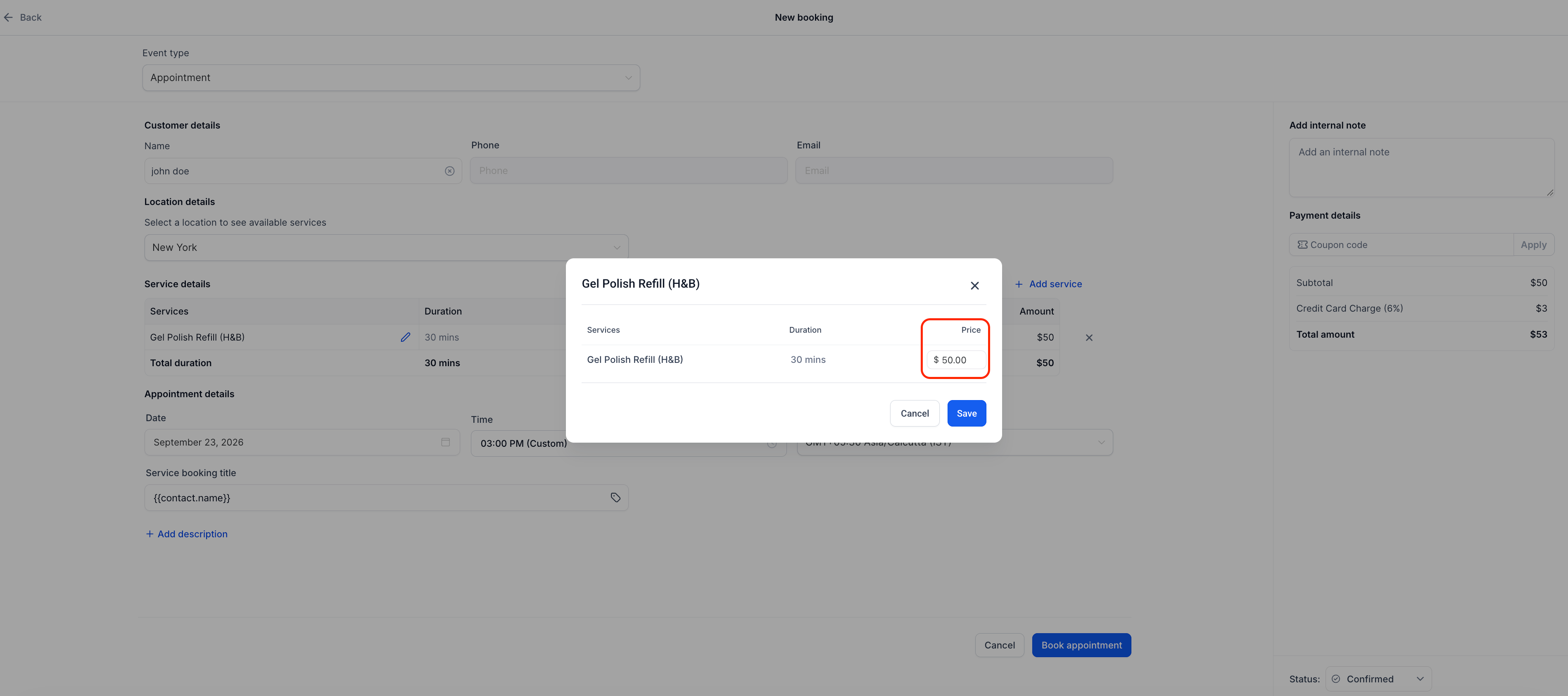
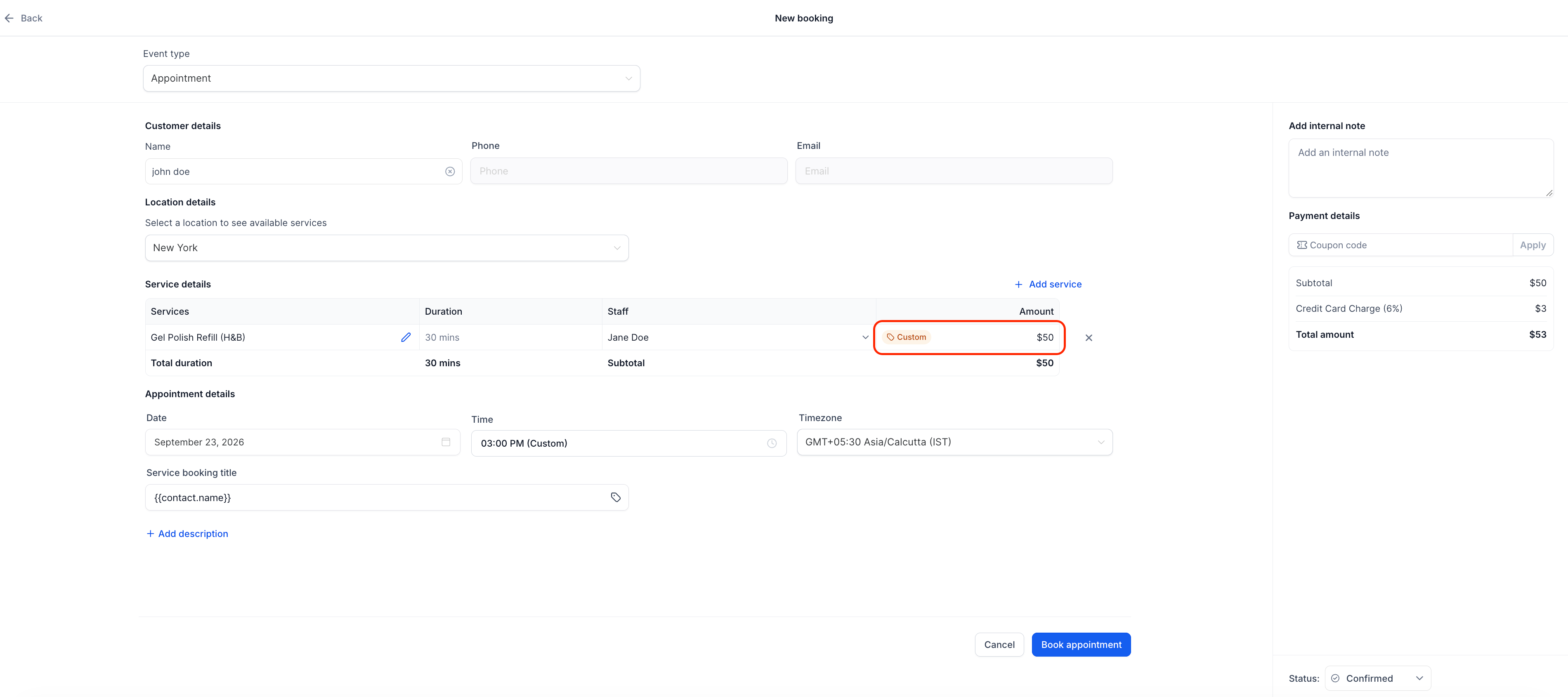
When creating, editing or duplicating a Services appointment, you can now adjust that service's price right in the appointment modal - the total updates immediately to reflect it.
Appointment-specific, never global
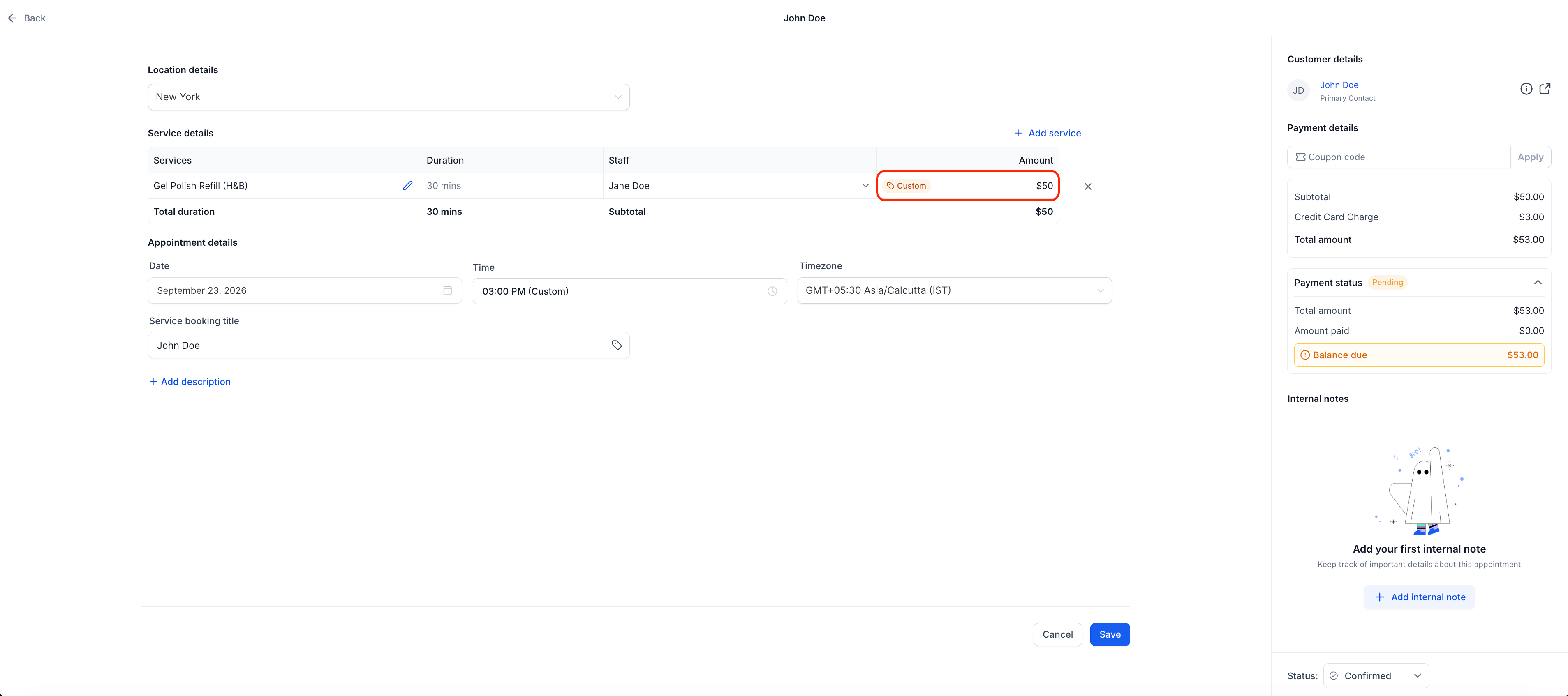
A price edit only applies to that one appointment. The service's globally configured price is never changed, so every other booking keeps using the standard rate.
Sensible validation, built in
Zero is a valid price for cases like complimentary services, but negative values are blocked with a clear validation error before the appointment can be saved.
A clear "custom" tag on edited prices
Once a service's price is edited on an appointment, it's marked with a Custom tag right next to the amount - so it's obvious at a glance that this booking isn't using the standard price.
Overrides staff-specific pricing too
If a staff member has their own custom price configured for a service, entering a price on the appointment overrides that staff-specific price as well - the appointment always uses whatever price you set there.
Available on mobile app
You can edit a service's price for an appointment directly from the mobile app as well.
How to use it
- Open the service appointment modal (create, edit, duplicate).
- Click the edit icon next to a service.
- Enter a new price for the service.
- Save as usual. The custom price applies only to that appointment.
Why this matters
- Lets staff charge the actual negotiated or discretionary price without a workaround or offline settlements.
- Keeps global service pricing untouched, so one custom price never leaks into other bookings.
- Works the same way whether staff are at a desk or on the go with the mobile app.