Overview
EveryCatch now lets you decide whether the "Sign in with Google" option appears on your client portal sign-up and login pages. As an admin, you can turn Google sign-in on or off directly in the client portal app permissions. This gives you flexibility to match your login experience to your internal policies and any regional privacy or data-handling rules you follow, such as GDPR and other European regulations.
Key highlights
- Google sign-in toggle – Choose to show or hide the Google button on your portal sign-up and login screens.
- Managed in app permissions – Account admins can change this setting themselves without contacting support.
- Compliance flexibility – Remove third-party sign-in options if you need to follow regional privacy requirements (for example, GDPR).
How to use it
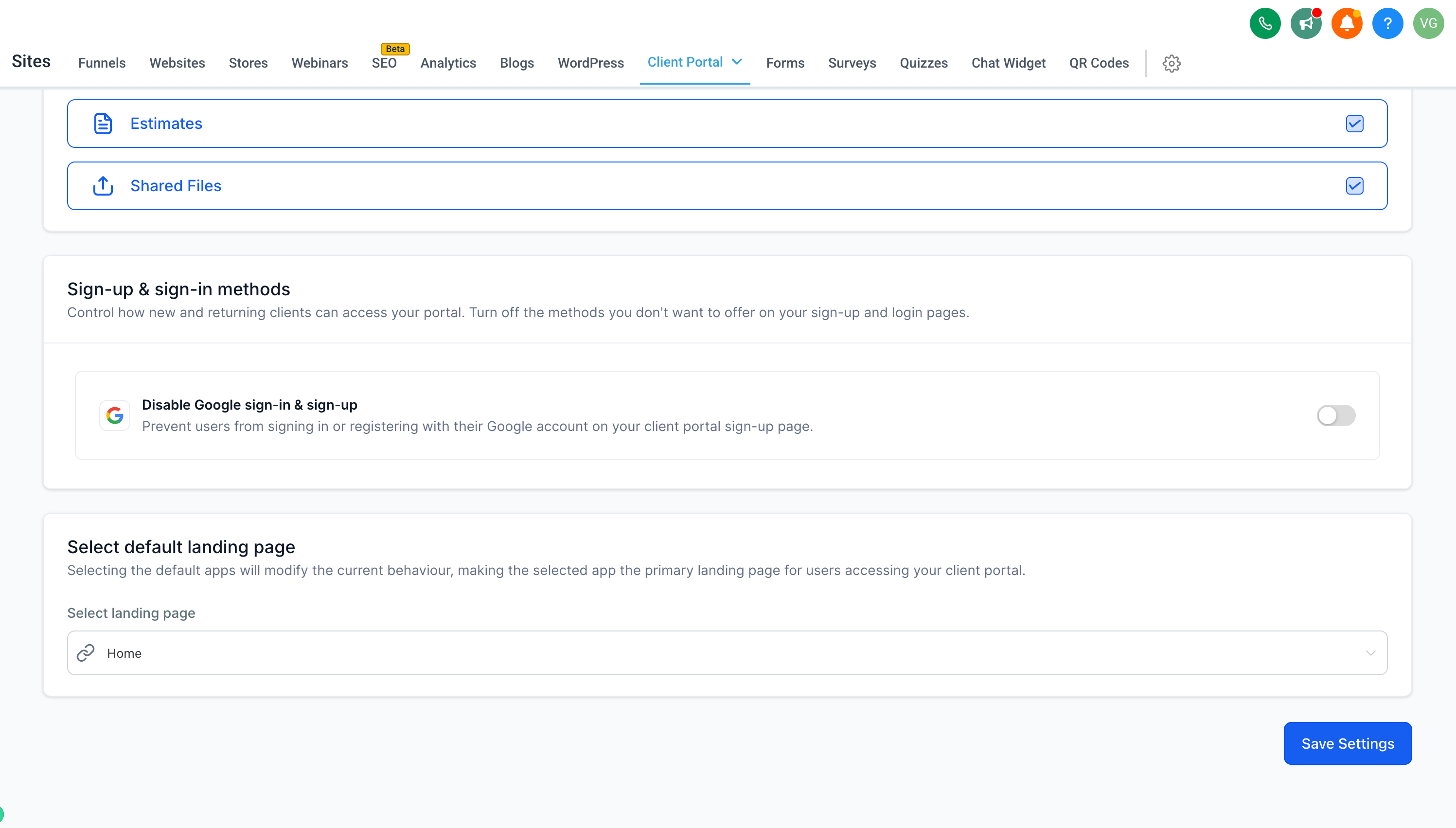
- In your account, go to Sites > Client portal settings.
- Open App permissions and scroll to the Sign-up & sign-in methods section.
- Use the Disable Google sign-in & sign-up toggle to turn the option ON or OFF, depending on your preference.
- Click Save settings to apply the change.
Why this feature is helpful
- Previously, Google sign-in was always enabled and you could not remove it, which created potential compliance issues for some businesses working under GDPR and similar data-handling rules in Europe.
- You now have direct control over which login methods appear on your portal, so you can configure sign-up in a way that fits your regulatory requirements and your preferred user experience.
Notes
- If you disable Google sign-in, contacts can create an account and log in using email and password, or by using a secure code login method where available.
- This setting is configured per account in the client portal app permissions.
This option is available on the client portal web experience.



