Settling a table is now quicker and easier.
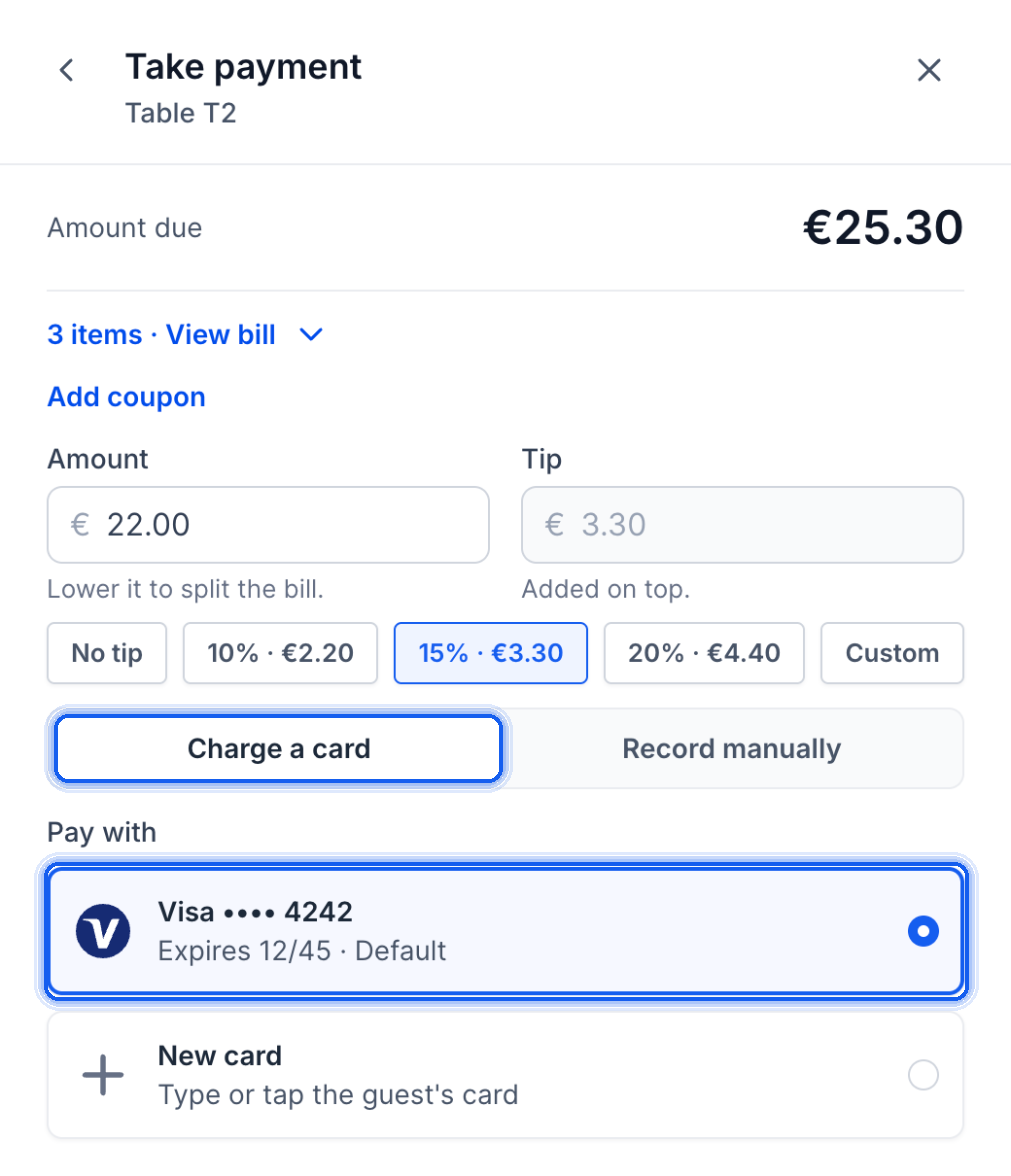
EveryCatch now lets you charge a guest’s saved card directly from the Take payment drawer. When a guest has cards on file, you will see them listed right away, with their default card already selected for you.
What changed
- Charge a card from Take payment: Open the table or its order, click Take payment, and you can use Charge a card immediately with the amount prefilled.
- Saved cards show up: Under Pay with, you now see the cards the guest has used before in EveryCatch, with their default card already selected so you can charge it in one click.
- New card any time: If the guest wants to use a different card, choose New card and enter or tap the card details, then charge as usual.
- Works with tips, coupons, and split bills: The Charge button always reflects the exact total due, including any tips, coupons, or split-bill amounts for that guest.
How to get started
- Open the table in Reservations → Front of house, or open its order in Restaurant orders.
- Click Take payment and make sure you are on the Charge a card tab.
- Use the default saved card or select New card, then click Charge to complete the payment.
Why it matters
- Faster table turns: Regulars can pay with a card they already have on file, so you spend less time handling cards at the table.
- Fewer manual entries: Card payments go through your connected payment provider in EveryCatch instead of a separate terminal, which reduces keying errors and keeps your reporting in one place.
Availability
This feature is available to agencies using Restaurants on the Founder's plan.
Tap to open Take payment, charge the saved card, and move on to the next table.