What changed
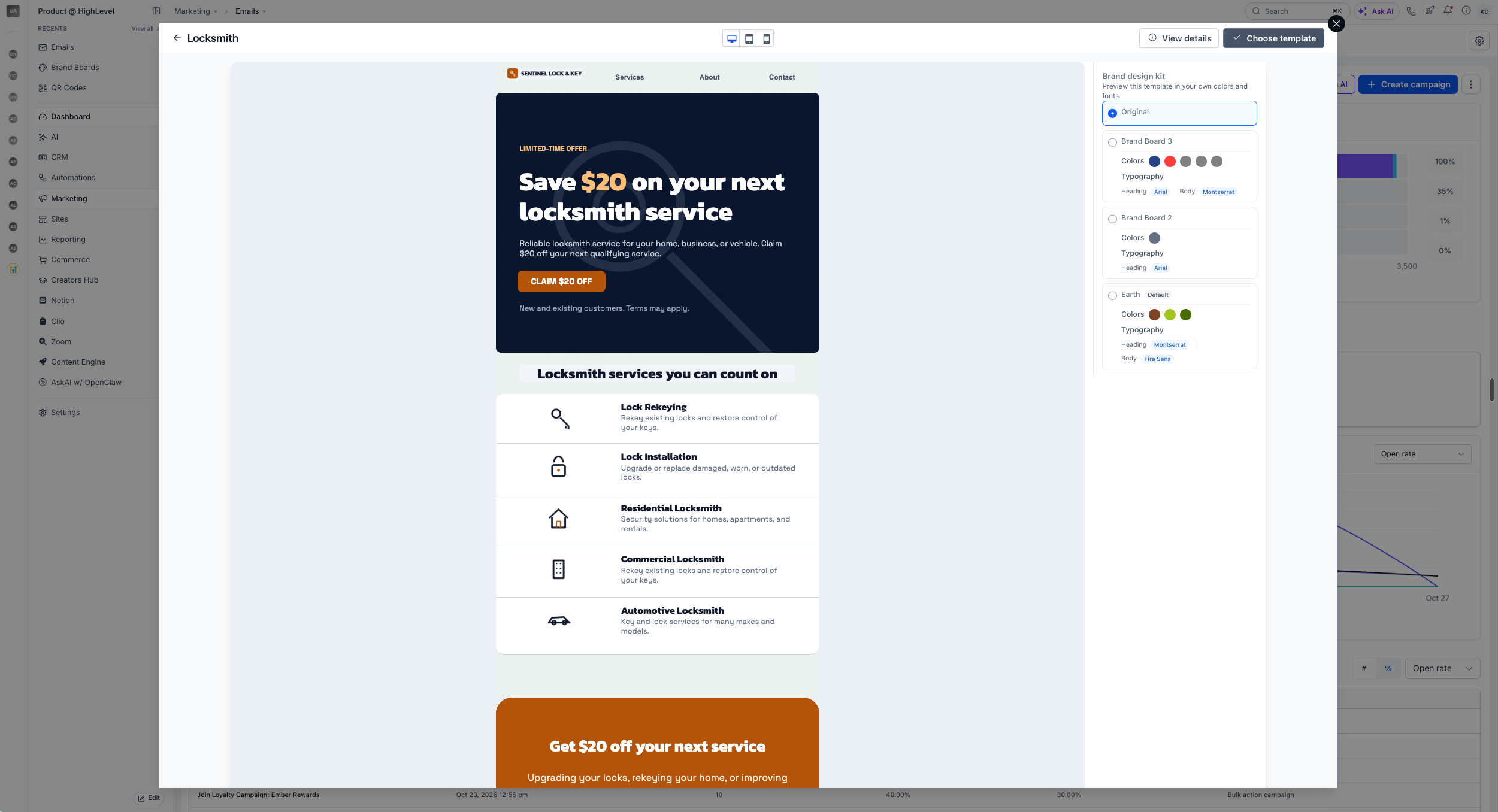
- You can now see any template in your own brand colors before you choose it: The template modal preview now shows a list of your Brand Boards on the right, so you can preview how each template looks with your brand colors applied before you select it.
- EveryCatch now applies your brand as soon as the template loads: After you pick a Brand Board from the list, the template opens already recolored to match your saved brand palette.
Why this matters
Previously, choosing a template meant starting from a generic design and then manually updating colors to match your brand. With the new preview, you can see exactly how a template will look with your Brand Board colors before you commit to it, so you can pick faster and avoid extra editing later.
How to use
- Open the template modal from any supported EveryCatch builder.
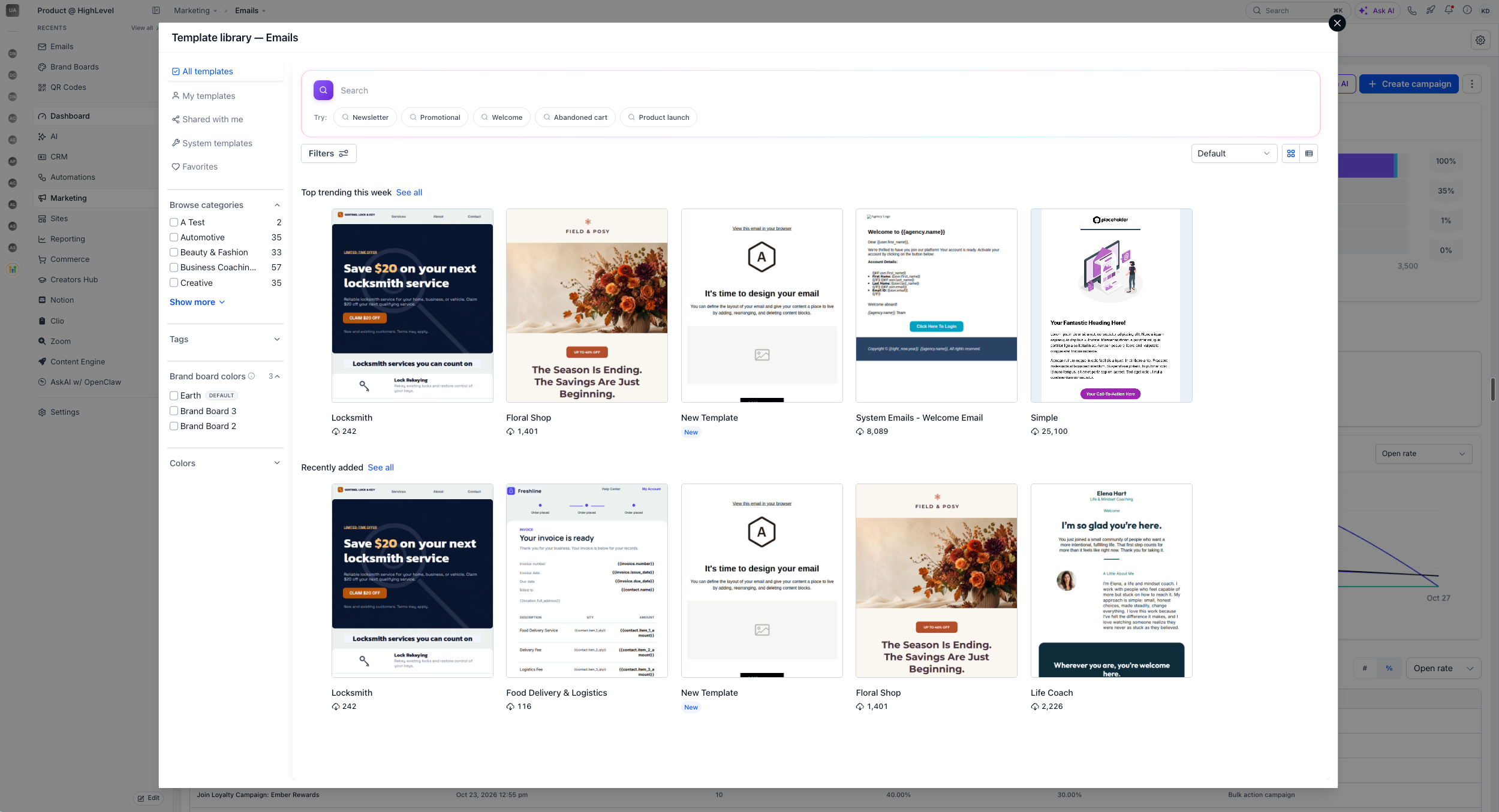
- Select a template to open its preview.
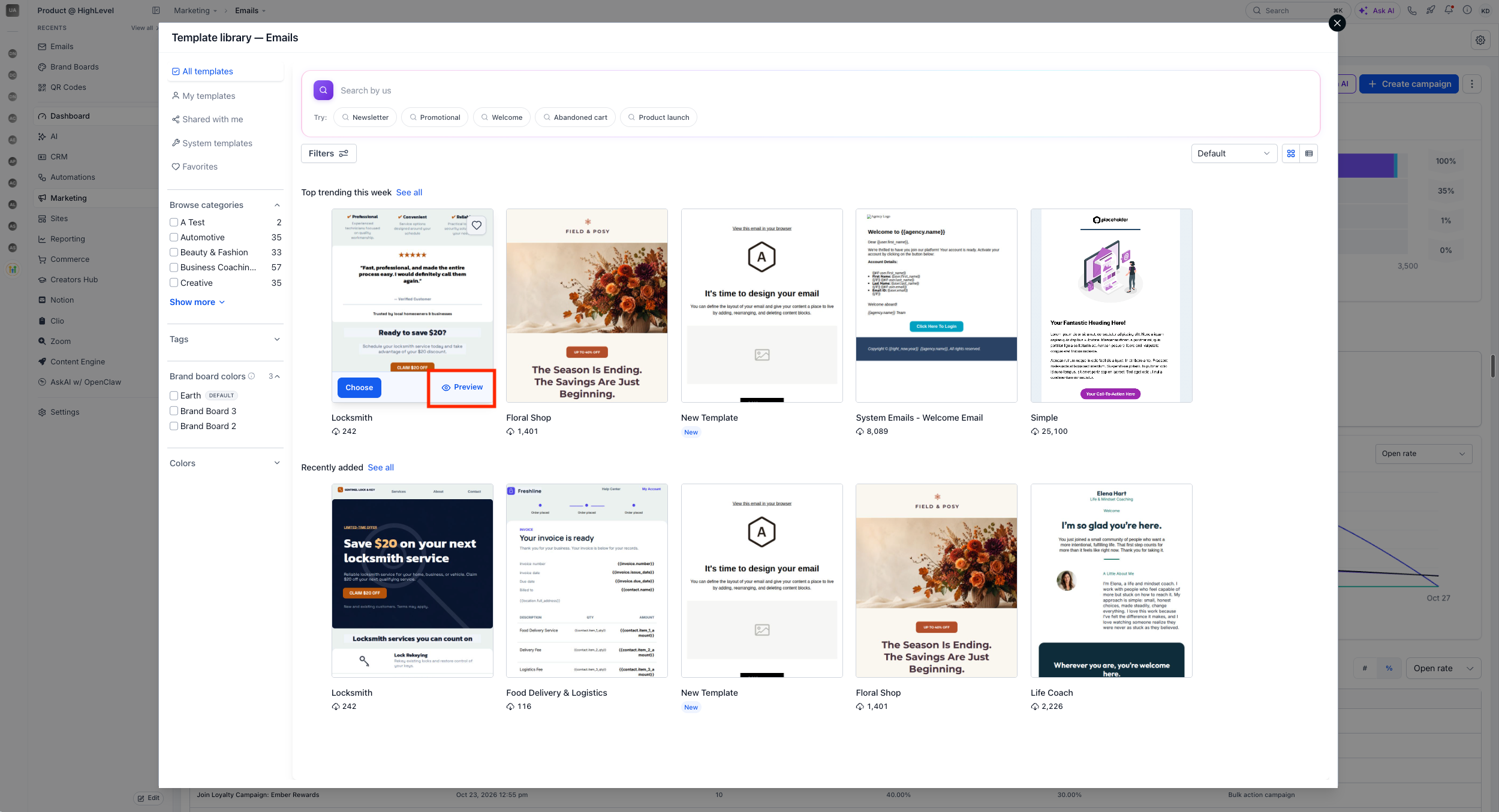
- In the preview, choose a Brand Board from the list on the right side.
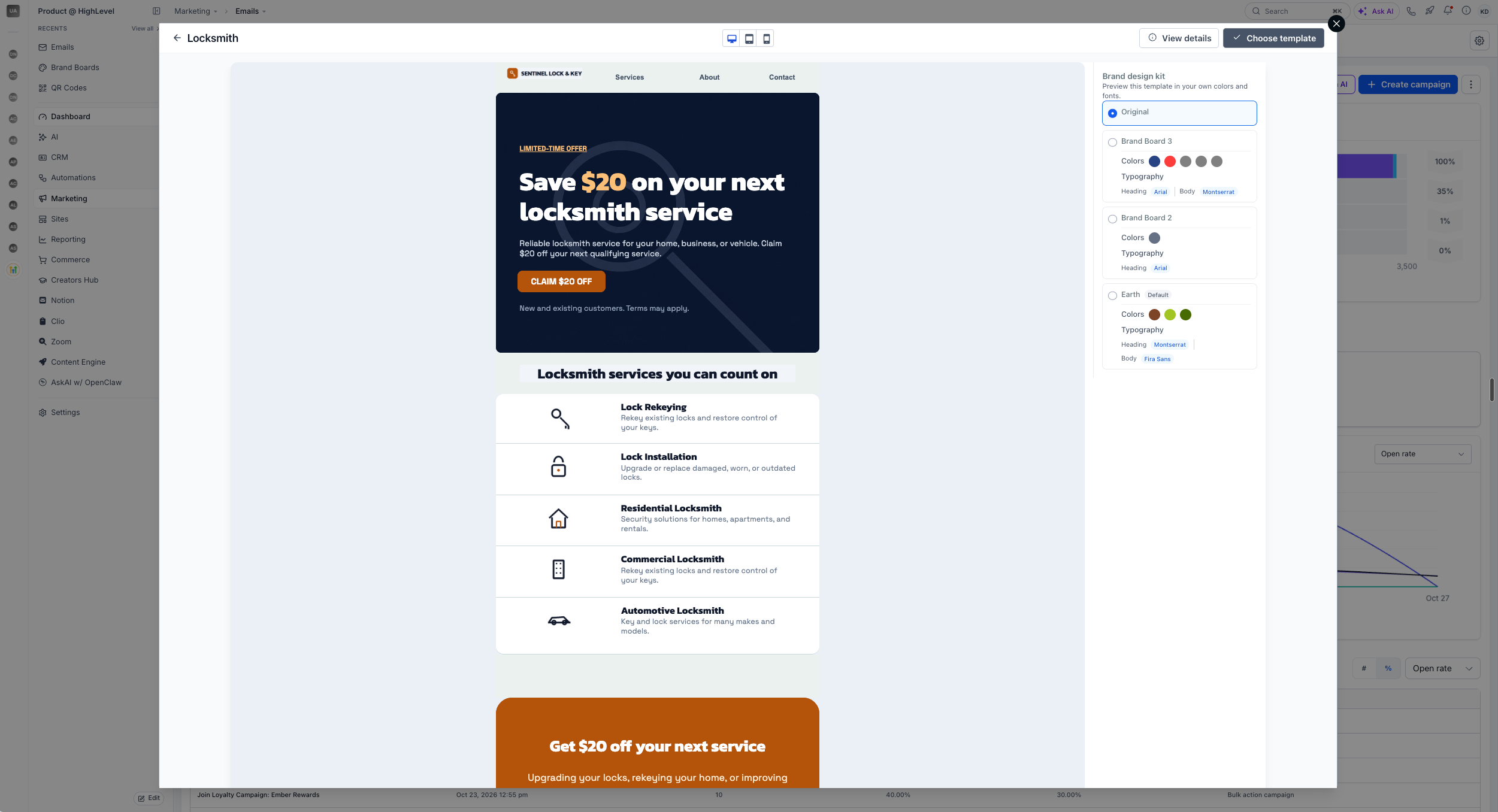
If you do not have a Brand Board yet, you can set one up from the right side of the preview panel before you continue.
- The preview updates to show the template with the colors from the selected Brand Board.
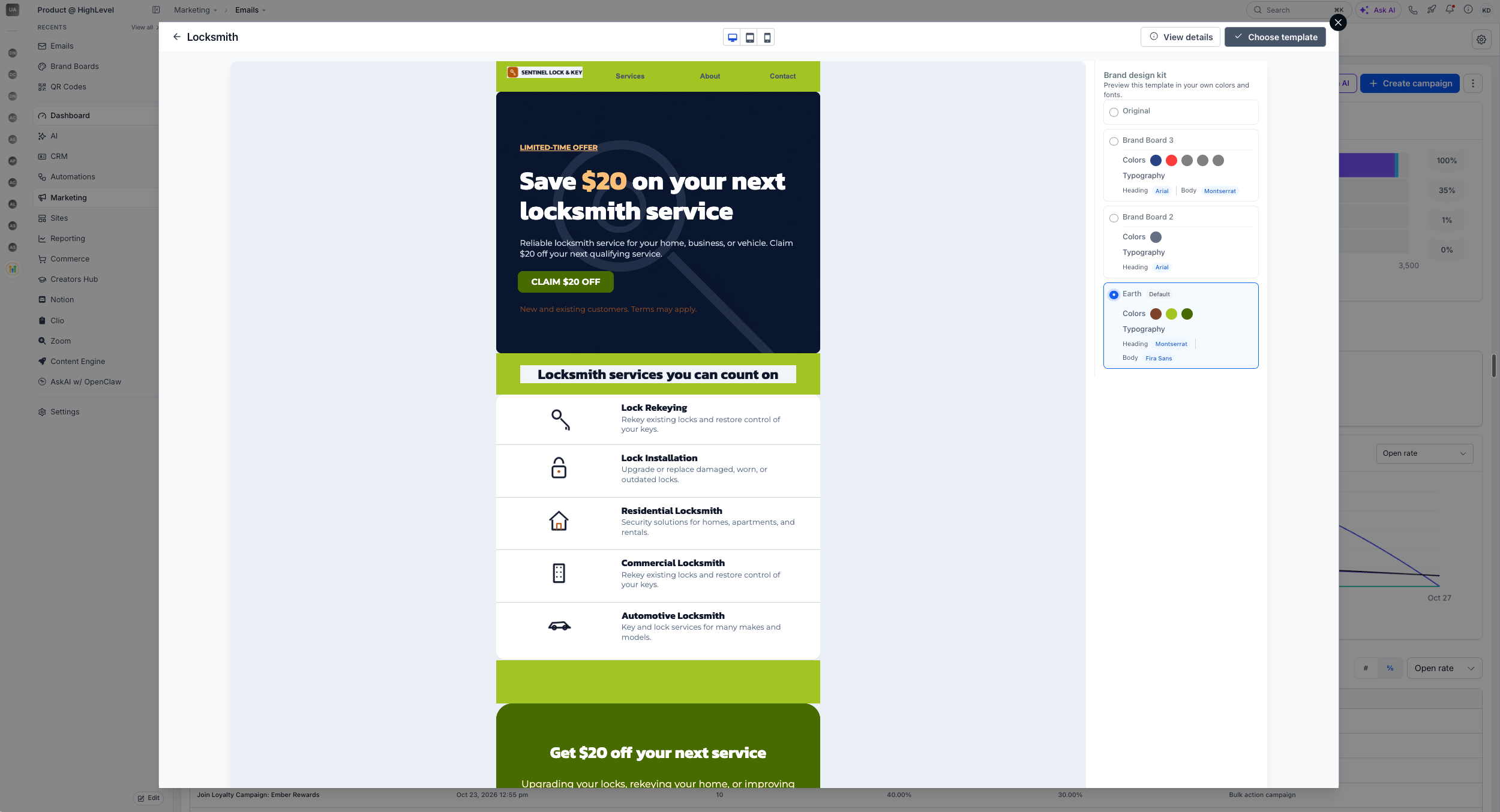
- Click "Choose template" to insert it into your builder with your brand colors already applied.
Notes
- This update is currently available in the template modal preview only.
- Recoloring uses the colors saved in your Brand Boards. If you later edit those Brand Board colors, templates you already applied will not update automatically.
- If a Brand Board is not set up yet, click the "Setup Brand Board" button on the right side of the preview section to create one.



