EveryCatch now creates your Profile Card and Business Card for you automatically, so you can start sharing them right away without setting anything up first.
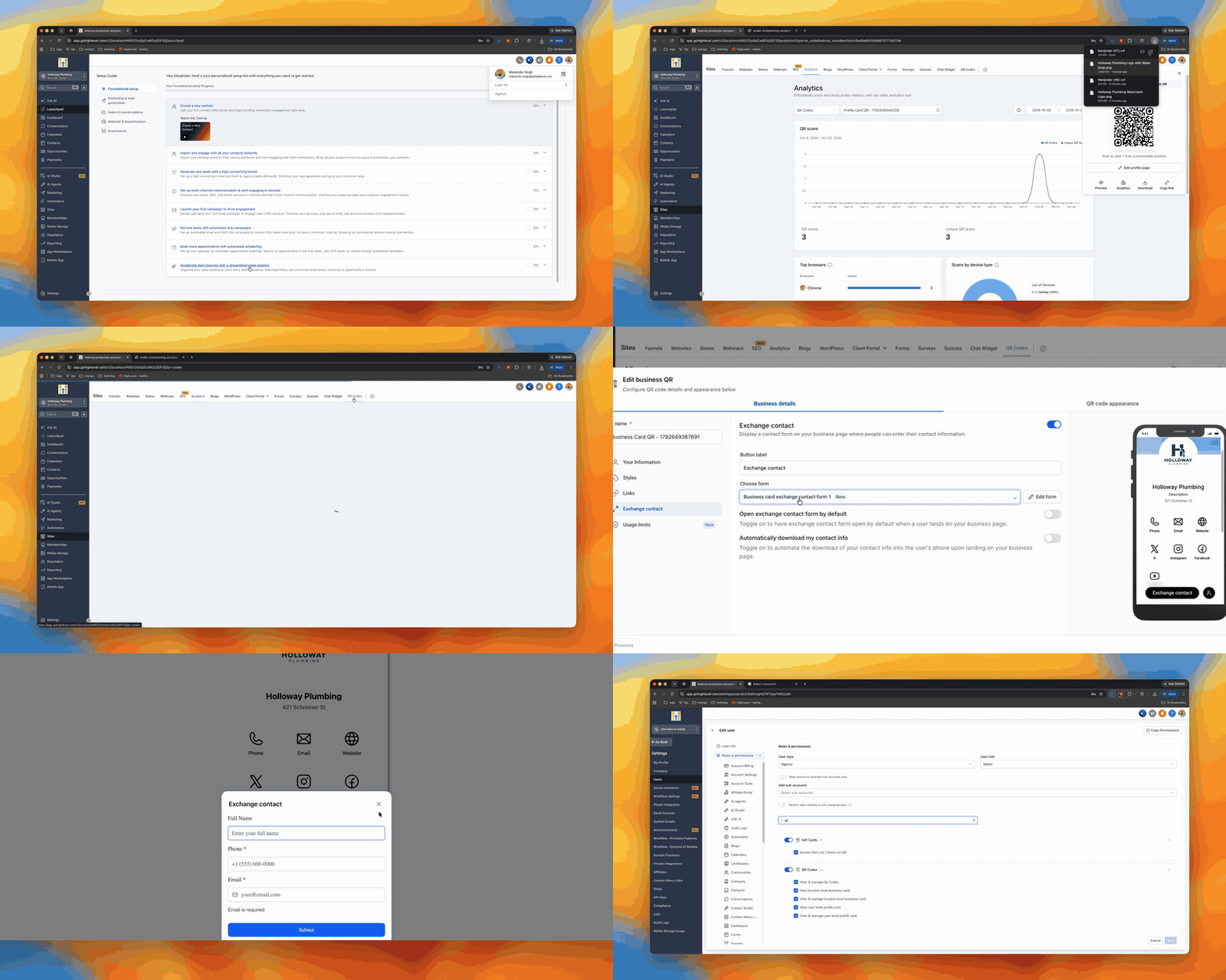
Click the new QR icon in the top bar and you will see both cards already created, pre-filled with the details stored in your EveryCatch account.
Key features
- Cards in seconds. The first time you open the QR icon, EveryCatch instantly generates both cards for you, with no form to complete.
- Your links in one place. Add links for X, Instagram, Facebook, LinkedIn and YouTube, along with custom links such as your website, email, booking page or portfolio so people can find you everywhere from a single card.
- A QR you can share anywhere. Each card has its own URL and downloadable QR code. You can print the QR for offline use or add it to your phone’s wallet so you can show it in person when needed.
- Lead capture built in. Turn on Exchange Contact and anyone who scans your card can submit their details. A new contact is created directly in your EveryCatch CRM.
- Scan analytics. Every card tracks its own scans so you can see how often each one is being used.
- Full editing when you want it. The cards are ready to use from the moment they are created, and you can still change the design, colors and landing page at any time.
How the cards are made
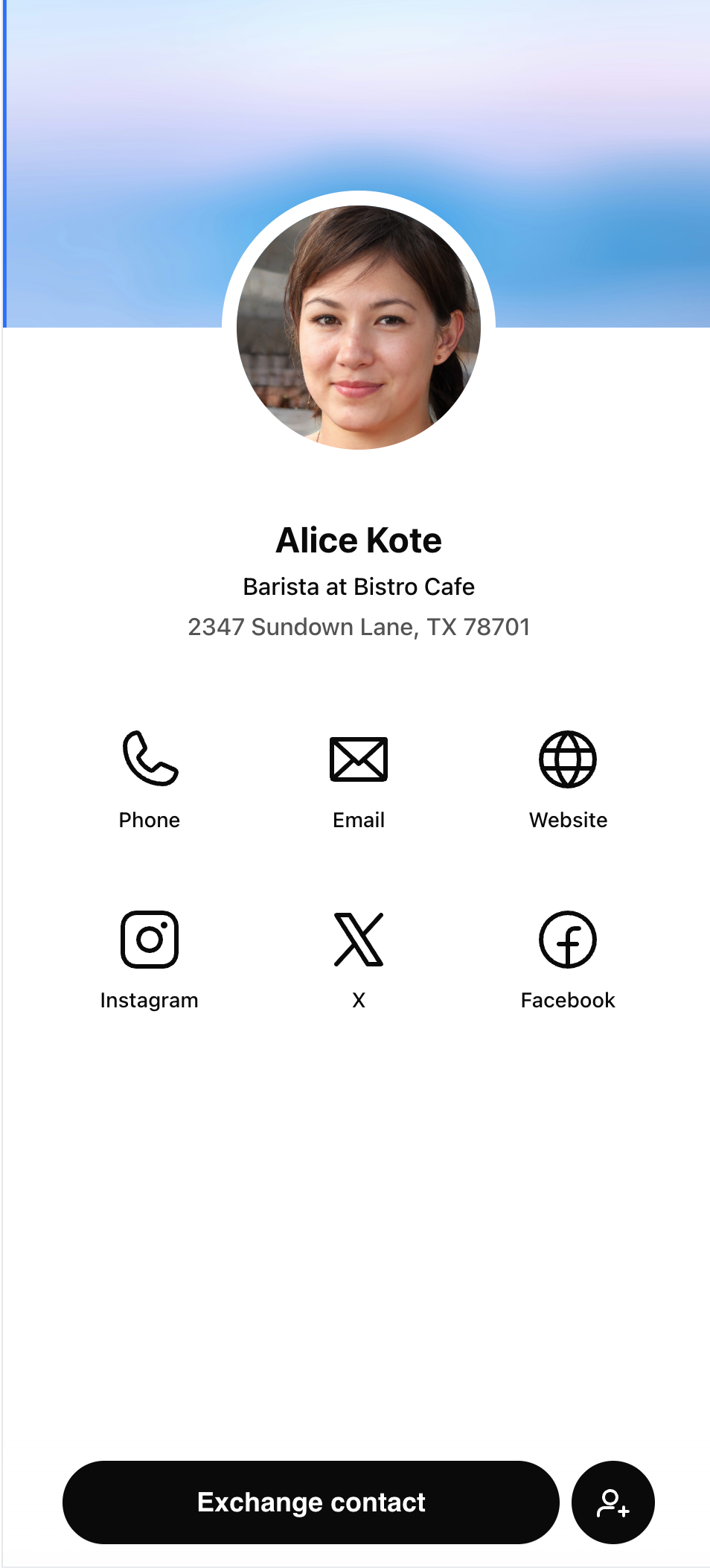
- Profile Card → Built from your user details in EveryCatch (for example your name, role and contact information).
- Business Card → Built from the business details on the EveryCatch account (such as business name, logo and main contact details).
The first time you click the QR icon, EveryCatch creates both cards in the background and shows them in a popover so you can start sharing them immediately.
Where to find them
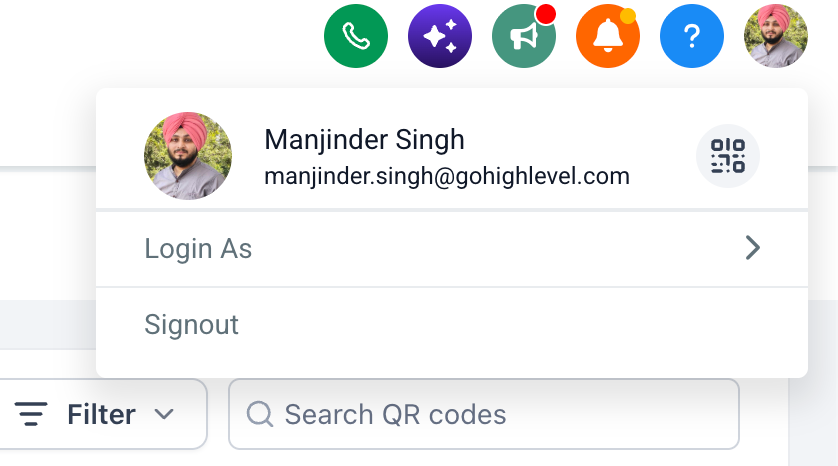
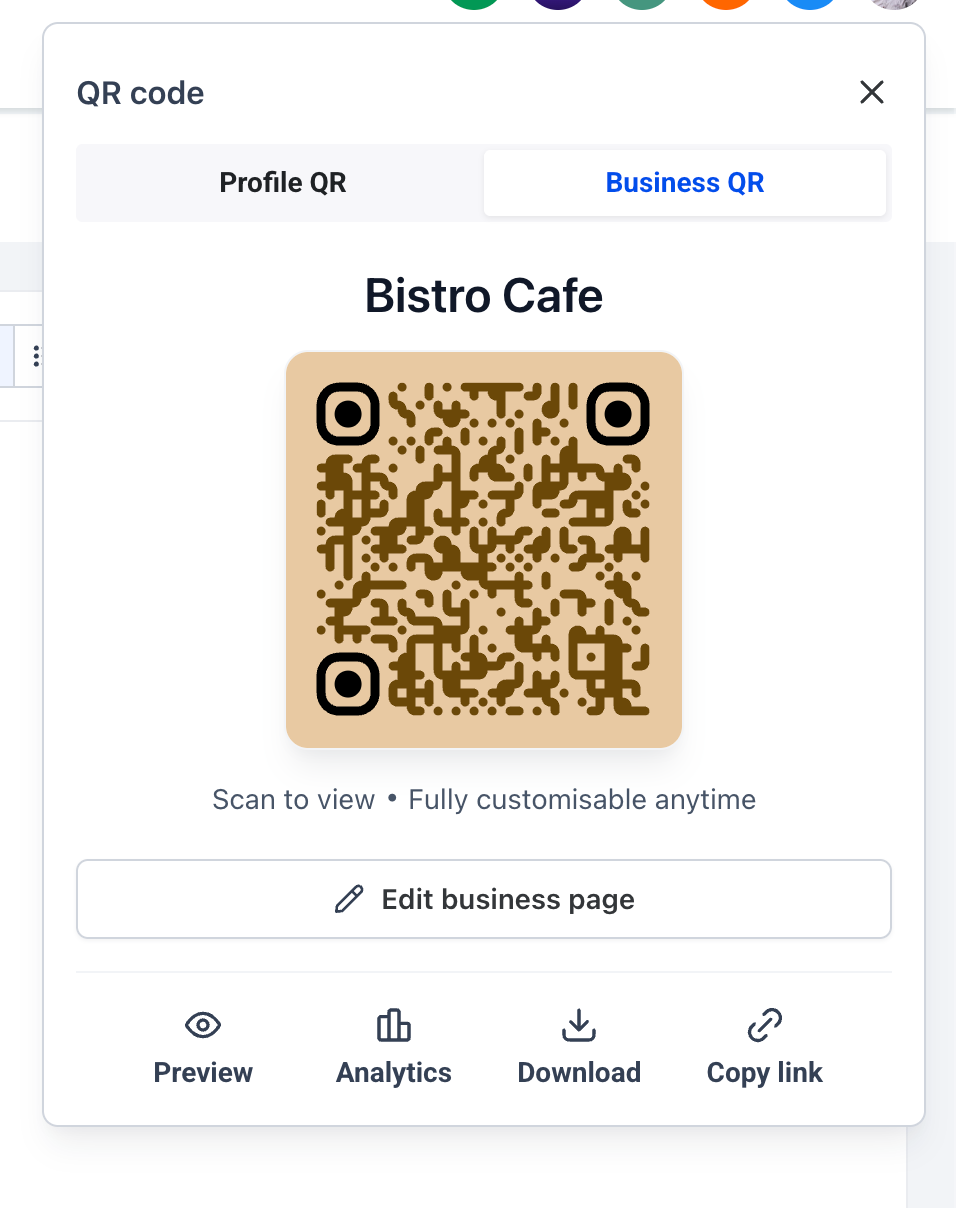
You will see a new QR icon in the top navigation bar. Click it from any screen inside an account to open a popover that displays both your Profile Card and the shared Business Card.
The two cards
- Profile Card - Personal to you. Each team member gets their own card with their name, title and direct contact details, so they can share their information individually.
- Business Card - Shared for the account. Everyone in the account uses the same Business Card with the business’s core information.
System folders
When EveryCatch creates a card, it also creates a system folder so your automatically generated cards stay organized.
- Profile Cards → Contains all automatically generated Profile Cards.
- Business Cards → Contains all automatically generated Business Cards for the account.
These folders appear in a separate System folders section on the QR Codes list page so you can easily find your default cards.
System folders are managed by EveryCatch, so they cannot be renamed or deleted, and you cannot create new QR codes inside them. The cards inside those folders remain fully editable, including their design and settings.
Save contact
Save Contact is turned on automatically for every Profile and Business Card. Anyone who scans your QR can instantly download your contact information to their phone, so they do not have to type in your details manually.
Exchange contact
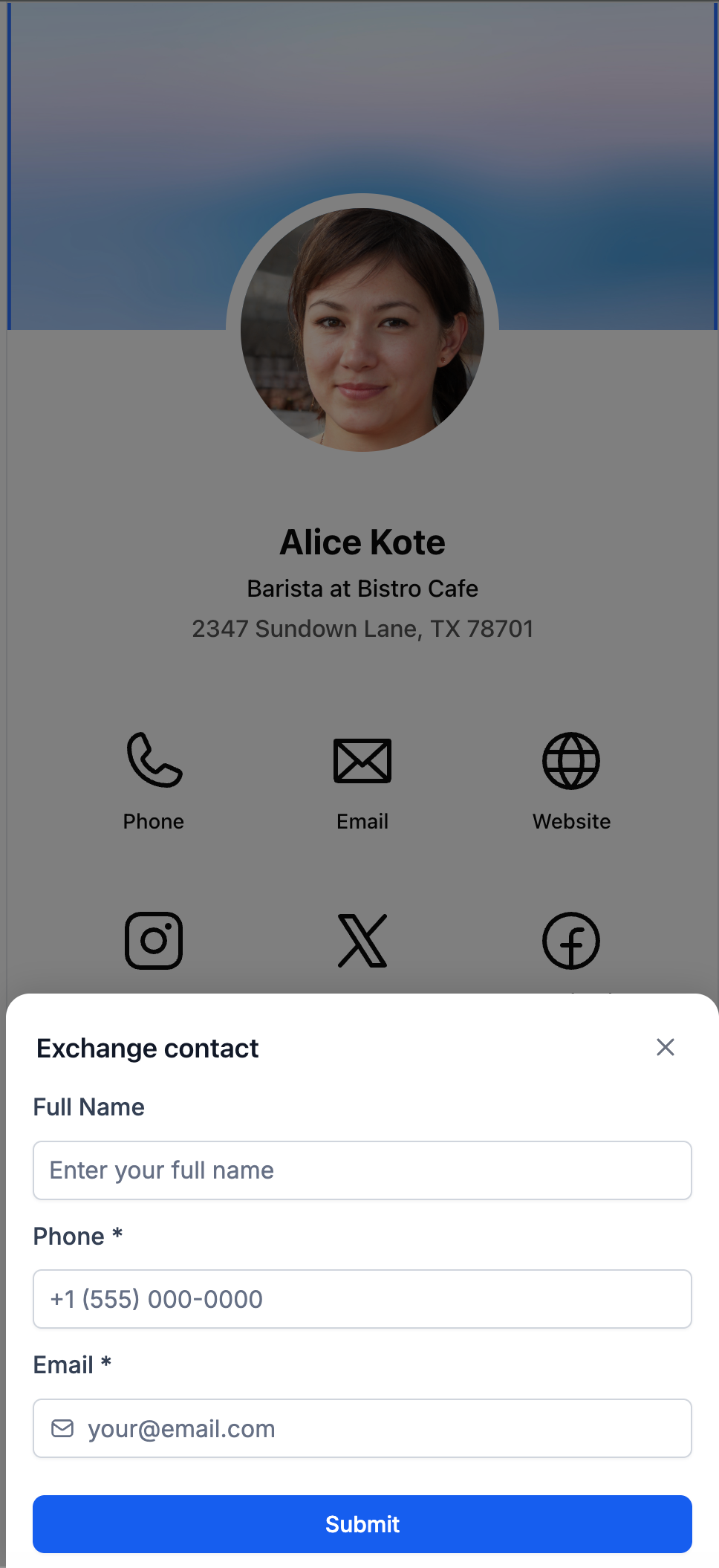
Exchange Contact is an optional setting that lets the person scanning your QR send their contact details to you directly from the card.
- Creates a contact in your EveryCatch CRM.
- Records which specific card the contact came from so you can track performance.
- Can use the built-in EveryCatch lead form or any existing EveryCatch form you select.
- Off by default - enable it from the card editor whenever you are ready to start collecting leads.
When you enable Exchange Contact, your card becomes a simple way to capture new contacts and feed them straight into your CRM with clear attribution.
Four new permission toggles
Inside user permissions, under the existing QR Codes permission group, you will now see four additional toggles that control access to the default cards:
- View location level business card - Allows users to view the Business Card, see its analytics and download the QR or link.
- View & manage location level business card - Includes view access and allows users to edit the Business Card design and landing page.
- View user level profile card - Allows users to view Profile Cards, see analytics and download the QR or link.
- View & manage user level profile card - Includes view access and allows users to edit the Profile Card design and landing page.
How the permissions behave
- Manage includes View, so you only need to turn on the Manage option if you want a user to both see and edit a card.
- QR Codes access is required first. If a user does not have base QR Codes access, the new card permissions are disabled and cleared automatically.
- Profile Cards are personal. Standard users can only access and, if allowed, manage their own Profile Card. Admins with the right permissions can manage Profile Cards for the whole team.
- Business Cards are shared. Everyone who has the matching permission will see and, if allowed, manage the same Business Card for that account.
- Manually created QR codes are unchanged. These new permissions apply only to the automatically generated Profile and Business Cards, not to any custom QR codes you create yourself.
By default, these permissions are switched on for all users, so your team can start using the cards immediately unless you choose to restrict access.
What each person actually sees
- No card permission → The user does not see the QR icon in the top bar and has no access to cards.
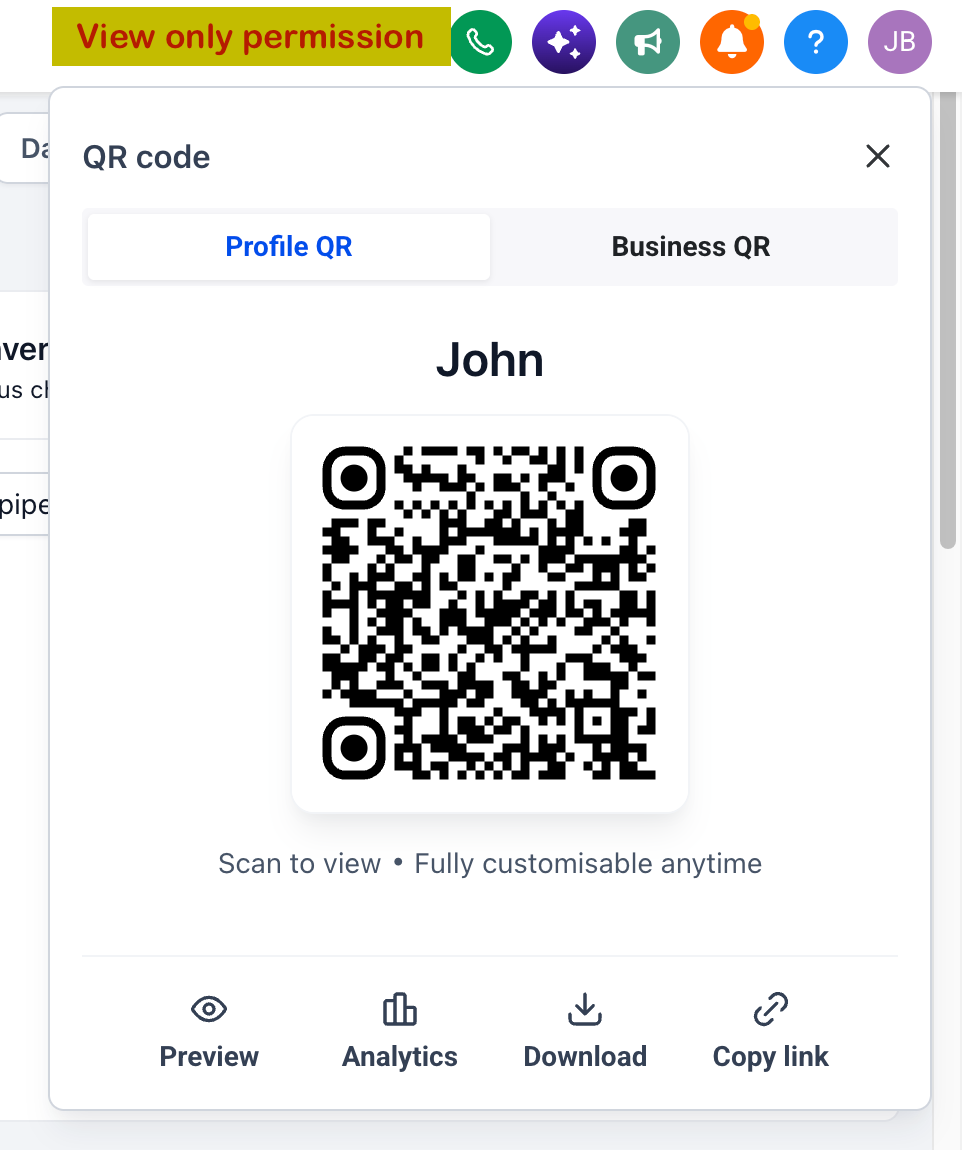
- View access → The user can create and access their card, copy the link, download the QR code and view analytics, but cannot see any editing controls.
- Manage access → The user has all View capabilities and can also edit the card design, content and settings.
- QR Codes list → Automatically generated cards and their system folders are visible on the QR Codes list only to agency or location admins with the relevant permission. Non-admin users can still open their own Profile Card at any time through the top-bar QR icon, even if they cannot see the system folders.
How to use it
- Open any EveryCatch account.
- Click the QR icon in the top navigation bar.
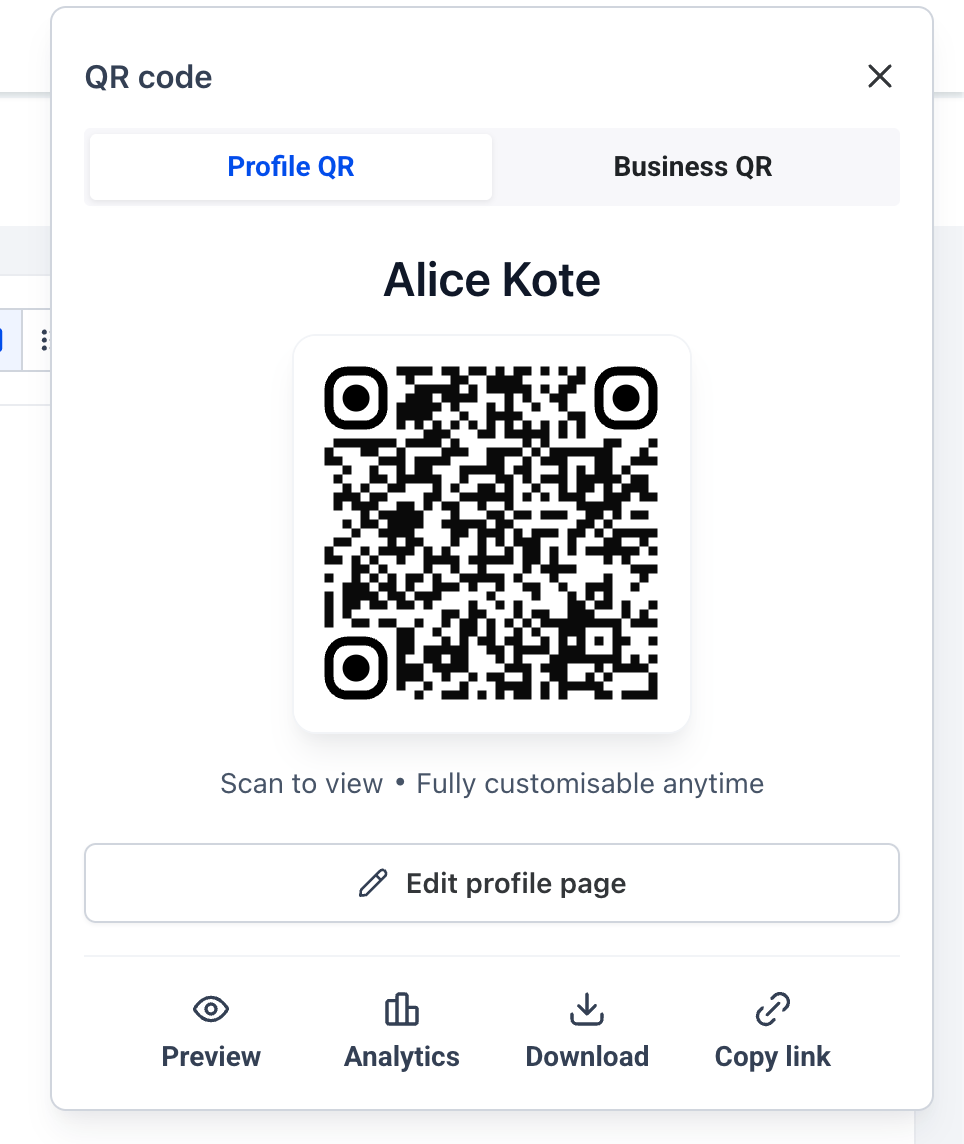
- Your Profile Card and Business Card will appear instantly, already populated with your existing account and user details and ready to share.
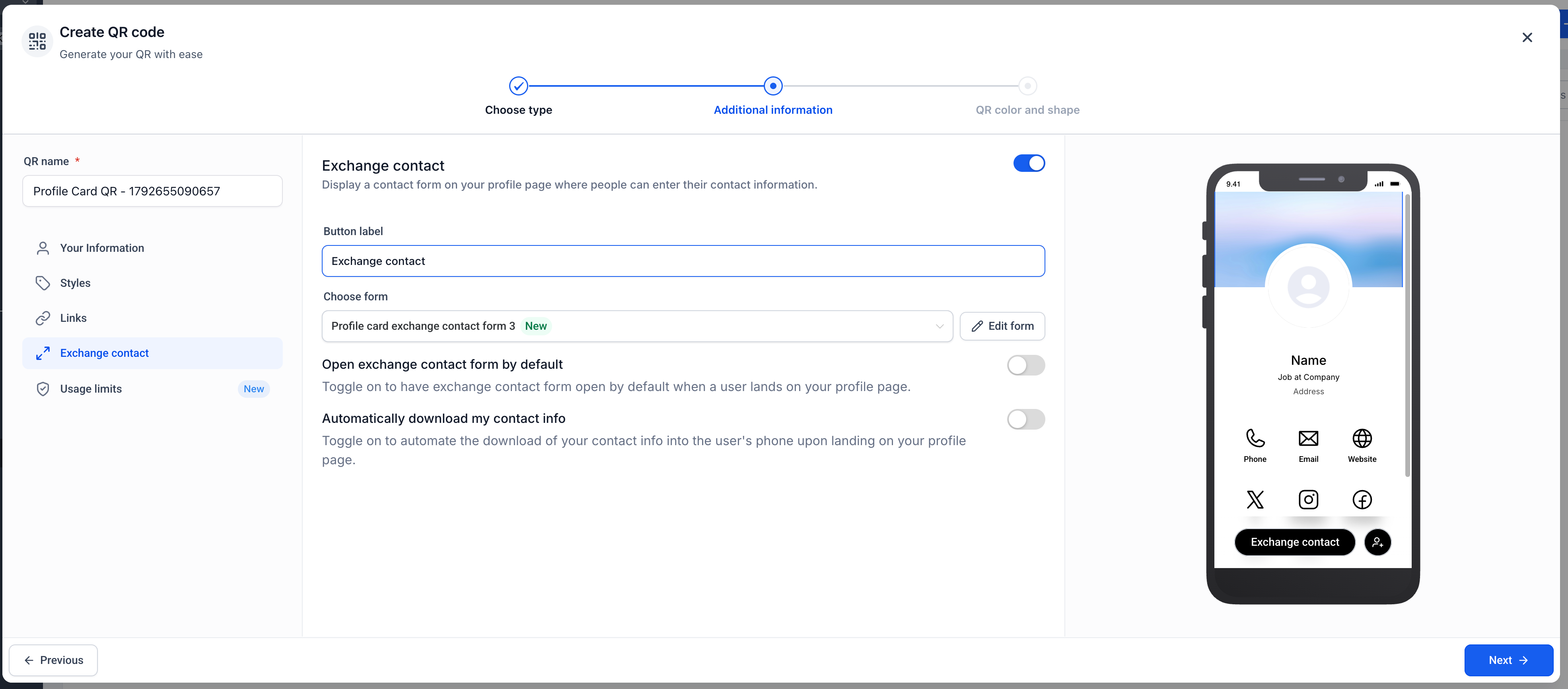
- To start collecting contacts, open the card editor for either card and enable Exchange Contact in the settings.
- Choose whether to use the built-in EveryCatch contact form or select one of your existing EveryCatch forms to display on the card.
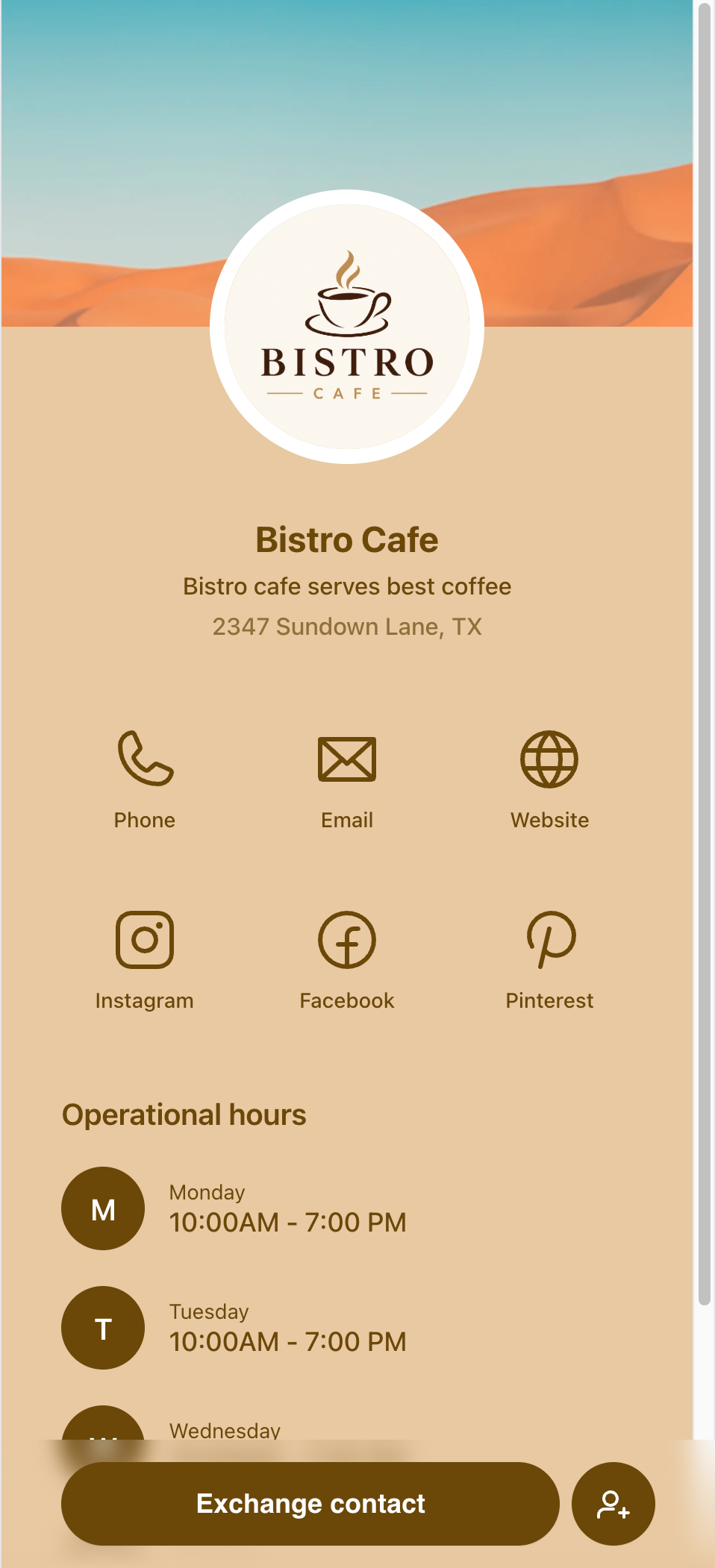
- Adjust the design, colors or landing page to match your brand or campaign requirements if you want to personalize the card.
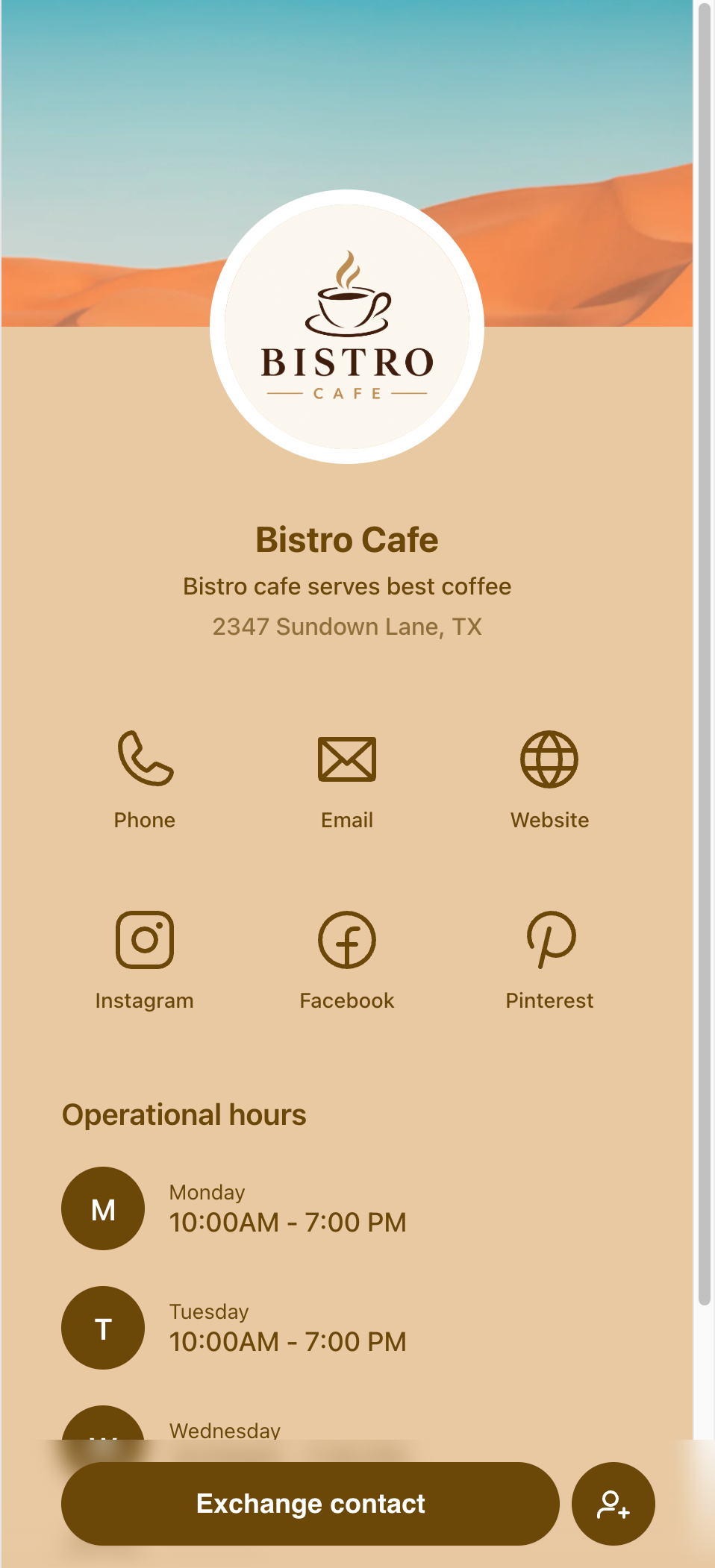
- Copy the link or download the QR code and then add it to business cards, email signatures, social profiles, printed materials or presentations.
- Any contacts collected using Exchange Contact are created in your EveryCatch CRM with activity logs that show exactly which card they came from.



