You can now create App QR Codes that automatically redirect users to the correct app store based on their device.
Previously, businesses promoting mobile apps had to use separate QR codes for iOS and Android or redirect users to a landing page with multiple download options. With the new App QR Code type, a single QR code can handle the entire experience.
What’s New
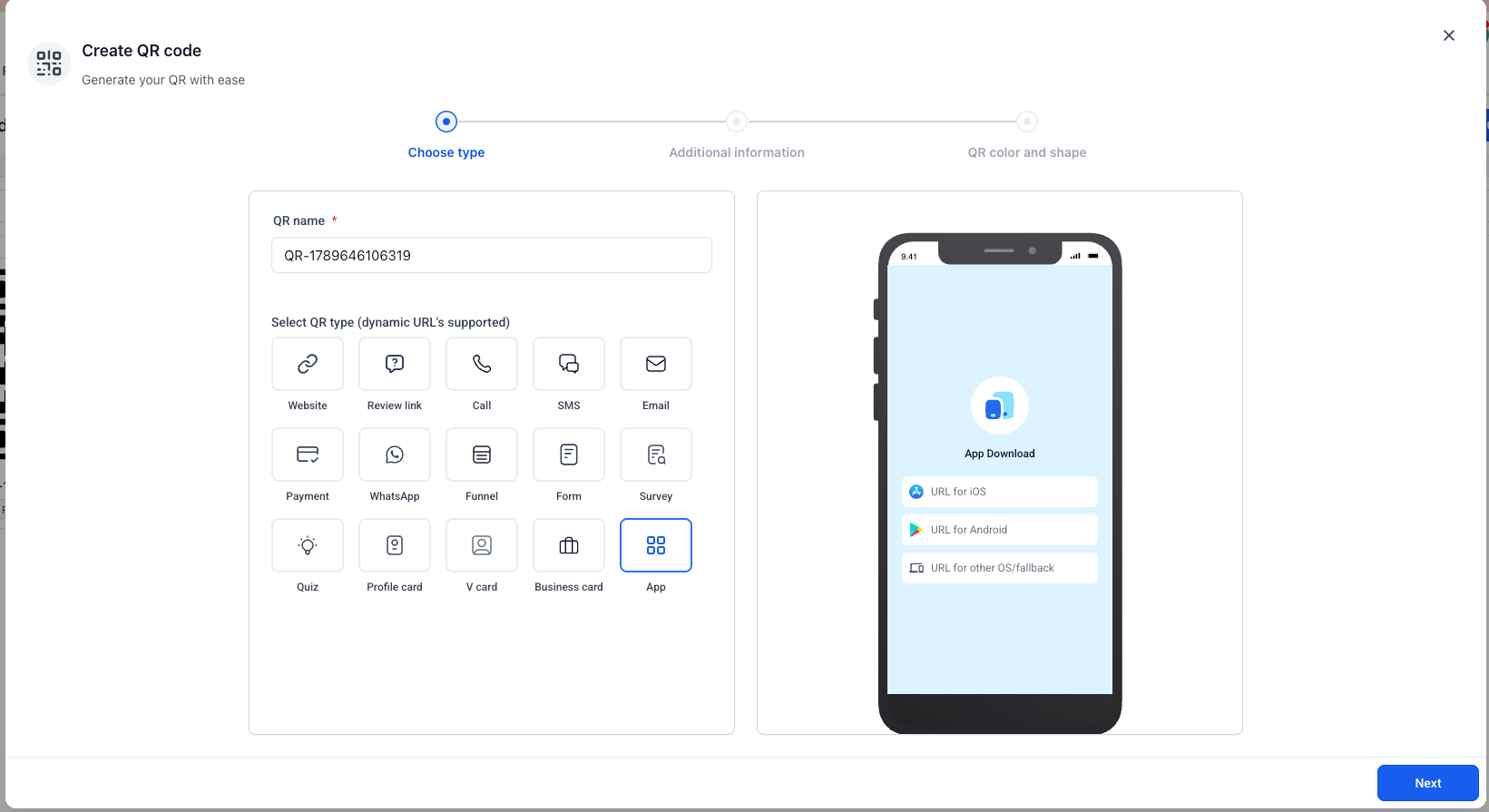
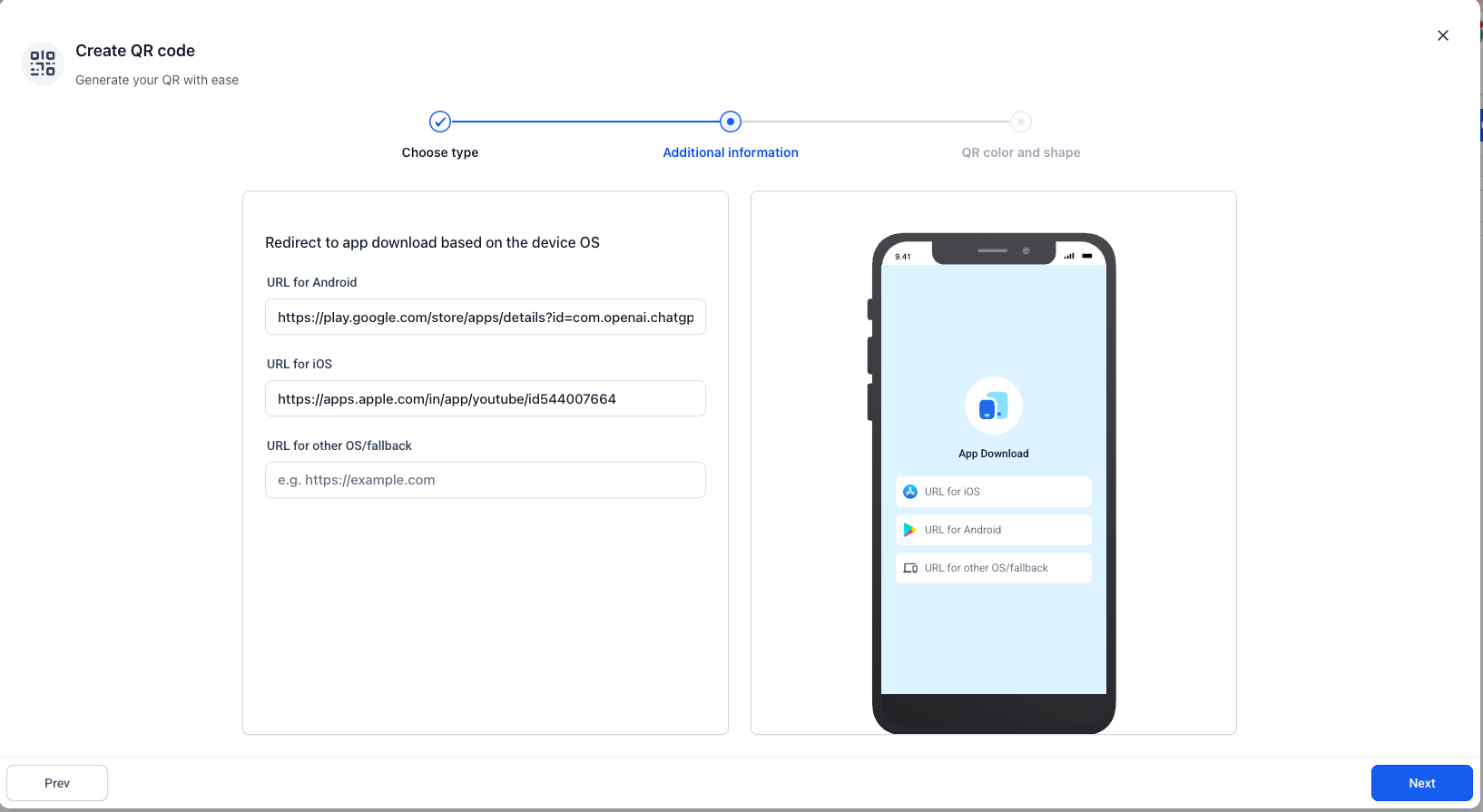
While creating a QR Code, select the new App QR Code type and configure
- App Store URL for iOS users
- Play Store URL for Android users
- Other Devices URL as a fallback for unsupported or unidentified devices
When someone scans the QR code, their device is automatically detected and they are redirected to the appropriate destination
- iOS → Apple App Store
- Android → Google Play Store
- Other/Unknown devices → Fallback URL
Why it matters
App QR Codes provide a simpler and more seamless app-download experience by eliminating unnecessary landing pages and multiple QR codes. Businesses can now use one QR code across campaigns, print materials, websites, and other promotional channels while automatically routing users to the right destination.
How to use it
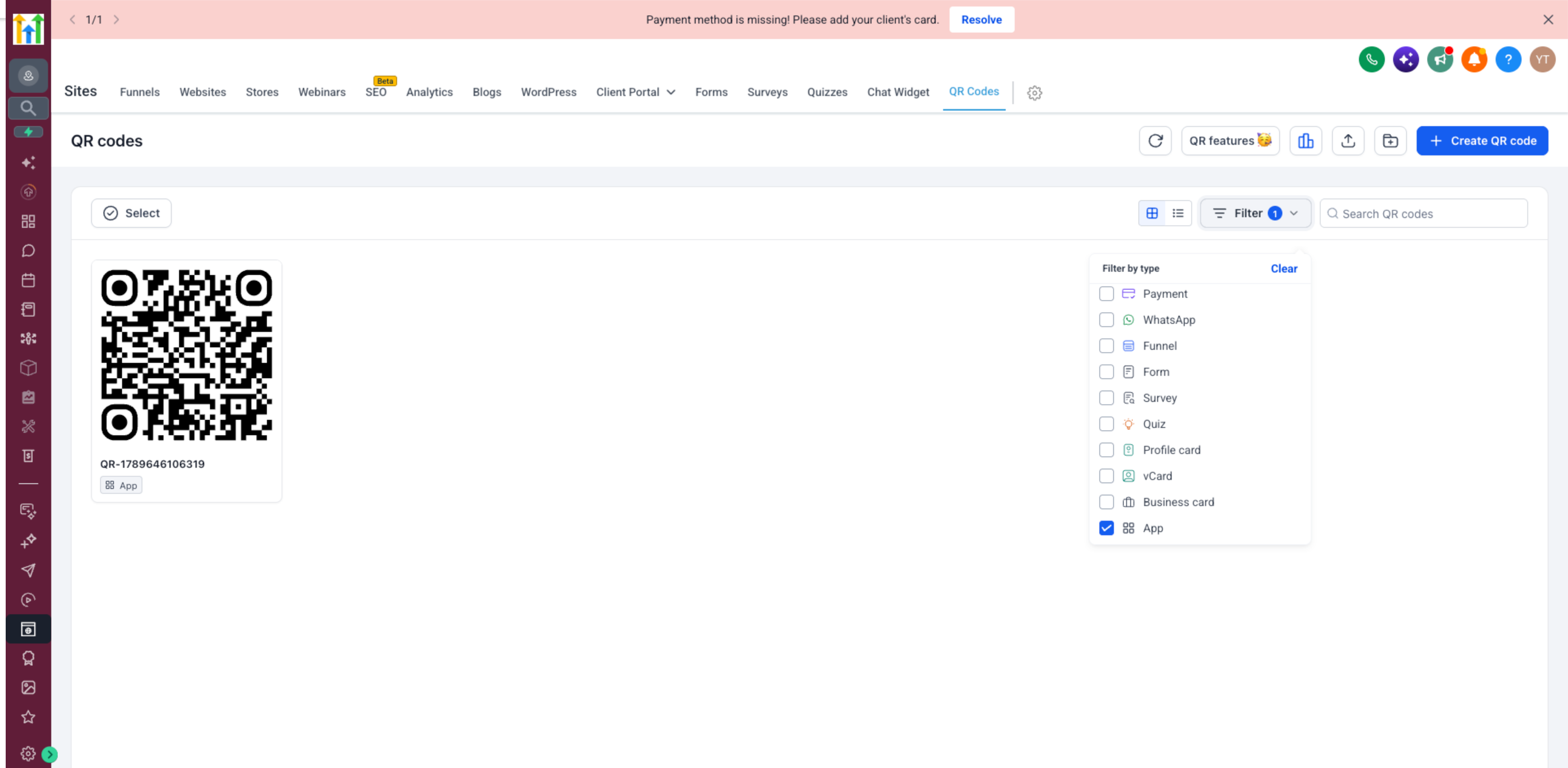
Go to QR Codes → Create QR Code → Select “App” and add your App Store, Play Store, and optional fallback URLs.
The existing QR Code design and customization experience remains unchanged.



