EveryCatch has released several usability updates for Custom objects, many based on customer requests. You can now rename an object's primary field from its settings, copy internal names with a single click, open uploaded documents directly from the list view, and see your own label for the Company object when working in Custom fields settings.
What changed
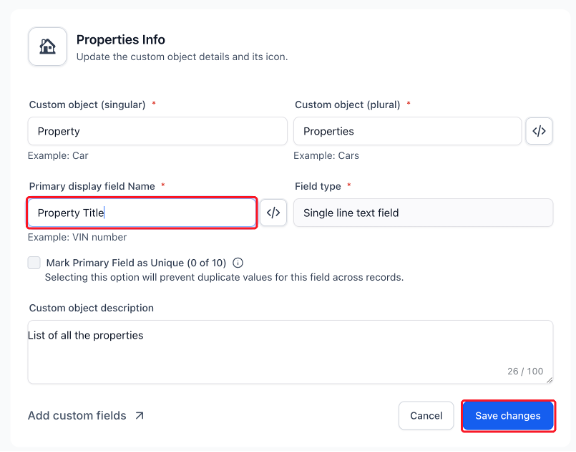
- Rename the primary field: Edit the Primary display field name from the Custom object's settings. The field type and internal name stay the same.
- Copy internal names: Copy the internal name of an object or its primary field with one click.
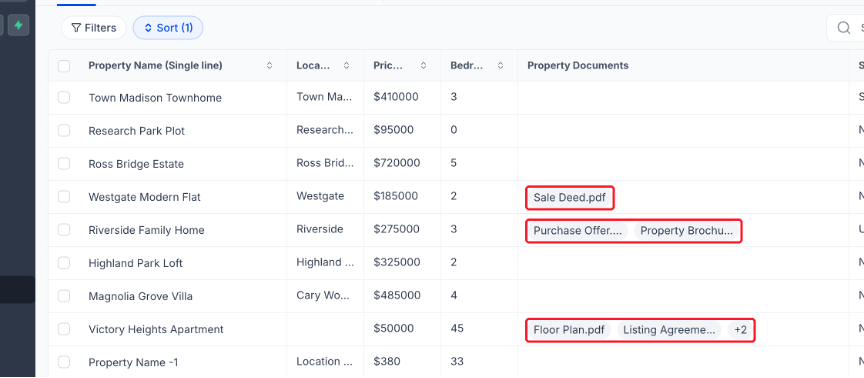
- Open documents from the list view: File upload fields show clickable chips, such as Listing Agreement.pdf, that open the document in a new tab.
- Your Company name in Custom fields: The object dropdown in Custom fields now shows the custom name you gave the Company object.
Why this matters
You can keep primary field names aligned with your current process after setup, copy exact internal names for integrations without typos, and open documents straight from the list view instead of drilling into each record.
How to use
- Go to Settings > Objects and open a Custom object.
- Update the Primary display field name and click Save changes.
- Click the code icon next to a name to see its internal name, then click to copy it.
- In the Custom object list view, click a document chip to open the file in a new tab.
Pro tips
- Integrations keep working: Renaming the primary field does not change its internal name.
- Hover for details: Hover over a shortened file name, or over +N, to see full file names.