
Xero sync - smarter sync control is here
Sync only the Xero contacts you want into EveryCatch, exactly where you want them to go.
When you connect Xero to EveryCatch, you now get full control over which contacts sync in and where they appear. You can keep unwanted vendors and suppliers out of your main CRM contact list so it stays focused on the people you work with directly.
The challenge
Previously, once you connected Xero, every active contact was pulled into EveryCatch with no way to filter or choose. Vendors, suppliers, and low‑value records ended up in the same place as your customers and leads. This made your contact list feel crowded and made it harder to confidently use your CRM for outreach and reporting.
Our solution
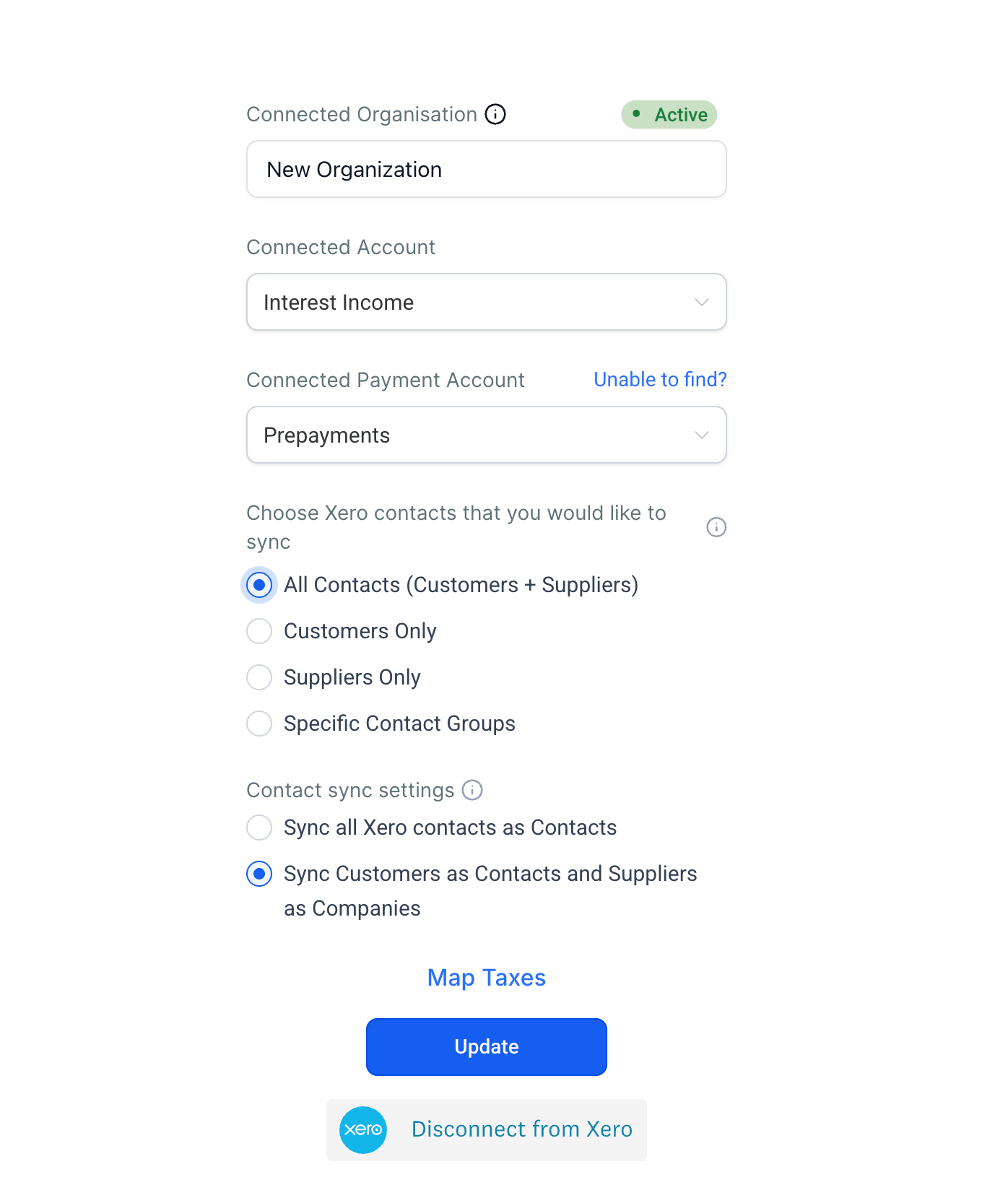
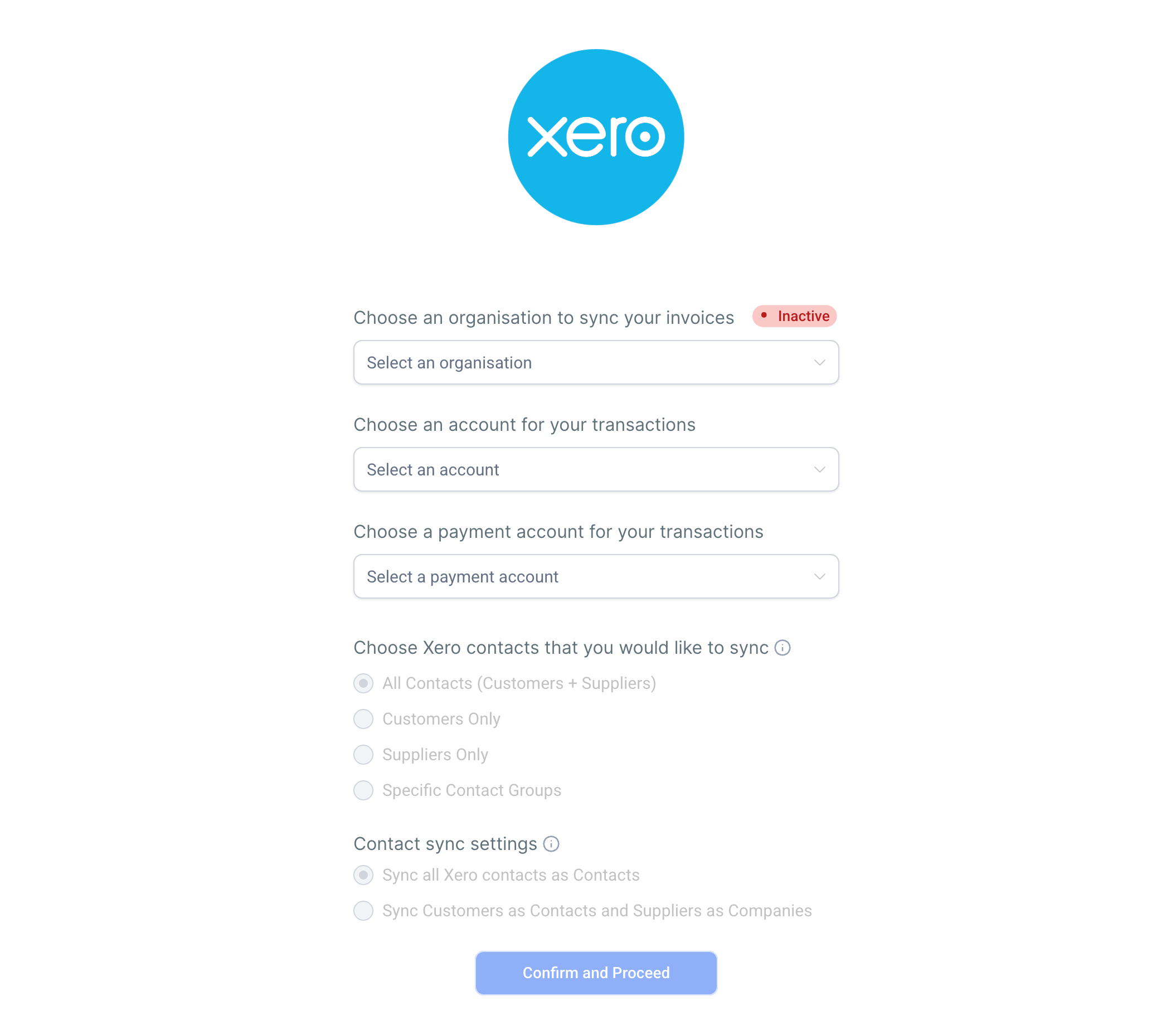
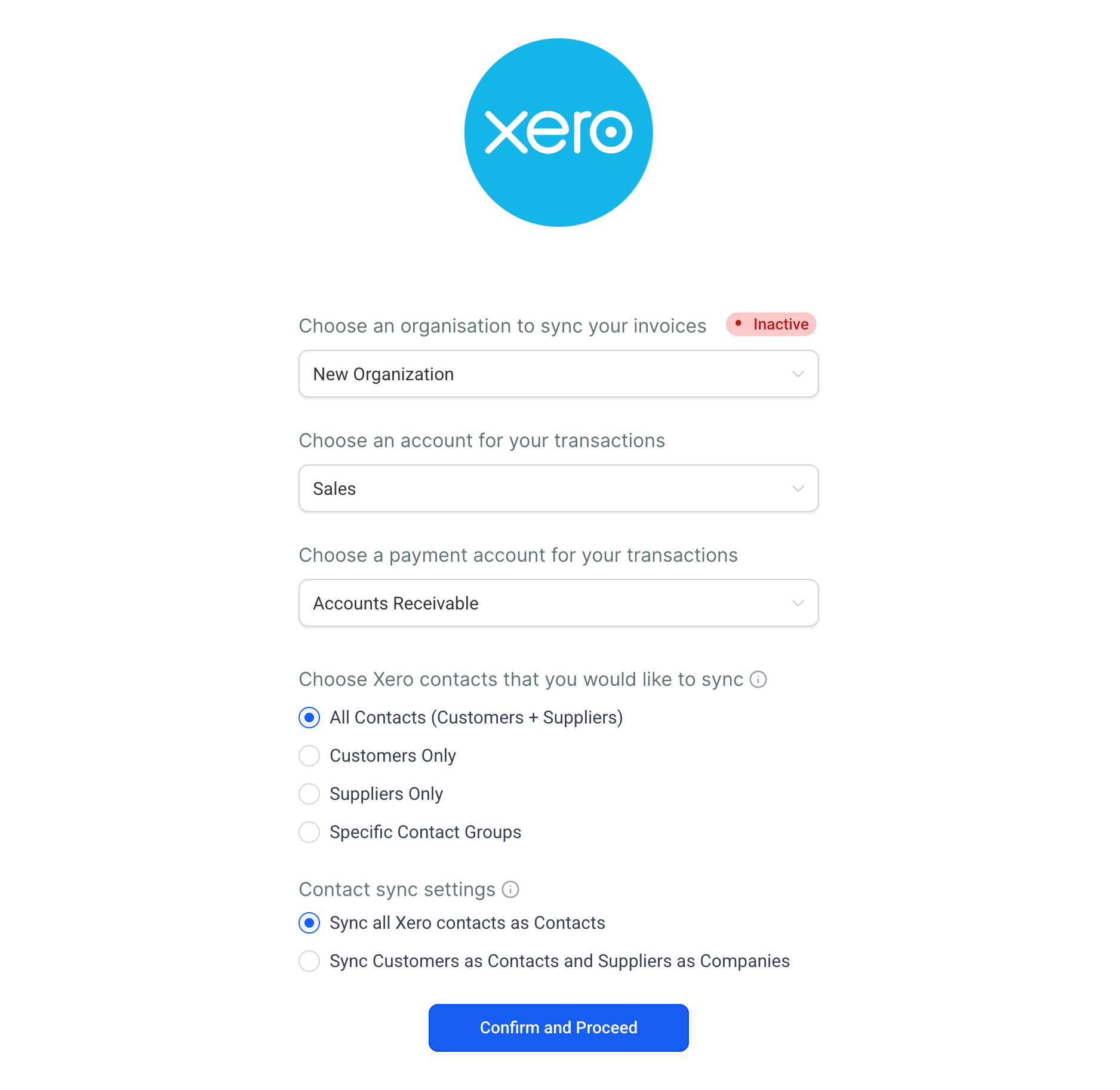
You now have two new settings on your Xero connection screen that give you precise control over your sync. You can choose exactly which Xero contacts come into EveryCatch, and then decide how suppliers are handled. Suppliers can either stay in the main contact list with everyone else, or be kept separate as business records. Your current integration keeps working as it does today unless you decide to change these options.
How this helps your business
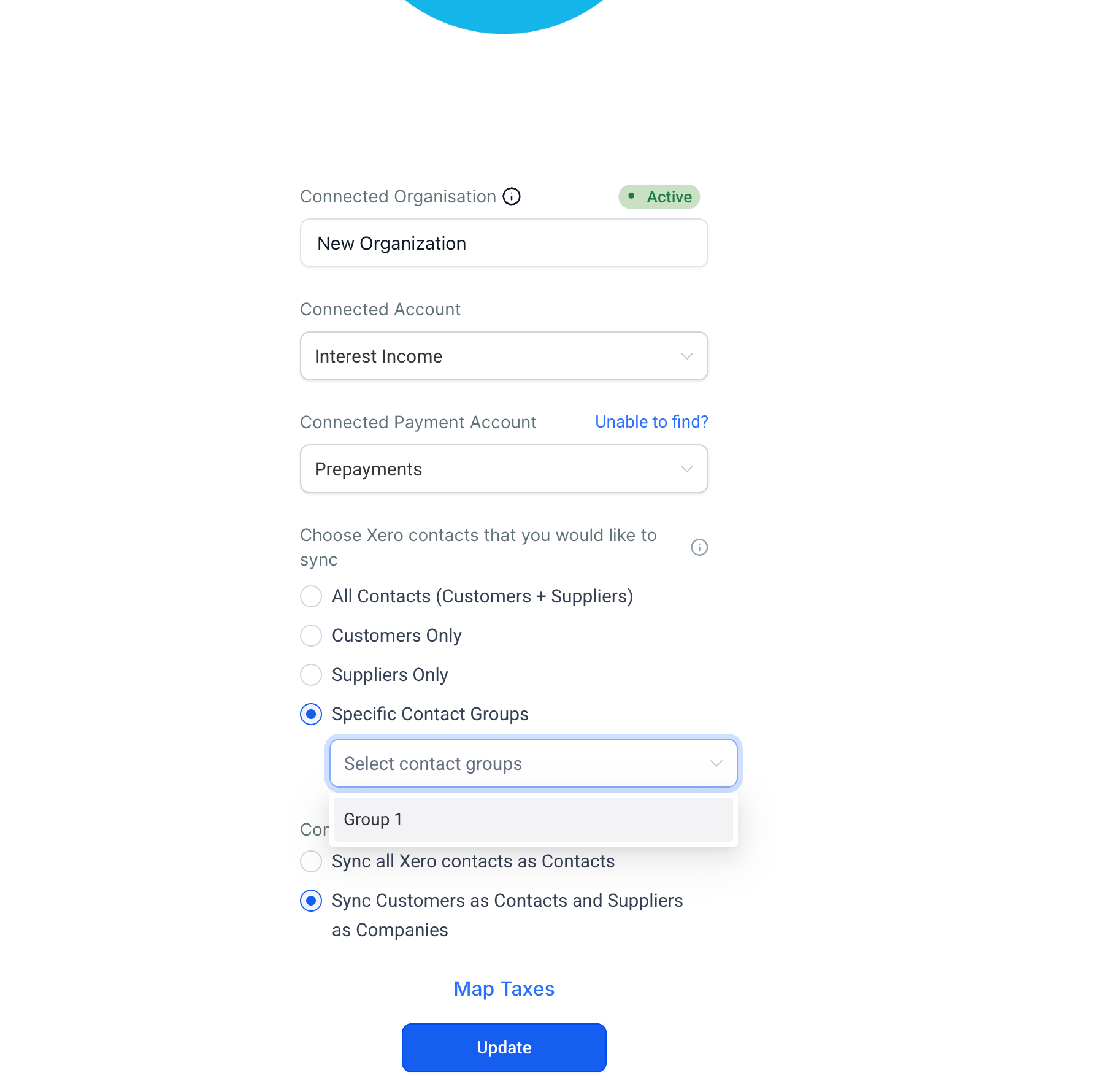
- Keep your CRM focused: Bring in only the contacts you actually need, whether that is all contacts, just customers, only suppliers, or specific Xero contact groups you select.
- Separate suppliers from sales activity: Prevent suppliers from being mixed in with customers and leads by sending them to business records instead of the main contact list.
- Rely on cleaner data: A more accurate contact list supports faster outreach, clearer segmentation, and simpler filtering when you run campaigns or reports.
- No changes unless you choose them: Both new settings start with the original behavior, so existing integrations stay the same until you update the configuration.
How to get started
- Go to Payments → Invoices & Estimates → Accounting Sync in EveryCatch.
- Click Manage on your connected Xero account.
- In "Which contacts to sync", choose one of: All contacts, Only customers, Only suppliers, or one or more specific Xero contact groups.
- In "How suppliers are handled", choose All to contacts (default) to keep suppliers in the main contact list, or Split by type to send suppliers to business records instead.
- Save your preferences. Your next sync will use these new settings.
Good to know
- Available on the web app only.
- Applies to Xero connections only. Contact sync settings for QuickBooks and Wave are currently fixed and cannot be customized in the same way yet.
- Both new settings default to the original behavior, so your existing Xero integration will not change until you update the sync options.
- "Split by type" sends supplier records to business records instead of the standard contact list in EveryCatch.
- Filtering by contact group requires those Xero contact groups to already be created and configured in your Xero account.
Need help with this?
If you'd like help setting this up or want to know what it means for your account, book a quick call and we'll walk you through it.
