Workflow trigger for file uploads via client portal
Overview
You can now automate what happens when clients upload documents in the EveryCatch client portal, so you no longer have to track each file by hand.
EveryCatch now supports a new workflow trigger called Client Portal File Uploaded. This trigger lets you automatically start a workflow whenever a contact uploads a document through the Shared Documents area in the client portal.
With this update, you get a dedicated trigger that links document uploads to your key processes, keeps follow-up organized, and helps your team stay aligned without extra manual effort.
New workflow trigger: client portal file uploaded
The Client Portal File Uploaded trigger starts a workflow as soon as a contact uploads a file in the Shared Documents section of their client portal. You can use this to notify your team, launch a review or approval process, move a contact to the next pipeline stage, or send a confirmation email to your client after they submit documents.
How to use the new trigger
- Go to Automation → Workflows.
- Create a new workflow or open an existing workflow to edit it.
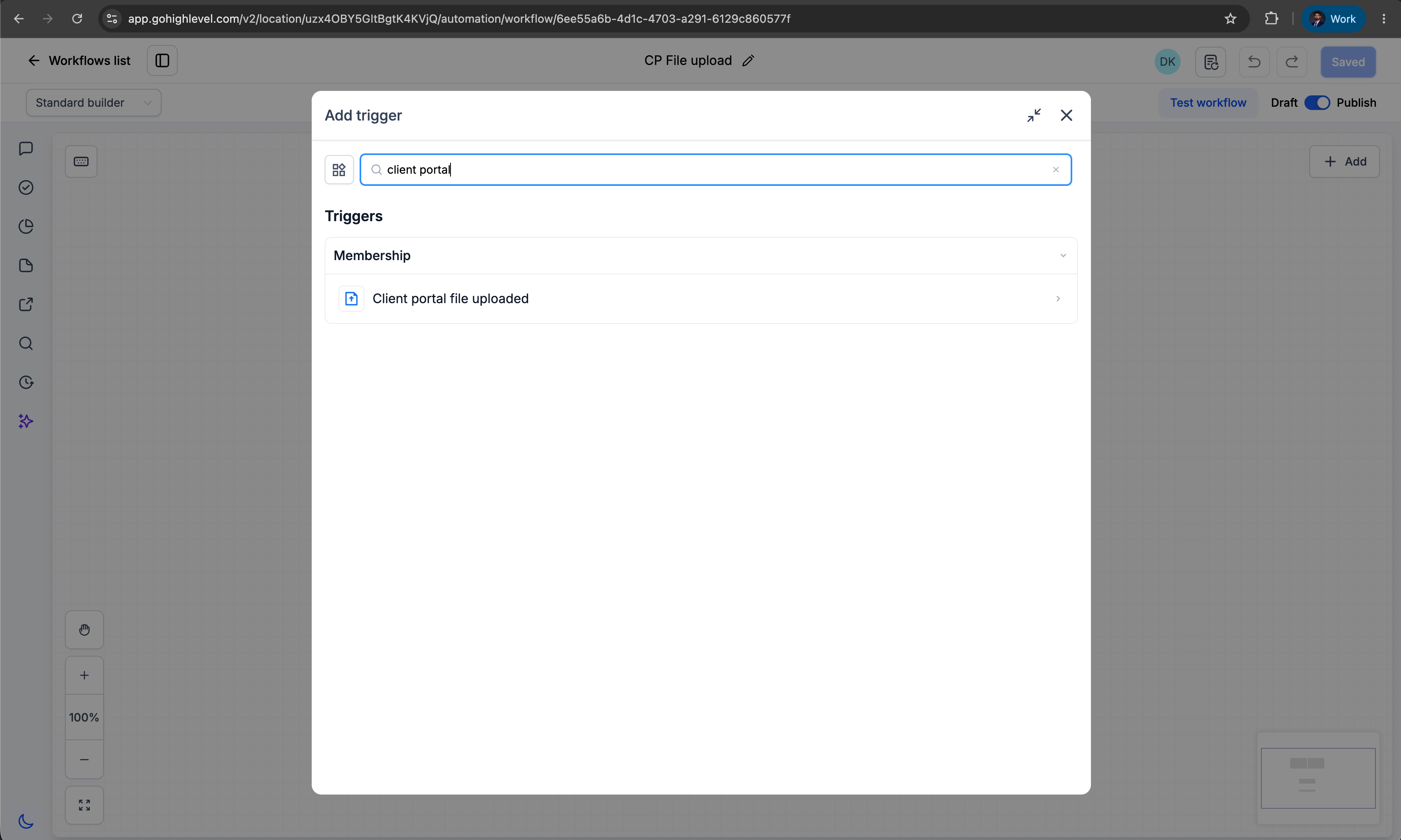
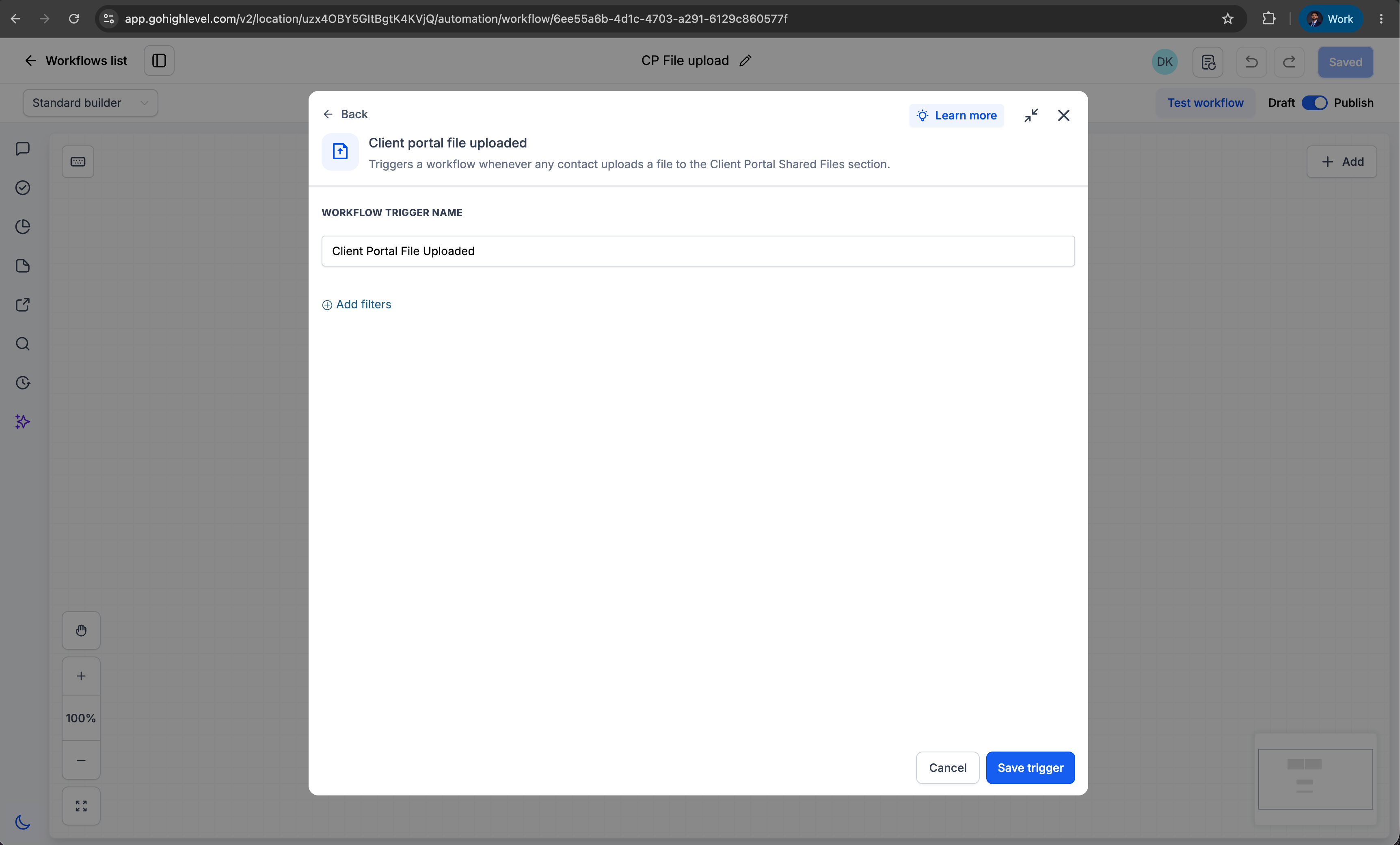
- Add the trigger Client Portal File Uploaded.
- Set up the workflow actions that should run after an upload, such as sending internal notifications, updating opportunity stages, or emailing the client.
- Publish the workflow so it starts responding to new file uploads from the client portal.
How to share a file with a client through the client portal
- Open a specific contact record.
- Select the Files icon in the right-side panel.
- Upload a file.
- Select the Upload to Client Portal checkbox to make the file visible in the client’s portal.
- Save the file.
- The file becomes available to the contact in the Shared Documents section of their client portal.
How a client uploads a file in the client portal
- Log in to the client portal.
- Go to the Shared Documents section.
- Click Share File.
- Upload a single file or multiple files (up to 10 files at a time).
- Submit the files.
Clients can upload multiple file types in Shared Documents. As soon as they submit their files, the Client Portal File Uploaded trigger runs automatically and starts any workflows you have configured.
By connecting uploads to workflows, this feature helps you:
- Remove manual monitoring of uploaded documents
- Reduce operational delays
- Improve compliance and review processes
- Ensure no important uploads are missed
- Create smooth document-driven customer journeys
- Accelerate onboarding and approval workflows
Need help with this?
If you'd like help setting this up or want to know what it means for your account, book a quick call and we'll walk you through it.
