Workflow builder: quick access sidebar toggle
What changed
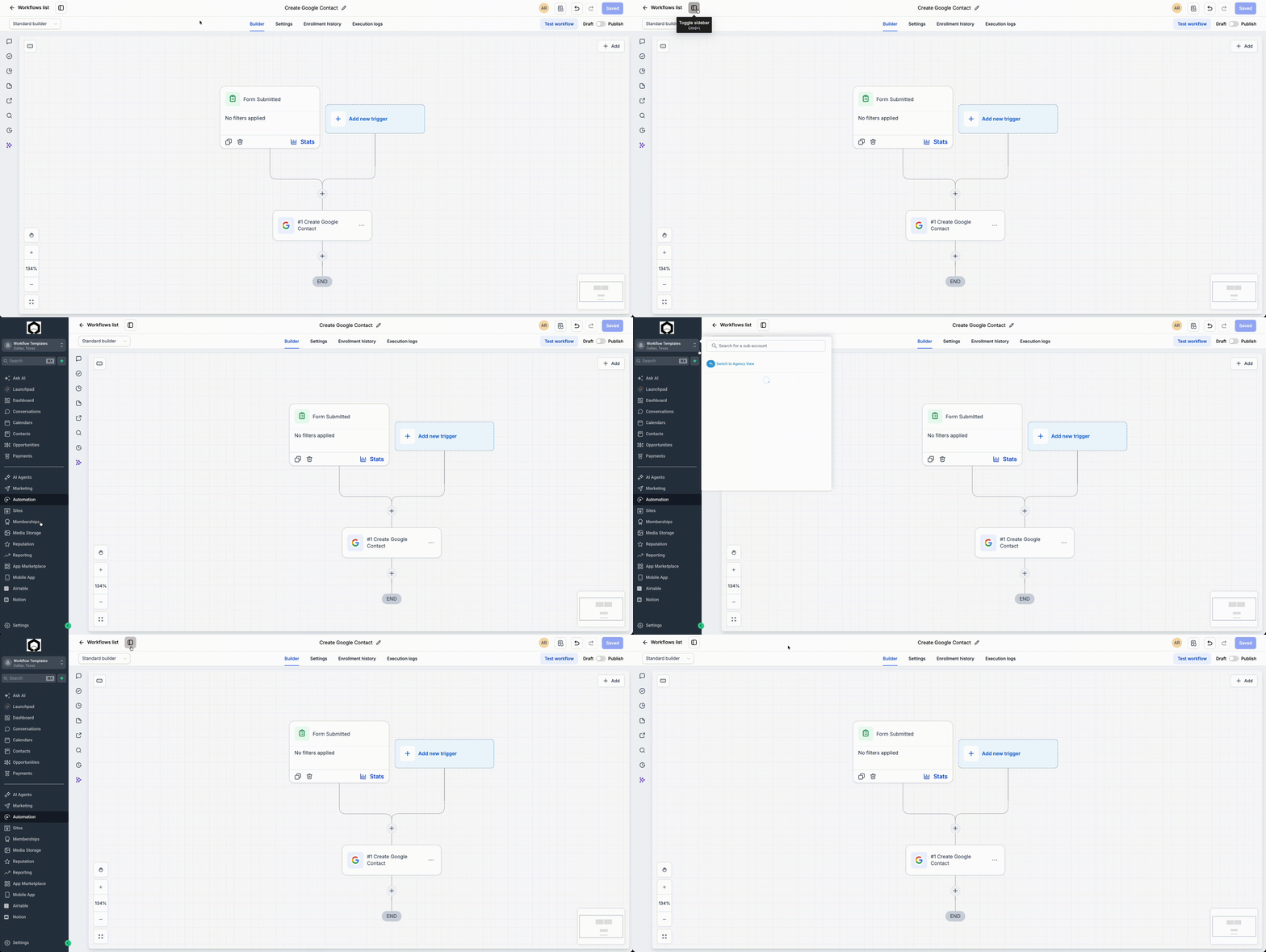
You can now open the standard EveryCatch navigation sidebar directly from inside the Workflow Builder using a new toggle. This gives you quick access to your usual products, tools, and pages without closing or leaving the workflow you are editing. If you prefer shortcuts, you can also show or hide the sidebar with Cmd+\ (Mac) or Ctrl+\ (Windows).
How it works
In the top-left corner of the Workflow Builder, you will see a new control that lets you turn the EveryCatch navigation sidebar on or off. Clicking this toggle reveals or hides the same sidebar you use across the rest of EveryCatch, so you can move to other areas while keeping your workflow open. The keyboard shortcut does the same thing, which is useful if you often switch views while building automations.
How to use it
- Open any workflow in the Workflow Builder.
- Click the sidebar toggle in the top-left corner, or press Cmd+\ (Mac) / Ctrl+\ (Windows).
- Use the sidebar to move to other EveryCatch products or pages, then return to your workflow when you are ready.
Why we built it
When creating and adjusting automations, you often need to move between workflows, contacts, reports, and other parts of EveryCatch. The new sidebar toggle is designed to keep that navigation smooth while you work. It helps you reach related tools faster, supports keyboard-first workflows, and keeps the Workflow Builder aligned with the way navigation works across the rest of the platform.
Additional notes
- You can show or hide the sidebar at any time while working in a workflow.
- Keyboard shortcut: Cmd+\ (Mac) / Ctrl+\ (Windows).
- This change affects navigation only and does not change how workflows run or trigger.
- The sidebar experience is the same as the common navigation used in other areas of EveryCatch.
Preview
Need help with this?
If you'd like help setting this up or want to know what it means for your account, book a quick call and we'll walk you through it.
