Whatsapp calling is now generally available on web and mobile
WhatsApp calling in EveryCatch lets your team place and receive real-time voice calls directly inside an existing WhatsApp conversation, without an external dialer or sharing personal numbers. It is designed for support and sales teams who move faster on a quick call than over a long text exchange. After a successful closed beta, WhatsApp calling is now generally available in EveryCatch on both web and the mobile app.
Watch the demo: https://watchclueso.com/embed/nr66jh4pyn0my1pz
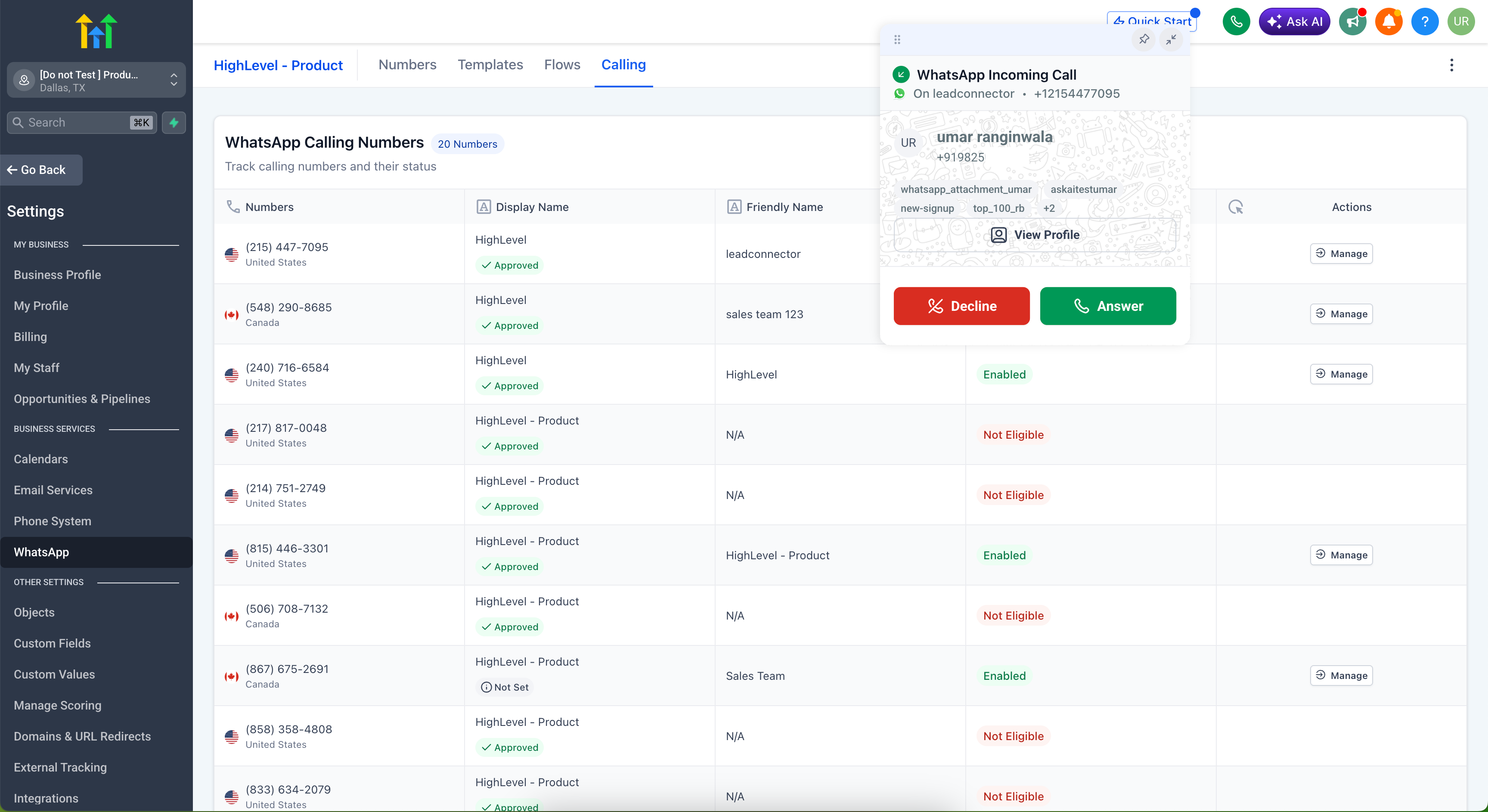
When a customer is blocked, upset, or ready to buy, a short call can resolve things faster than a long thread of messages. You can now start that call without leaving the WhatsApp thread in EveryCatch, so the full history and context stay in one place.
What changed
Voice, right inside the conversation
- Inbound and outbound calls: Use native WhatsApp voice calling from the conversation view in EveryCatch, without needing a separate dialer or app.
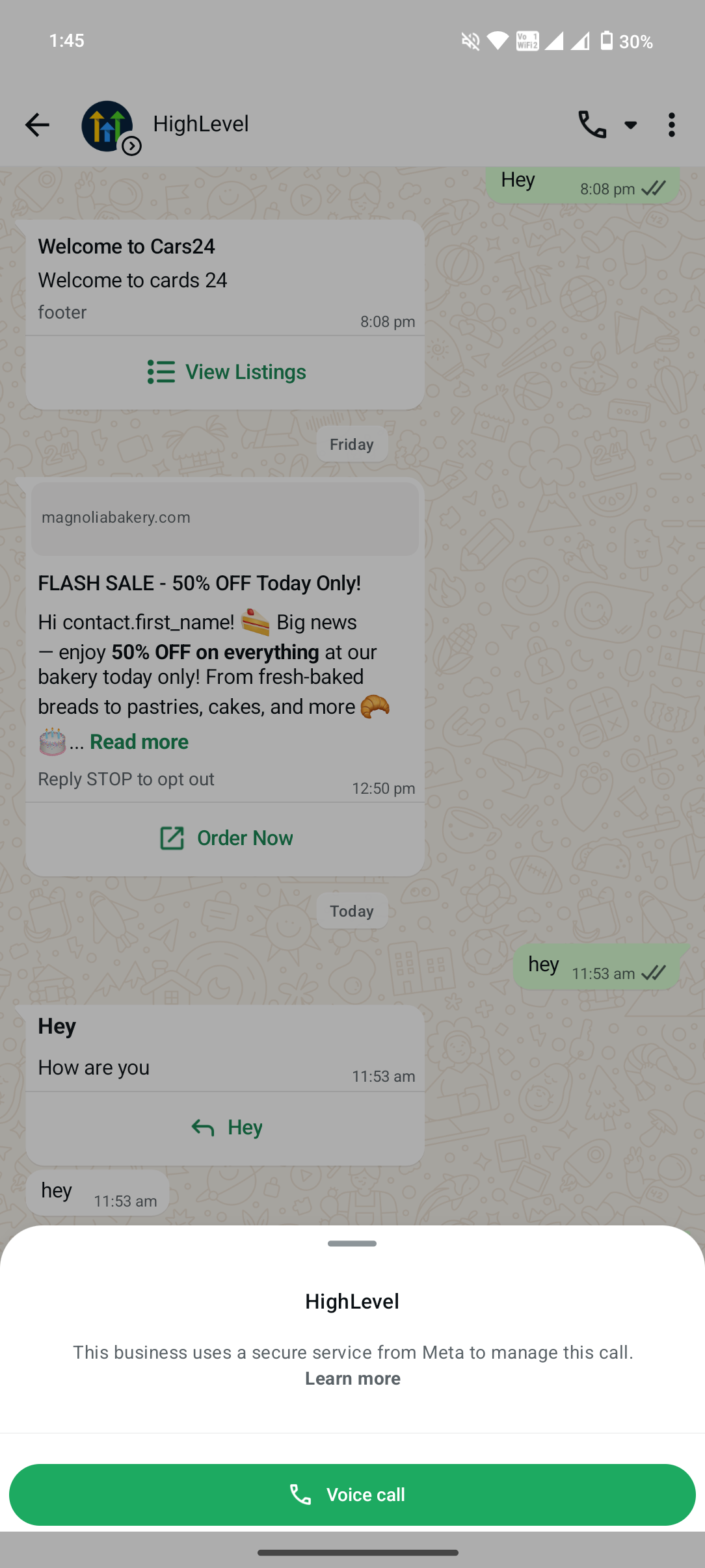
- Call buttons: Move from chat to a voice call in one click from clear call buttons shown directly in the conversation.
Control when and how you take calls
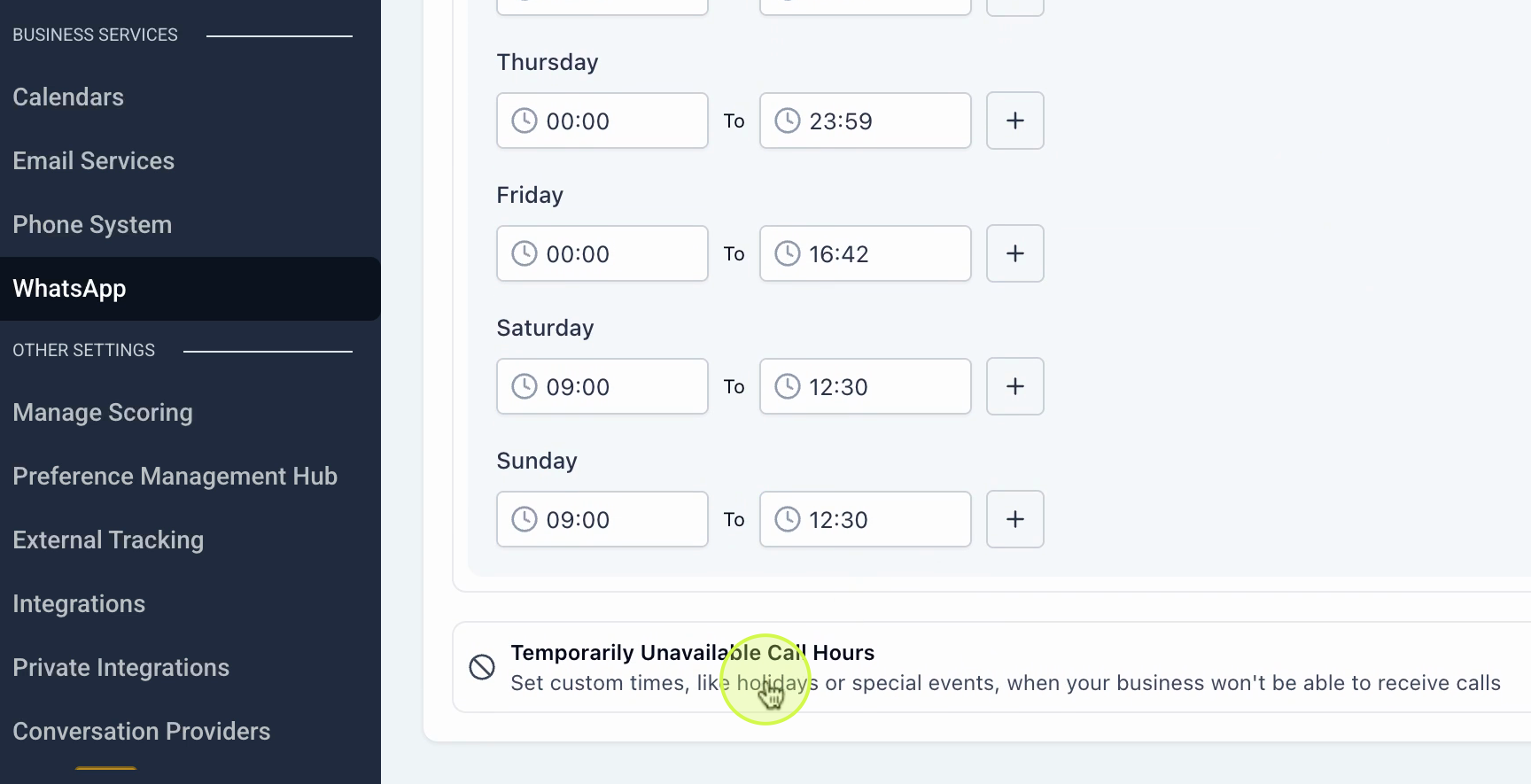
- Business calling hours: Set the hours when your team is available for WhatsApp calls, and use a temporarily unavailable mode for breaks, evenings, or holidays.
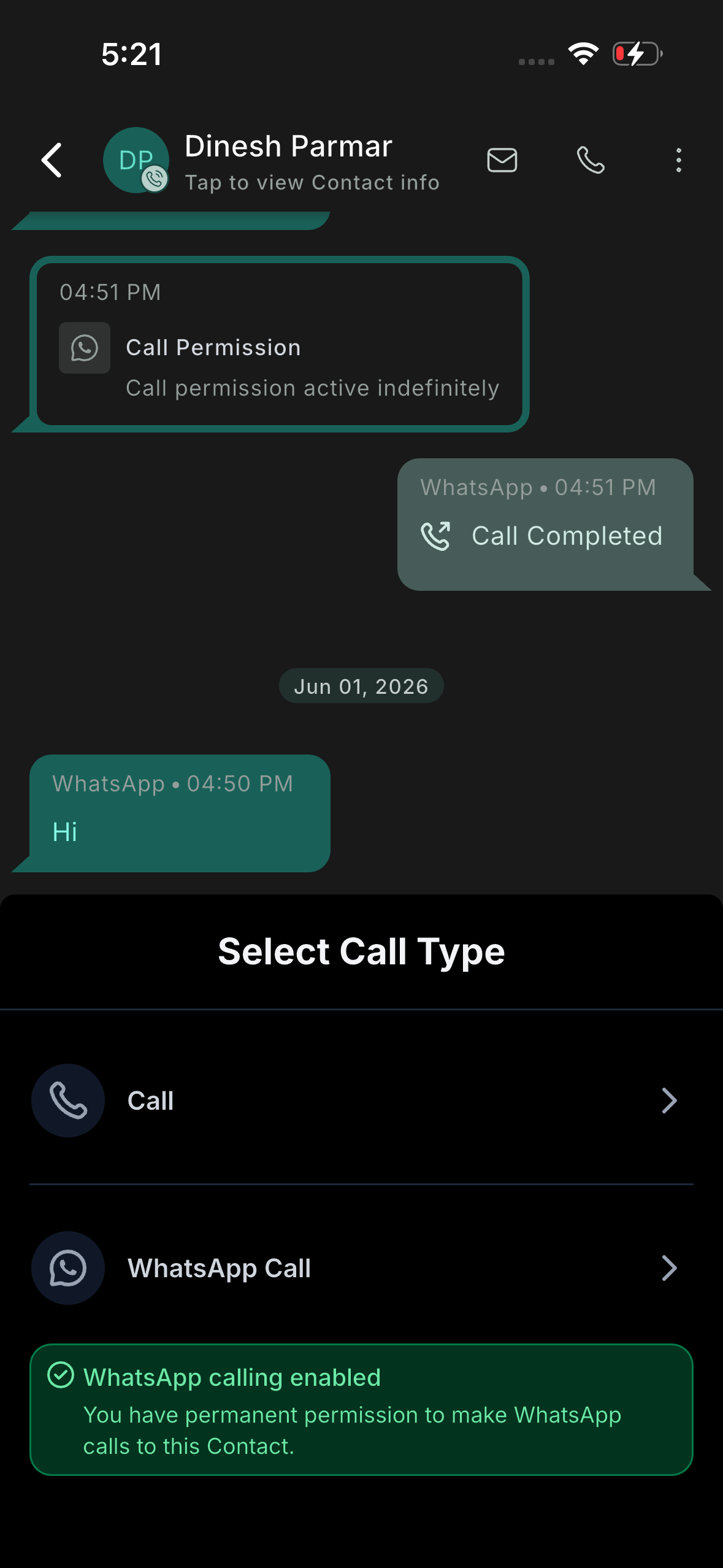
- Built-in call permission: Request permission through a call-permission template when the service window is closed, or trigger a request automatically through workflows when your service window is open.
Now on mobile
- Multi-account inbound with zero setup: Receive WhatsApp calls on mobile regardless of which account is currently selected, without configuring each account separately. Twilio-based call flows still require configuration for every account.
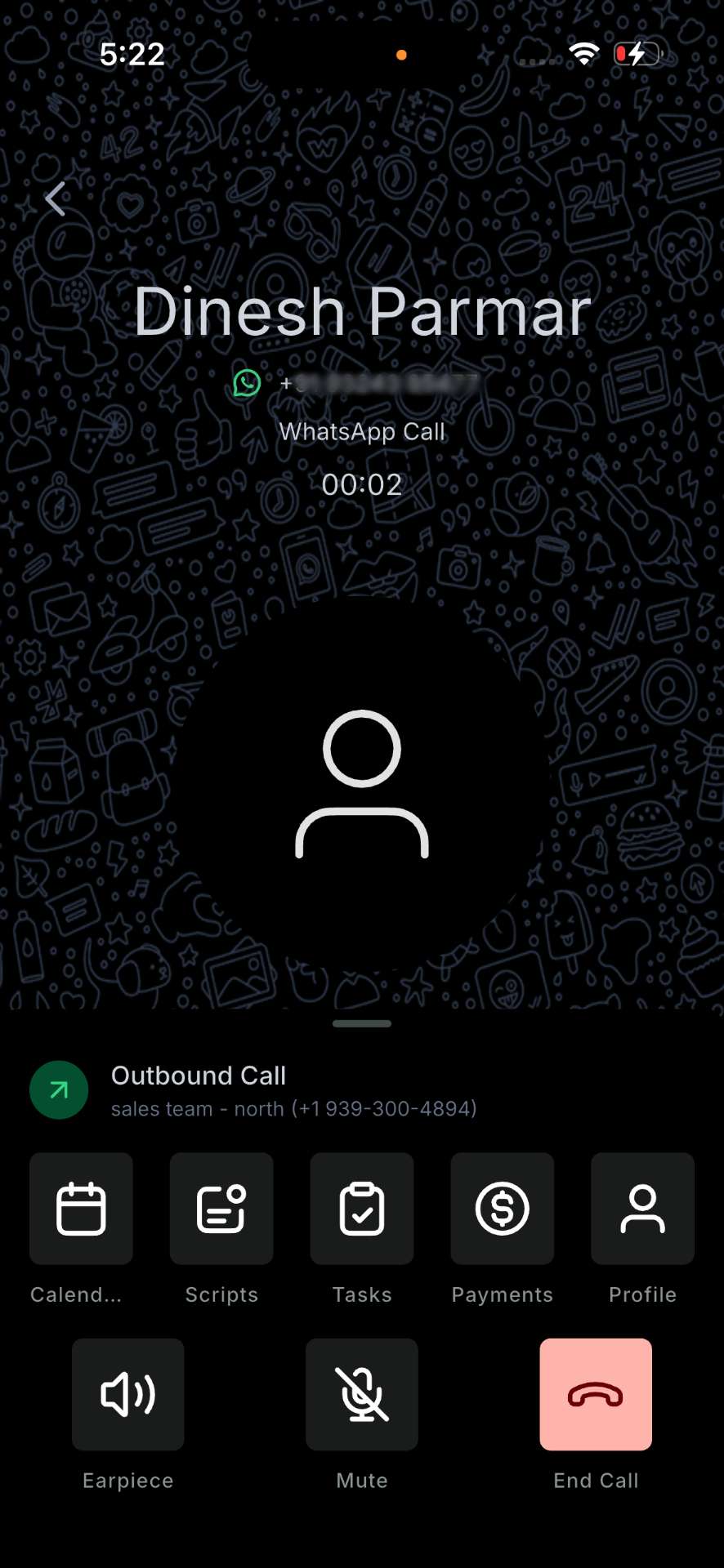
- One-tap calling: Tap the call button, choose WhatsApp call, and connect immediately. If the call cannot go through, EveryCatch shows the specific reason so you can fix it.
- Everything in your call logs: Every inbound and outbound WhatsApp call appears in your call logs alongside other calls, and call permissions are stored inside the same WhatsApp thread for easy reference.
Log and report every call
- Call disposition: Tag the outcome of each WhatsApp call from the call summary screen, then use that outcome to drive the right automated follow-up. Choose from your custom disposition list and track performance in call reporting.
How to activate
Before you turn on WhatsApp calling in EveryCatch, make sure each account has a phone number in connected state, a WhatsApp Business Account (WABA) messaging limit at the 2,000 tier or higher, and a phone number that is not running in coexistence mode with other WhatsApp setups.
On web
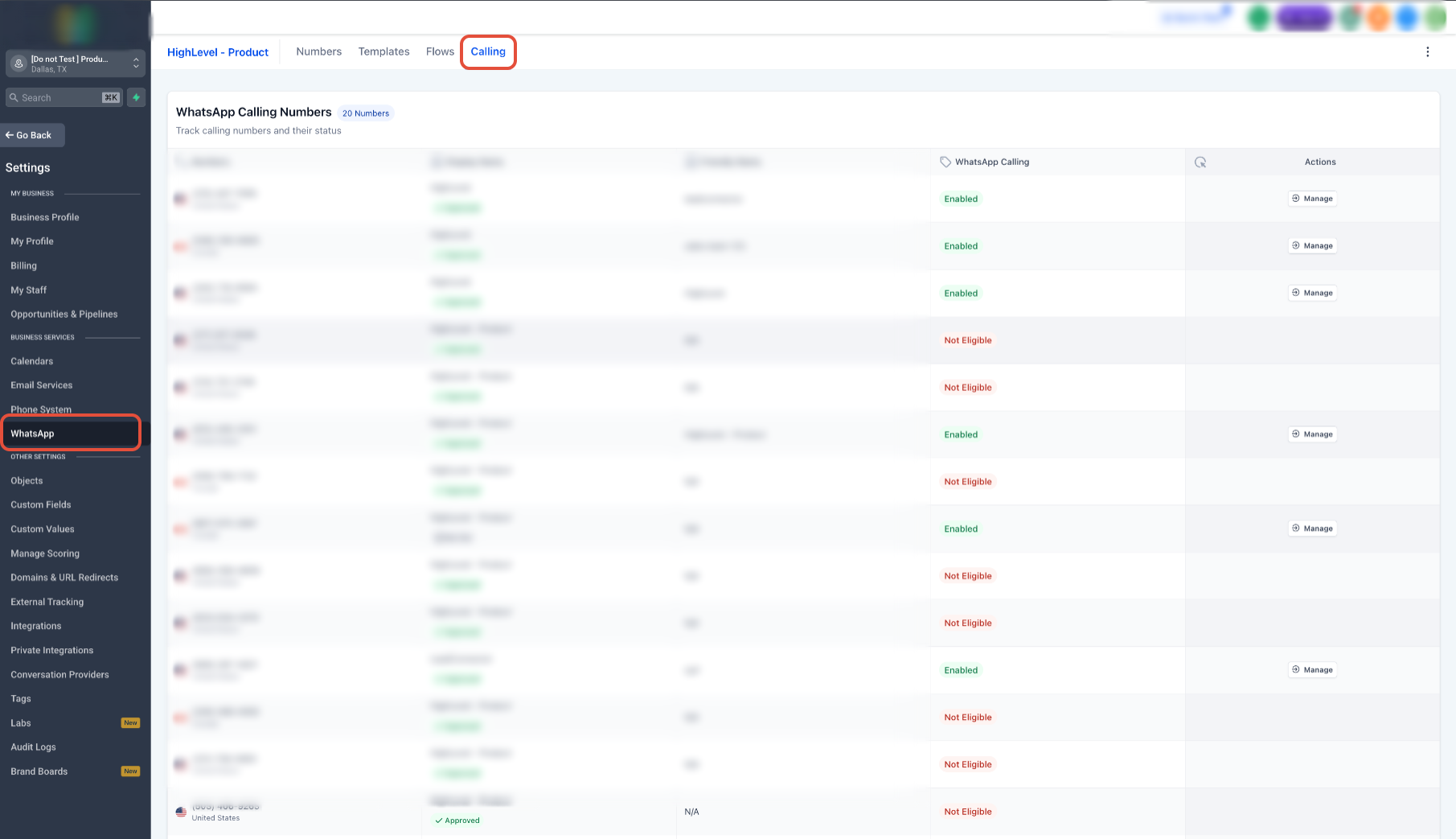
- Go to Settings > WhatsApp > Calling and select the phone number you want to enable for calling.
- Set a friendly name and choose who WhatsApp calls should ring under Ring WhatsApp Calls To (you can add up to 6 people).
- Turn on Allow voice calls so the number can place and receive WhatsApp calls.
- Optionally enable Allow people to request a callback for missed calls and Display call buttons so customers can request or start calls easily.
- Configure available call hours and temporarily unavailable call hours so customers know when your team can pick up.
On mobile
- Update to the EveryCatch app or EveryCatch v4.18+ on your device (for white-label apps, request an app update from your provider).
- Open any WhatsApp conversation in EveryCatch and tap the call button.
- In the Select call type sheet, choose WhatsApp call and connect with the contact.
Ring whatsapp calls to
Use Ring WhatsApp Calls To to control who receives incoming WhatsApp calls. You can add up to 6 team members to the list, and an inbound WhatsApp call will ring all of them at the same time so the first available person can answer. This helps you avoid missed calls when one team member steps away.
You can route calls in two ways
- Named users: Add specific users or teams (for example, your sales team) so they always receive calls to that WhatsApp number.
- assigned user} token: Use the assigned user token so calls automatically ring the contact's owner, helping customers reach the person who already knows their history instead of a general queue.
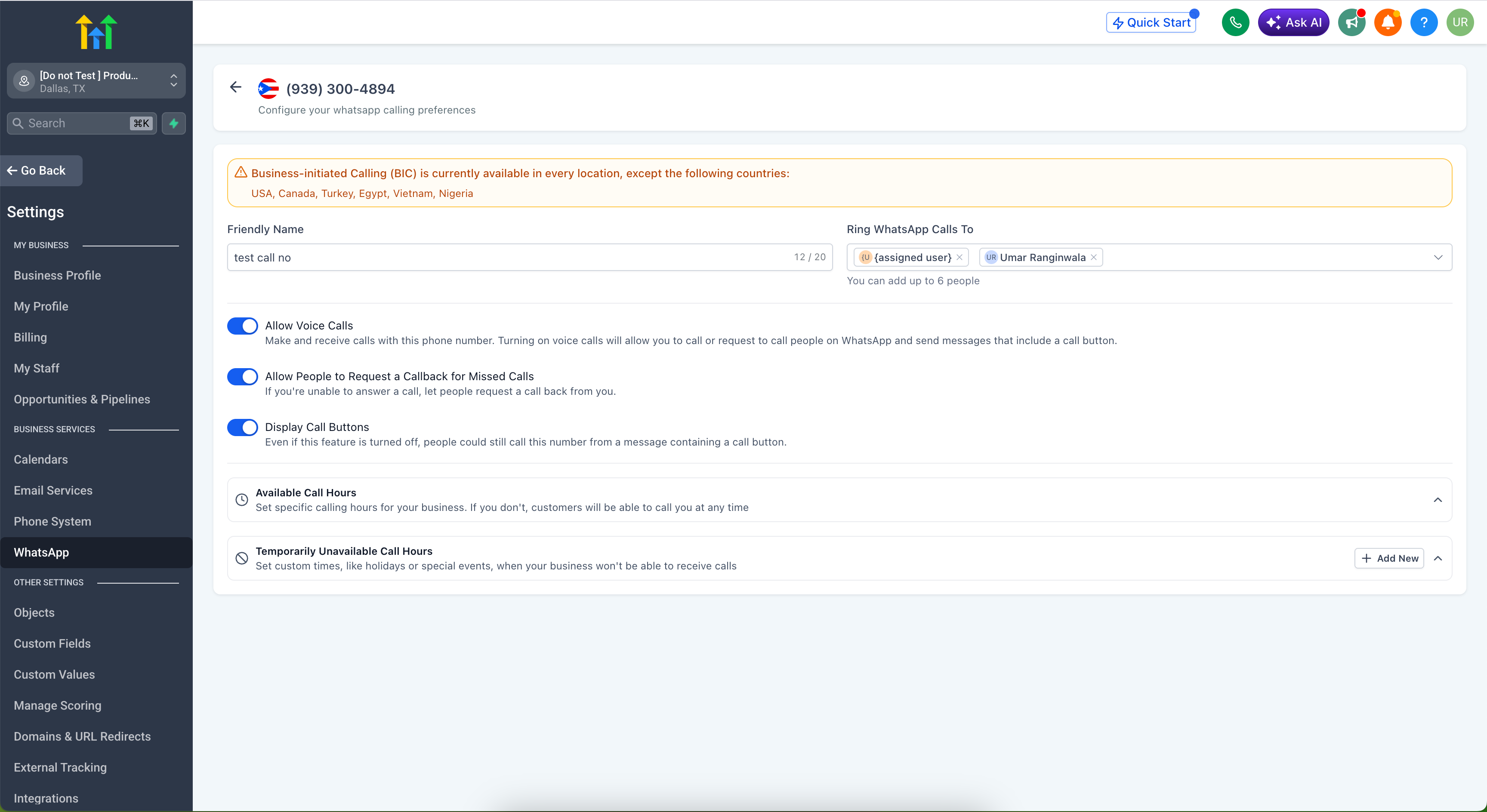
Use the friendly name field to label each call configuration, for example "Sales team" or "Front desk", so it stays simple to manage multiple numbers and routing setups as you grow across accounts.
Call disposition
Every WhatsApp call in EveryCatch ends with a call summary screen so your team can record the outcome in a single tap and trigger the right next step without leaving the conversation. As soon as the call ends, the summary shows the contact, the number, the call status (for example, completed), and the call duration, then prompts the agent to select a custom disposition.
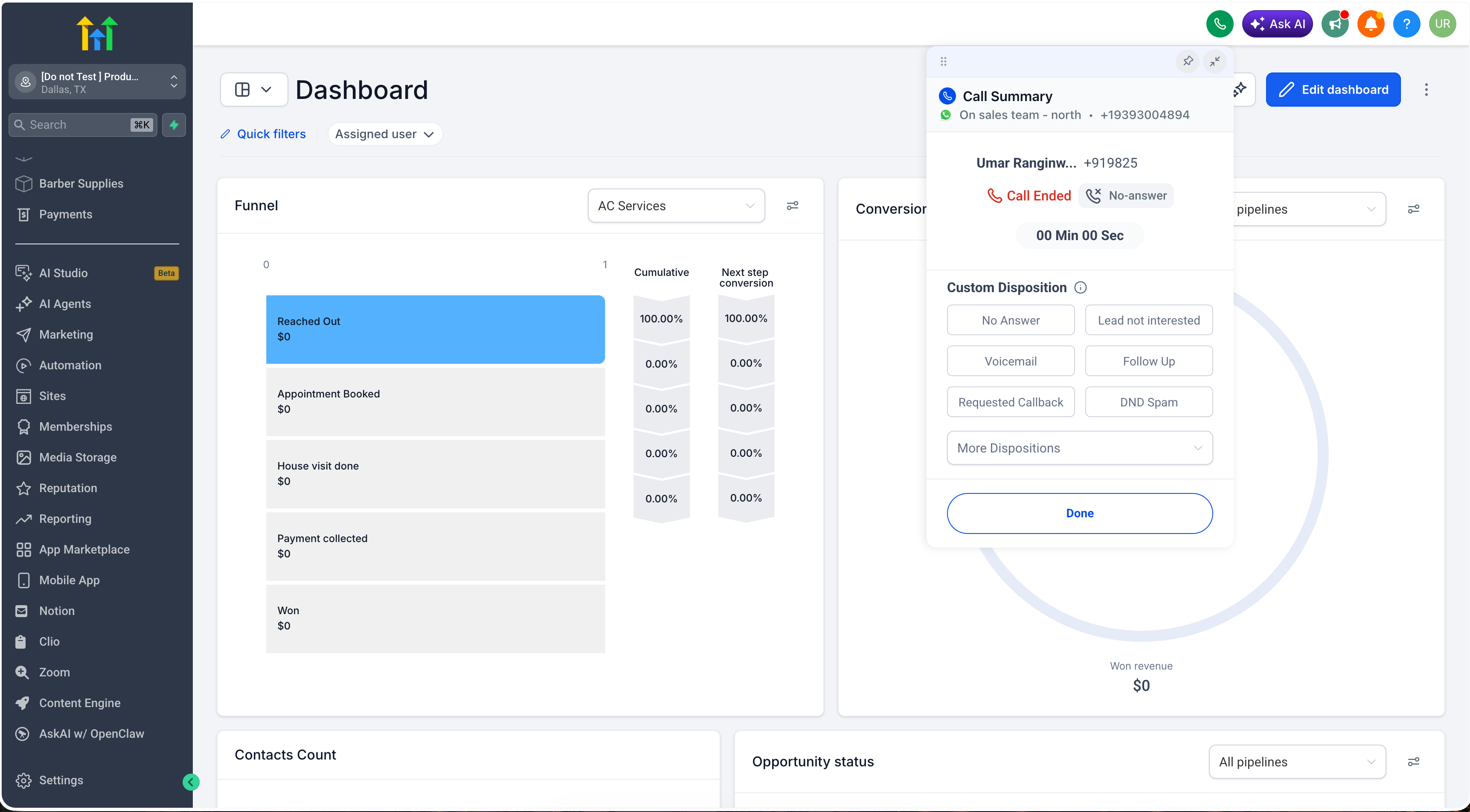
Built-in and fully customizable
Each account starts with default dispositions such as No answer, Lead not interested, Voicemail, Follow up, Requested callback, and DND spam. Account admins can edit these options or add their own under Settings > Phone system > Voice > Call dispositions, with up to 10 dispositions per account. Agents pick one when the call ends. Logging a disposition is optional, and EveryCatch saves one outcome per call so your reporting stays clear and consistent.
Trigger workflows automatically
You can turn call outcomes into automated actions. In Automation, add a Call details trigger, set the filter to Custom disposition, and choose which dispositions should start which workflows. For example, you can automatically send a follow-up SMS or email, schedule an appointment, or add the contact to a specific pipeline or campaign based on the selected outcome.
Track outcomes in reporting
Every disposition you use is stored and displayed in Reporting > Call reporting as both a Call disposition column and a filter. This lets you review results by user or team, understand how calls are performing, and identify trends such as how many calls end in "Requested callback" or "Lead not interested".
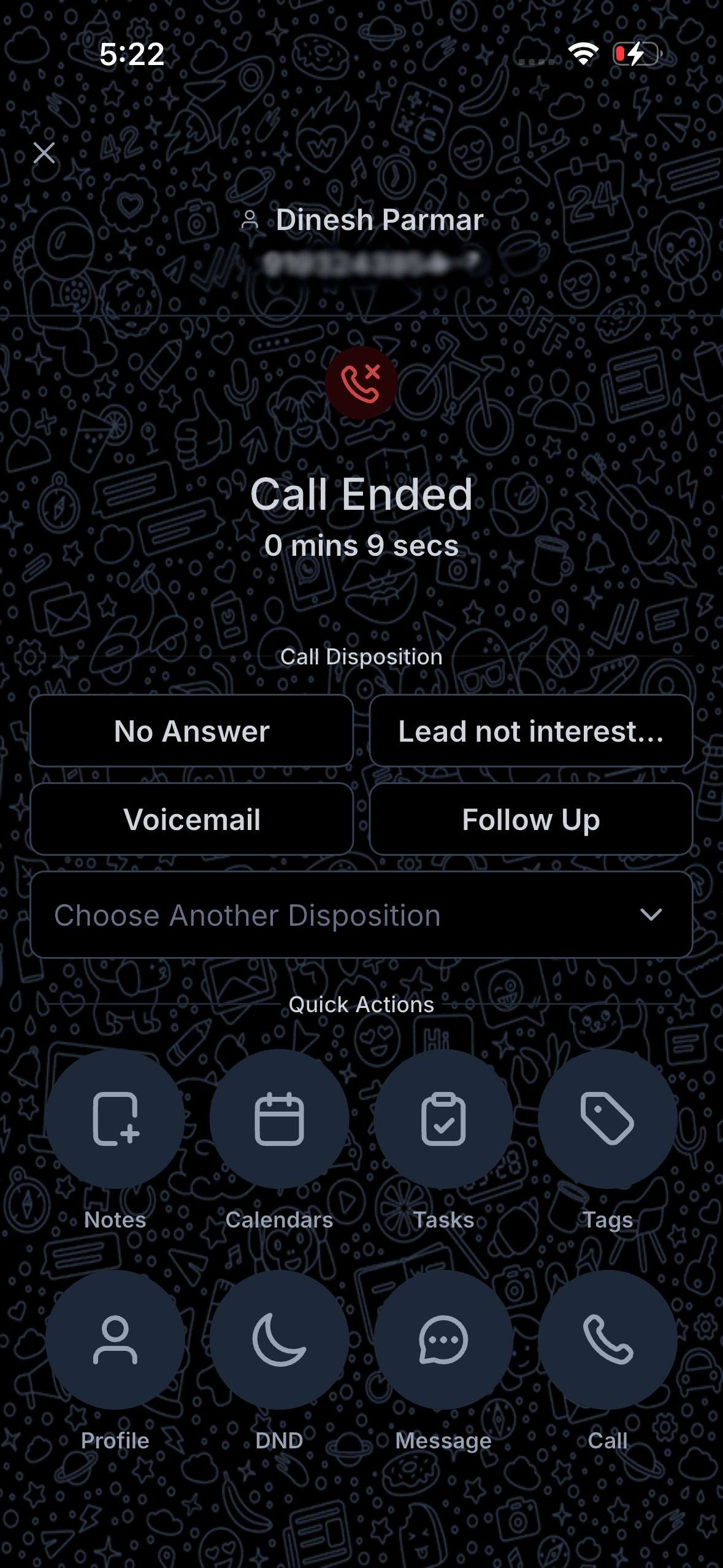
On mobile too
Custom dispositions are also available in the EveryCatch mobile app on both iOS and Android. You can pick the outcome from the call end screen on your phone. On mobile, disposition choices appear only when the active account in the app matches the account where the call took place, so use the Switch option if you handle calls across several accounts.
Why it matters
- Cleaner pipeline data: every call outcome is captured immediately in the call summary instead of being added manually later from memory.
- Instant follow-up: dispositions trigger workflows, so follow-up messages, tasks, or appointments start automatically without extra clicks.
- Better reporting: you can see how WhatsApp voice calls move leads through your funnel and where conversations tend to stall.
How call permission works
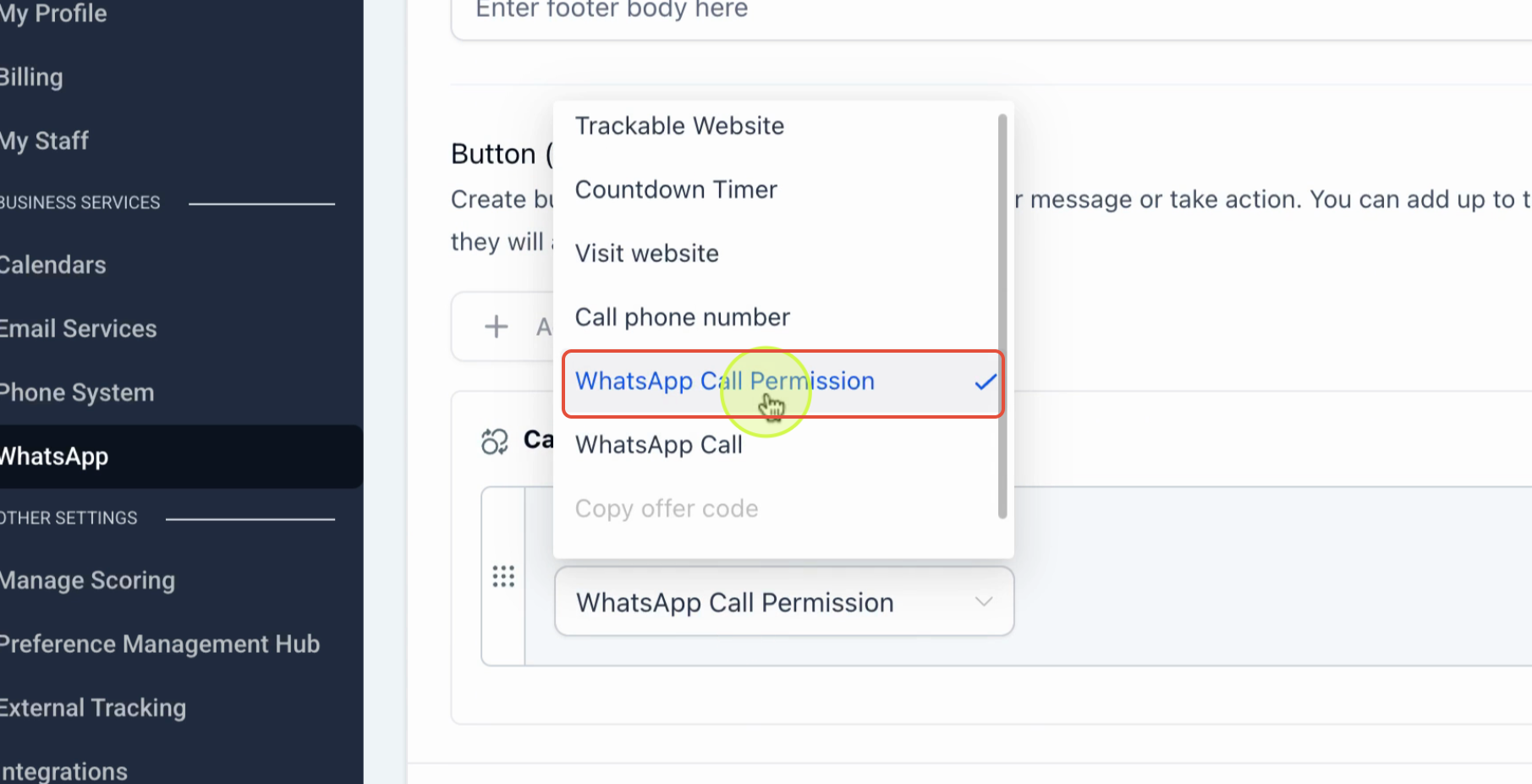
WhatsApp has rules to protect users from unwanted calls, so how you can call depends on who initiates the call.
When a customer calls you (inbound): No explicit permission is required. As long as Allow voice calls is enabled for your number in EveryCatch, customers can call your WhatsApp number at any time from any country where WhatsApp is available.
When you call a customer (business-initiated): You must obtain the customer's permission first. At the moment, EveryCatch sends this as a template message that includes a call permission request. The customer taps to accept, and you can then call them while that permission window is valid.
When a customer receives the permission request, they can choose how they want to be contacted
- Always allow calls: ongoing permission for your business to call them on WhatsApp.
- Temporarily allow calls: time-limited permission that stays valid for 7 days.
- Not now: declines the request so you cannot place business-initiated calls until you request permission again.
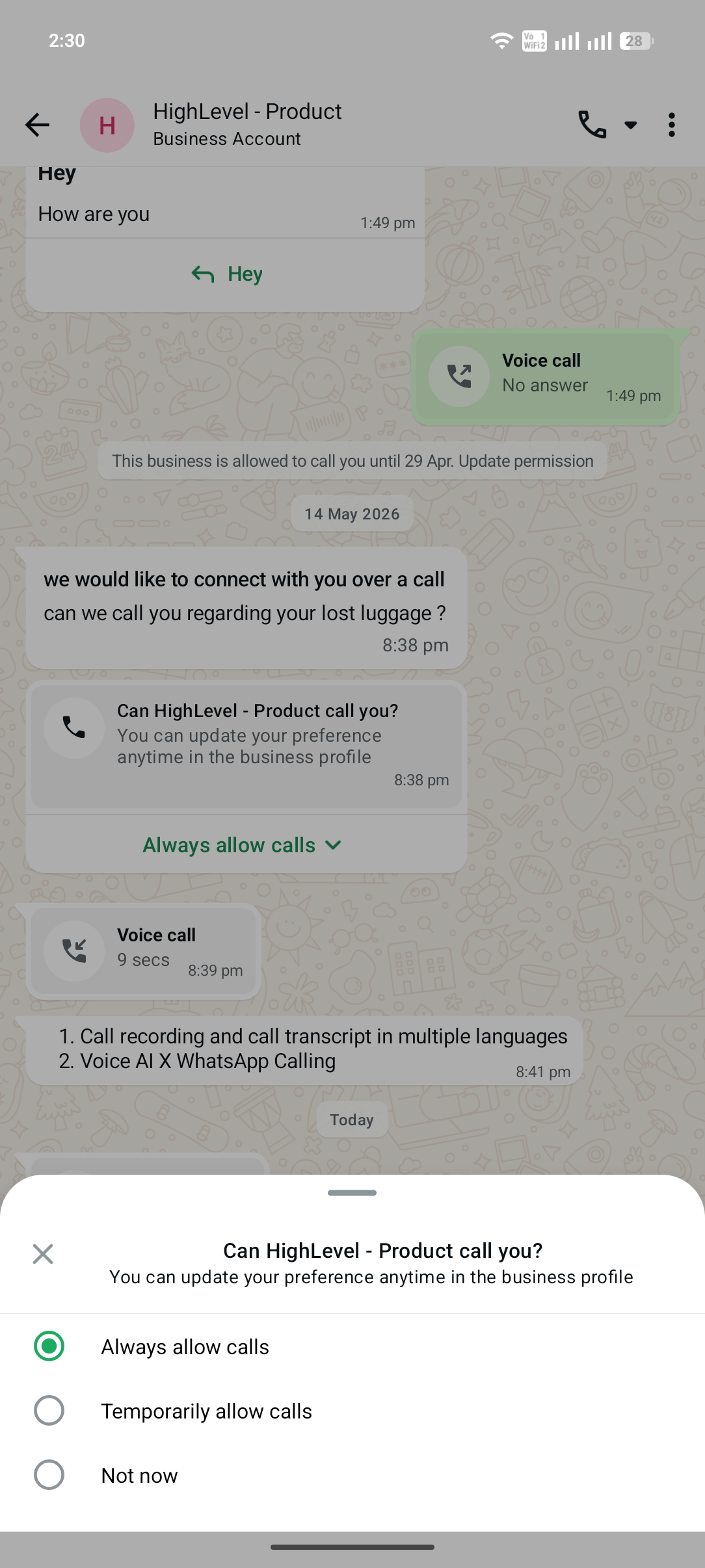
Customers can update their preference at any time from your business profile, and WhatsApp clearly shows them the date until which your permission is valid. Once permission is active
- You can place up to 5 connected WhatsApp calls in any 24-hour period during the active permission window.
- As soon as one of those calls connects, the usage limits reset and you are allowed to request permission again immediately if needed.
Guardrails to keep in mind
- You can send one permission request every 24 hours, and up to two permission requests in any 7-day period if the customer has not responded.
- If 4 consecutive calls to the same customer go unanswered, WhatsApp automatically revokes permission and you will need to request it again before calling.
These limits are set by WhatsApp, not by EveryCatch.
Where business-initiated calling is available
Inbound calls, where customers call your WhatsApp number, are supported in every region where WhatsApp is available. Business-initiated calling, where your team calls the customer, is available everywhere except the USA, Canada, Turkey, Egypt, Vietnam, and Nigeria, where WhatsApp does not currently allow it. In those countries you can still receive inbound WhatsApp calls and show call buttons so customers can reach you in one tap.
Why this matters
Messaging is becoming the main way customers communicate, and voice fills in the complex or high-intent moments that are hard to handle by text alone. Keeping calls inside WhatsApp in EveryCatch lets your team maintain full context and a complete record of each interaction instead of switching to a separate phone line and breaking the conversation history.
- Resolve complex questions faster in a single call instead of a long, slow message exchange.
- Increase conversion on high-intent leads by speaking to them at the moment they are ready to talk.
- Reduce drop-offs from channel switching, with a complete, logged history of both messages and calls in one place.
Resources
- WhatsApp calling setup guide
- Call dispositions guide
Need help with this?
If you'd like help setting this up or want to know what it means for your account, book a quick call and we'll walk you through it.
