Transfer calls to web, phone, and SIP with no personal number needed
10th of June, 2026
Transfer calls to web, phone, and SIP with no personal phone number required
EveryCatch now lets you transfer calls to teammates even if they do not have a personal phone number assigned. You can route live calls to a colleague’s web app, their phone, or their SIP desk phone based on how they have set up call forwarding, without needing to assign or share any direct numbers.
This helps teams handle calls as a group instead of relying on individual numbers. It is especially useful for shared inboxes, new team members who are not fully configured yet, or roles that only need to receive transferred calls through the web app or a shared line.
How to use this
- Start by placing or receiving a regular call from the EveryCatch web app (outbound or inbound). The transfer options appear inside the active call view.
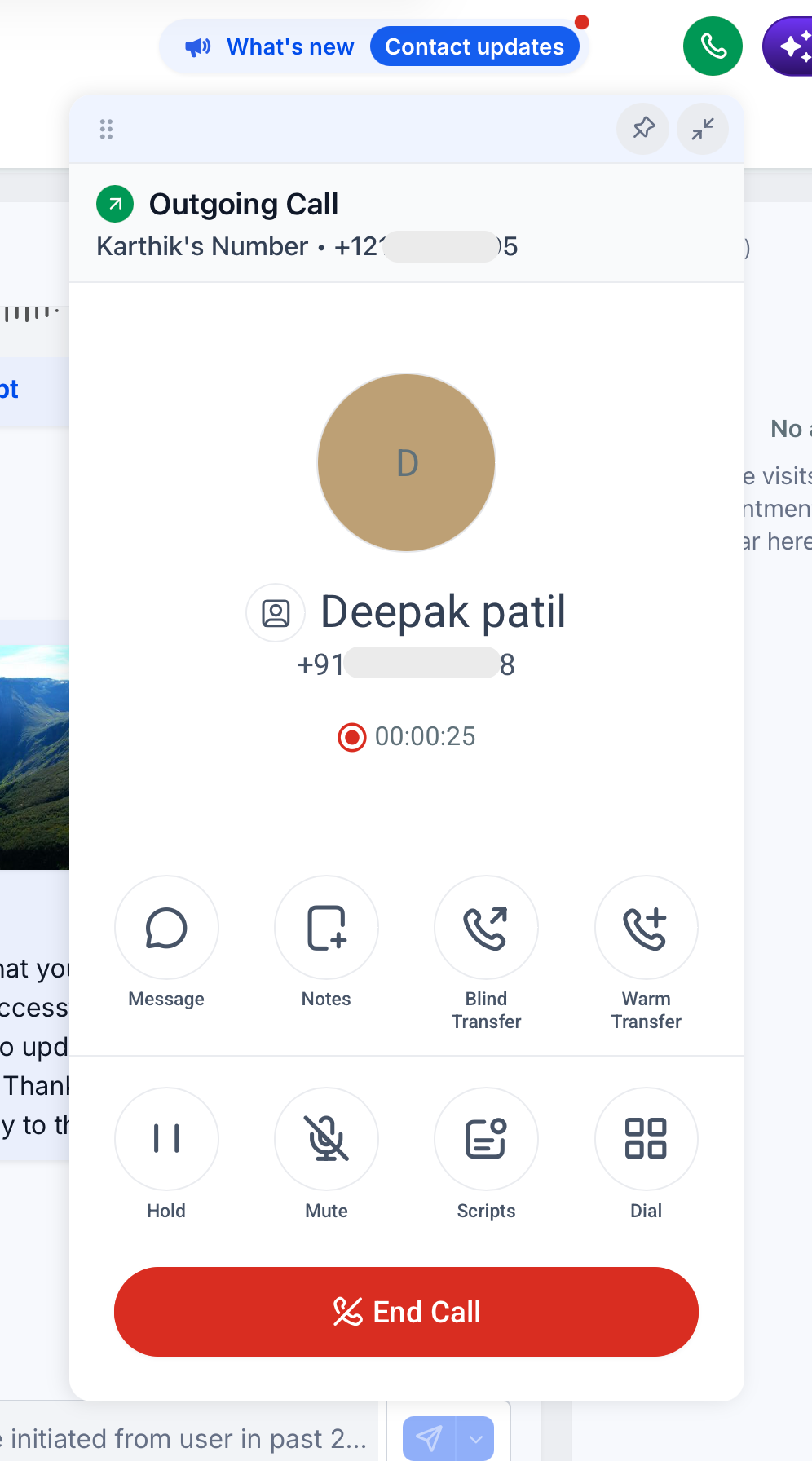
- Click on Warm transfer or Blind transfer, depending on whether you want to speak to your teammate before connecting the caller,
- Choose the staff member you want to transfer the call to. You will see which device types they can receive the transferred call on, based on their "Forward calls to" settings (web app, phone, or SIP desk phone).
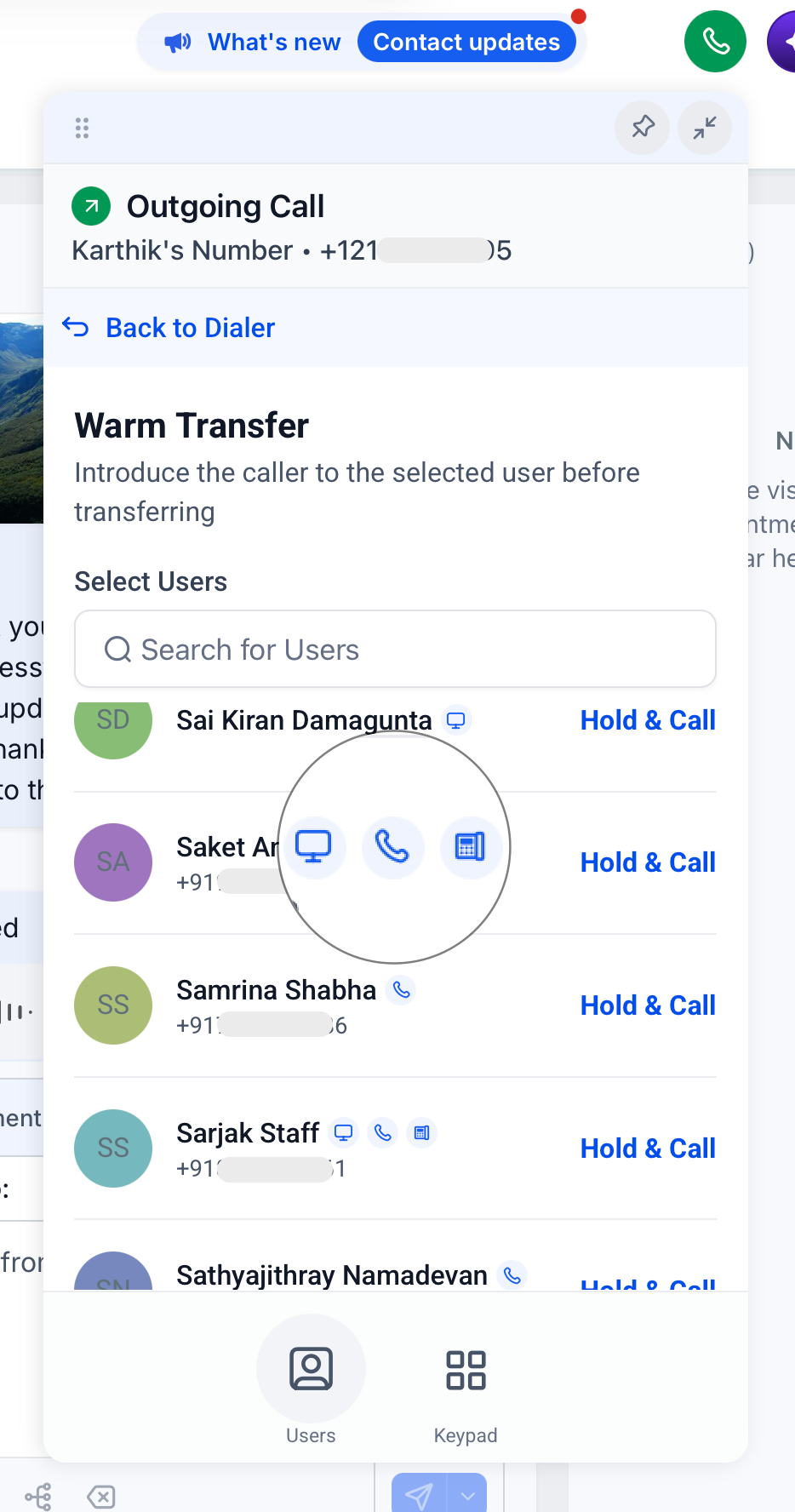
- Click Hold & call to start a warm transfer. The original caller is placed on hold while you connect to your teammate,
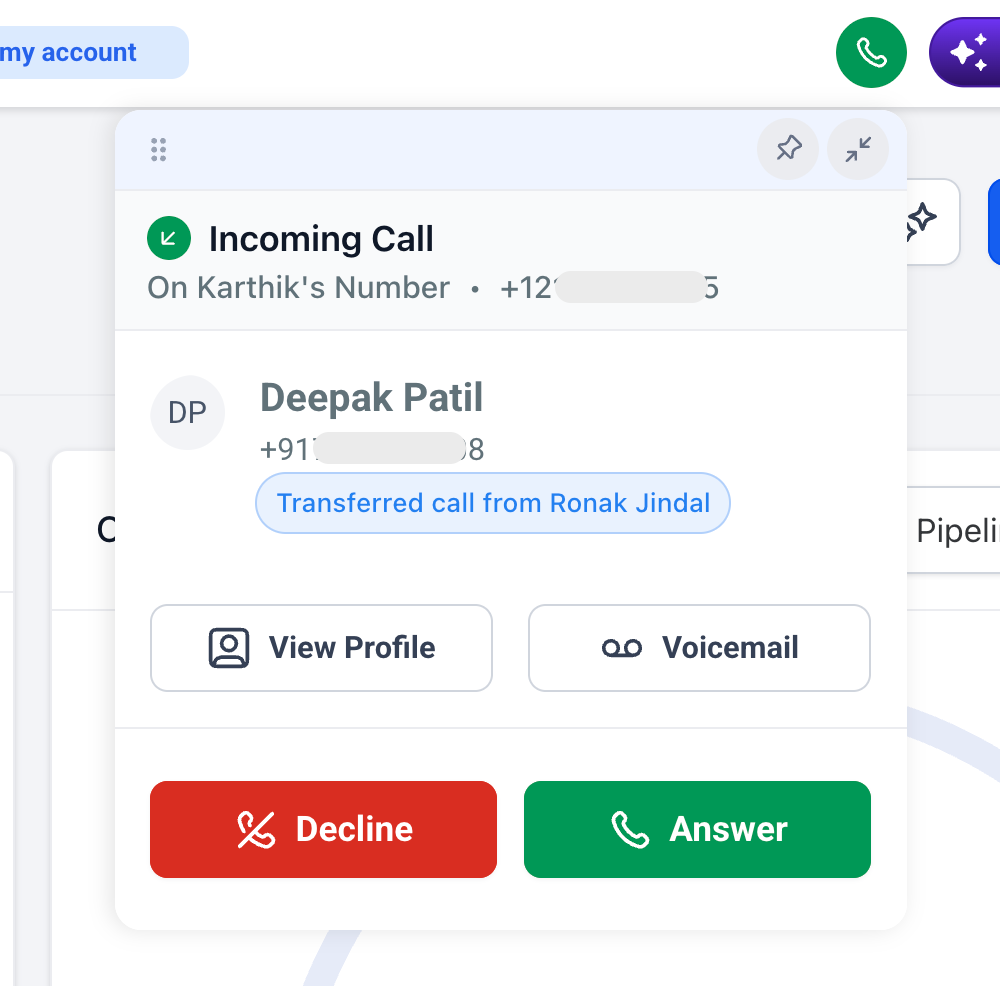
- If the teammate is receiving the call on the web app, they will see that the incoming call is a transferred call so they have context before answering.
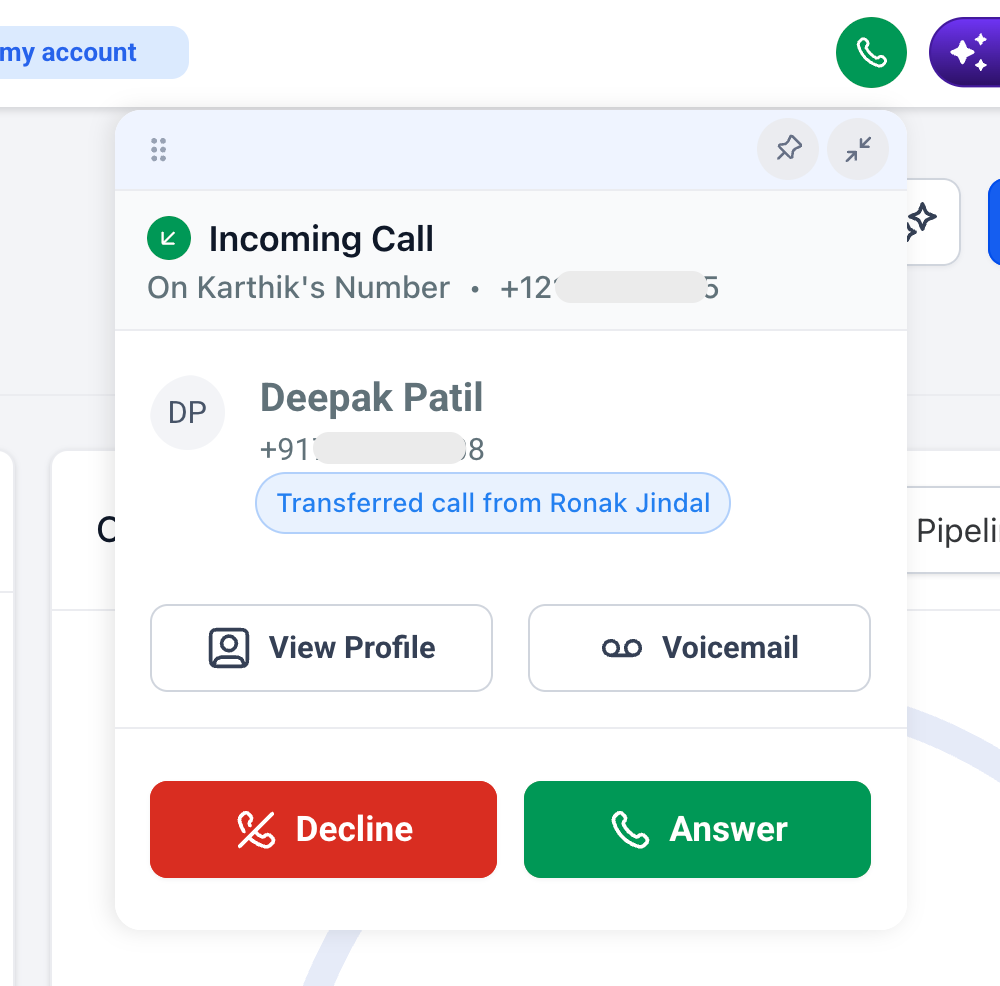
- Your teammate clicks Answer to pick up the transferred call on their side from whichever device they used to receive it.
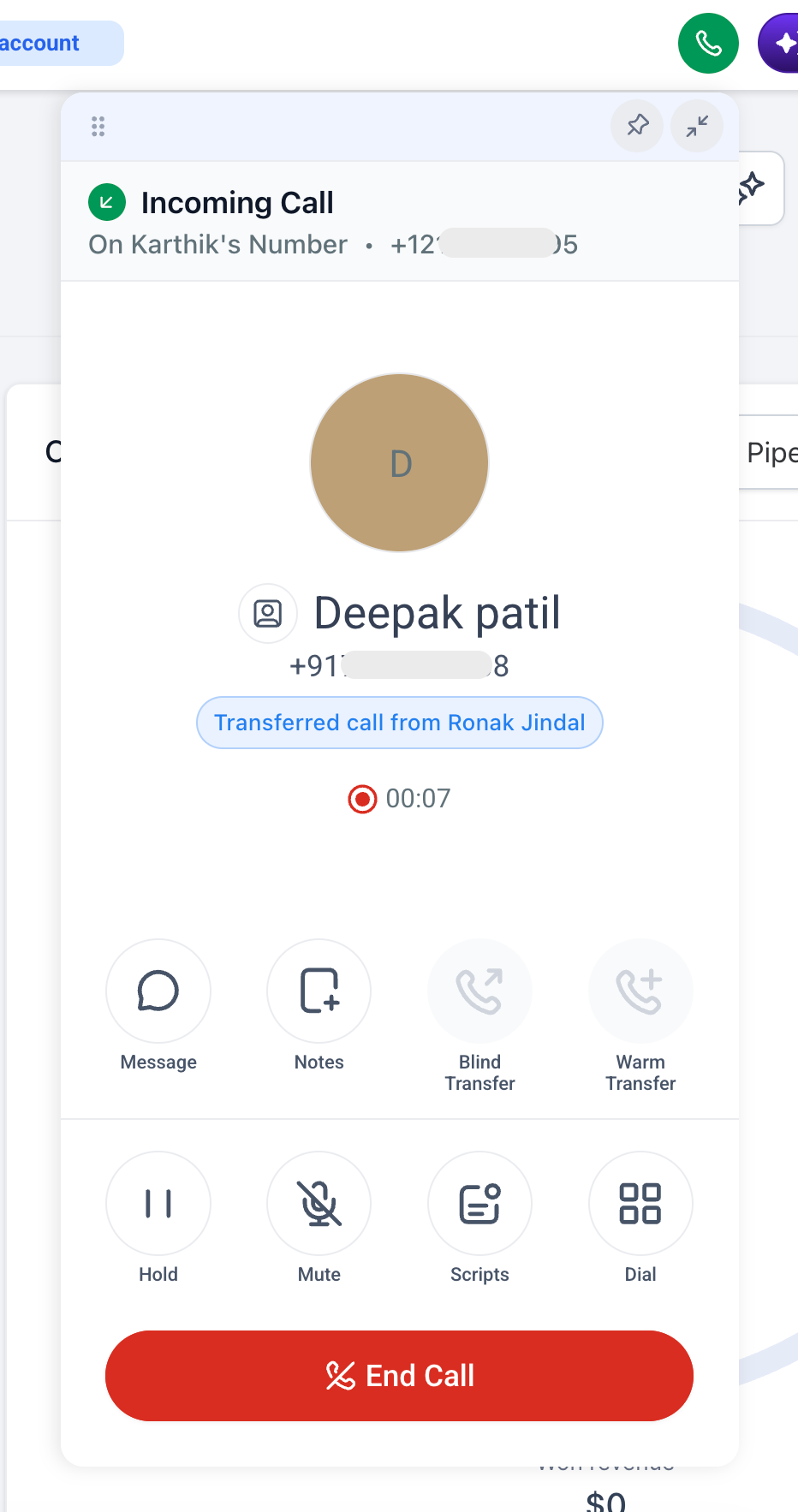
- You can then complete the warm transfer as usual: introduce the caller if needed, then finish the transfer so your teammate and the caller continue the conversation directly.
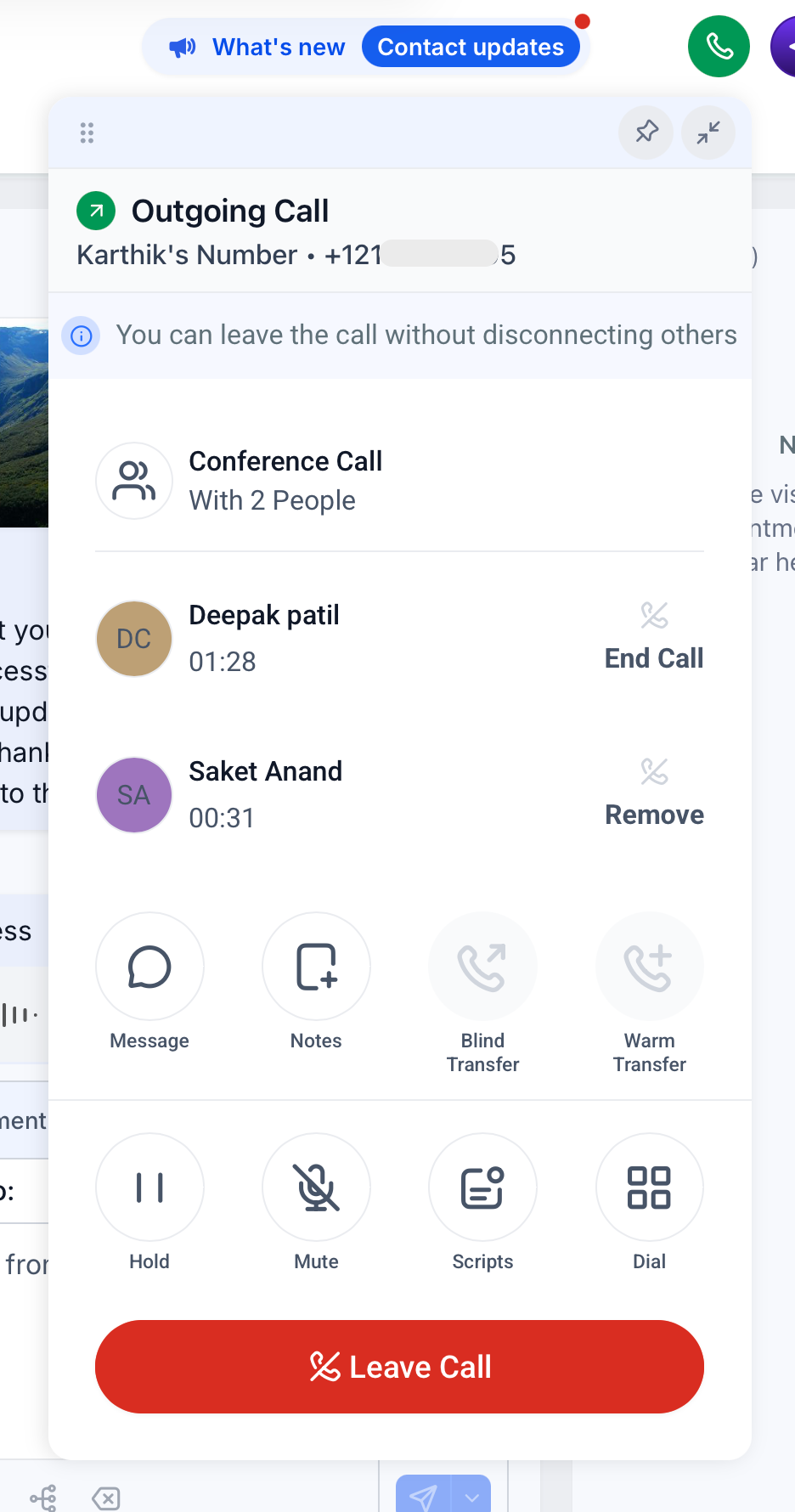
The experience for you and the caller stays familiar. The main difference is that you are choosing a teammate and their available devices, instead of depending on an assigned personal phone number.
Key points
- Available for both warm and blind transfers so you can choose whether to speak to your teammate first or send the caller through immediately,
- Works for both outbound and inbound calls from the EveryCatch web app, so you can transfer ongoing conversations regardless of who dialed,
- Mobile app support, as both a transfer source and destination, is planned and will be added in the coming weeks,
- Re-transferring a call (when you receive a transferred call and then try to transfer it again) is not supported yet,
- When you transfer to a teammate, EveryCatch rings all devices they have configured under "Forward calls to" at the same time, including the web app, their phone, and any SIP desk phones, so they can answer from wherever suits them.
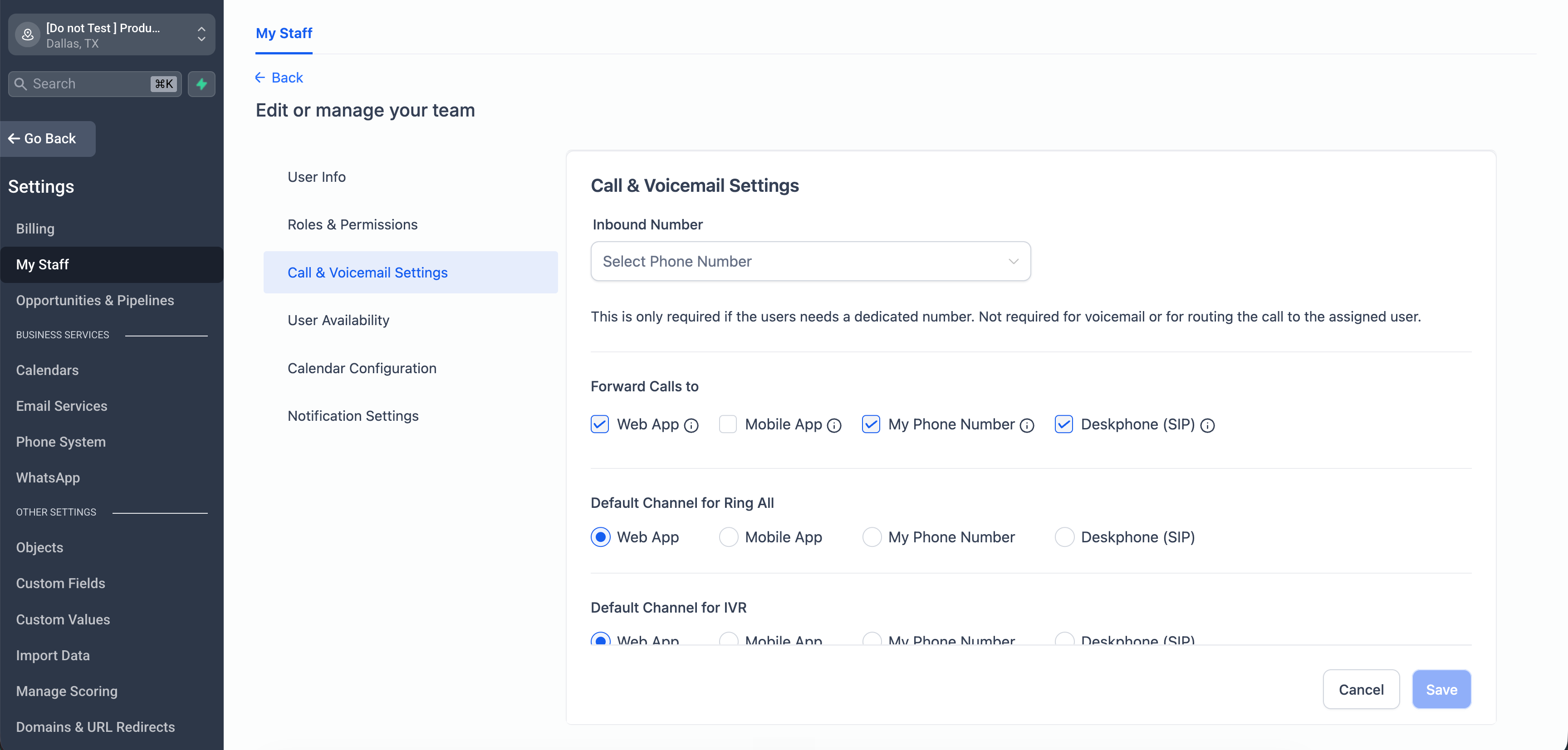
- Teammates who do not have any device configured in "Forward calls to" are hidden from the transfer list so you only see people who can actually receive the transferred call.
This feature is in labs, so behavior may be refined over time. If you have a complex call routing setup, you may want to test a few scenarios internally before rolling it out to your full team.
How to start using this via labs
- In your EveryCatch agency view, go to Agency settings > Labs > Account to manage early-access features.
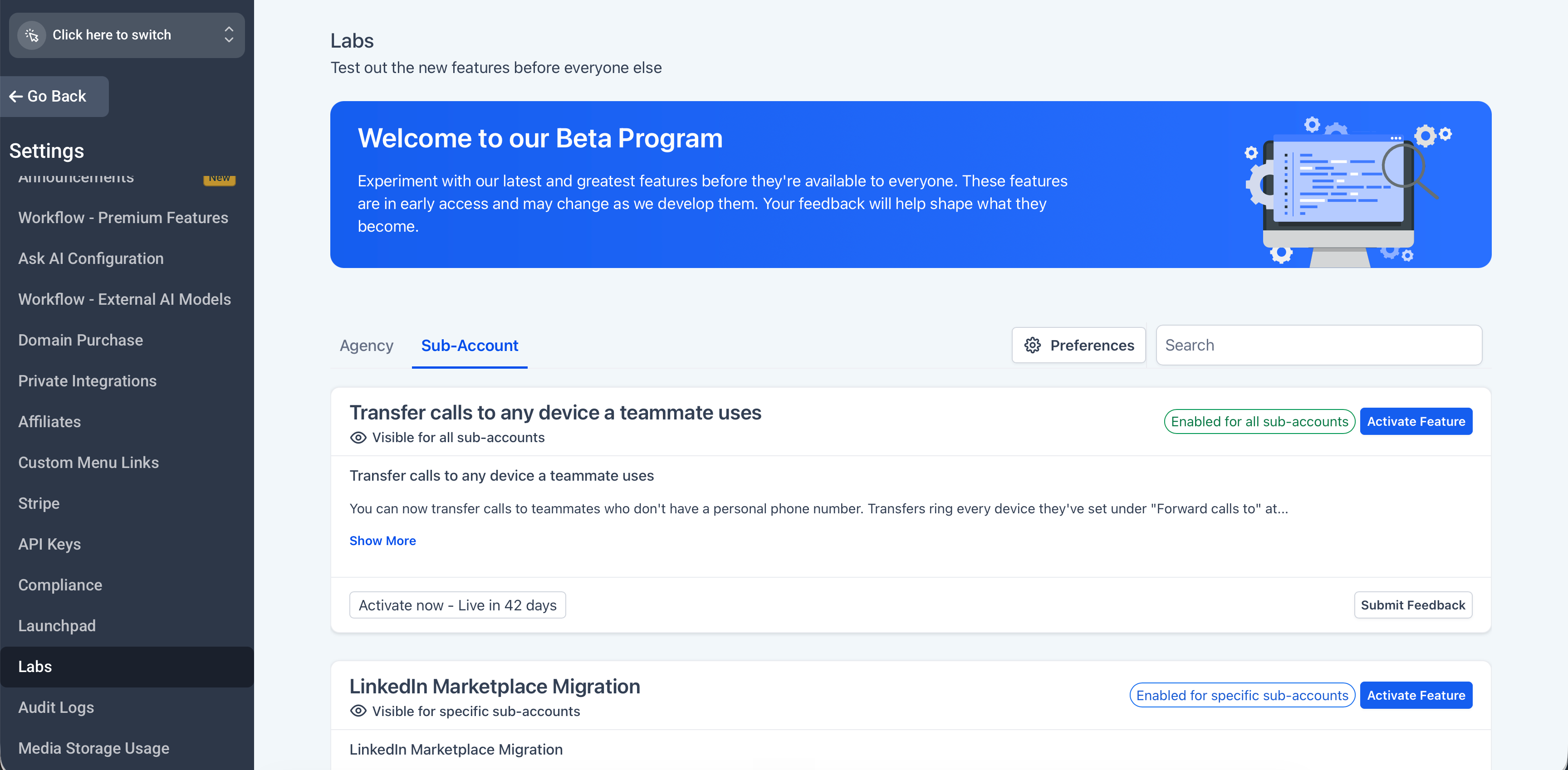
- Find the lab feature called "Transfer calls to any device a teammate uses" and click "Activate feature",
- Select the accounts where you want to enable this, then use Bulk actions > Enable access so those accounts can start using call transfers to web, phone, and SIP devices.
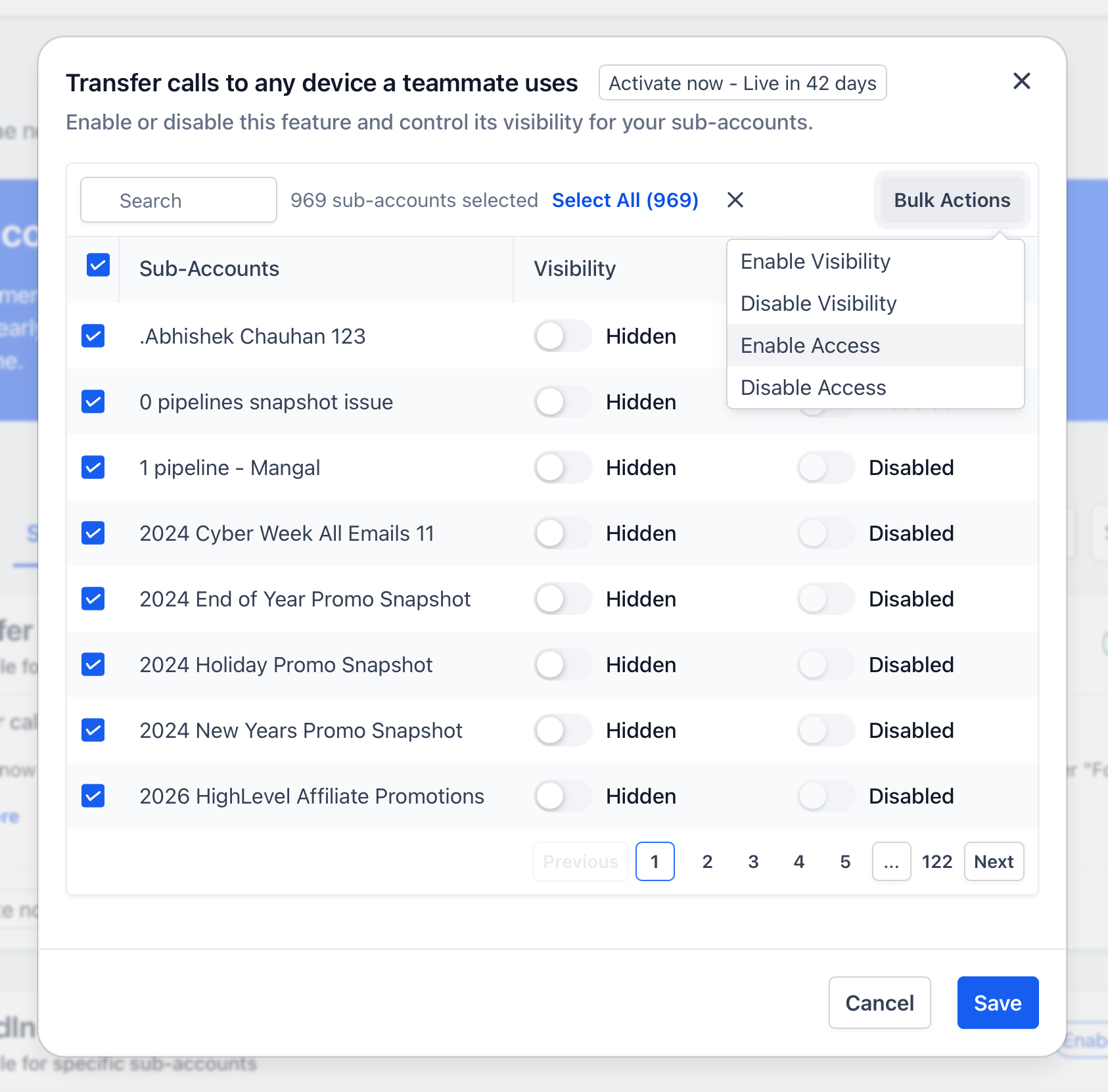
- Click Save to confirm your changes and make the feature available in the selected accounts.
Need help with this?
If you'd like help setting this up or want to know what it means for your account, book a quick call and we'll walk you through it.
