Transfer calls to any device a teammate uses (via labs)
10 June 2026
Transfer calls to any device a teammate uses
EveryCatch now lets you transfer live calls to teammates even if they do not have their own dedicated phone number. You can send a call to any device they have set up for call forwarding, so the right person can pick up from the device that works best for them.
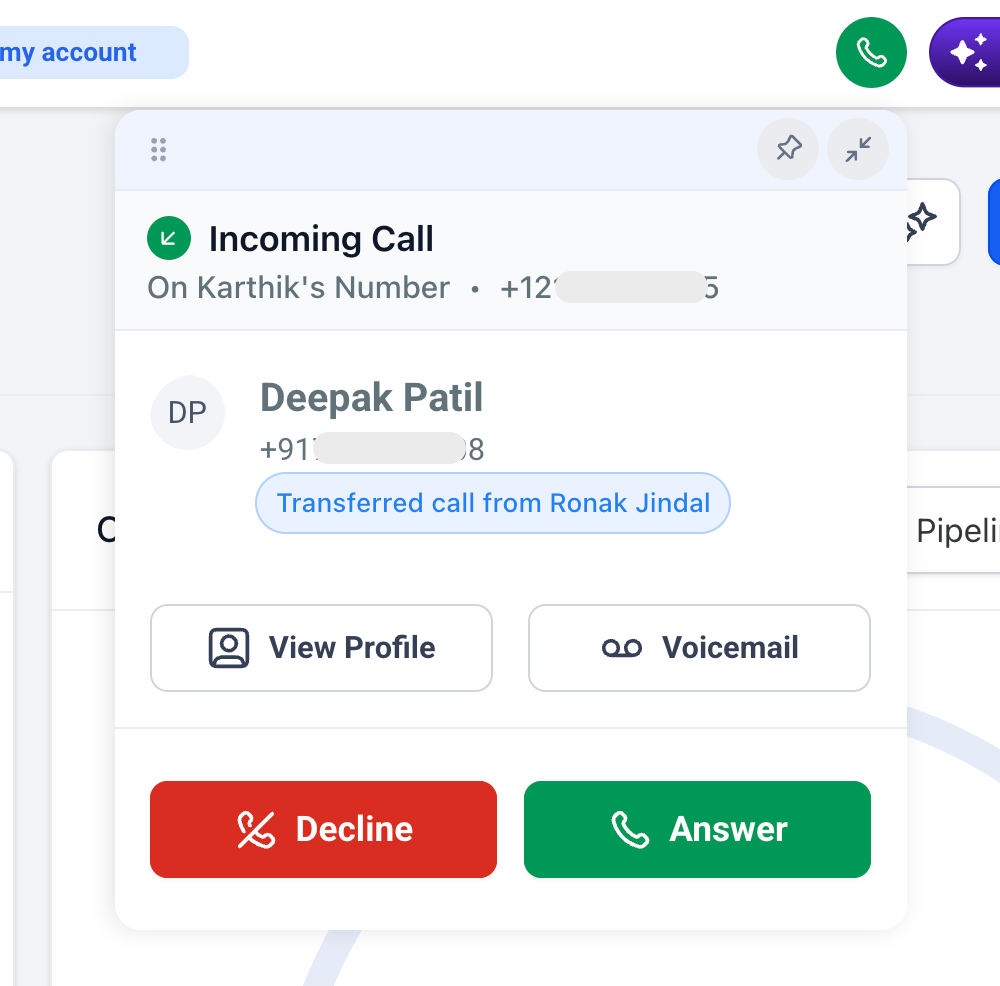
This helps you route callers to the right teammate without managing extra numbers, and it keeps your call workflows flexible when people work from different locations or devices.
How to use this
- Start a regular call from the web app (either an inbound call you answer or an outbound call you place).
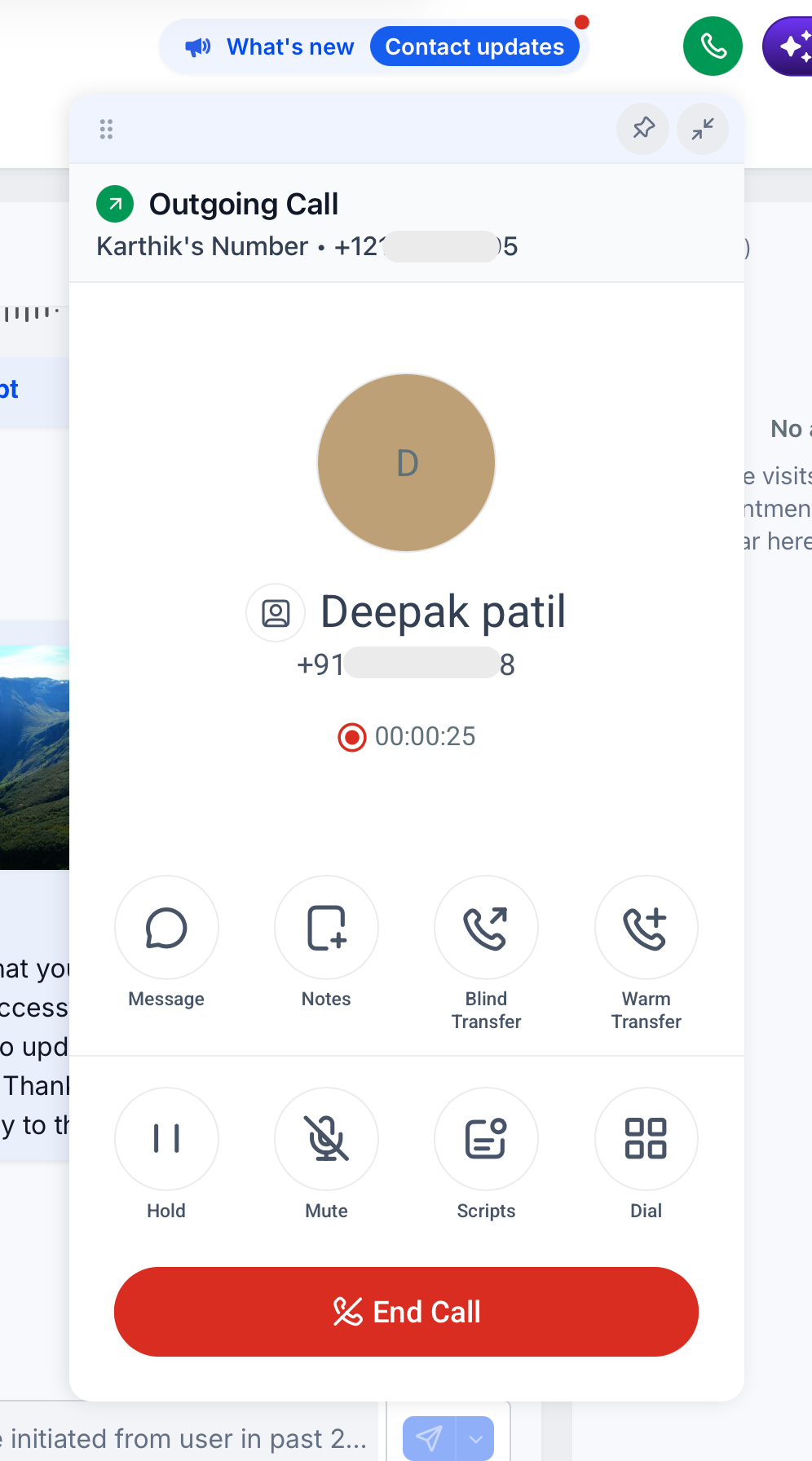
- Click on "Warm transfer" if you want to speak with your teammate before connecting the caller, or "Blind transfer" if you want to immediately send the caller through.
- Select the staff member you want to transfer the call to. You will see which device types they can currently receive the transfer on.
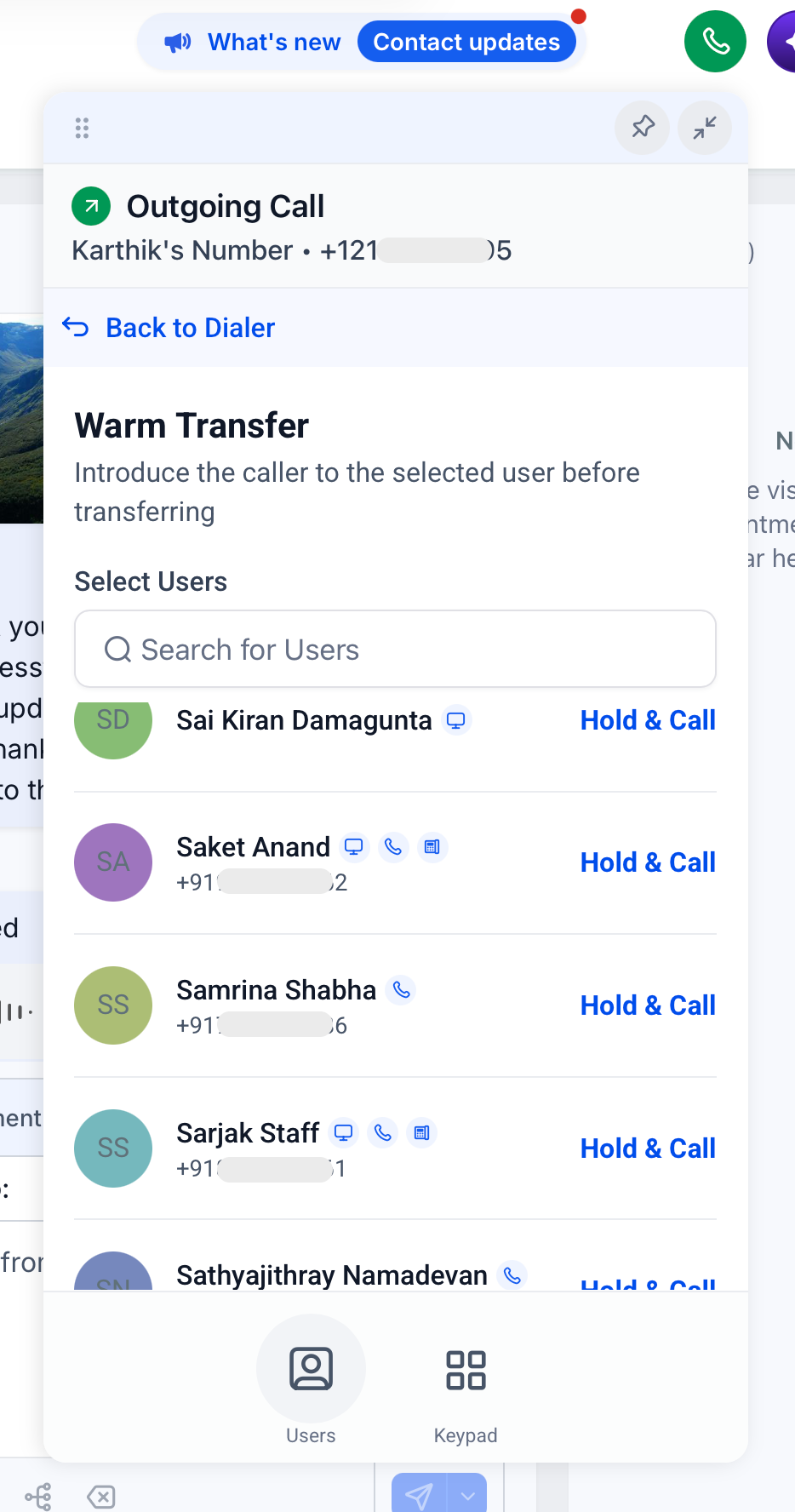
- Click on "Hold & Call" to place the caller on hold while EveryCatch calls your teammate on their available devices.
- If the teammate is receiving the transferred call on the web app, they will see that it is a transferred call before they answer.
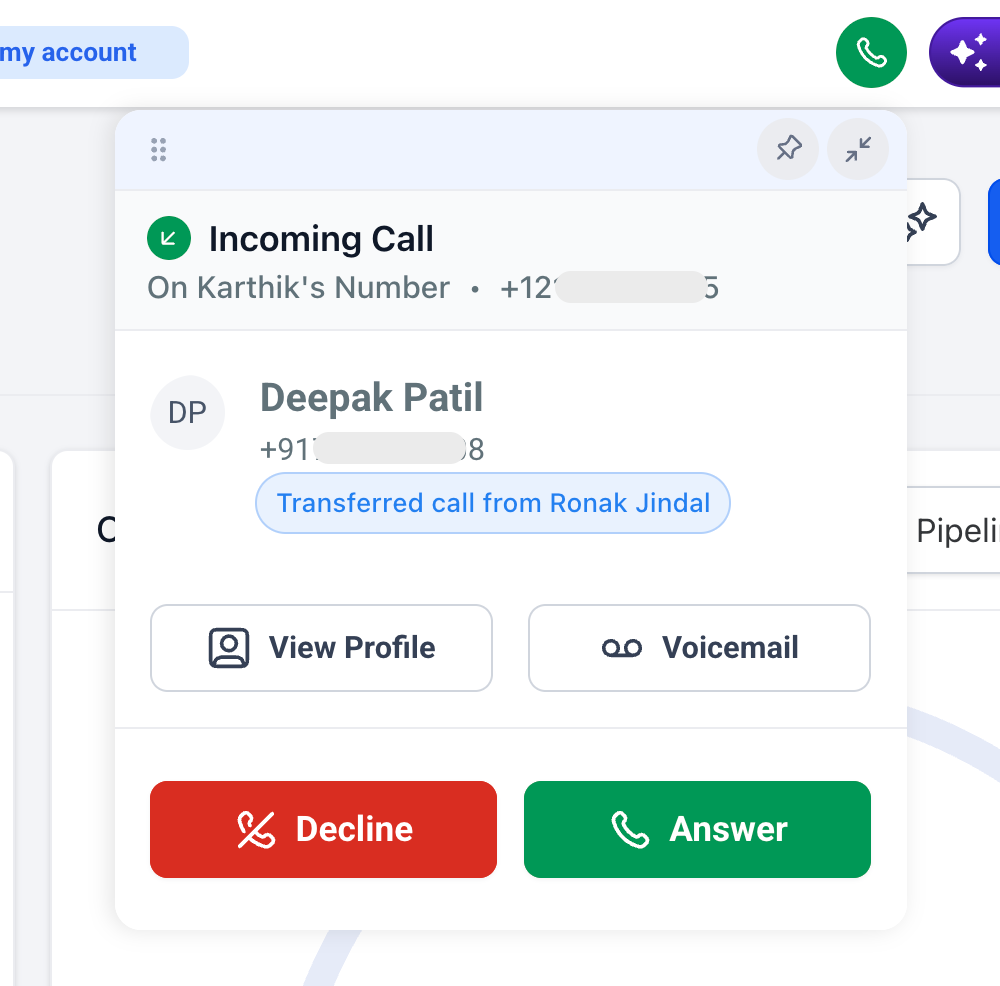
- The teammate clicks "Answer" on their device to pick up the transferred call.
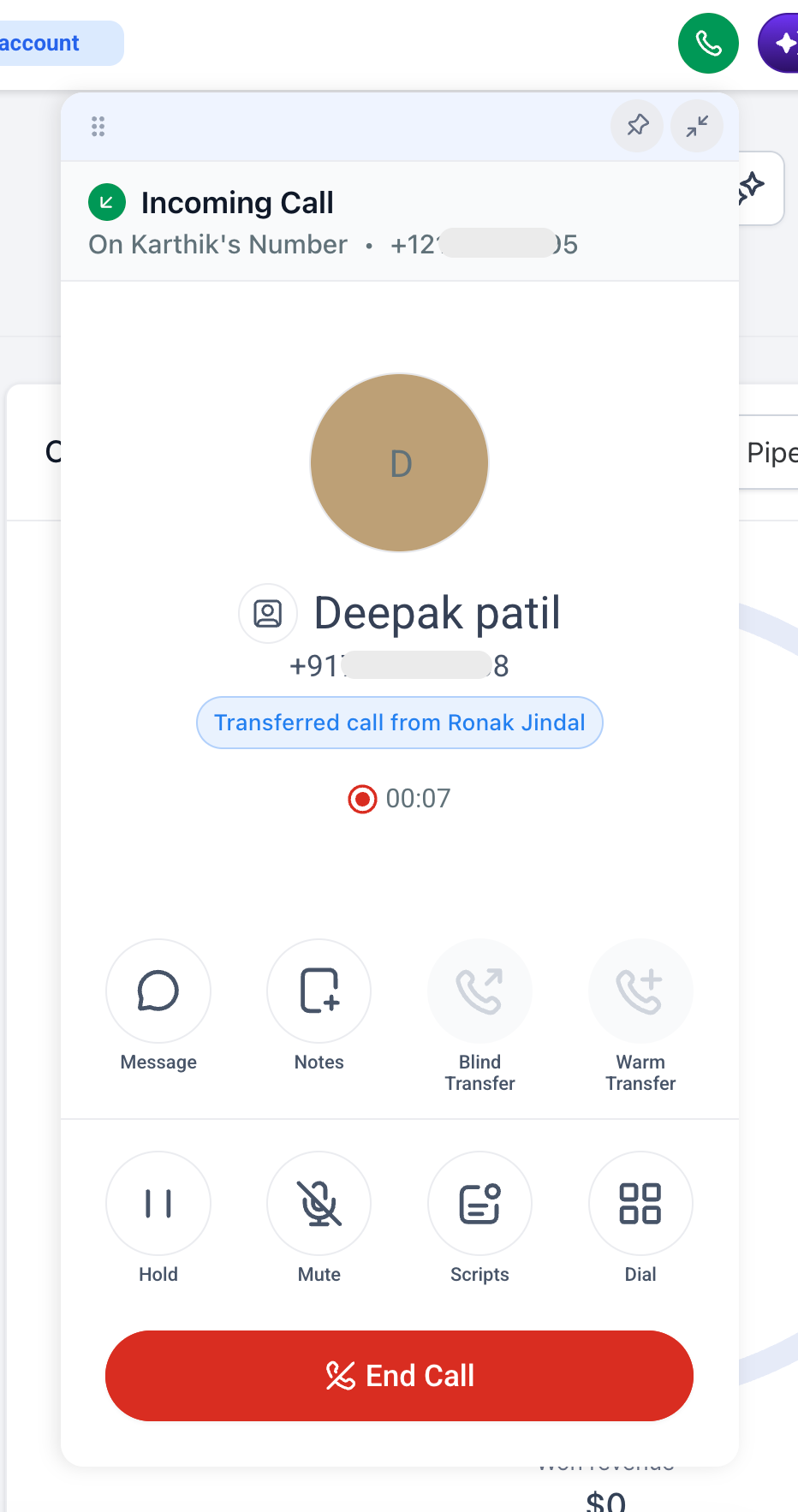
- From here, you can complete the warm transfer as you normally would, including speaking with your teammate first and then connecting or dropping off the call.
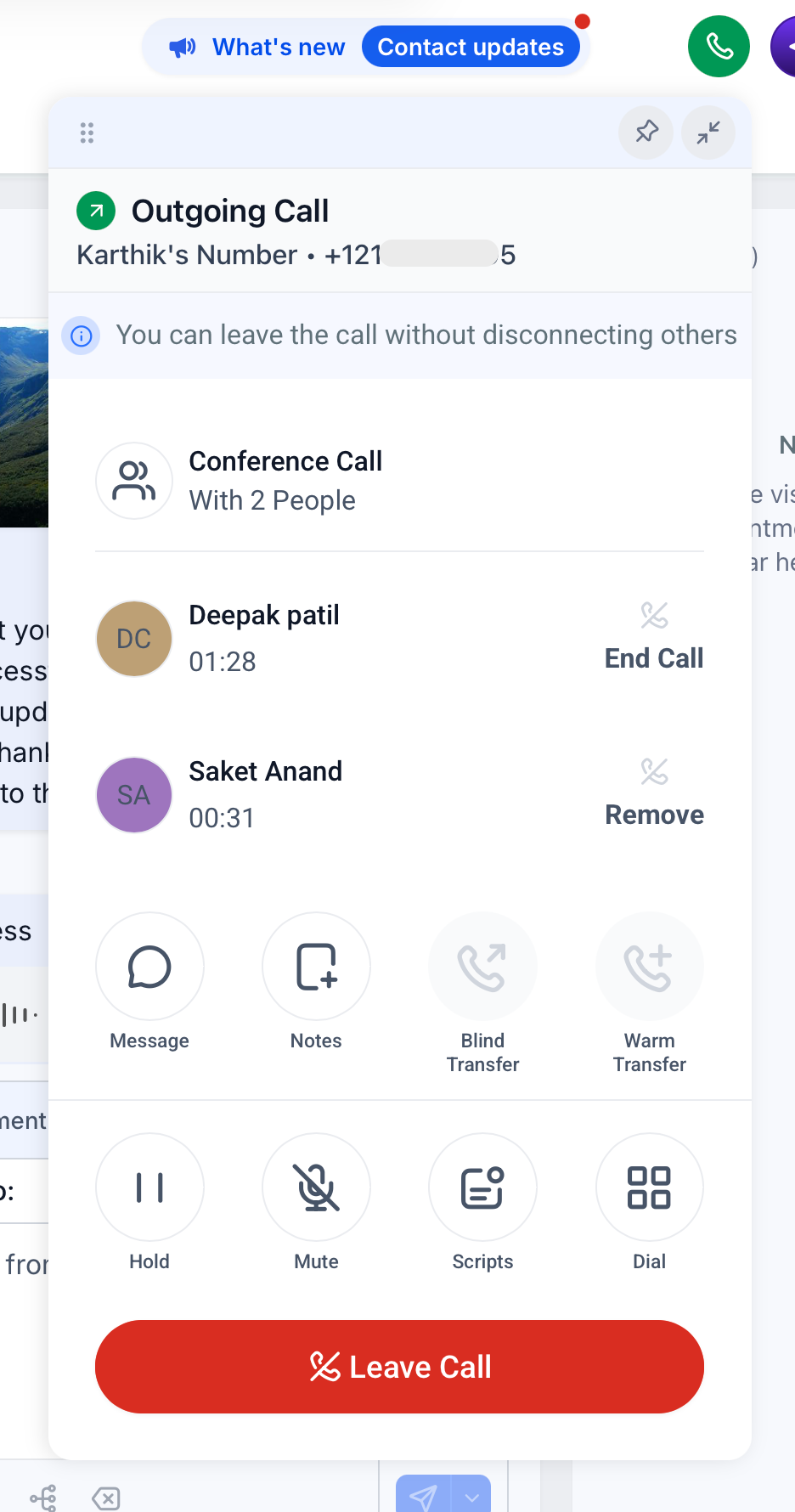
The caller stays on hold while you coordinate the transfer, and they are only connected to your teammate once you complete the warm transfer steps.
Key points
- Available for both warm and blind transfers, so you can choose whether to announce the caller or send them through directly.
- Works on both outbound calls you place and inbound calls you receive in the web app.
- Support for using mobile apps as a transfer source or destination is planned and will arrive in the coming weeks.
- You cannot start another transfer from a call that has already been transferred. Subsequent call transfers are not supported yet.
- When you transfer a call, EveryCatch rings every device that staff member has enabled under "Forward calls to" at the same time, including the web app, regular phone, and any configured SIP desk phone.
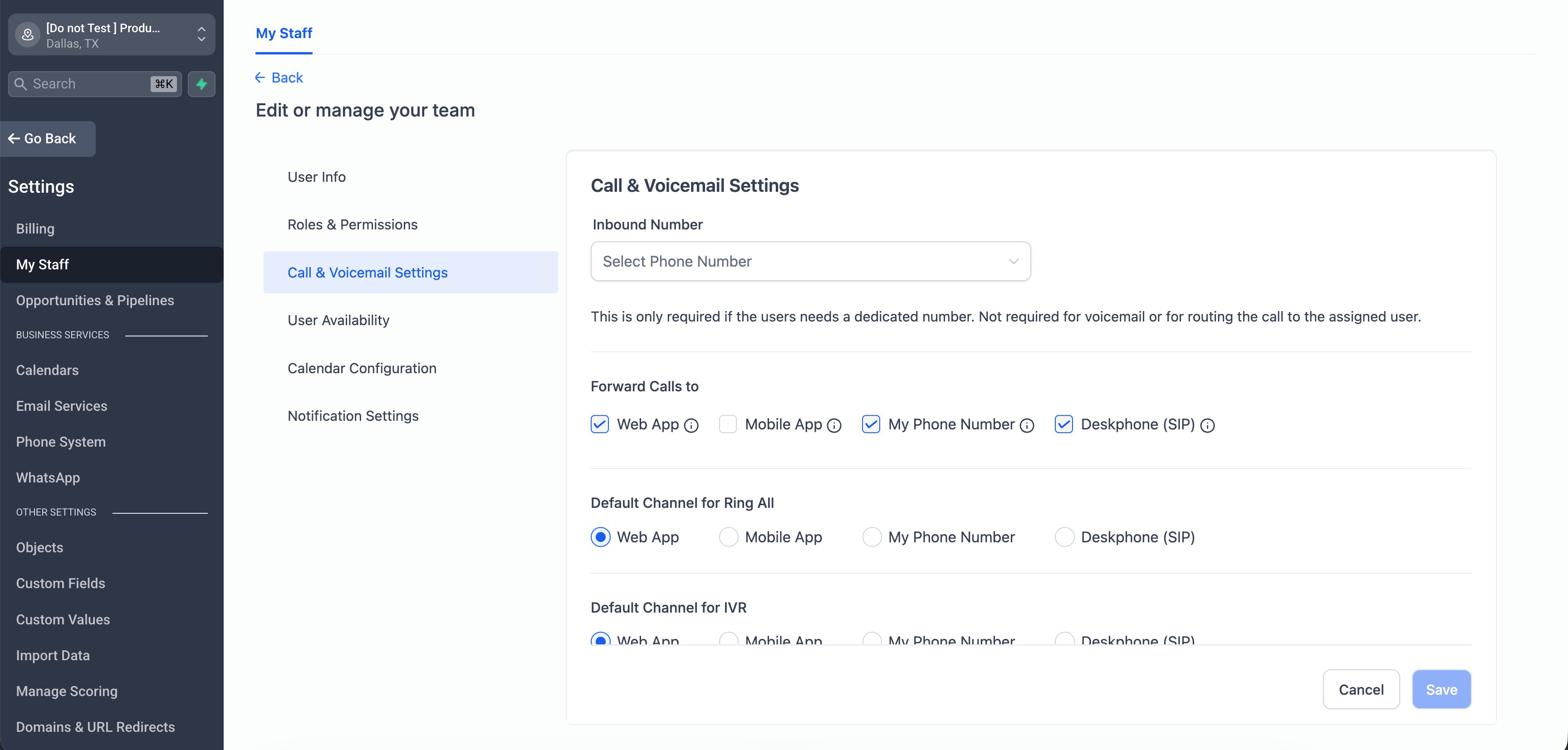
If you want teammates to receive transferred calls on specific devices, make sure their "Forward calls to" settings are configured correctly in advance.
How to turn this on in labs
- In your agency view, go to Settings > Labs > Account.
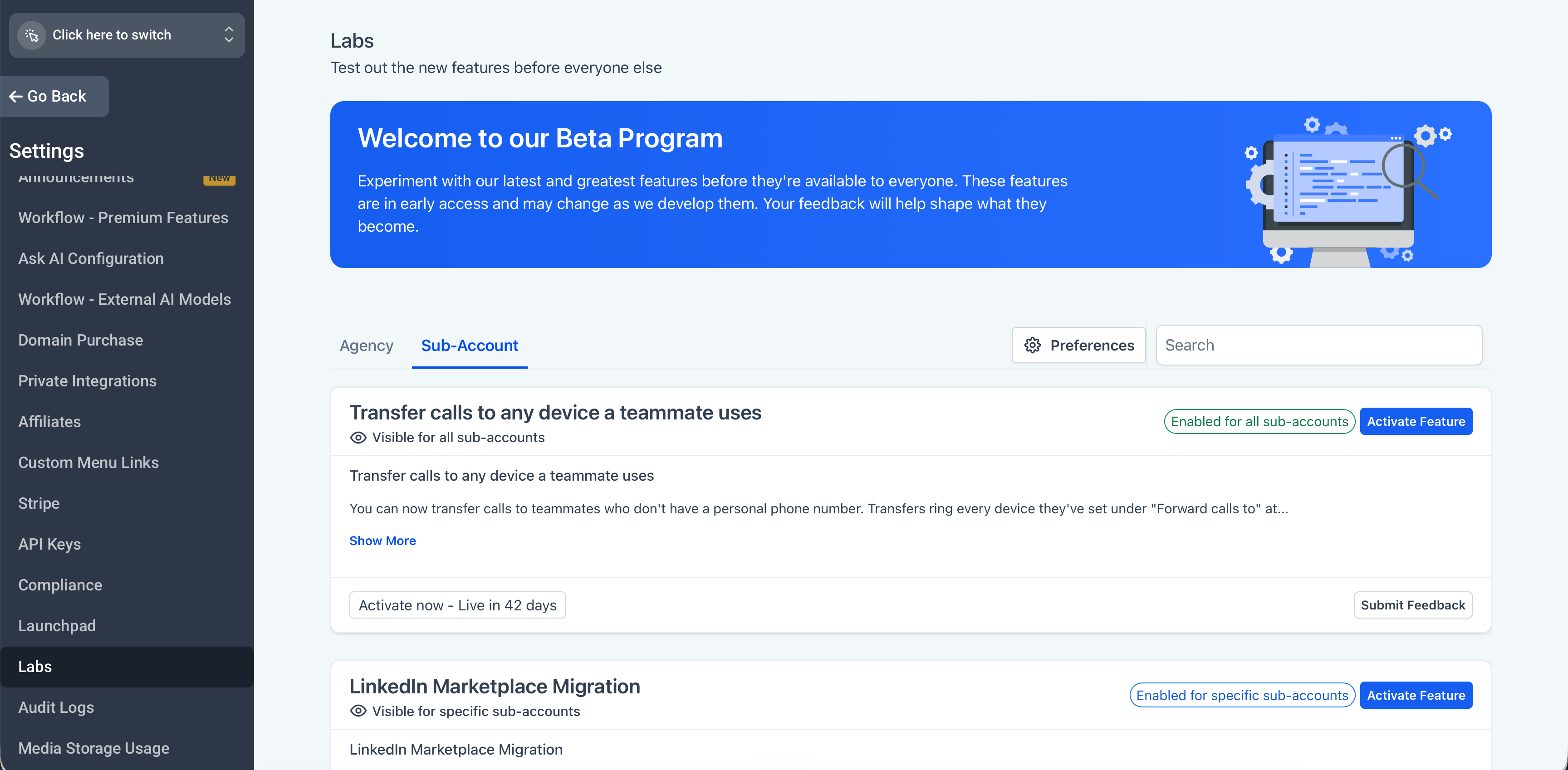
- Find the feature labeled "Transfer calls to any device a teammate uses" and click "Active Feature" to open its settings.
- Enable access for the specific accounts where you want this feature to be available.
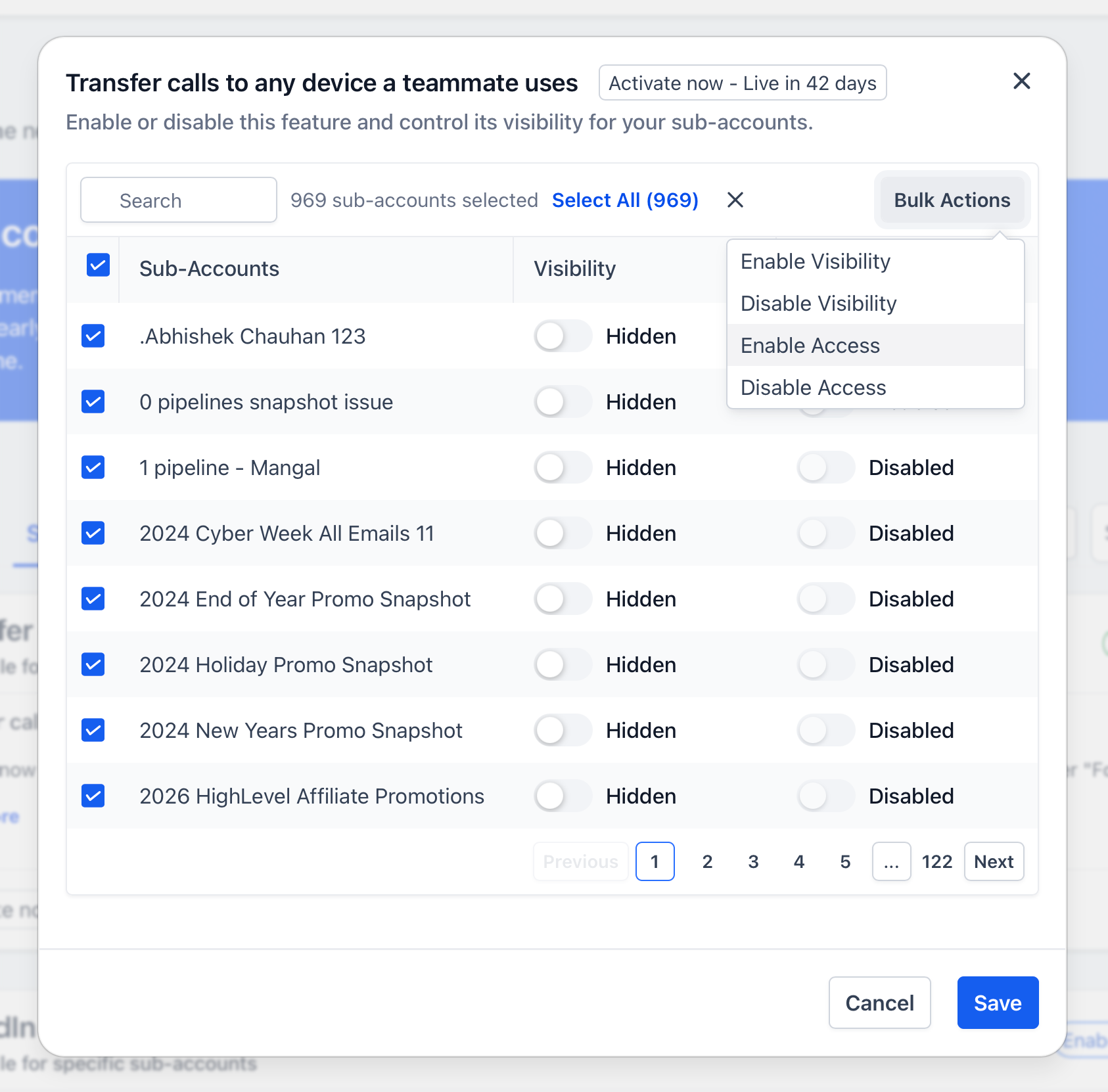
- Click "Save" to apply your changes and start using call transfers to any teammate device in those accounts.
Need help with this?
If you'd like help setting this up or want to know what it means for your account, book a quick call and we'll walk you through it.
