Schema markup auto-generation on website, funnel & webinar publish
Overview
EveryCatch now includes a new setting, Auto-generate schema, that automatically creates schema markup for any page you publish that does not already have it.
Previously, you had to add schema manually, one page at a time, in the editor. If you did not add it before publishing, the page went live with no structured data, which limited your visibility in search engines and AI answer experiences (AEO/GEO).
With this update, when the setting is on and you publish a page that has no schema:
- AI generates schema markup for that page automatically in the background
- Publishing is never delayed, because schema generation runs in parallel and does not hold up the page going live
- Existing schema is preserved and never overwritten
- It runs on all page-specific publish paths: Builder Publish, save-triggered publish, and version-history publish
- Available for Websites, Funnels, and Webinars
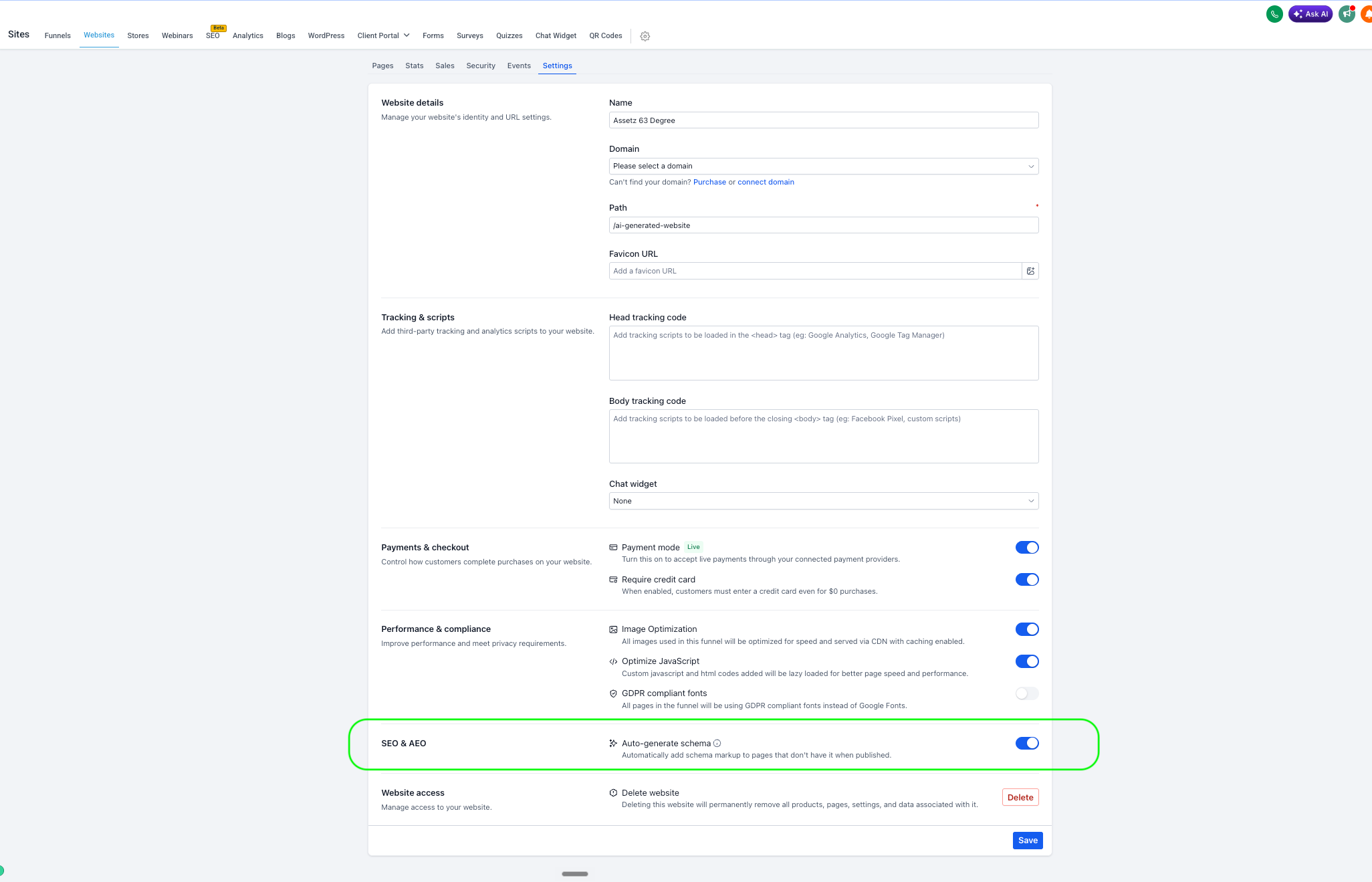
You will find this under Settings, in the new SEO & AEO section.
- Auto-generate schema – "Automatically add schema markup to pages that don't have it when published."
Why this matters
Schema markup powers rich results in Google and helps AI answer engines understand and cite your pages. Many users either forget or do not have time to add it. Auto-generation keeps structured data in place on every published page with zero extra work from you, so your SEO/AEO/GEO presence is protected by default.
Impact on existing users
- No data loss. Existing schema is preserved and never overwritten.
- Assets created before this release: the setting defaults to OFF, so nothing changes unless you turn it on.
- Assets created on or after this release: the setting defaults to ON, so new pages that you publish without schema get it automatically.
- You have full control. You can toggle it per Website, Funnel, or Webinar, then click Save.
Action required
You do not need to change anything for existing assets. They keep their current behavior with Auto-generate schema set to OFF. If you prefer that new assets do not auto-generate schema, switch the toggle off under Settings → SEO & AEO and click Save.
Need help with this?
If you'd like help setting this up or want to know what it means for your account, book a quick call and we'll walk you through it.
