Payment links – your payment button, your words
You can now customize the label on your EveryCatch Payment Link checkout button. Instead of only using "Pay," "Book," or "Donate," you can enter any text that matches your brand and offer. No coding or workarounds needed: just type your wording, save, and share.
The challenge
Your payment link is often the final screen a customer sees before they confirm. Until now, you had to pick from three standard button labels: Pay, Book, or Donate. If you were selling subscriptions, registrations, memberships, or another type of offer, those options felt off. When the call to action does not clearly match the offer, customers hesitate at checkout and you lose some conversions.
Our solution
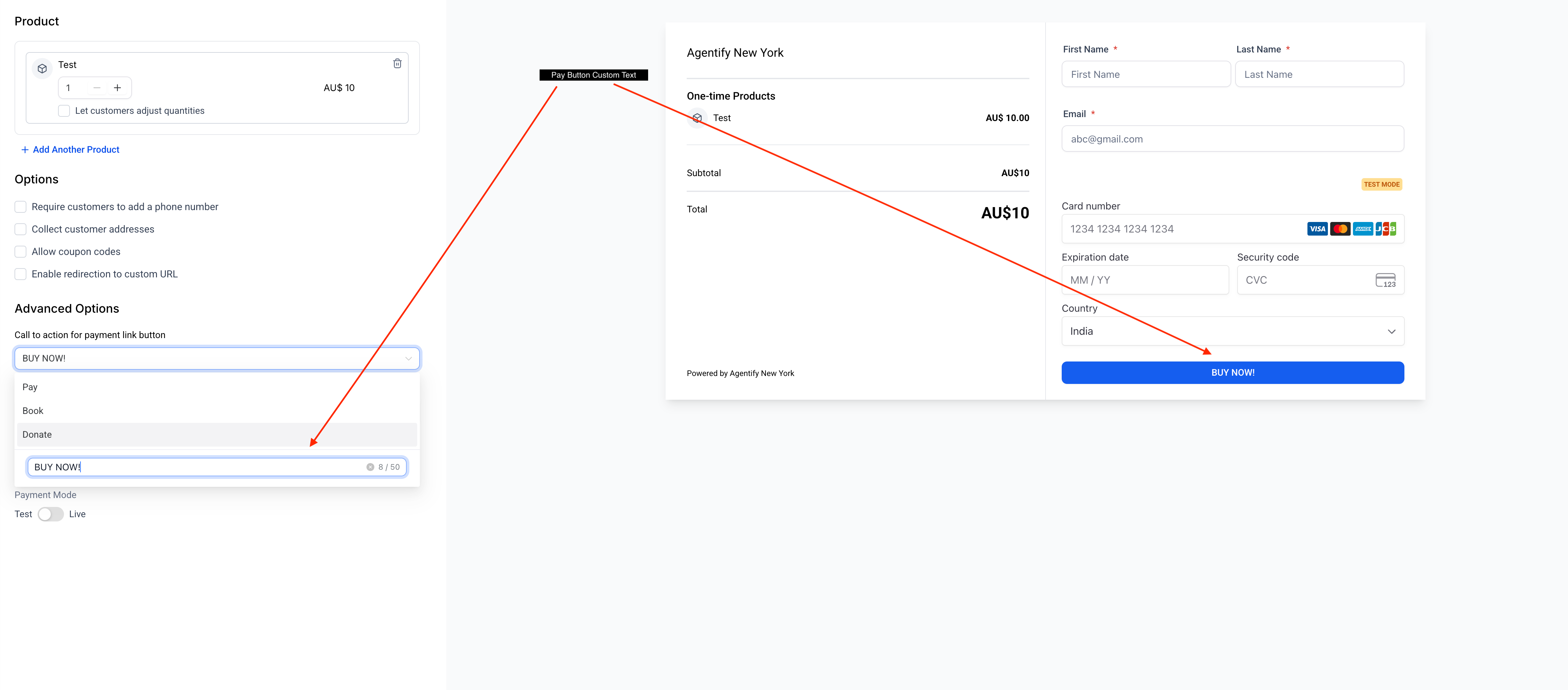
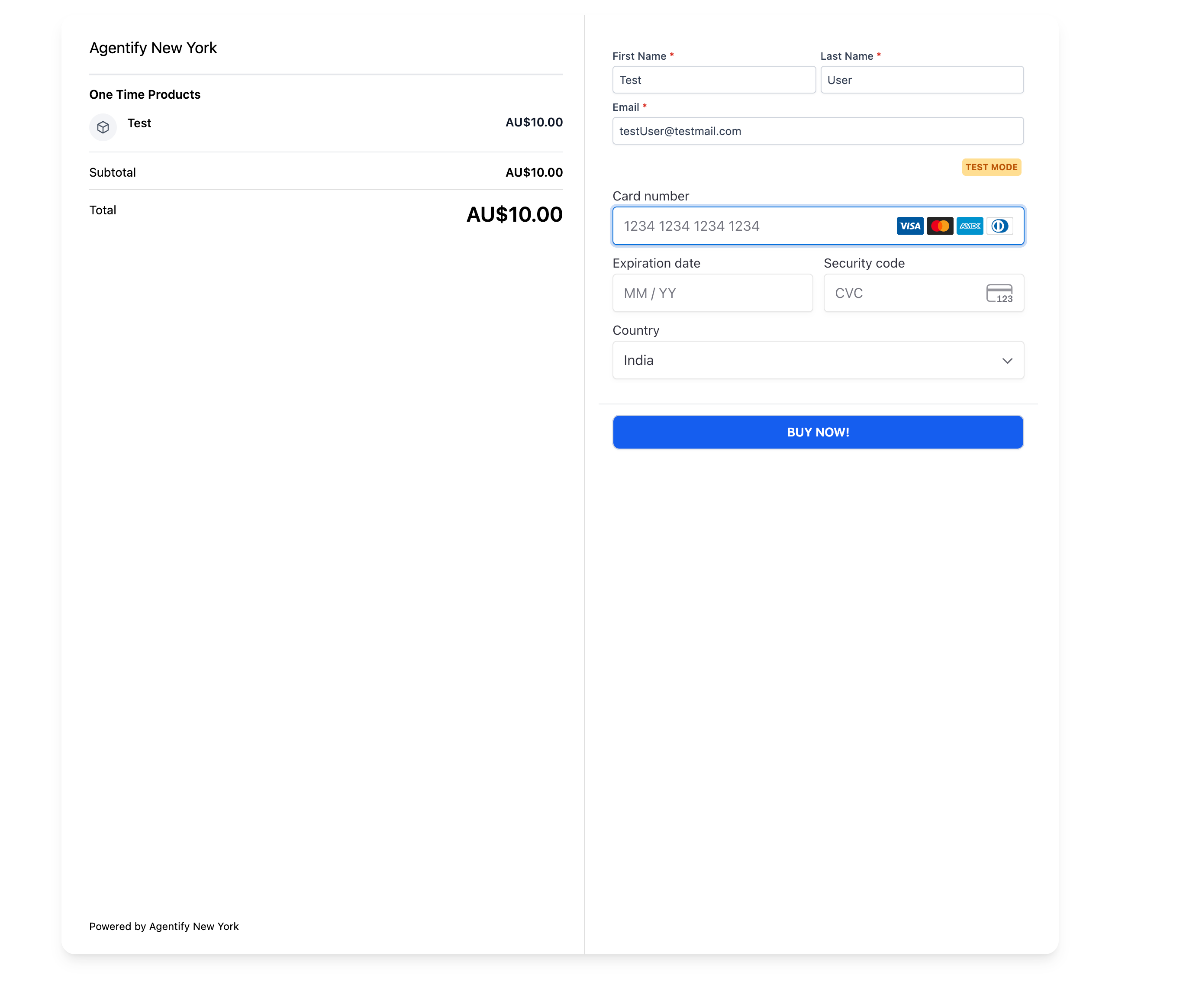
The EveryCatch Payment Link builder now includes a custom button text field in the Advanced options. You can still use the default labels, or you can type your own label up to 50 characters. The checkout preview updates instantly with your custom text so you can confirm exactly what customers will see before you publish or send the link.
How this helps your business
- Convert more buyers: A call to action that matches your offer helps customers feel confident about what happens when they click.
- Stay on-brand: Use the exact language your audience expects, such as "Claim your spot," "Subscribe now," or "Get instant access."
- Move faster: Skip workarounds like renaming products to change the button feel. Update your button text in under 30 seconds directly in the builder.
- Use it across every offer: Courses, events, services, memberships, and donations all use the same builder, with any call to action you choose.
How to get started
- Open the Payment Link builder → In EveryCatch, go to Payments → Payment links, then open an existing link or create a new one.
- Go to Advanced options → Find the "Call to action for payment link button" setting and open the dropdown.
- Choose default or custom text → Select Pay, Book, or Donate, or click into the custom text field and type your own label (up to 50 characters).
- Preview and publish → Check the live checkout preview on the right to confirm the new button text, then click Save when you are ready.
Good to know
- Custom button text works on all Payment Link types in EveryCatch.
- Custom labels support up to 50 characters.
- Editing is done on the web in the Payment Link builder. Customers will see your custom text on desktop and mobile.
- Updates apply to new sessions. Anyone already on a checkout page will still see the previous label until they refresh.
Need help with this?
If you'd like help setting this up or want to know what it means for your account, book a quick call and we'll walk you through it.
