Media library: expanded file preview support
You can now review many more file types right inside the EveryCatch media library. The preview window lets you quickly check content without downloading files or leaving the page.
What changed
EveryCatch now lets you open in-browser previews for the following file types:
PDF files – Scroll through pages, zoom in or out, jump to a specific page, and select text directly in the viewer.
Word documents (.docx) – View the full document layout, including page breaks, headers, and footers, so you can confirm formatting at a glance.
Excel and CSV files – Open spreadsheets with worksheet tabs and familiar column and row headers to quickly check or verify data.
Audio files – Play supported audio formats (MP3, WAV, OGG, and M4A) right in your browser using the built-in audio player.
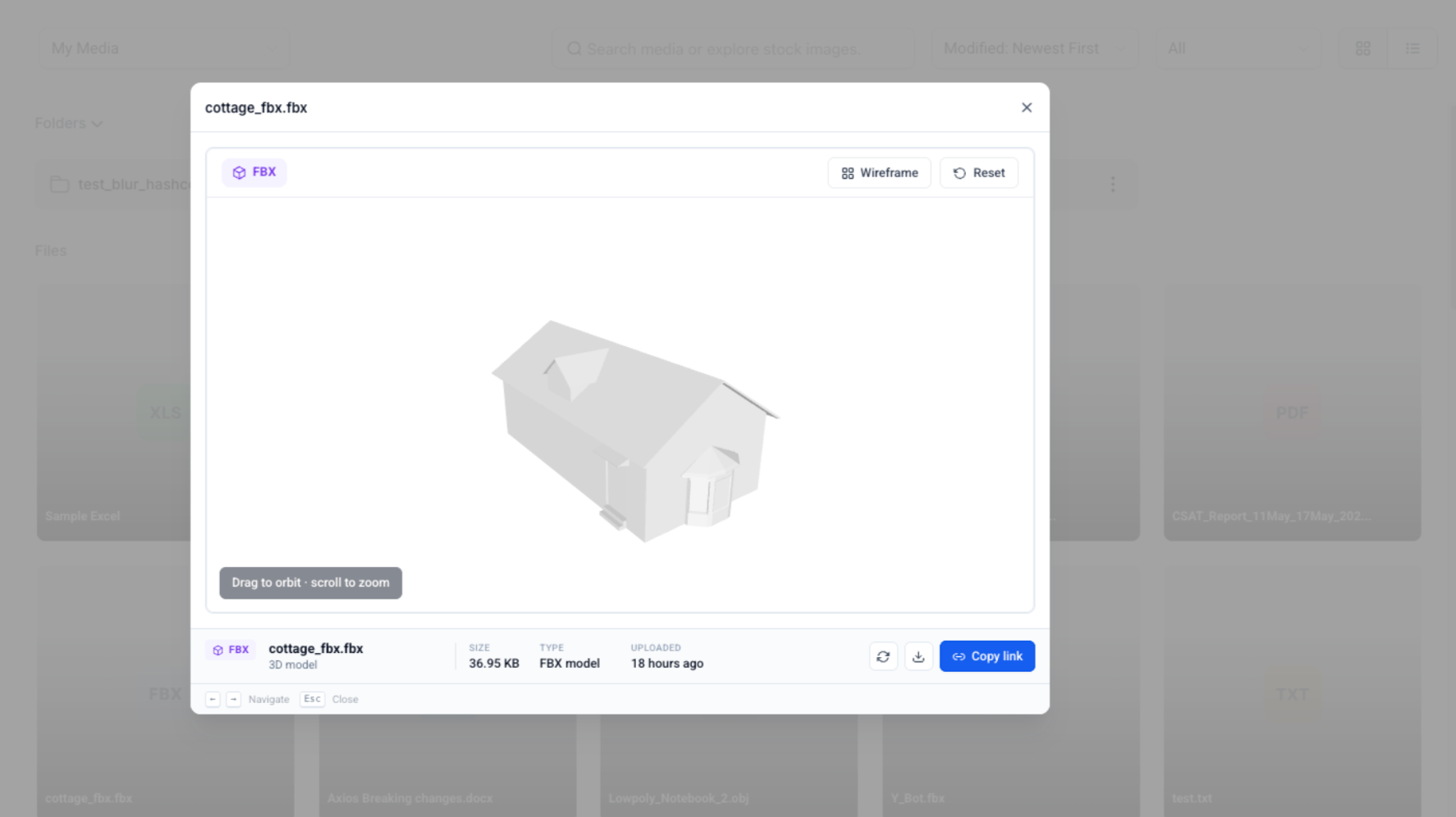
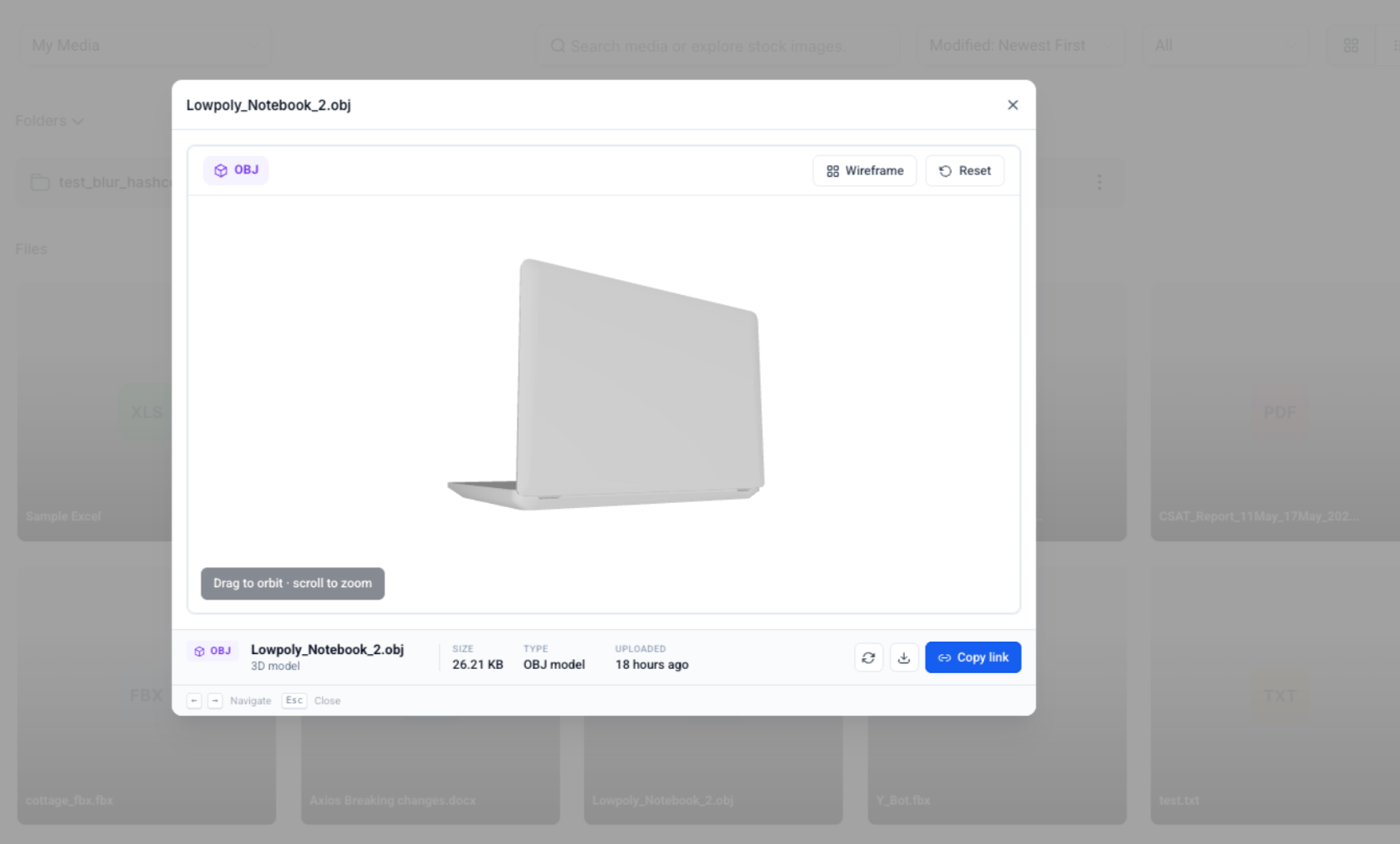
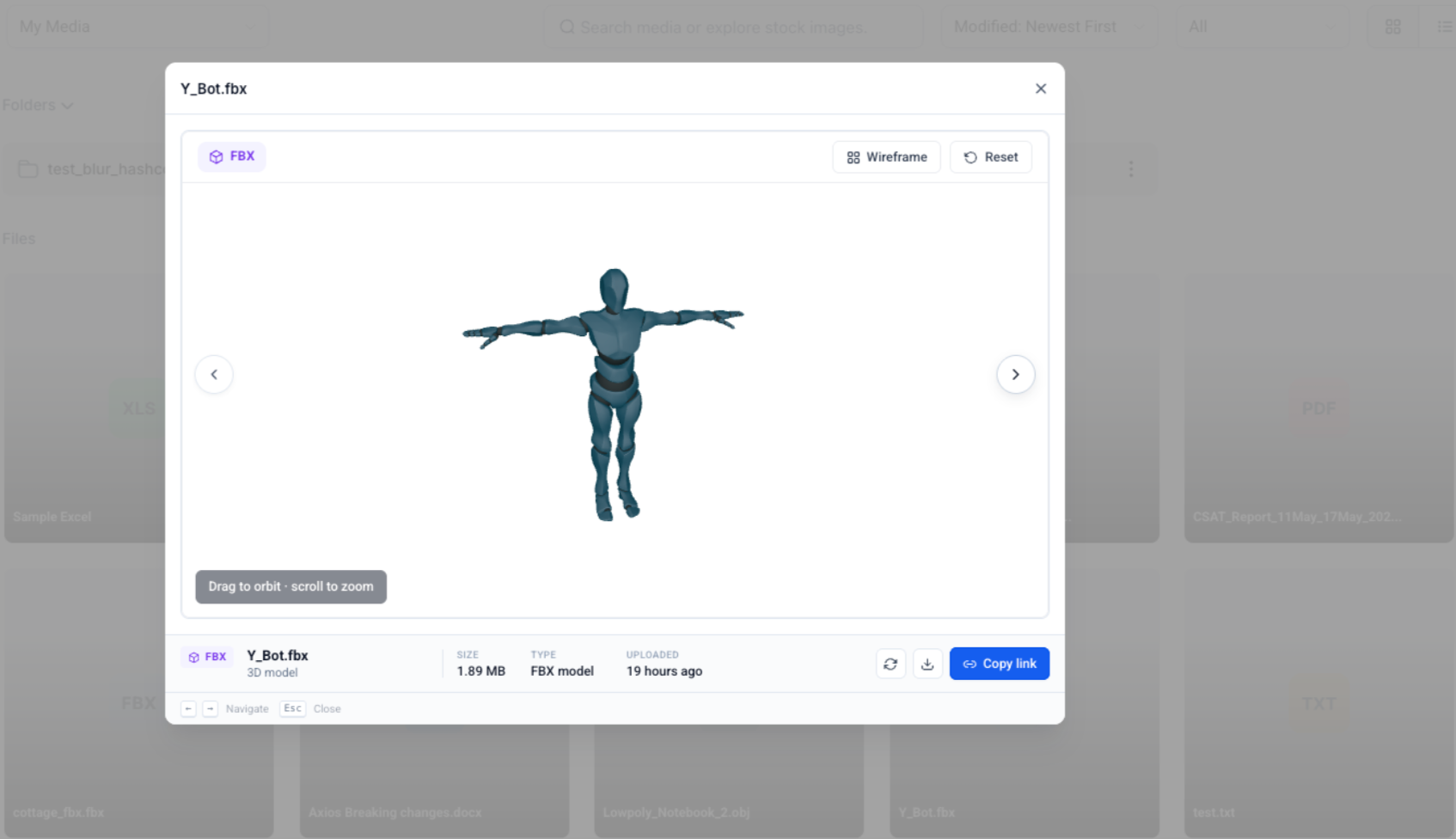
3D models – Interact with supported 3D files, including controls to rotate the model, toggle wireframe mode, and reset the camera view.
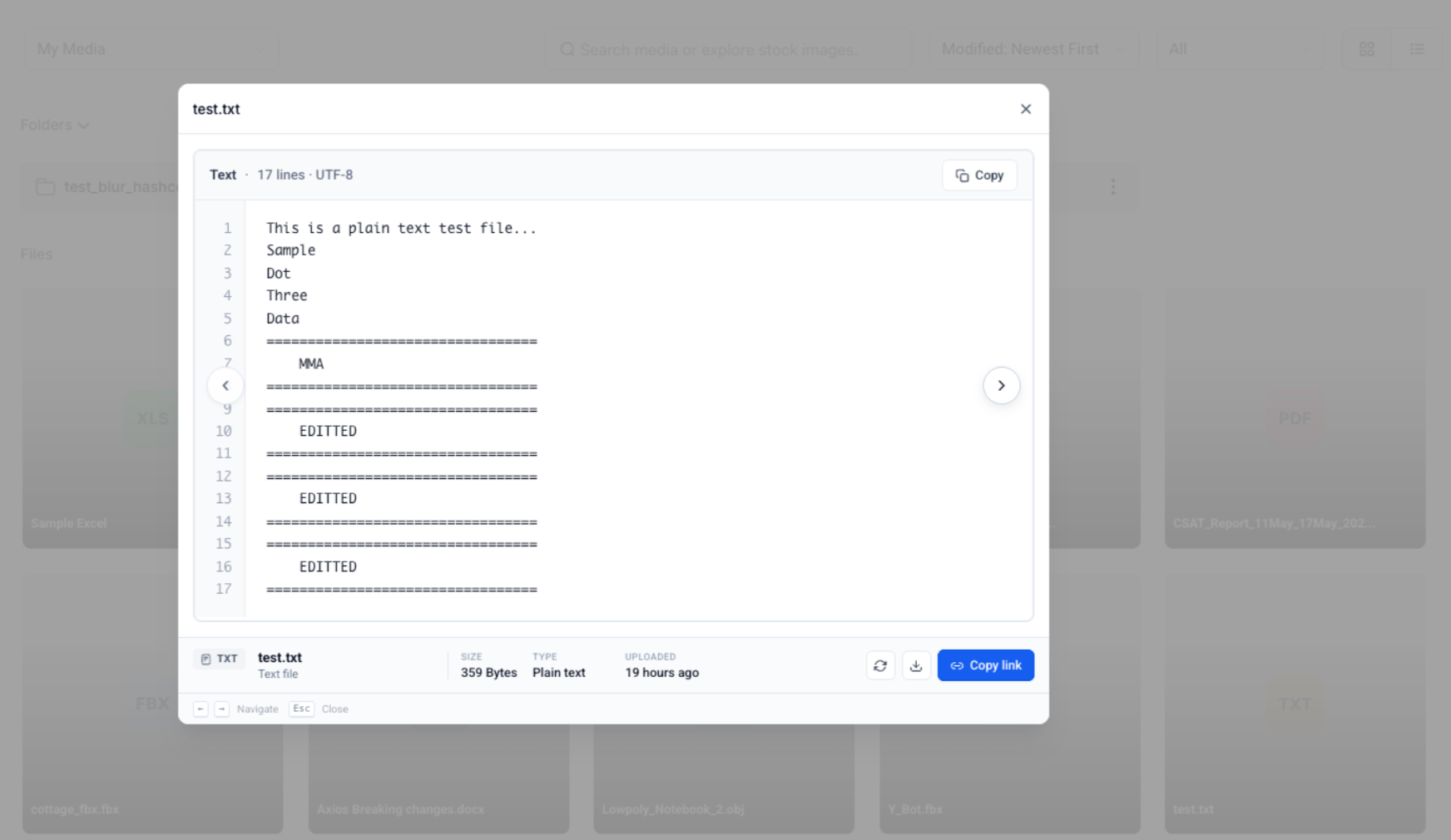
Text and code files – Preview JSON, CSS, plain text, and other supported text-based files with syntax highlighting for easier reading.
How it works
- In the media library, click any file or choose Preview from the right-click menu.
- EveryCatch automatically opens the appropriate viewer based on the file type, so you can inspect the file contents immediately.
Additional notes
Preview size limits apply:
PDF: up to 50 MB
Word: up to 15 MB
Excel/CSV: up to 15 MB
3D models: up to 50 MB
Text files: up to 5 MB
Audio files: up to 100 MB
If a file is larger than these limits, the viewer will show a Too Large to Preview message and you will have the option to download the file instead.
Spreadsheet previews are limited to 1,000 rows by 100 columns per worksheet so the viewer remains responsive. When a file exceeds this limit, you will see a notice in the preview, and you can still download the full spreadsheet.
If a file type is not supported for browser preview (for example, PowerPoint files, ZIP archives, font files, or older Word formats), EveryCatch will show an improved Preview Not Available message. From there, you can download the file as needed.
Need help with this?
If you'd like help setting this up or want to know what it means for your account, book a quick call and we'll walk you through it.
