Jira workflow actions and triggers
EveryCatch now includes Jira as a native option inside Workflows. Your customer-facing automations can react when new issues are created in Jira or when existing issues change, and you can also update Jira from EveryCatch with a full set of issue lifecycle actions: create, update, link, comment, add watchers, attach files, log work, and move issues into sprints.
The Jira integration includes two triggers and eleven actions. You connect using OAuth, after first giving the connection a clear Name and Email label. Each trigger and action includes a Cloud Site selector so a single connected Atlassian account can read from or write to the right Jira Cloud site, even if you have access to several.
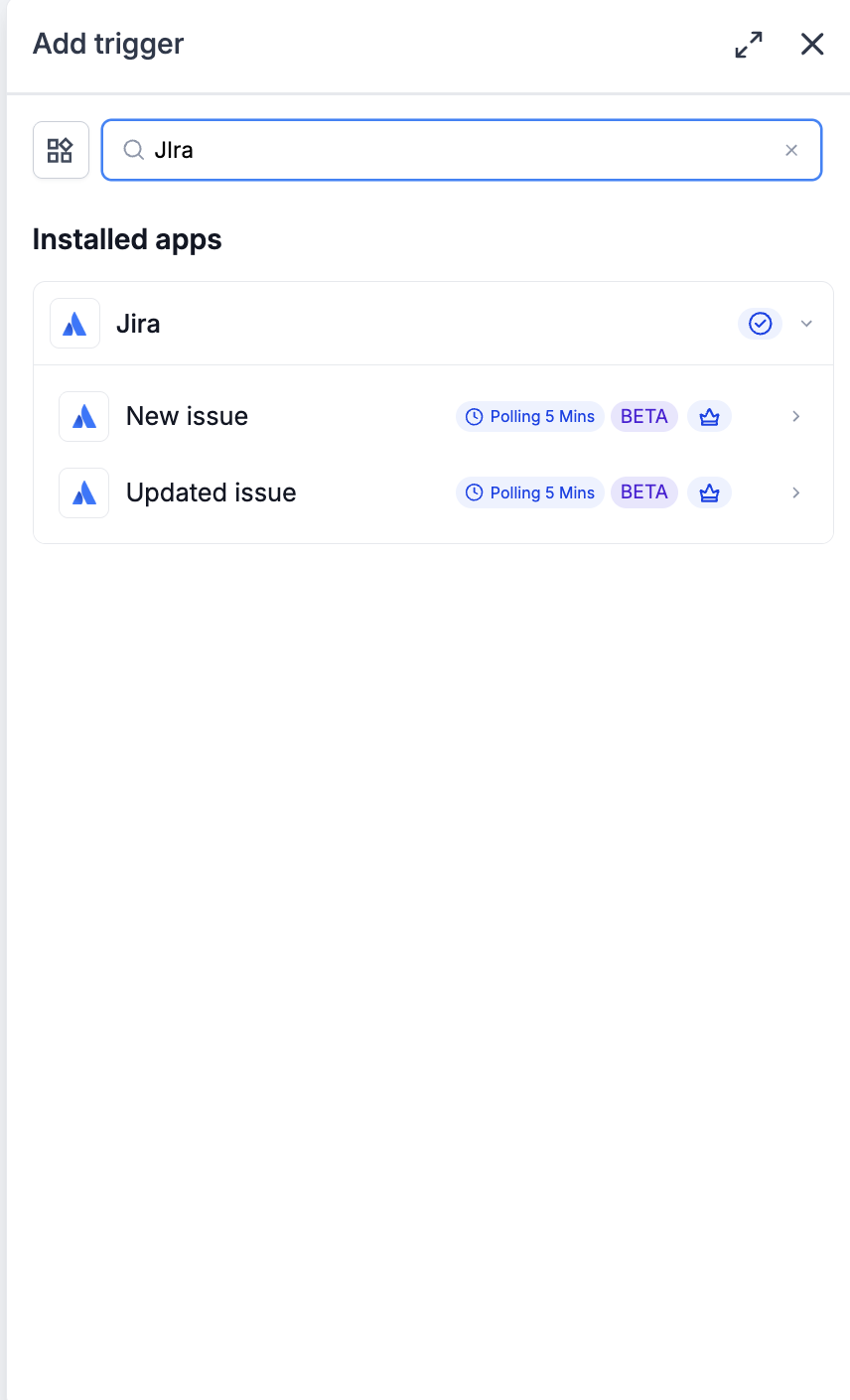
Triggers (jira → workflows)
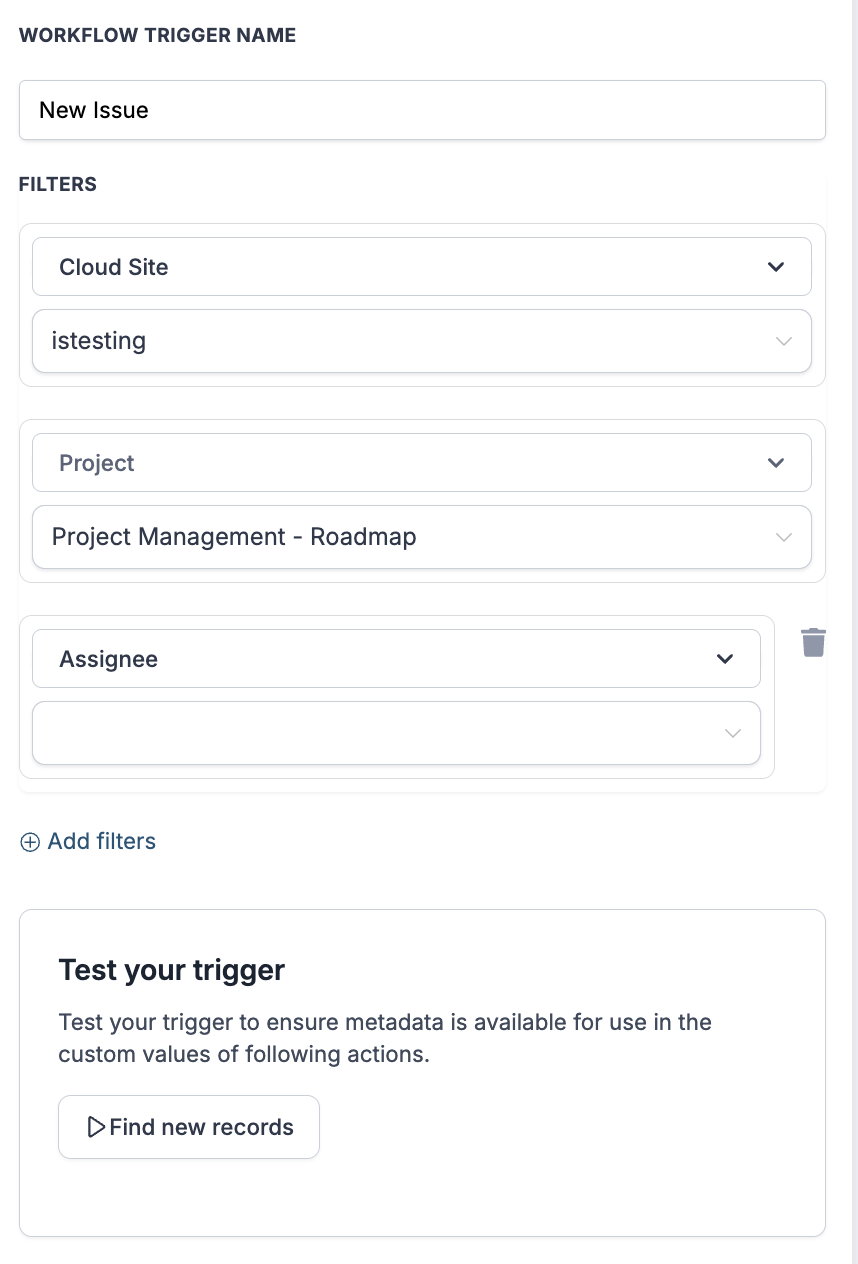
- New issue: start a workflow whenever a new Jira issue is created.
- Updated issue: start a workflow when a Jira issue is updated, for example when status, assignee, or priority changes.
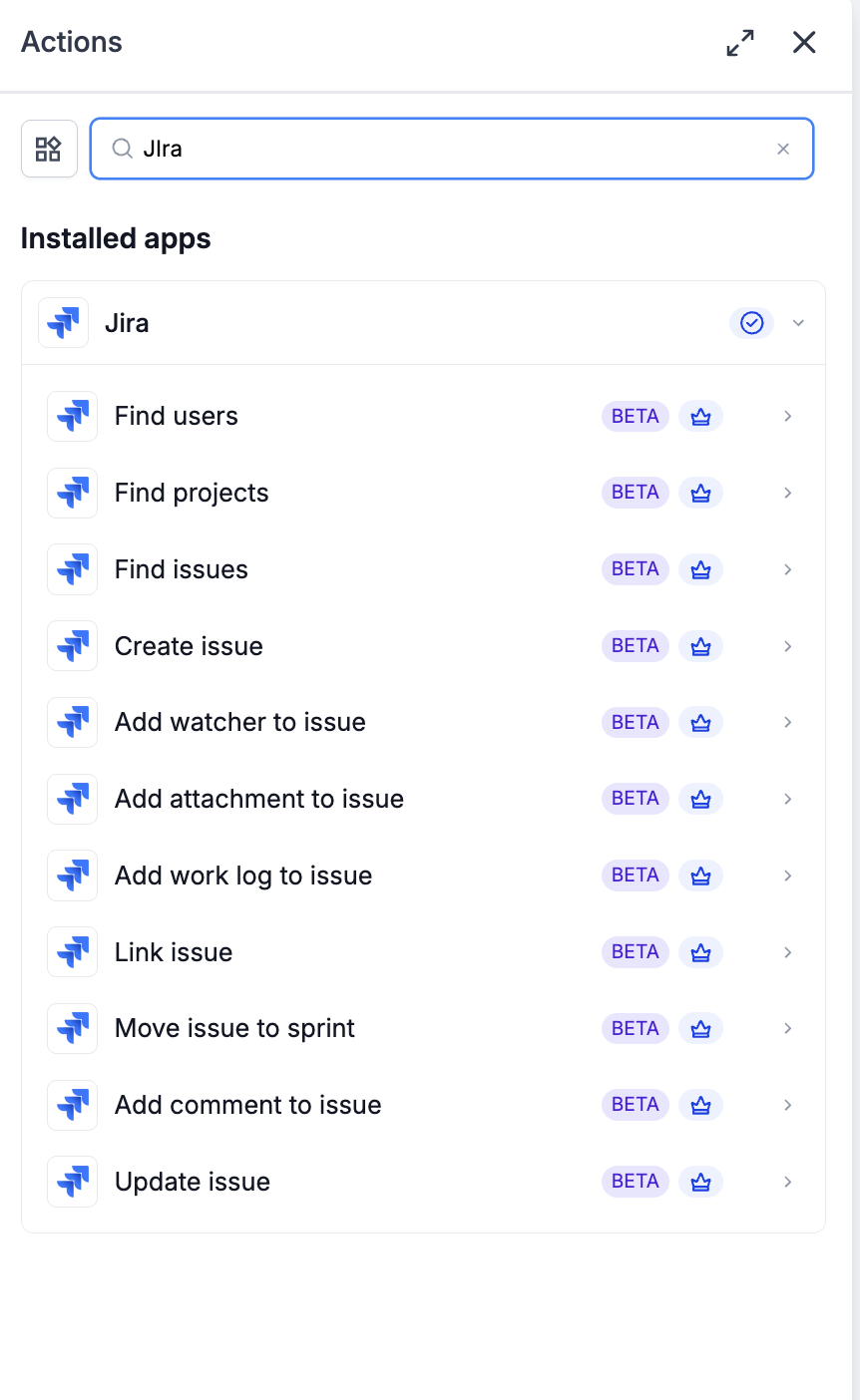
Actions (workflows → jira)
- Discovery
- Find users: search for Jira users to match customers or team members from EveryCatch.
- Find projects: look up Jira projects to route new issues into the right place.
- Find issues: search Jira issues by key, summary, or custom fields to match external references from EveryCatch.
- Issue creation and updates
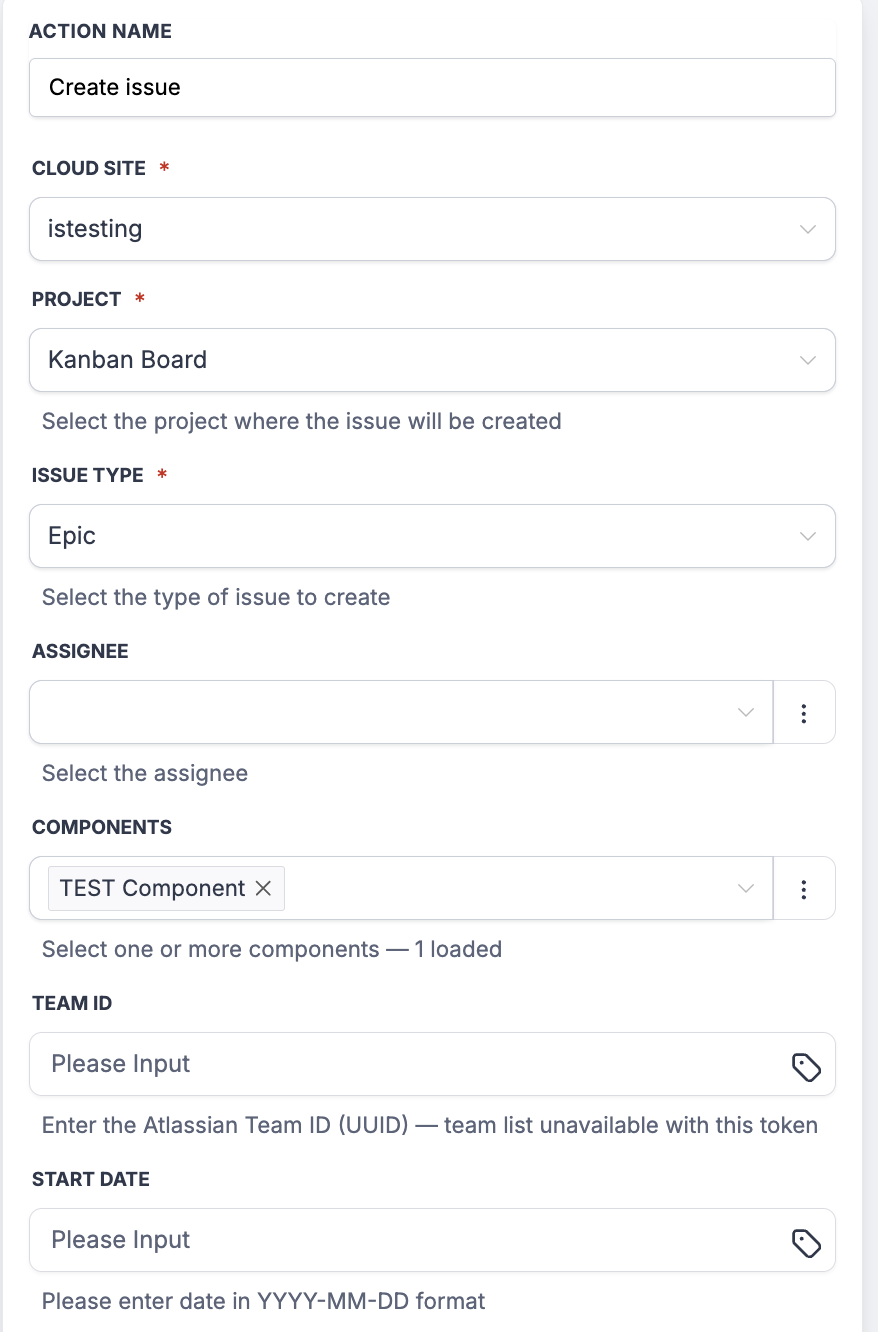
- Create issue: open new Jira issues directly from your workflows, with fields like project, issue type, summary, description, assignee, and custom fields.
- Update issue: change fields on an existing Jira issue, such as status, priority, assignee, or custom fields, based on workflow logic.
- Issue enrichment
- Add comment to issue: post a comment to a Jira issue, for example with customer updates or internal notes from EveryCatch.
- Add watcher to issue: automatically add relevant stakeholders as watchers so they stay informed as the issue progresses.
- Add attachment to issue: upload files from your workflows to Jira issues, such as logs or customer screenshots.
- Add work log to issue: record time spent on an issue from automated or internal steps in your workflow.
- Issue relationships
- Link issue: create relationships like “relates to” or “duplicates” between issues so connected work stays tied together.
- Move issue to sprint: place an issue into a specific sprint on a Jira board when your workflow conditions are met.
Integration setup
Connect Jira once using OAuth, then use the same connection for Jira triggers and actions in any workflow across your account.
Steps
- Open the Workflow Builder in EveryCatch and add any Jira trigger or Jira action.
- In the configuration panel, click Connect your account.
- In the External Authentication Configuration window, enter a clear Name (for example, “Engineering Jira”, “Support Jira”) and the Email associated with this Jira account, then click Continue.
- You are redirected to Atlassian’s authorization screen. Review and approve the requested Jira access scopes.
- After approval you return to the Workflow Builder, and the Jira panel shows as Connected.
- On each Jira trigger or action step, select the Cloud Site that this step should read from or write to. This selection is required for Create issue and works as a filter for the triggers.
Use cases
- Issue resolved → notify the customer
- Use the Updated issue trigger with a condition like status = Done → Find contact → Send resolution message with the fix summary.
- When an engineer moves an issue to Done in Jira, this update triggers the workflow in EveryCatch.
- Within a few minutes, the workflow matches the Jira issue back to the original customer in EveryCatch and sends them a resolution notification that includes the fix summary.
- Cross-issue linking on shared reports
- Use the New issue trigger → Find issues (by a shared reference) → Link issue with a relationship like “relates to” or “duplicates”.
- When a new Jira issue is created with a shared external reference, such as a support ticket ID or feature request ID, the workflow searches for existing Jira issues with the same reference and links them.
- This setup cuts down duplicate effort and keeps related issues grouped and easier to find inside Jira.
Sample screenshots
Need help with this?
If you'd like help setting this up or want to know what it means for your account, book a quick call and we'll walk you through it.
