Introducing new templates
You can now choose from a new set of EveryCatch templates for websites, funnels, email campaigns, forms, surveys, social posts, ads, and snapshots. These templates give you ready-made layouts and copy tailored to common industries so you can launch new marketing assets faster and spend less time starting from a blank page.
List of new templates
New website templates
Website template: Automotive (1 new template) This is a prebuilt website designed for automotive services such as detailing, repair, or protection. You can use it as a full site or as a starting point and then update the images, services, and pricing to match your shop. To use it in EveryCatch: 1. Go to Sites. 2. Click "New website" and open the templates gallery. 3. Filter or search for the Automotive website template. 4. Preview it, then click "Use template" to add it to your account. 5. Customize the text, branding, and booking options to fit your business.
New funnel templates: 7 published EveryCatch now includes 7 additional funnel templates covering several industries and funnel types (lead generation, consultation booking, limited-time offers, and more). Each funnel template includes: - A conversion-focused landing page - A thank-you or confirmation page - Optional upsell or follow-up steps To start with one of the new funnels: 1. Go to Funnels. 2. Click "New funnel" and open the template library. 3. Look for templates with the newest tags or browse by industry. 4. Select a funnel to see all steps, then click "Use template". 5. Edit the copy, branding, and forms so they match your offer.
New email templates
Email template: Real estate (1 new template) This email layout is built for real estate professionals who want to promote listings, open houses, or consultation calls. It includes sections for property highlights, images, and agent contact details. To use it in EveryCatch: 1. Go to Marketing > Emails. 2. Click "Create email" and open the templates tab. 3. Choose the Real estate template. 4. Replace example listings, photos, and agent details with your own. 5. Save it as a reusable template for future campaigns or automations.
New social templates
Social templates: Automotive (2 new templates) These social post templates help automotive businesses promote services like detailing, maintenance, or paint protection in a consistent, branded way. They include suggested copy and image layouts that work well across major platforms. You can: - Announce seasonal offers or inspections - Highlight before/after results - Remind customers about maintenance schedules
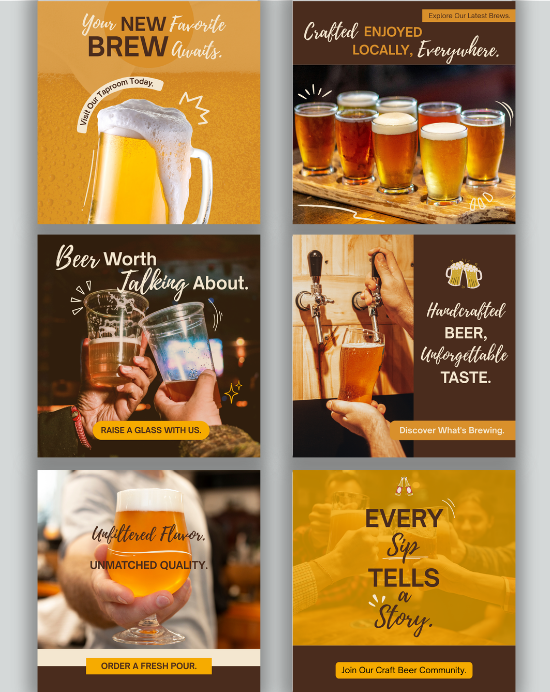
Social templates: Restaurant and bar (2 new templates) These new templates help restaurants, bars, and cafes quickly post about specials, events, and safety updates. They come with content prompts for menus, happy hours, and featured dishes so you can post regularly with less effort. To schedule these social templates in EveryCatch: 1. Go to Marketing > Social Planner. 2. Click "New post" and open the templates section. 3. Choose the Automotive or Restaurant & bar templates. 4. Swap in your photos, prices, and dates. 5. Schedule posts across your connected social profiles.
New Facebook ad templates
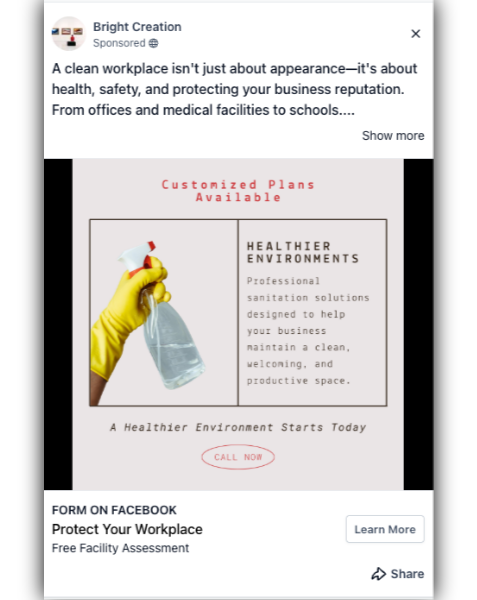
Facebook ad template: Restaurant and bar (sanitation focus) This ad template is designed for restaurants and bars that want to highlight cleaning, safety, and hygiene practices to reassure guests. It includes copy prompts focused on sanitation standards and health guidelines. Use this when you want to: - Communicate safety commitments - Promote dine-in or pickup with a focus on cleanliness - Reassure new and returning customers about your protocols
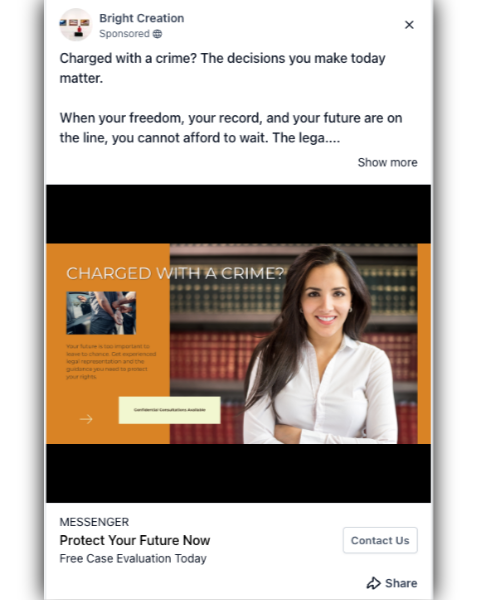
Facebook ad template: Legal (defense lawyer) This ad layout targets individuals who may need defense legal services. It includes structured headline, primary text, and call-to-action suggestions tailored to defense lawyers. You can customize: - Practice areas and case types - Free consultation or assessment offers - Location and contact details
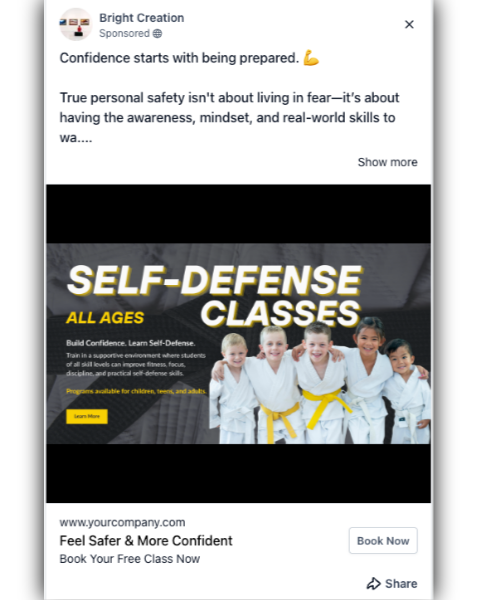
Facebook ad template: Health and wellness (self-defense training) This template is for gyms, trainers, or wellness centers offering self-defense classes. It focuses on promoting class benefits, schedules, and introductory offers. To activate any of the Facebook ad templates in EveryCatch: 1. Go to Marketing > Ads. 2. Click "Create campaign" and choose Facebook. 3. Select the relevant industry template (Restaurant & bar, Legal, or Health & wellness). 4. Update the text, targeting, and budget. 5. Publish the ad directly from EveryCatch once you connect your Facebook account.
New Google ad templates
Google ad template: Beauty and fashion (hair studio) This search ad template is built for hair salons and studios. It includes suggested headlines and descriptions that promote key services such as cuts, color, and styling, plus location and appointment messaging.
Google ad template: Automotive (automotive mechanic) This template helps mechanics attract local search traffic for repair and maintenance services. It focuses on fast service, trusted repair, and location-based keywords.
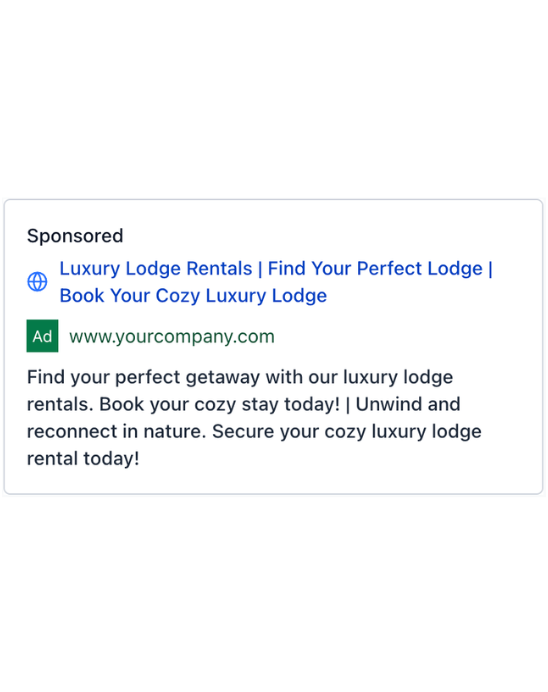
Google ad template: Travel and hospitality (vacation lodge) This ad template is tailored to properties such as lodges, cabins, or boutique stays. It highlights amenities, location benefits, and booking incentives to convert search interest into reservations.
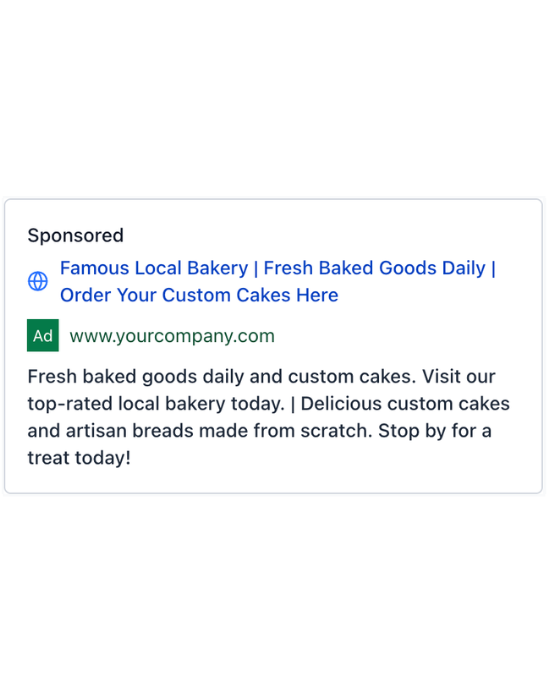
Google ad template: Restaurant and bar (pastry shop) This template is ideal for bakeries, patisseries, and pastry-focused cafes. It emphasizes specialties, freshness, and local appeal to bring in nearby searchers.
Google ad template: Real estate (real estate sales agent) This search ad layout helps agents capture leads from people actively looking to buy or sell. It includes structure for headline variations, service area, and free consultation or valuation offers. To use any of the Google ad templates in EveryCatch: 1. Go to Marketing > Ads. 2. Click "Create campaign" and choose Google. 3. Pick the industry template that matches your business. 4. Adjust keywords, headlines, and descriptions based on your services and geography. 5. Set your budget and launch from within EveryCatch using your connected Google Ads account.
New LinkedIn ad templates
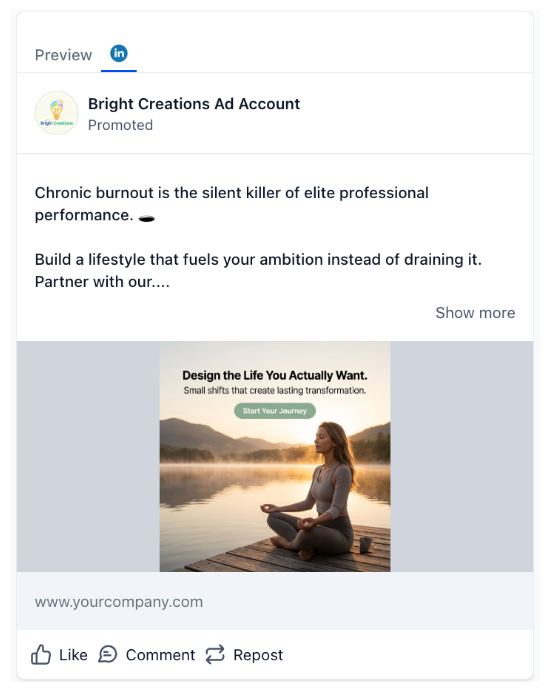
LinkedIn ad template: Business coaching and consulting (lifestyle coaching) This template is for coaches and consultants who help clients improve lifestyle, productivity, or wellbeing. It is structured to promote discovery calls, webinars, or coaching packages to a professional audience.
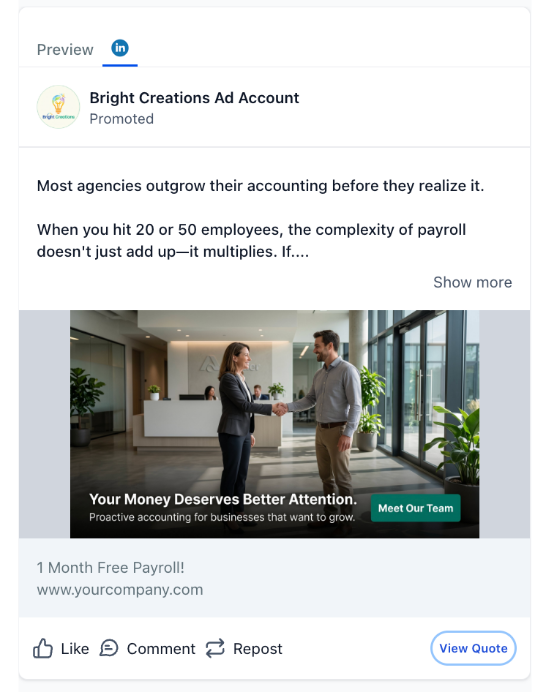
LinkedIn ad template: Finance (accounting firm) This layout supports accounting and bookkeeping services that want to reach business owners or professionals. It highlights services like tax preparation, payroll, or advisory in a concise, B2B-friendly format.
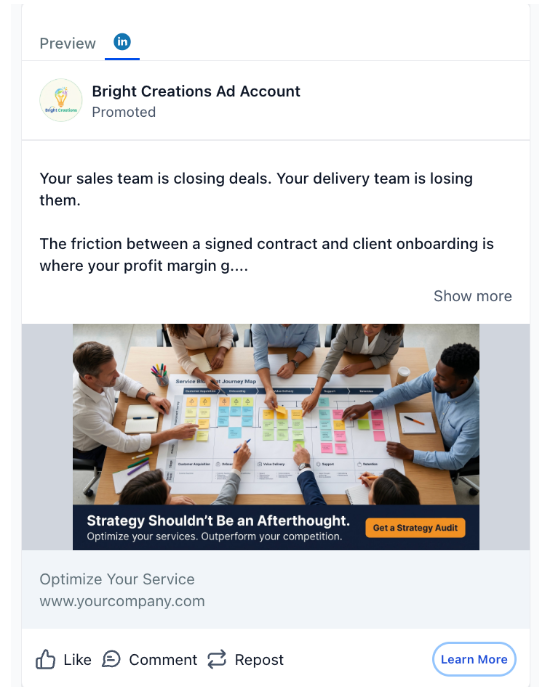
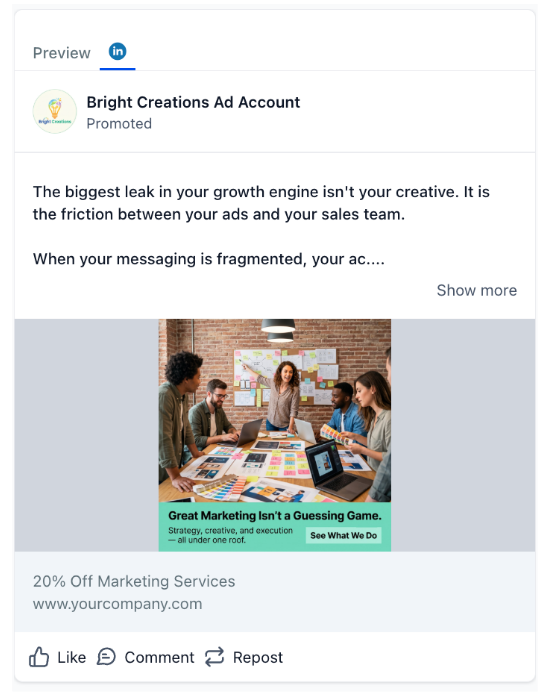
LinkedIn ad template: Marketing agency (marketing agency) This template is designed for agencies promoting their own services. It provides space for a clear positioning statement, service overview, and a direct call to book a consultation or audit.
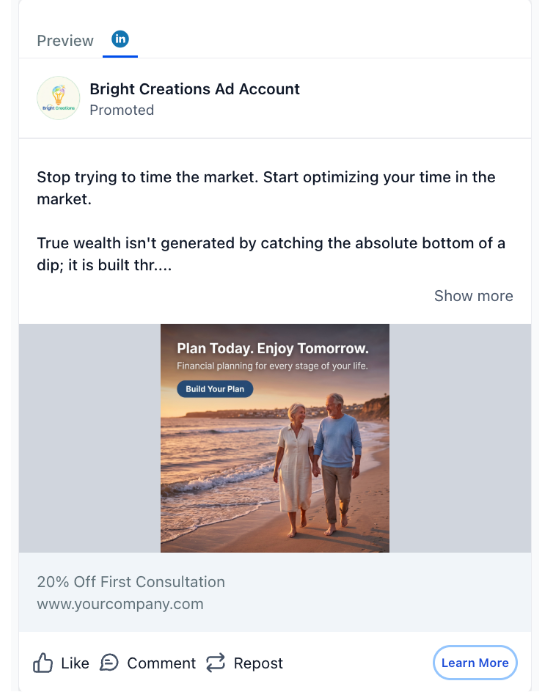
LinkedIn ad template: Finance (financial planner) This template is intended for financial planners and advisors who want to attract high-intent prospects. It is structured to promote planning sessions, portfolio reviews, or long-term advisory services.
LinkedIn ad template: Marketing agency (services strategies) This ad option focuses on specific marketing services or strategic offers such as audits, growth plans, or campaign management. Use it when you want to lead with a clear outcome or packaged service. To launch LinkedIn ads from these templates in EveryCatch: 1. Go to Marketing > Ads. 2. Click "Create campaign" and select LinkedIn. 3. Choose the relevant industry template. 4. Edit the headline, body text, and creative to reflect your offer. 5. Define your audience, budget, and schedule, then publish using your connected LinkedIn Ads account.
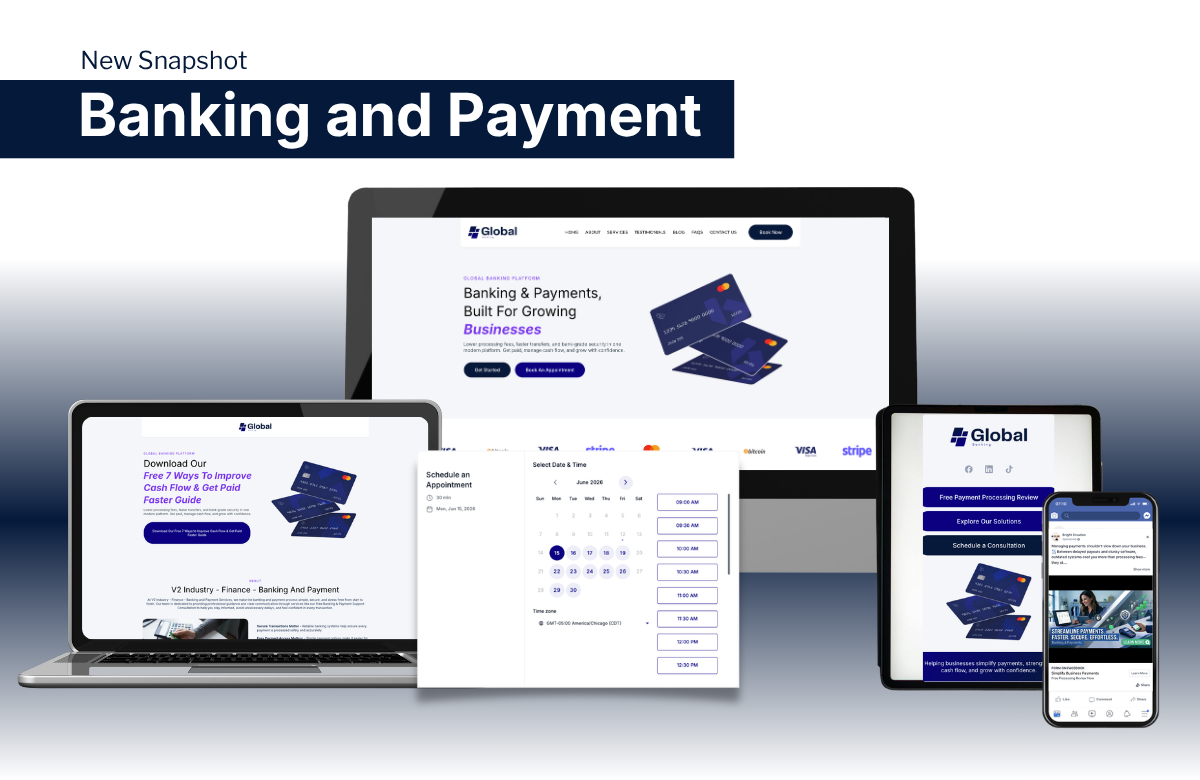
New snapshot
Snapshot: Finance (banking and payment) EveryCatch now offers a snapshot for banking and payment services. This snapshot bundles preconfigured pipelines, automations, forms, and templates built for financial institutions, fintech products, and payment services. You can use it to: - Onboard new financial clients faster - Standardize communication flows, such as application follow-ups and account reminders - Quickly roll out tested workflows across similar sub-accounts To add the snapshot in EveryCatch: 1. Go to Settings > Account snapshots. 2. Click "New snapshot" and open the marketplace or gallery. 3. Find the Finance: banking and payment snapshot. 4. Add it to your library, then apply it to the accounts where you want the setup deployed.






Need help with this?
If you'd like help setting this up or want to know what it means for your account, book a quick call and we'll walk you through it.
