
Improved field search experience in workflows
What changed
EveryCatch has updated field dropdowns in workflow trigger filters so the best matches now appear at the top of your search results, along with a refreshed, cleaner interface. When you search for a field, the most relevant option is prioritized first, whether it is a standard field or one of your custom fields.
How it works
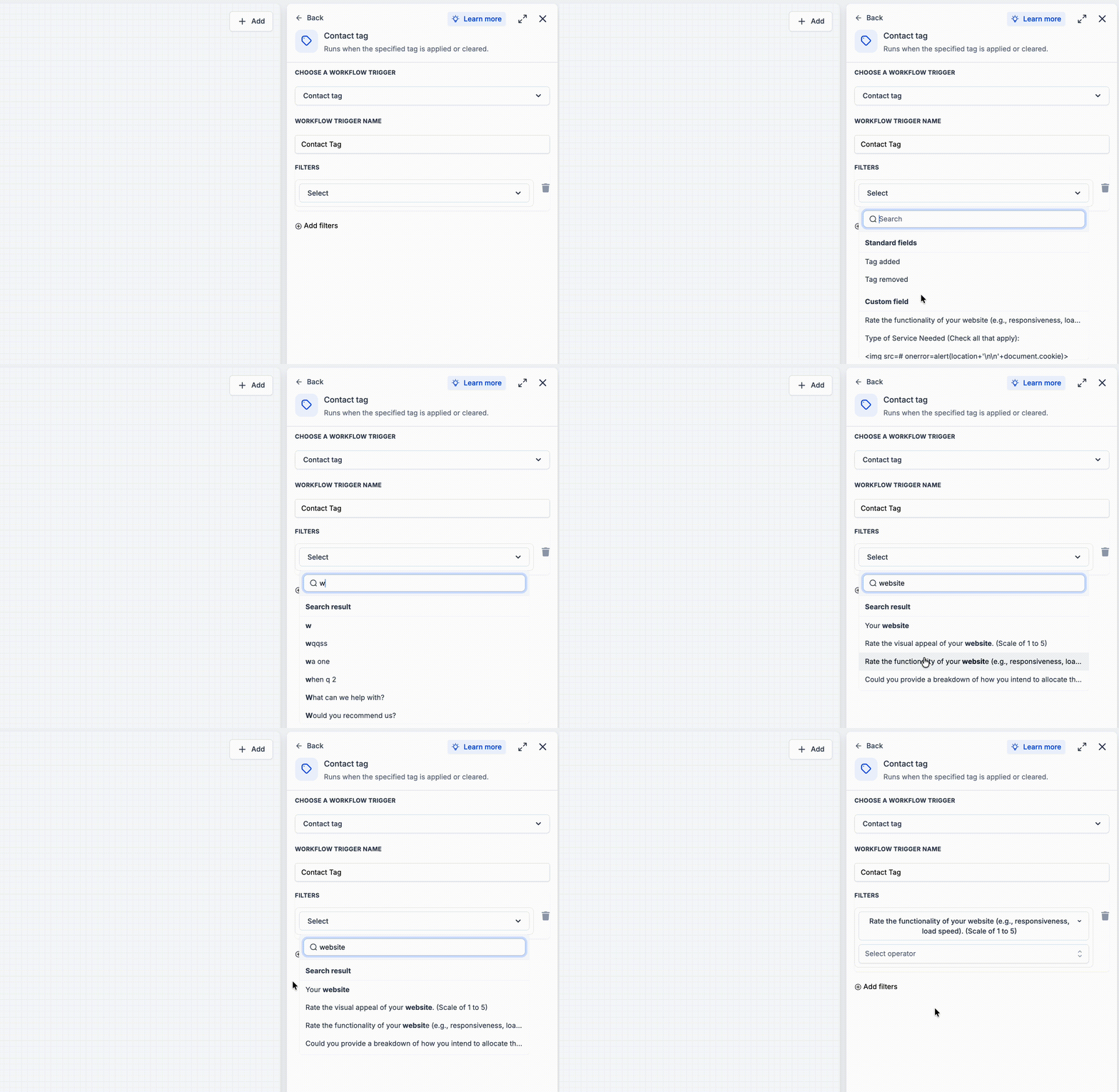
When you start typing in the field search box, EveryCatch shows all matching fields in a single "Search results" list, similar to before, but with improved ranking so the most relevant matches are easier to spot. Once you clear your search, the dropdown returns to the usual view, grouped into separate Standard fields and Custom fields sections.
How to use it
- Open a workflow trigger filter, such as Contact changed → Filters.
- In the Field dropdown, start typing the name of the field you want to use.
- Choose the best match, which now appears at the top of the search results.
Why we built it
Previously, you often had to scroll through long field lists because strong or exact matches could be buried lower in the dropdown. This update helps you select fields faster and with less guesswork, so setting up and editing workflows is smoother and more consistent.
Additional notes
- This improvement applies anywhere this field dropdown appears in the workflow builder.
- Search results continue to show under a single "Search results" header, with improved ranking to highlight the most relevant fields first.
Preview
Need help with this?
If you'd like help setting this up or want to know what it means for your account, book a quick call and we'll walk you through it.
