Google ads widgets for dashboards - your ad performance, right where you work
What changed
- You now have a dedicated Google Ads section in the EveryCatch dashboard widget panel. Connect your Google Ads account once at the account level and all 11 widgets will automatically pull data from that connection.
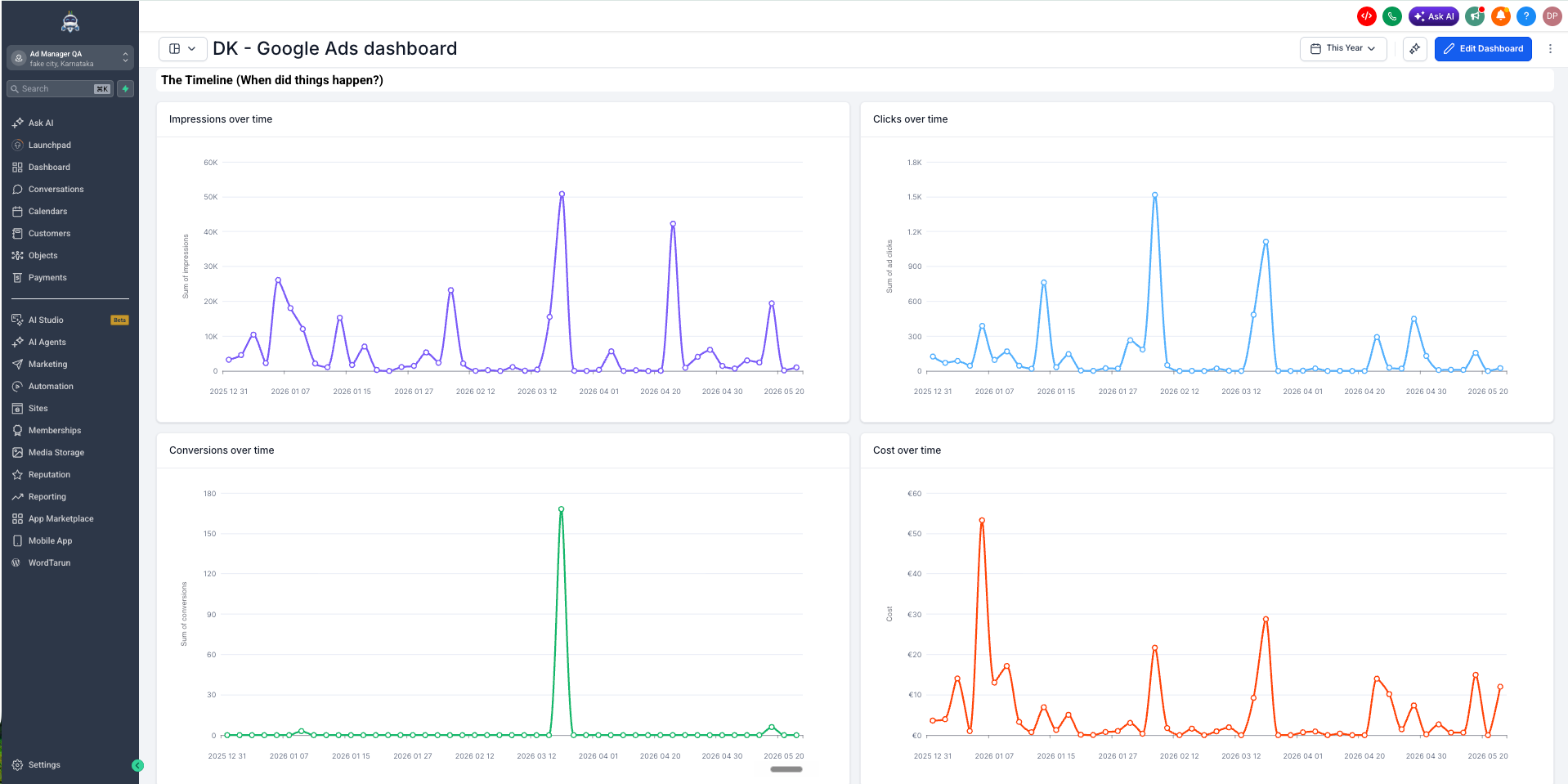
- EveryCatch now provides 11 ready-to-use Google Ads widgets: Total conversions, Conversions over time, Total cost, Cost over time, Total clicks, Clicks over time, Total impressions, Impressions over time, Clicks by campaign, Conversions by campaign, and CPC (cost per click).
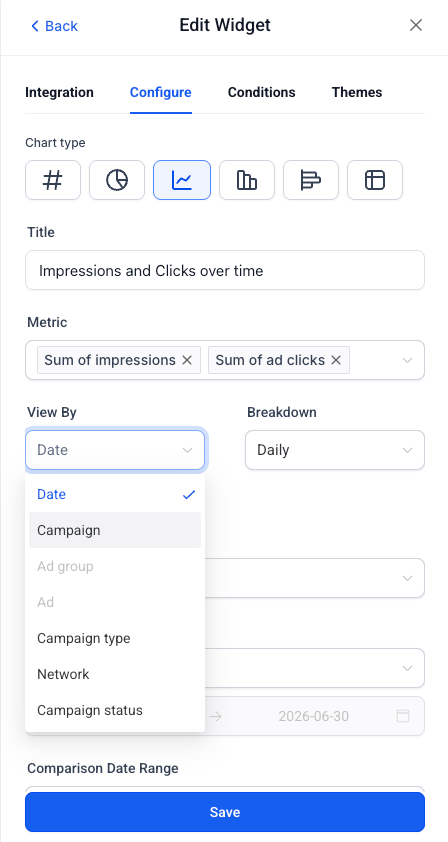
- Each widget is fully configurable. You can filter by Campaign, Campaign type, Zero impressions, Zero conversions, or PPC markup so you can show your clients exactly the performance data they care about.
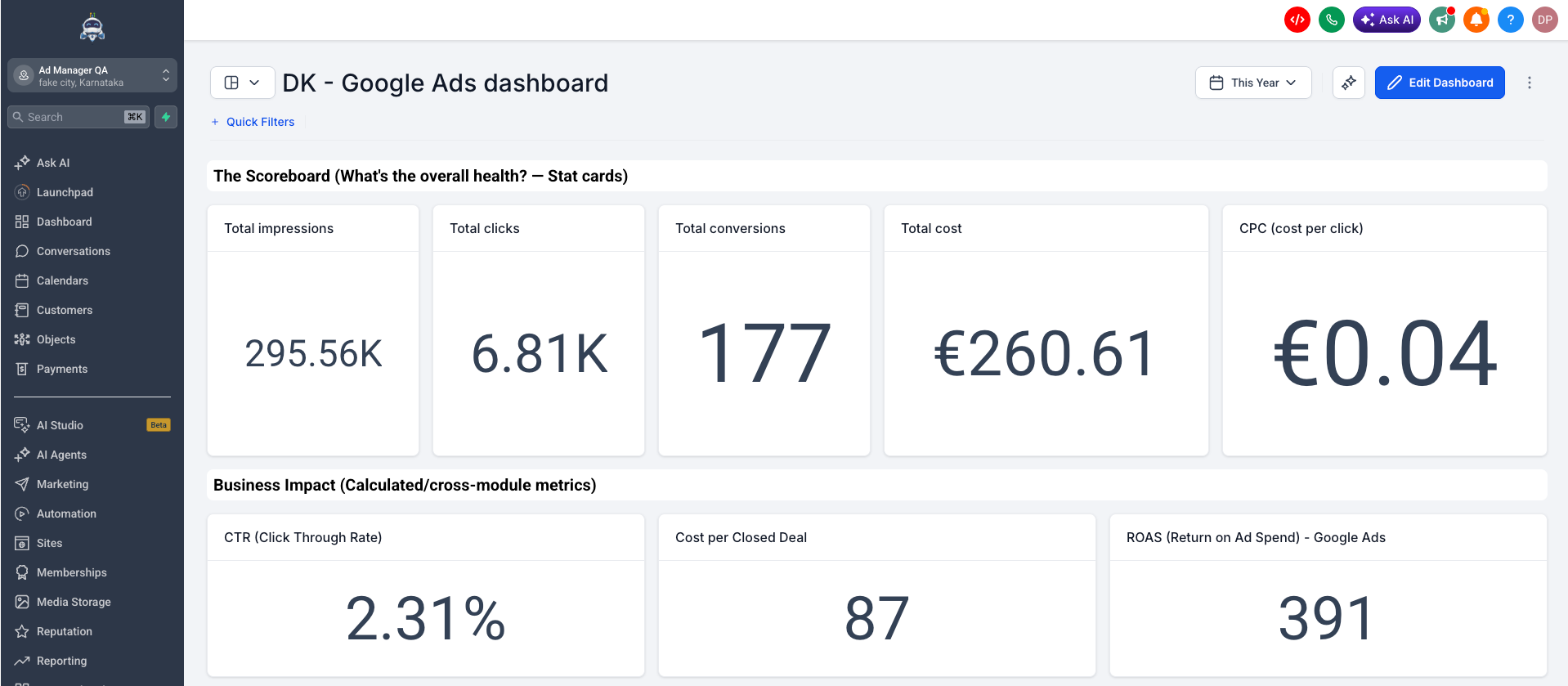
- Google Ads metrics are now available as dimensions in Custom Metrics. You can build cross-module KPIs such as ROAS or Cost per closed deal directly in the formula builder.
How it works
- Open any dashboard and click Edit dashboard.
- Click + Add widget and scroll to the Google Ads section.
- Choose a widget, confirm your linked Google Ads account in the Integration tab, set any filters and chart type you want, then click Save changes.
Why it matters
- You can now see Google Ads performance in the same dashboards as your other EveryCatch reporting widgets. Location admins get a clear view of spend, clicks, and conversions without switching into a separate ads platform.
- Total cost and Cost over time widgets give instant visibility into how much you are spending and when, so monthly bills align with what you expect from your dashboards.
- Clicks by campaign and Conversions by campaign highlight performance at the campaign level, which makes it easier to spot which campaigns are bringing results and which ones need attention.
- With Google Ads now available in Custom Metrics, you can connect ad spend to pipeline and revenue data in EveryCatch and present clients with clear metrics on the return of their ad investment.
What's next?
EveryCatch plans to expand cross-channel reporting so you can combine Google Ads with additional marketing sources in your dashboards.
Notes
- You need to connect Google Ads at the account level before any widget will show data. Go to Settings → Integrations → Google Ads to connect your account.
- All 11 widgets support filters for Campaign, Campaign type, Zero impressions, Zero conversions, and PPC markup.
- Google Ads widgets are available in Dashboards, Reporting, and Custom Metrics.
- These widgets are available on all plans that include Dashboards & Reporting.
Need help with this?
If you'd like help setting this up or want to know what it means for your account, book a quick call and we'll walk you through it.
