Goal action now supports user replies
What changed
The Goal action in EveryCatch workflows now supports "User replied" as a goal event. When someone on your team replies in a conversation, you can have the workflow immediately jump that contact to the Goal step. This makes it straightforward to stop or redirect automation as soon as a real person is engaging with the contact.
How it works
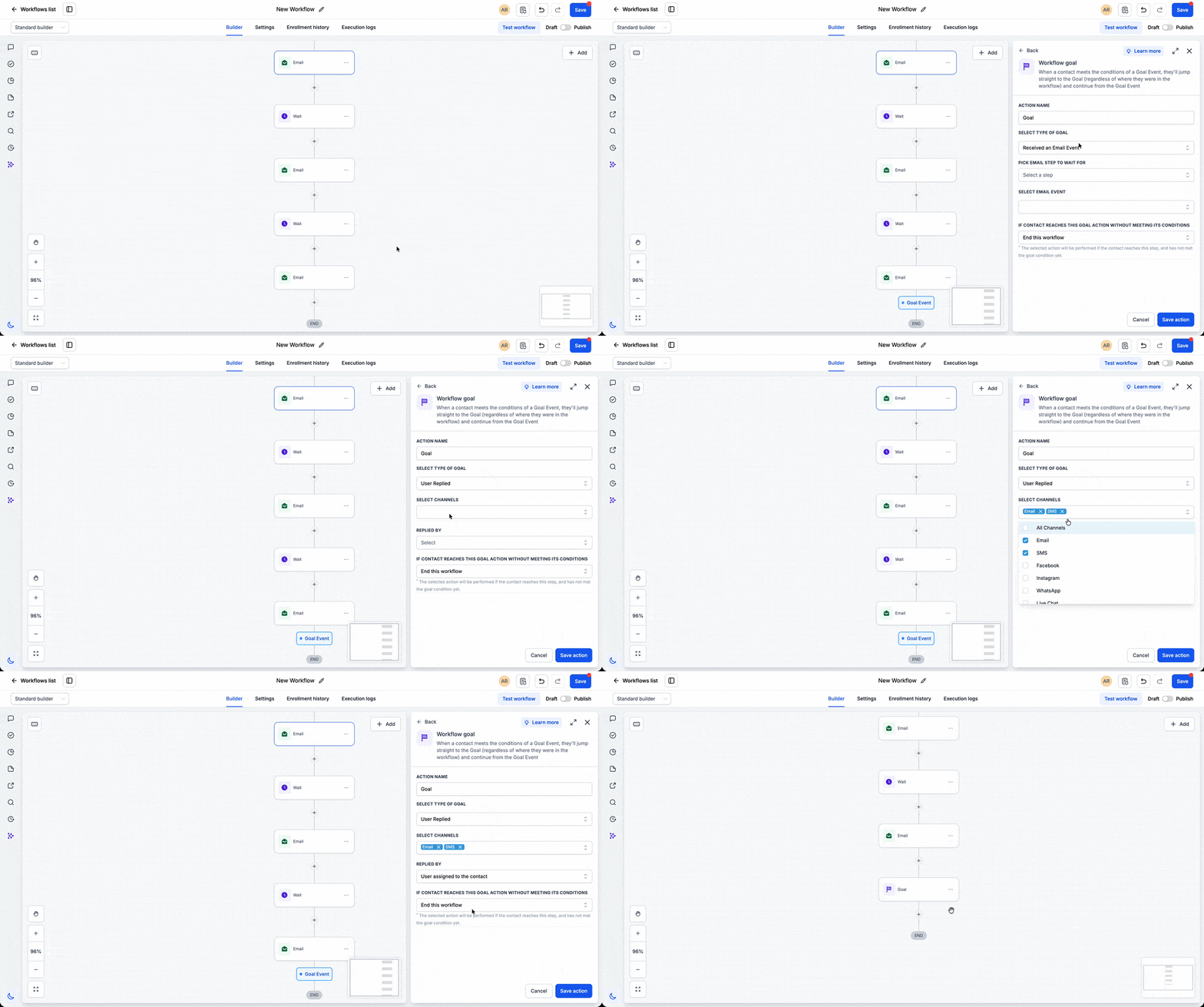
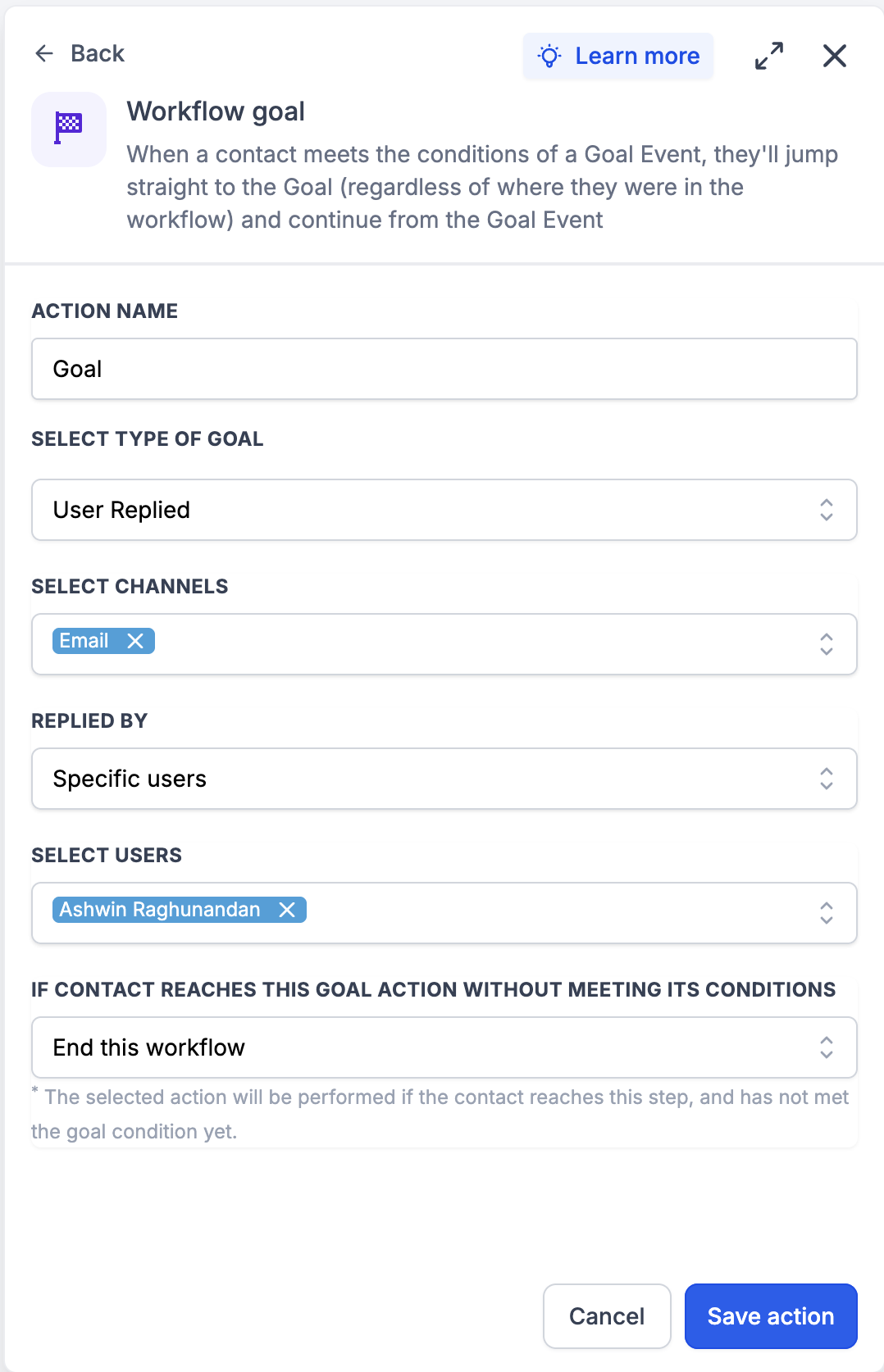
Set up a Goal action in your workflow and choose "User replied" as the goal event. When a team member sends a reply in a supported conversation channel, the contact will instantly move forward to the Goal step and skip any actions in between. This lets your automation respond in real time to your team’s activity instead of continuing with scheduled messages.
How to use it
- Add a Goal action to your workflow.
- Select "User replied" as the goal event.
- Configure the actions that should run after the Goal is reached, such as ending a sequence, updating a pipeline stage, or adding a tag.
Why we built it
Workflows work best when they adjust as soon as your team reaches out directly. With "User replied" as a Goal event, you can prevent contacts from receiving extra automated messages after a team member has already stepped in, avoid sending duplicates across channels, and move smoothly from automated follow-up to a human-led conversation.
Simple examples
- A lead is added to a 7-day email nurture sequence. On Day 2, a sales representative replies to the lead’s SMS inside EveryCatch. The workflow immediately hits the "User replied" goal, skips the remaining nurture emails, and sends the contact to the end of the sequence or into a handoff stage you define.
- A support workflow sends reminder messages while a contact waits for an agent. As soon as a support agent responds in the conversation, the contact reaches the "User replied" goal, so no further reminder messages are sent.
Additional notes
- The Goal is reached only when a user on your team sends a reply to the contact.
- When the Goal is reached, contacts immediately jump to the Goal step and skip any workflow actions between their current position and that step.
- This is useful for ending nurture sequences at the right time, cutting down on duplicate or overlapping messaging, and handing contacts from automation to direct human conversation.
Preview
Need help with this?
If you'd like help setting this up or want to know what it means for your account, book a quick call and we'll walk you through it.
