Expanded permissions for meetings, services & rentals
Overview
EveryCatch has expanded Roles & Permissions so the same, consistent permission model now applies across Meetings, Services, and Rentals.
The permissions you may already use for Meetings now extend to Services and Rentals. You can configure detailed access for agency and account admins and users, so it is easier to decide exactly what each team member can see and manage in all scheduling areas.
What changed
- The existing permission model from Meetings now also applies to Services and Rentals.
- Those permissions now cover:
- Appointments and bookings across Meetings, Services, and Rentals.
- Groups and categories across Meetings, Services, and Rentals.
- Setup for calendars, services, and rental listings.
- A new "Manage associated resources" permission controls access to locations, staff, resources, add-ons, and other related components.
- A new "Manage preferences & global settings" permission controls access to module-level global settings and preferences separately from other actions.
How it works
Each scheduling module now uses the same set of permissions:
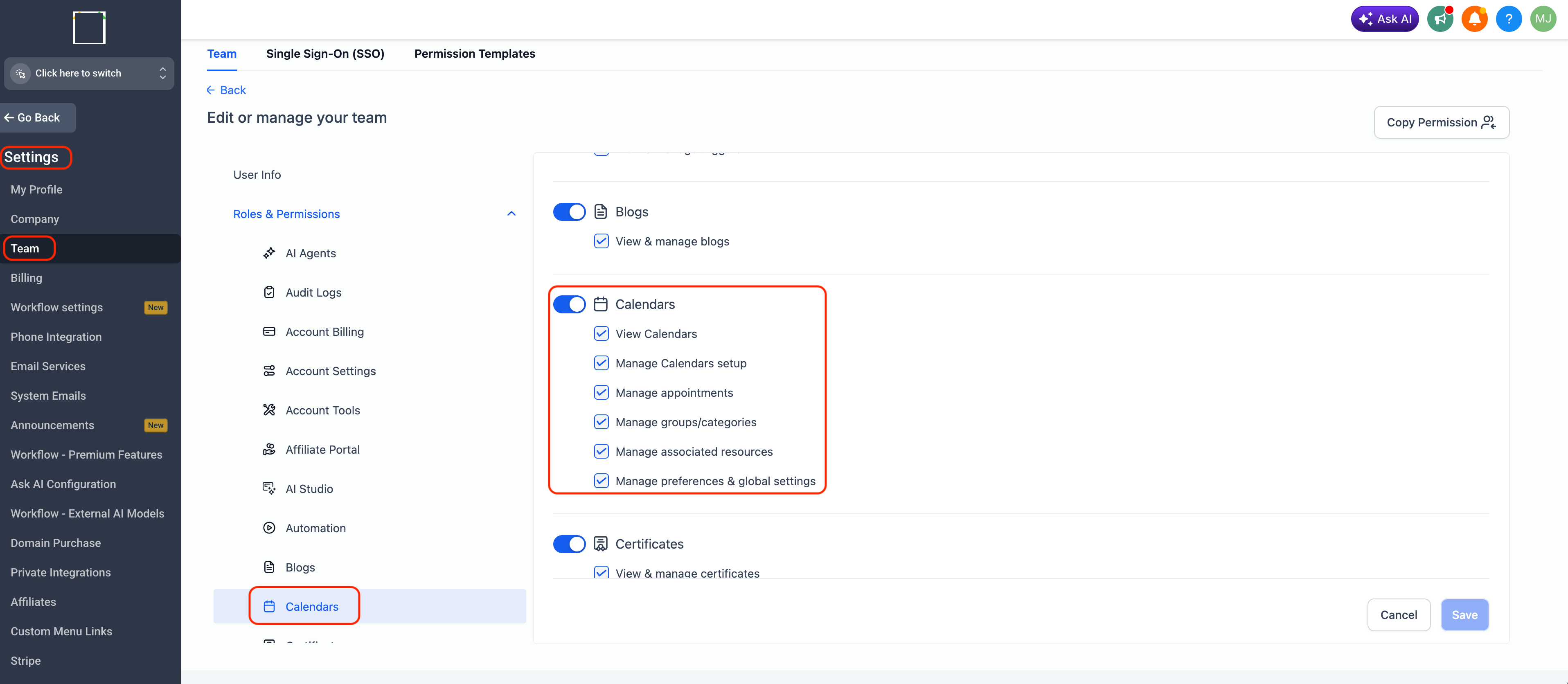
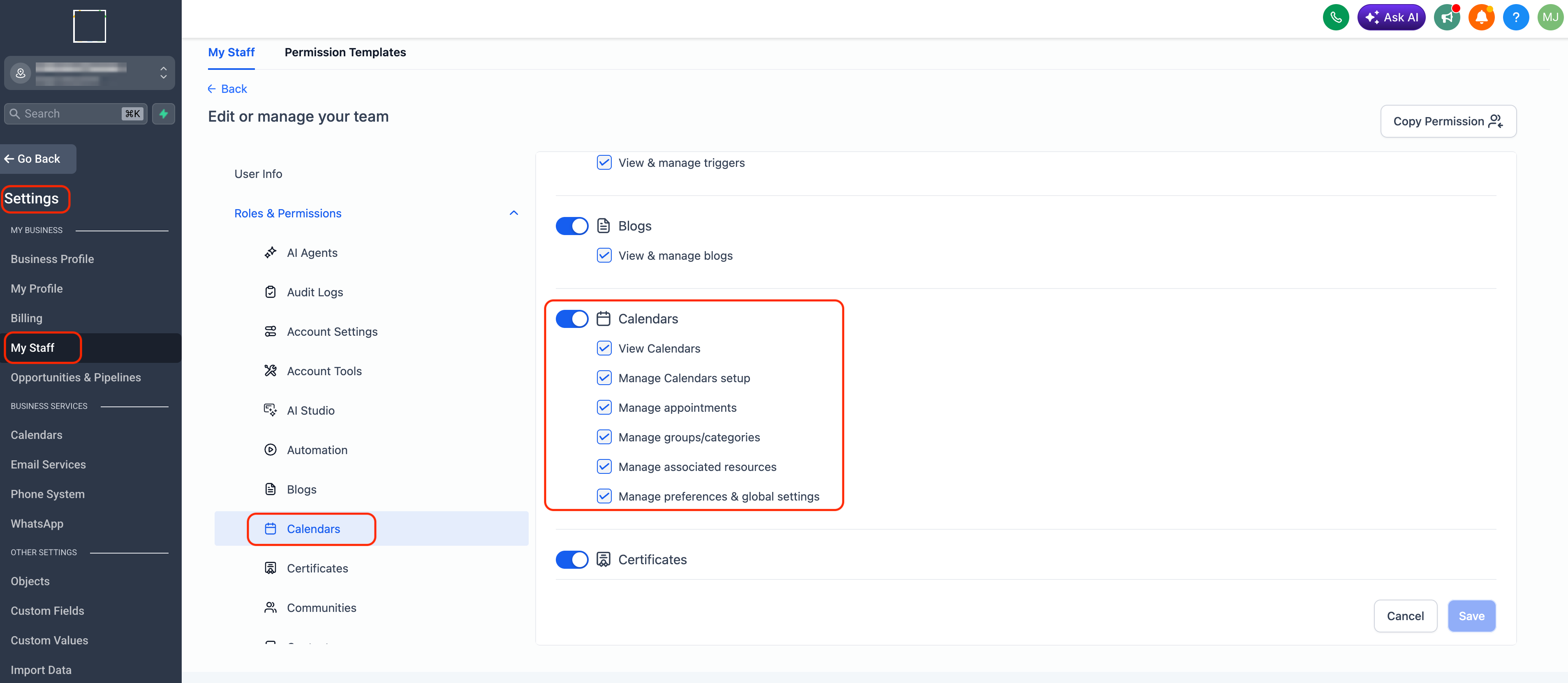
- View calendars – Allows access to Meetings, Services, or Rentals modules.
- Manage setup – Allows management of calendars, services, or rental listings.
- Manage appointments – Allows management of appointments and bookings across all modules.
- Manage groups/categories – Allows management of meeting groups, service categories, and rental categories.
- Manage associated resources – Allows management of locations, staff, resources, add-ons, and other associated components.
- Manage preferences & global settings – Allows management of module-level global settings and preferences.
Administrators can combine these permissions to create tailored roles so every team member has the access they need.
How to set it up
- Agency view
- Go to
- Settings → Team → Select team member → Roles & Permissions → Calendars
- Account view
- Go to
- Settings → My Staff → Select team member → Roles & Permissions → Calendars
Select the View and Manage permissions you want this user to have, then click Save.
Why this matters
- Creates a consistent permissions experience across Meetings, Services, and Rentals.
- Gives administrators detailed control over what each team member is allowed to manage.
- Makes it easier to assign role-specific responsibilities without giving broader access than needed.
- Supports stronger security and smoother scaling as your team and operations expand.
Need help with this?
If you'd like help setting this up or want to know what it means for your account, book a quick call and we'll walk you through it.
