Delete published posts directly from social planner
EveryCatch now lets you fully clean up your content by removing published posts from the social network itself, without leaving Social Planner.
If you spot a typo, need to remove outdated information, or a post was published by mistake, you can now delete it directly inside Social Planner and, where supported, remove it from the social platform at the same time. You avoid switching tabs, logging into multiple accounts, and can manage the full content lifecycle in one place.
- Delete published posts from social networks
- You can now delete published posts directly from Social Planner in EveryCatch.
When you delete a post, you will now see a new choice so you can control where the deletion happens:
- Delete from Social Planner only
- Delete from the social network (Facebook, LinkedIn, etc.)
- Works across multiple platforms
You can use native deletion on the following platforms when you delete a post from Social Planner:
- Google Business Profile
- YouTube
- Threads
- Bluesky
- Community
For Instagram and TikTok, their APIs do not support third-party deletion. You can still remove those posts from Social Planner, and they will remain live on the social platform until you delete them there manually.
- Delete any post status
The same deletion flow now applies to posts in any state, so you can manage everything consistently:
- Draft posts
- Scheduled posts
- Published posts
Whether a post is still in planning or already live, you can handle it in one streamlined workflow inside Social Planner.
- Built-in reconnect flow
If a connected social account has expired or become disconnected while you are trying to delete a post, EveryCatch helps you fix it without losing your place:
- A reconnect prompt appears automatically
- Reconnect without leaving the current delete workflow
- Continue the deletion as soon as access is restored
- Consistent experience everywhere
You get the same delete experience no matter where you are working in Social Planner. You can start the process from:
- Post list view
- Calendar view
- Go to Marketing → Social Planner in EveryCatch
- Find the post you want to delete
- Open the 3-dot menu next to the post
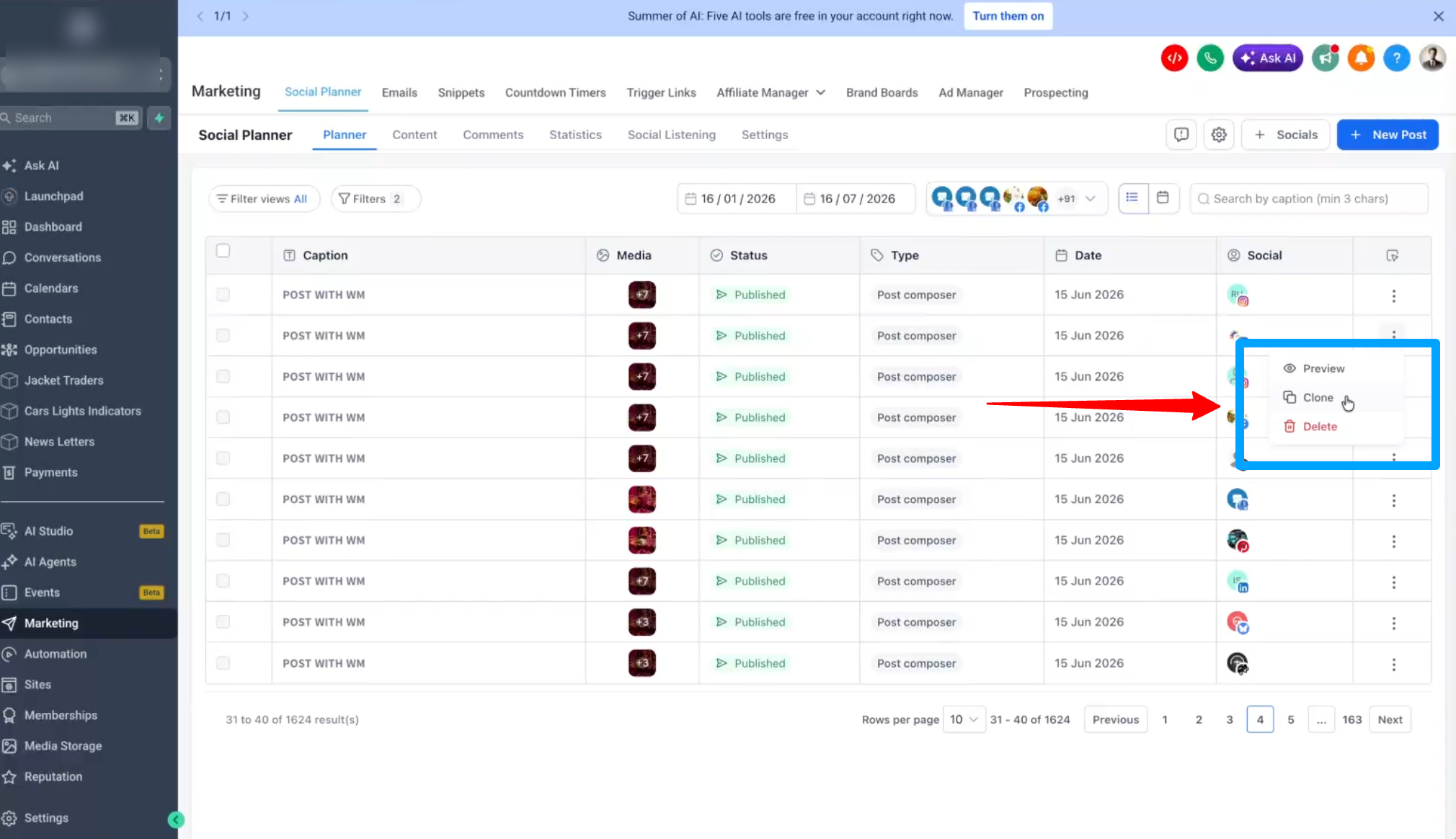
- Click Delete
- (Optional) Turn on Delete this post from the selected social platform if you want it removed from the network as well
- Confirm deletion to complete the action
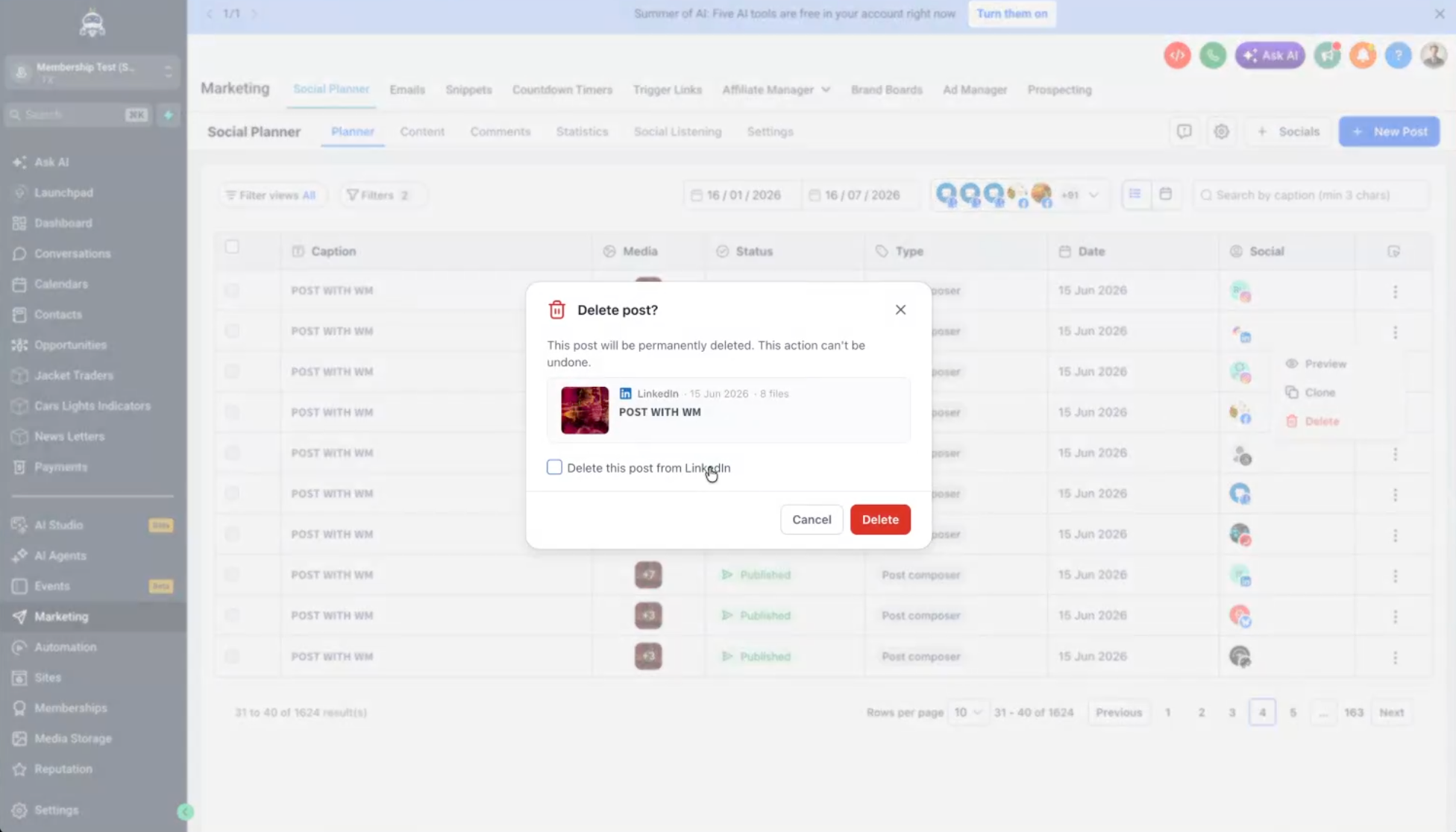
If the account needs to be reconnected, follow the on-screen prompt to restore access, then continue with the delete request.
- Quickly remove incorrect or outdated content from your channels
- Handle takedowns without jumping between different social platforms
- Save time, especially when managing multiple client accounts
- Keep all content management centralized in Social Planner
- Make sure “delete” removes the post from the social platform whenever its API supports that action
- Native platform deletion depends on each platform’s API capabilities
- Instagram and TikTok do not currently allow third-party post deletion via their APIs
- You can still remove posts from Social Planner for platforms that do not support native deletion
- Reconnect prompts appear automatically when a connected account’s access has expired
Need help with this?
If you'd like help setting this up or want to know what it means for your account, book a quick call and we'll walk you through it.
