
Contacts just got faster and clearer on mobile
Contacts in the EveryCatch mobile app are now quicker to work with, easier to scan, and more straightforward to manage while you are on the move.
What’s updated
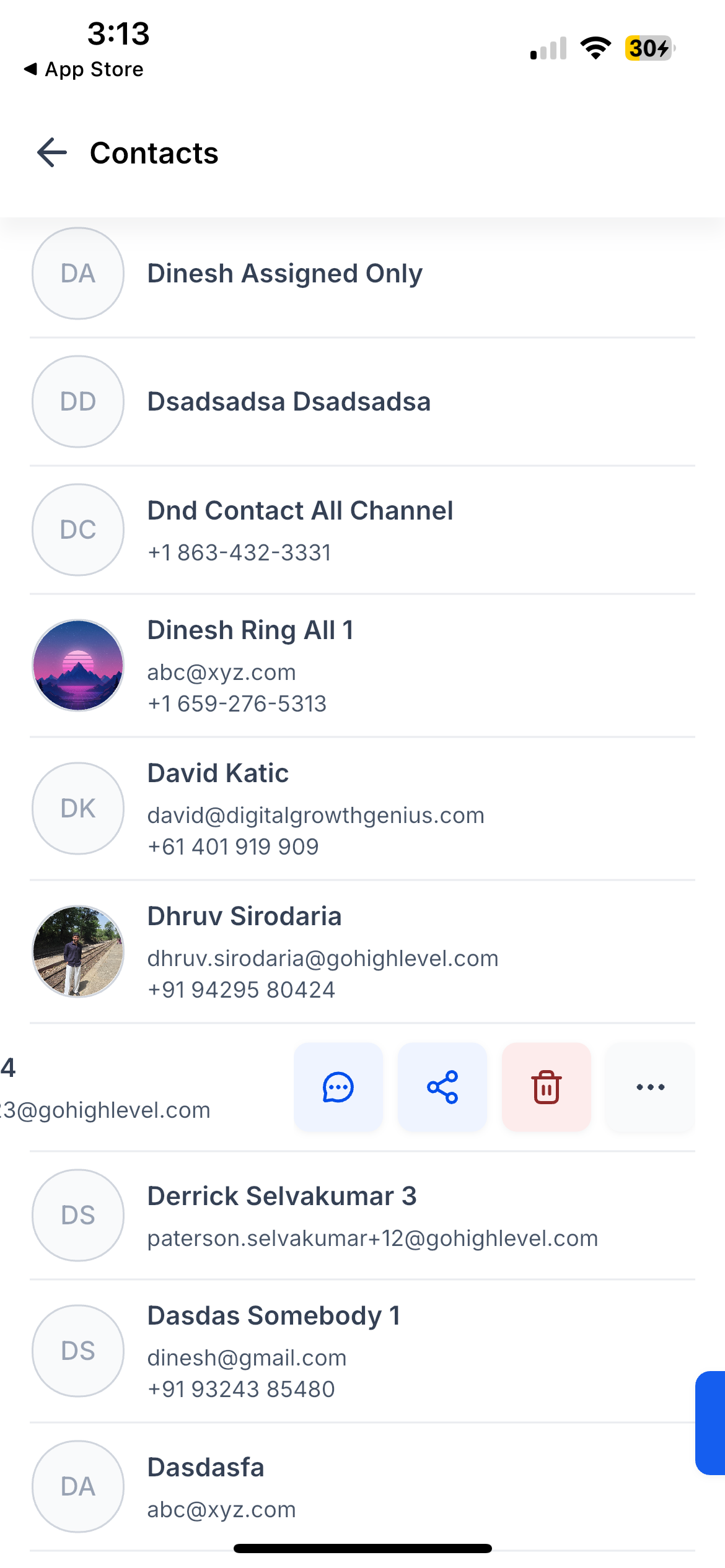
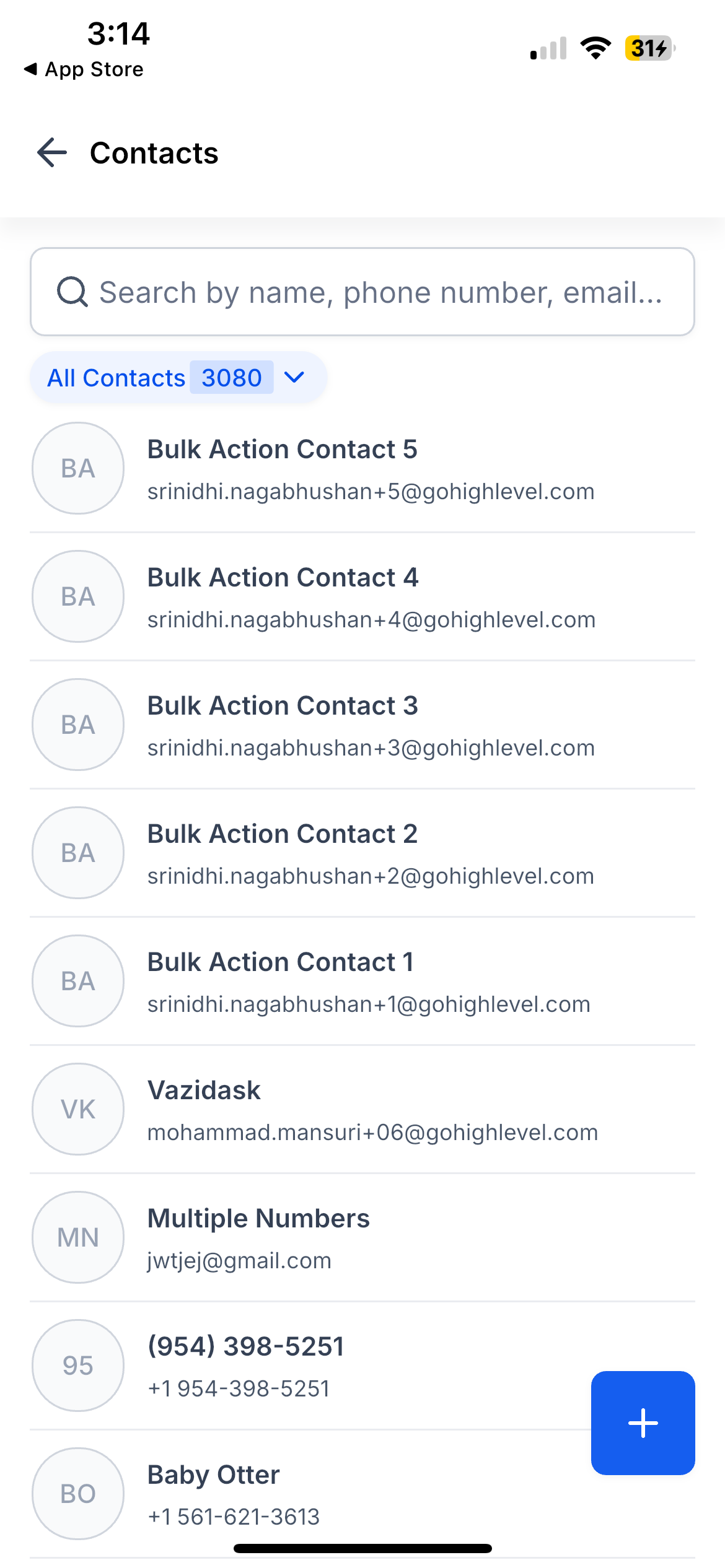
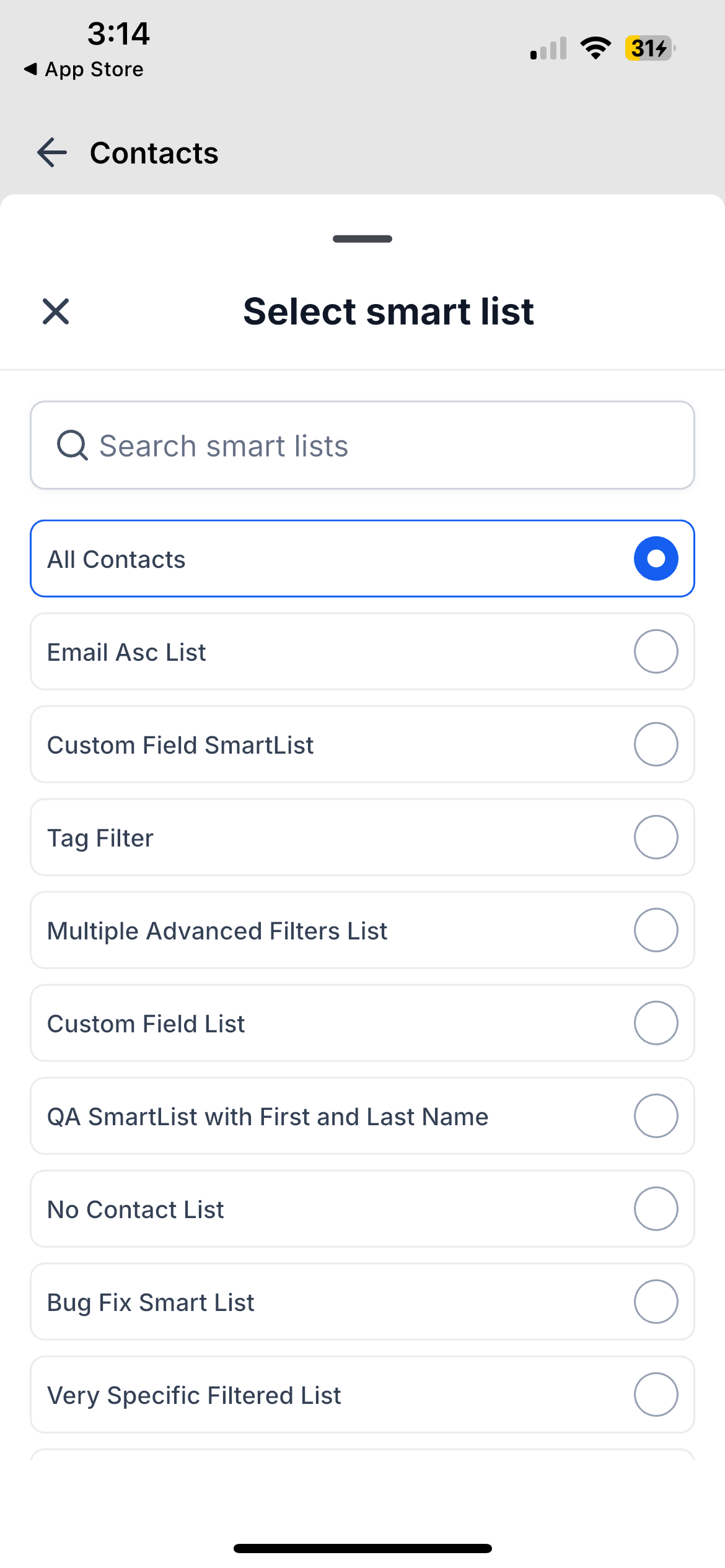
- Contact list – A new header and search bar make it simpler to find people, with a smart list picker to switch views in a single tap. You can now use swipe actions on each contact, and the refreshed empty states clearly show when a list has no results or when filters are in place.
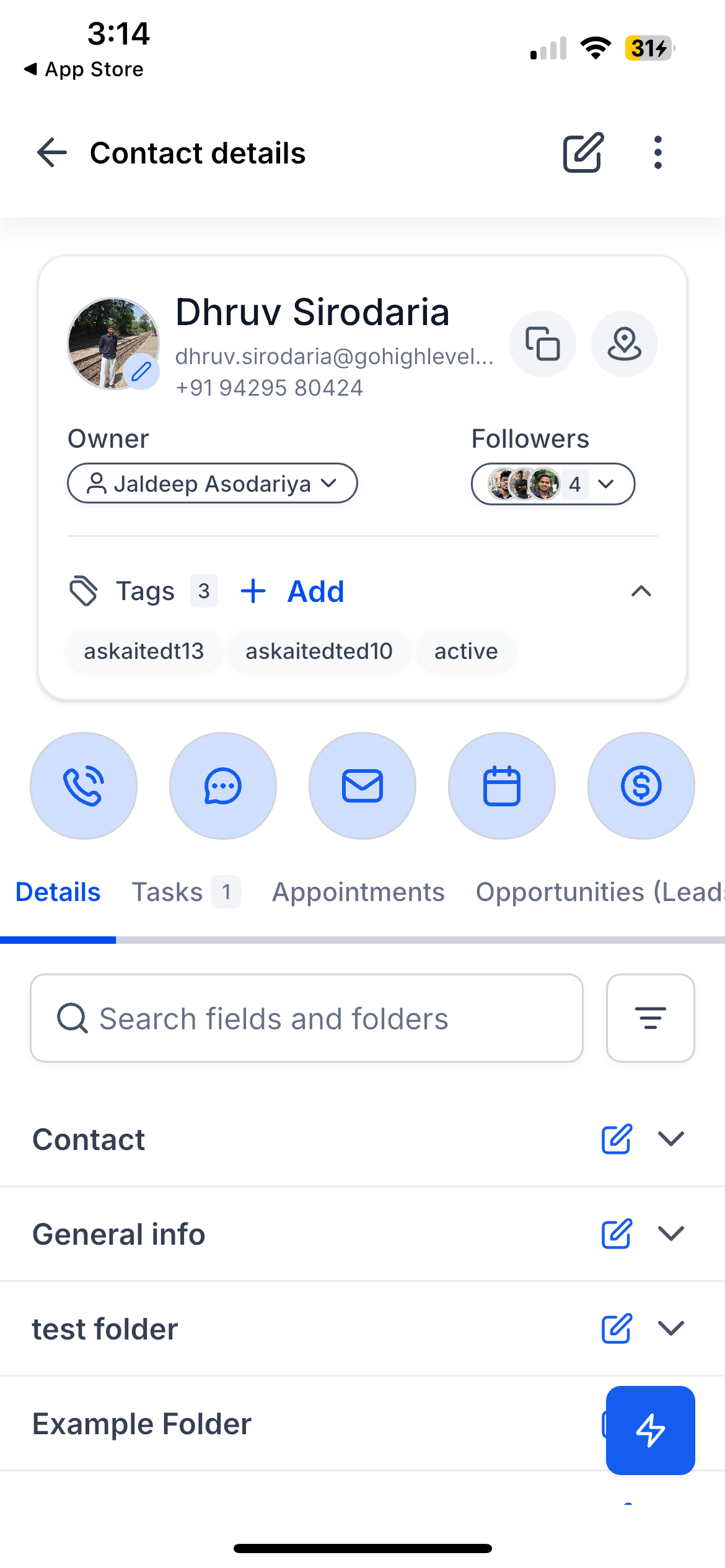
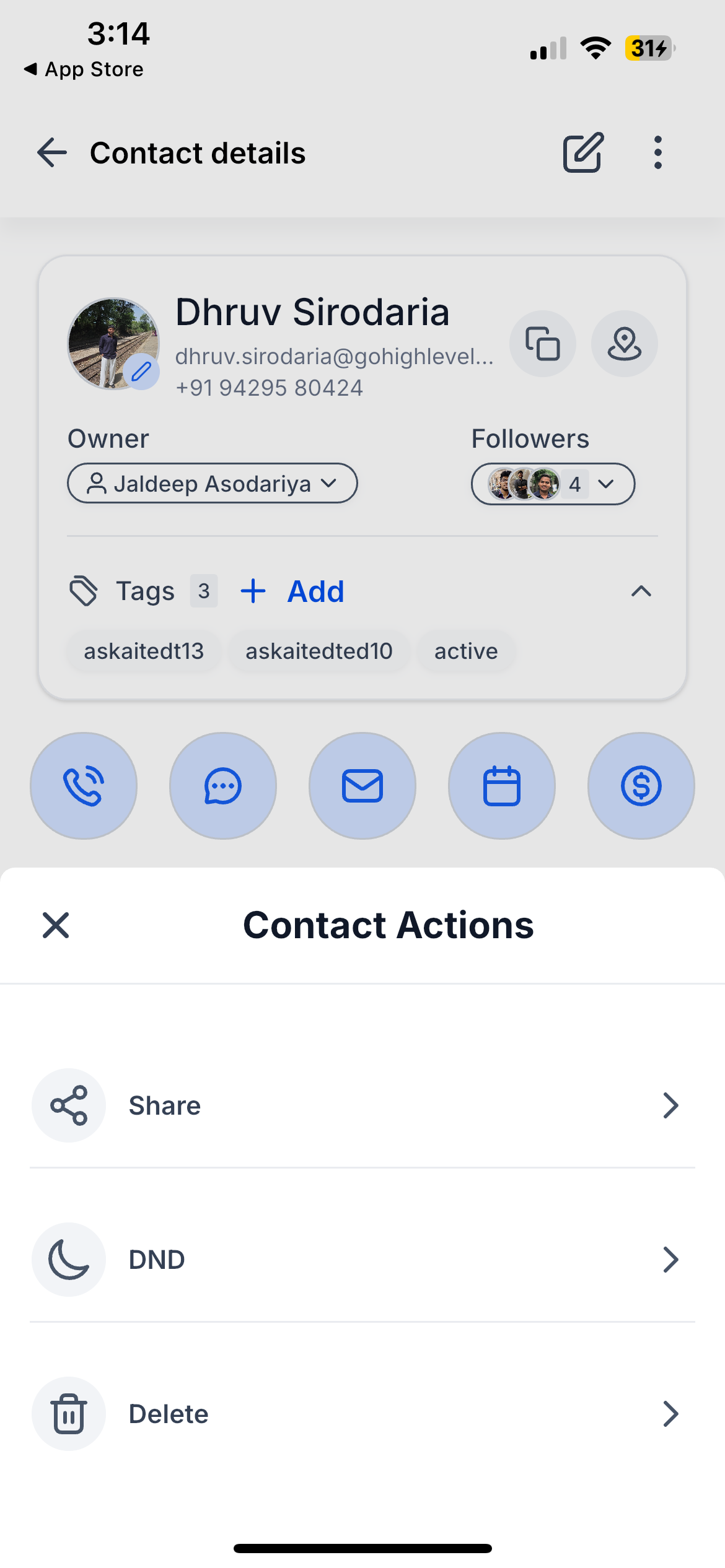
- Contact card – The main contact profile card has been redesigned so the avatar, owner, followers, and tags appear together in a clean layout at the top of the screen, making it easier to understand a contact at a glance.
- Profile header – The Edit button is now clearly visible in the header so you can update a contact with one tap. A menu in the same area gives you quick access to Share, Do Not Disturb, and Delete, so common actions are close by.
- Details tab – You can now search within a contact’s fields and folders, apply filters to show all fields, hide empty ones, or show only empty ones, and make changes inline without opening extra screens.
- Folder structure – Custom field folders can now expand and collapse, with tap-to-edit on any field. Search highlights matching fields, and from here you can copy values or open addresses directly in your maps app.
- Contact tabs – Activity, Tasks, Notes, Appointments, Payments, Docs & Files, and Opportunities all follow the new mobile design. The Tasks and Opportunities tabs display counts so you can see open items without opening the tab first.
- Create & edit – Contact creation and edit forms have been updated, including an easier tag editor, Do Not Disturb settings, automation controls, and clearer options for adding or changing a profile photo.
- List interactions – On the contact list, you can now swipe to quickly Call, Message, Share, Delete, or tap More to copy the contact’s name, email, phone number, address, or all details.
How this helps you
- Edit is always one tap away, so you can adjust contact information quickly without searching through menus.
- You can swipe directly from the list to call, message, share, or copy details, which removes extra taps when you are working fast.
- Task and Opportunity counts on the tabs highlight what still needs attention for each contact so you can prioritize follow-up.
- You can search inside the contact record and filter fields so you can quickly find important details or identify and clean up empty values.
- Copying and mapping are straightforward: tap a field to copy its value or open an address in your maps app from the same place.
- Expandable folders let you edit custom fields where you see them so you can stay in context without losing your place in the record.
- Profile photos are flexible: you can add, update, or remove them using your camera or photo gallery whenever you need to refresh a contact’s profile.
- The list, profile, editing screens, and tabs now share the same visual language so moving between them feels consistent and predictable.
How to get started
Open Contacts in the EveryCatch mobile app, then browse or use search to find someone. Swipe left on a contact for quick actions, tap a contact to open the profile, and use the Edit button in the header to update details. On the Details tab, tap any field to edit inline, open the menu for additional options, and use search and filters to control which fields you see.
What’s next
Contact customization that you configure on the web will soon carry over to the mobile app. Your choices about which fields to hide, how to order them, and which tabs to show will be reflected so your contact setup stays consistent across web and mobile.
These updates are available now on iOS and Android.
Roll-out & availability
Available version | 4.19.1 (build 833)
Status | Public release
EveryCatch mobile app
EveryCatch web app compatibility
White-label app support
Platforms | iOS & Android
We want your feedback
Talk with our product team: https://speakwith.us/nikhilsatish
Product feedback email: [email protected]
Need help with this?
If you'd like help setting this up or want to know what it means for your account, book a quick call and we'll walk you through it.
