Campaigns on mobile app
EveryCatch has completely refreshed the Campaigns area in the mobile app with a cleaner interface and the same analytics you are used to on web, so you can search, filter, and review campaign performance on your phone without needing the desktop app.
Previously, you could send email campaigns from the web app, but checking results usually meant going back to your computer. The old mobile Campaigns view was hard to scan and missed important details. It was difficult to see campaign status at a glance, and delivery and recipient-level stats were limited or tucked away.
What’s new
The updated email Campaigns experience brings web-level insight into a mobile-friendly layout. You can quickly search and filter your campaigns, open any send for a full performance view, preview the email directly on your phone, and browse recipients by delivery status. All metrics use the same calculations as the web app, so numbers stay consistent wherever you work.
What’s new in email campaigns
Status at a glance (new): Each campaign card now shows its current status, such as Succeeded, Failed, Scheduled, Paused, or Draft, along with the last updated and last executed dates, right on the card so you can see what is happening without opening the details.
Overview tab (new): The Overview tab gives you key campaign information in one place, including created and updated dates, sender, recipient list, and subject line. You also see top-level send metrics in a single scrollable view, including All emails, Processed, Accepted, Skipped, and Failed.
Email preview (new): On the Preview tab, you can see the campaign email inline so you can confirm content and layout on mobile. You can also tap to open the full message in an expanded view if you want a closer look.
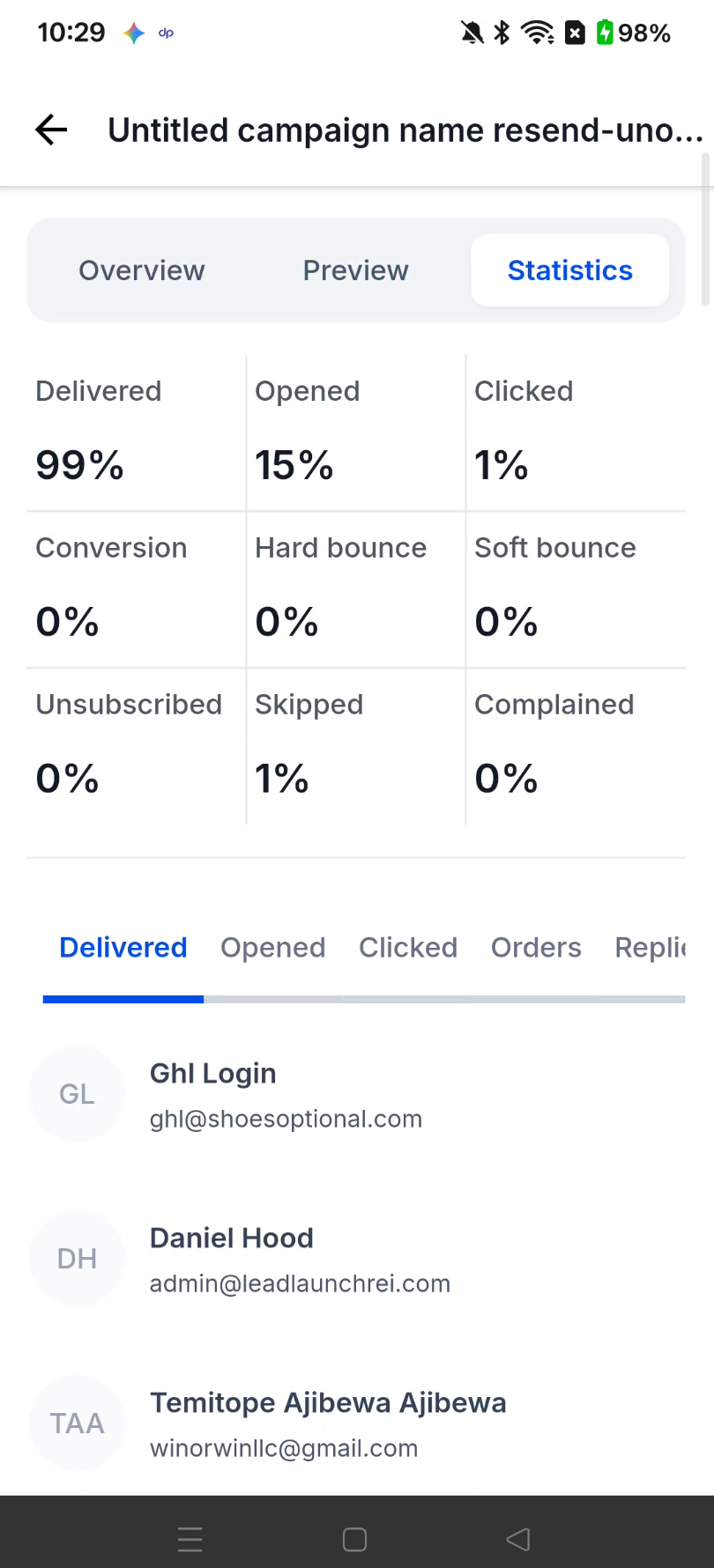
Statistics tab (new): The Statistics tab shows performance metrics that match what you see on web: Delivered, Opened, Clicked, Conversion, Bounces, Unsubscribed, Complained, and more. Below the metrics, you can browse a paginated recipient list and filter contacts by 11 status categories, including Delivered, Opened, Clicked, Orders, Replied, Hard bounce, Soft bounce, Complained, Unsubscribed, Skipped, and Failed.
How to get started
Navigate: Open the Campaigns tab from the main navigation in the EveryCatch mobile app.
Find: Use the search bar to look up a campaign by name, or tap one of the status chips such as Succeeded, Failed, Draft, or Archived to filter the list and narrow down what you see. (Screenshot 2 placeholder)
Drill in: Tap any campaign to open its details. From there, switch between the Overview, Preview, and Statistics tabs to review campaign metadata, check the email content, and explore recipient-level performance metrics. (Screenshot 3 placeholder)
Roll-out and availability
Release date: 06/12/2026
Available version: 4.18.0 (or later)
Status: Public release for all EveryCatch mobile app users.
Supported in: EveryCatch mobile app
Applies to: EveryCatch accounts with access to email Campaigns
Platform: White-label mobile app and standard EveryCatch mobile app
This email Campaigns revamp is the result of close collaboration across engineering, QA, product, and design to make it easier for you to understand campaign performance directly from your phone.
If you have feedback or spot anything that does not look right in the new experience, please share it with your EveryCatch support contact so we can continue to improve the mobile app.
Localization: The update is ready for internationalization. English (en-US) strings are in place, and additional translations will follow as they are completed.
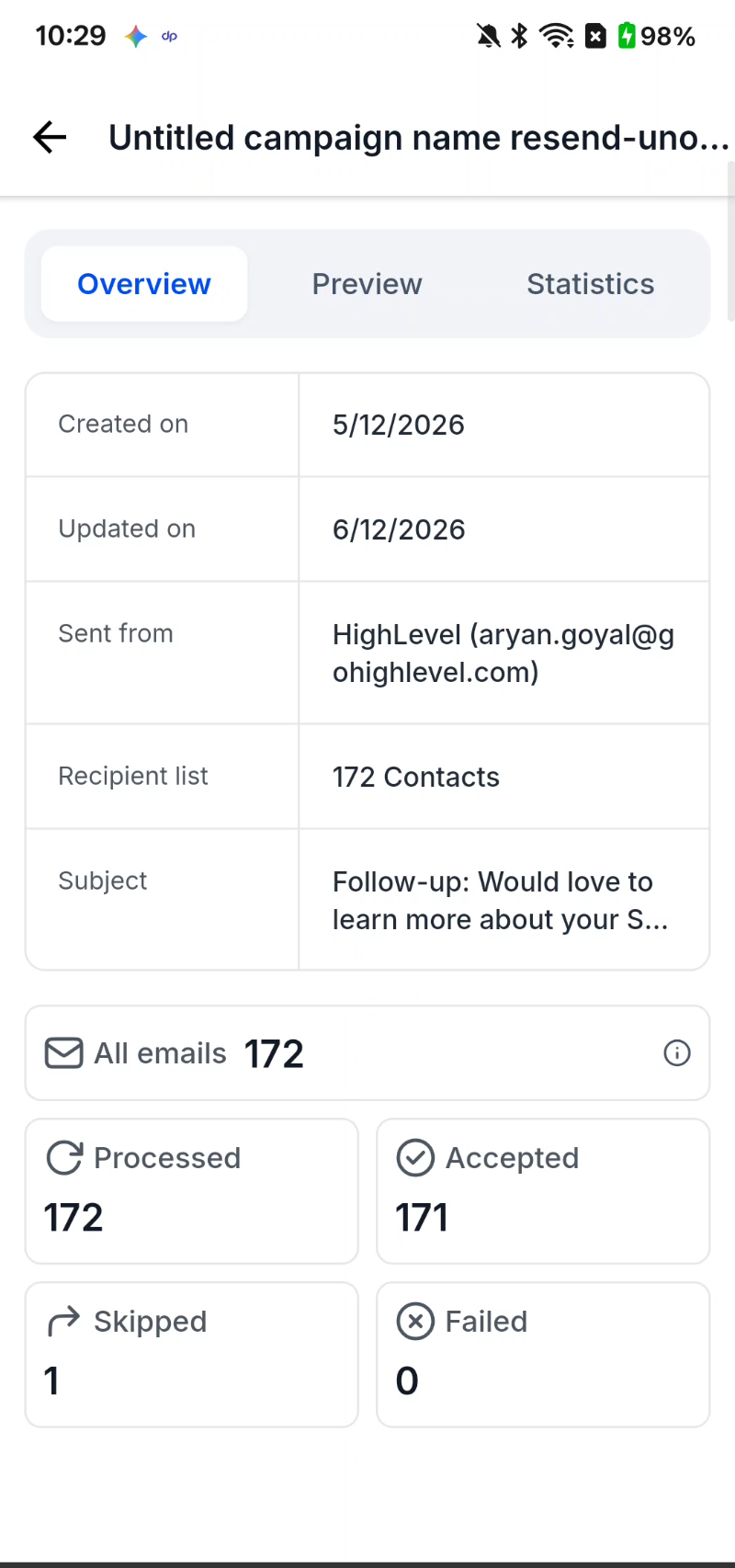
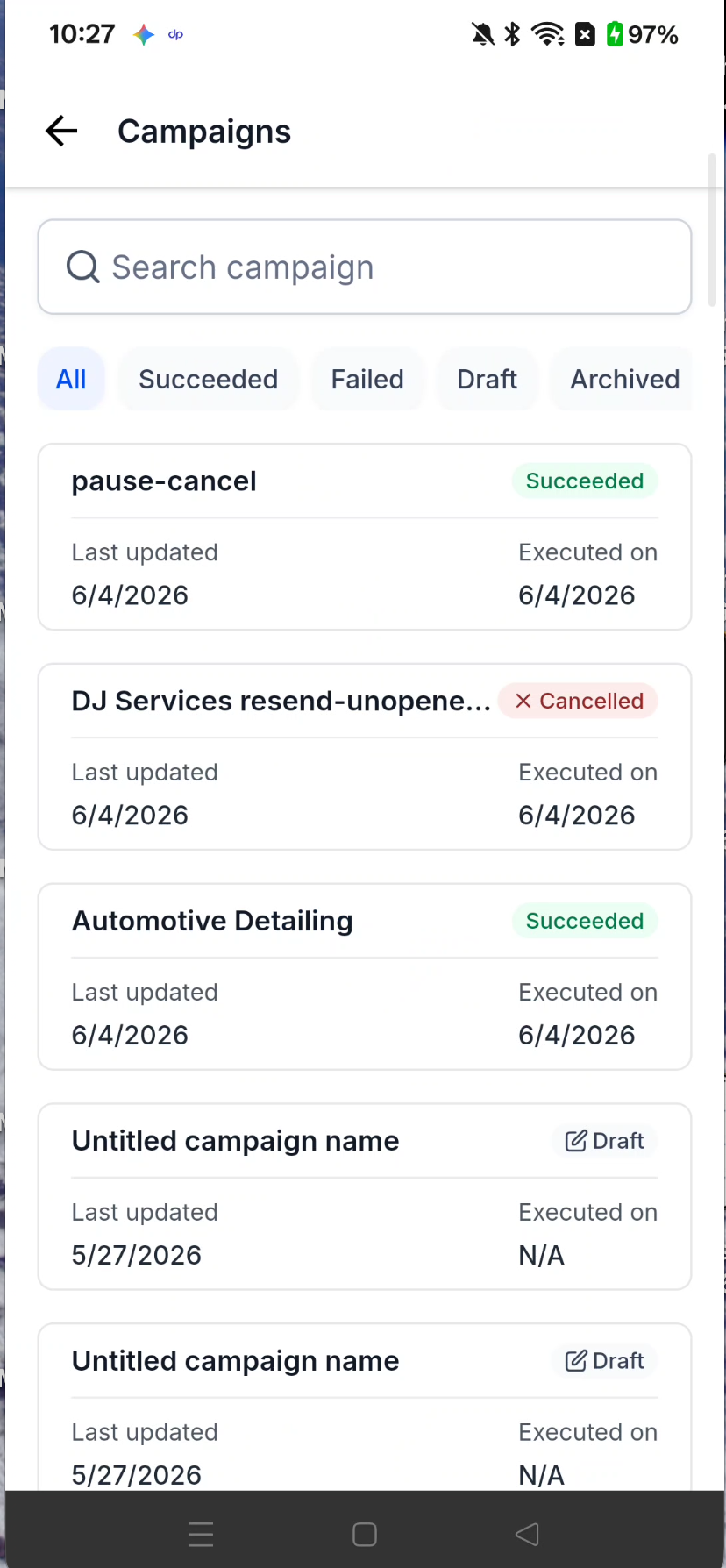
You can refer to the screenshots above for a visual walkthrough of the refreshed Campaigns list, Overview, Preview, and Statistics tabs in the EveryCatch mobile app.
Need help with this?
If you'd like help setting this up or want to know what it means for your account, book a quick call and we'll walk you through it.
